
The operation of Clip Companion is focused towards navigating your clips and playlists via the pages, banks and clips structure, all with the use of the keyboard.
It’s also possible to navigate pages and banks with the use of the mouse as well.
Your standard layout will always have visibility of:
-
1 Page
-
2 Banks
-
4 Camera Angles of each Clip
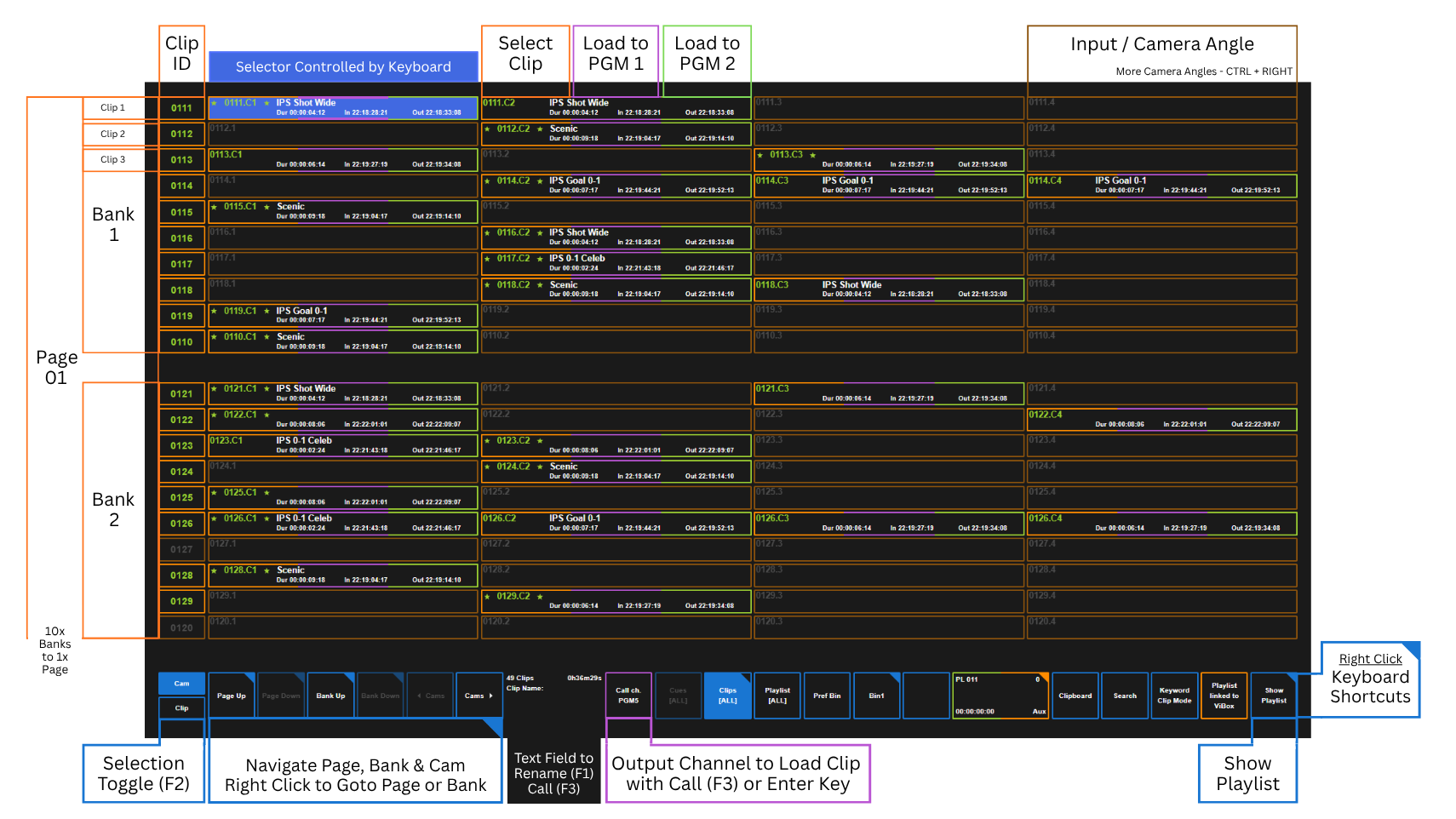
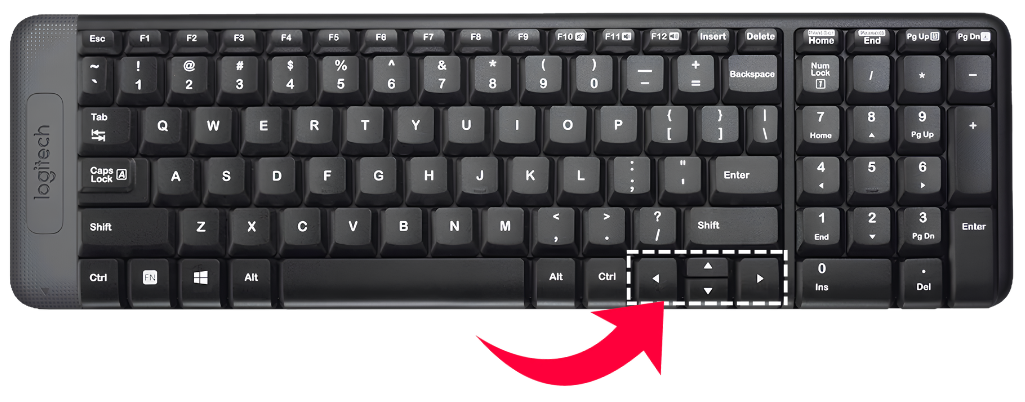
When moving around Clip Companion, you will be controlling it’s operations based on the placement of the Blue Selector, you use the keyboards arrow keys to move this around, and it will move with you when you go across Pages, Banks and Clips camera angles.

Pages
For more detail on what Pages are Pages and Clip Management | Pages
You are able to navigate around Pages with either keyboard shortcuts
-
ALT + LEFT (Arrow key) or Page Down = Previous Page
-
ALT + RIGHT (Arrow key) or Page Up = Next Page
Or with the use of the mouse by clicking the buttons along the bar at the bottom, you can navigate one by one or right click to go to a specific page.
.png?cb=c31638c32bdf313d0ed12b0258a4fa9e)
If you right click the “Page Up” or “Page Down” buttons you can then select a specific page to jump straight to.
This is helpful if you need to jump between a large number of Pages.
Pro Tip
Use the keyboard shortcuts to goto specific pages.
-
CTRL + 1 Digit + Enter (For pages 0-9, you can also go to these by typing “01”)
-
CTRL + 2 Digit
Banks
For more details on what Banks (and Clips) are Pages and Clip Management | Clip Locations
You will have 10 Banks to each 1 Page. Your Bank no.10 will always be your playlists on that page.
To jump between Banks with either keyboard shortcuts
-
ALT + UP (Arrow key) = Previous Bank
-
ALT + DOWN (Arrow key) = Next Bank
Or with the use of the mouse by clicking the buttons along the bar at the bottom, you can navigate one by one or right click to go to a specific bank.
.png?cb=859bd9c79563635ae80c9c818519baa6)
Pro Tip
Use the keyboard shortcuts to goto specific banks.
-
ALT + 1 Digit
This will allow you to jump from Bank 1 to Bank 7 quickly.
Alternatively, you can jump to the Start or the End of the current page by pressing:
-
Home = Bank 1
-
End = Bank 9
Cams
Within each Clip, you can have multiple different camera angles stored under one Clip ID, the angles is specified by the “Shortname” of the input at the end of the ID, E.g. “0111.C3” for Input / Camera 3.
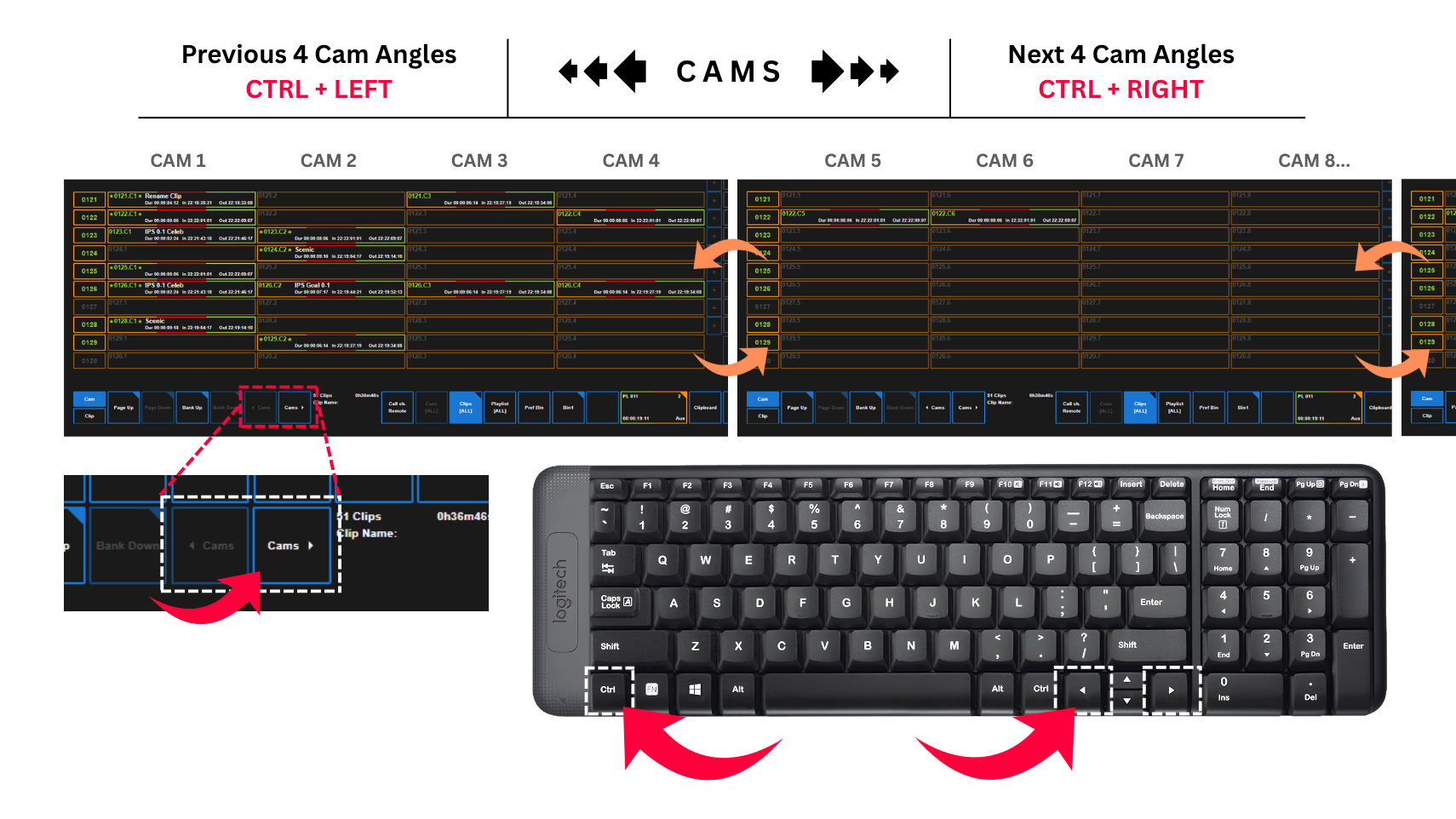
You will only ever see 4 camera angles at one time. In order to see the next 4 or previous 4 angles, you need to use the keyboard shortcuts.
-
CTRL + LEFT (Arrow key) = Previous 4 Camera Angles
-
CTRL + RIGHT (Arrow key) = Next 4 Camera Angles
You can also use the mouse to click the “Cam” buttons along the bottom to navigate between the different angles.
Any clip on any camera angle slot can be moved to whatever location you desire.
For more info on this Moving Clips
You can jump to the First camera angle and the Last camera angle, which is usually the imported clip location (“Imp”) by pressing:
-
CTRL + HOME = First Camera Angle
-
CTRL + END = Last Camera Angle (Imported Clip)
Your Clip Companion’s navigation can also follow with the RCU’s operation across pages and banks, as long as you have the “PAGE / BANK” button selected in the ViBox Slomo user.
.png?cb=05eb5b929edae2cc9f4dcdd01ed34741)
This acts as a “Sync to Remote” function, and whenever you got to a different Page or Bank on your remote, Clip Companion will follow.
To disable to function, simply deselect the button.