Cut, Copy & Paste
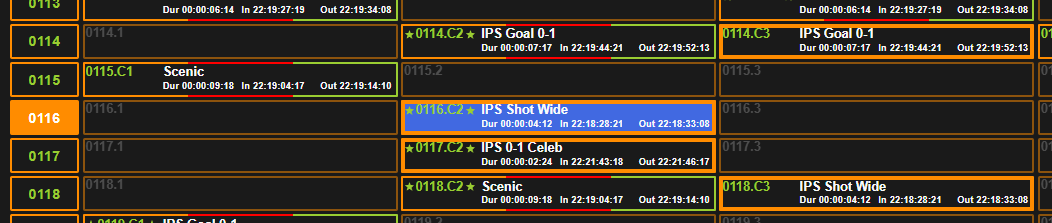
You are able to move Clips to different Clip positions, giving it a new ID and possibly a new Camera Angle. This is helpful when you want to keep your Clips better organised or if you’d prefer them in a different location.
This can be done by using the standard Cut, Copy and Paste windows keyboard shortcuts, based on what is selected with the Selection Indicator.

.png?cb=9eb1601de21e18d2031619506cb0a1a6)
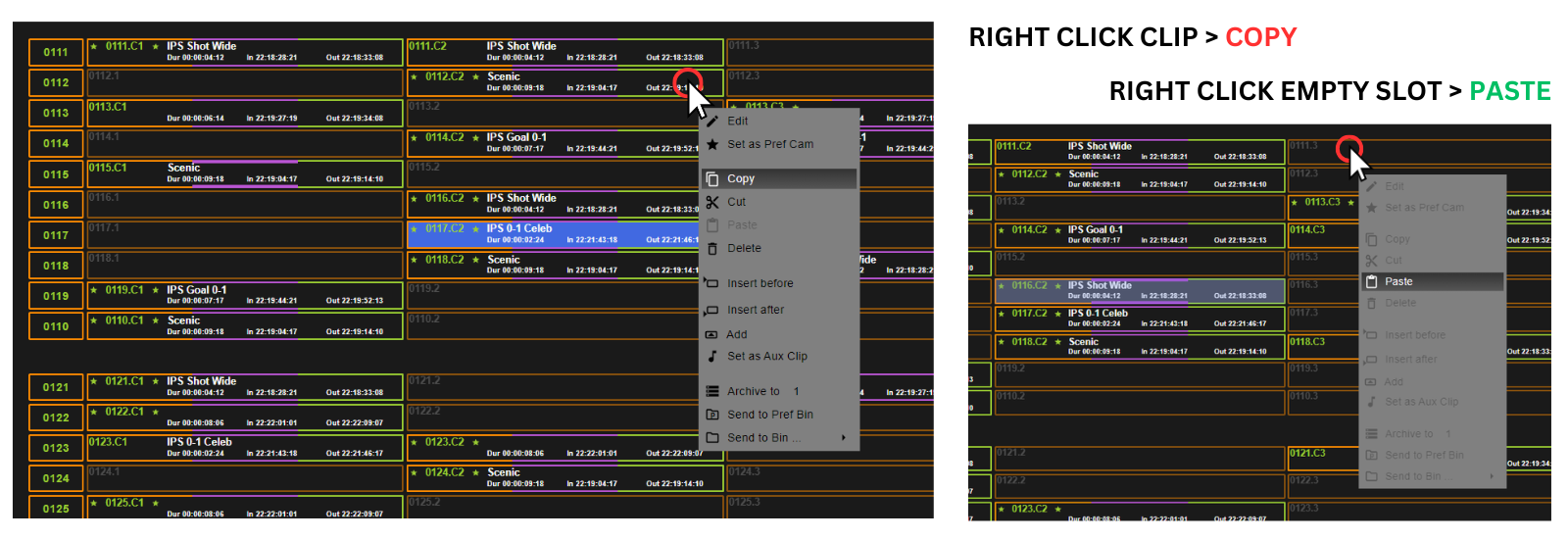
You can also do this action by using the mouse, right click on the clip you want to Cut or Copy, and then click on an empty slot to Paste the Clip.
Clip / Cam Selection
When using the keyboard for this action, you have the option to toggle between Cam selection and Clip selection, this can be done by pressing F2 or on the UI press “Cam” or “Clip” in the bottom left of the screen.
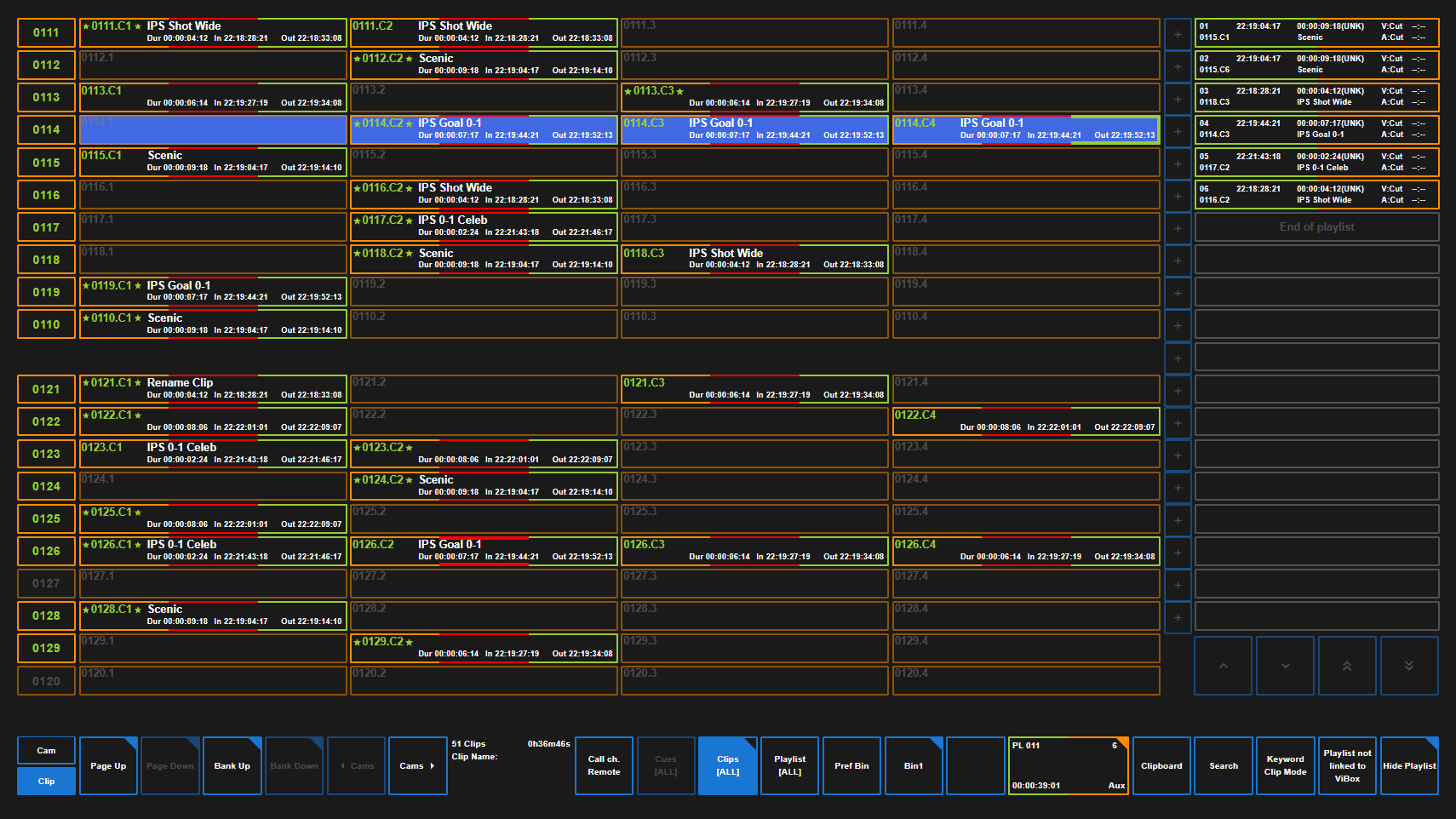
You also have the option to select multiple clips at the same time, by clicking on the ORANGE section of the Clip, or clicking the Clip ID to select all camera angles.
Based on which order you selected the Clips, they will Paste in the order that you selected the Clips.