
Opening Clip Companion
You can open Clip Companion within the ViBox Slomo application.
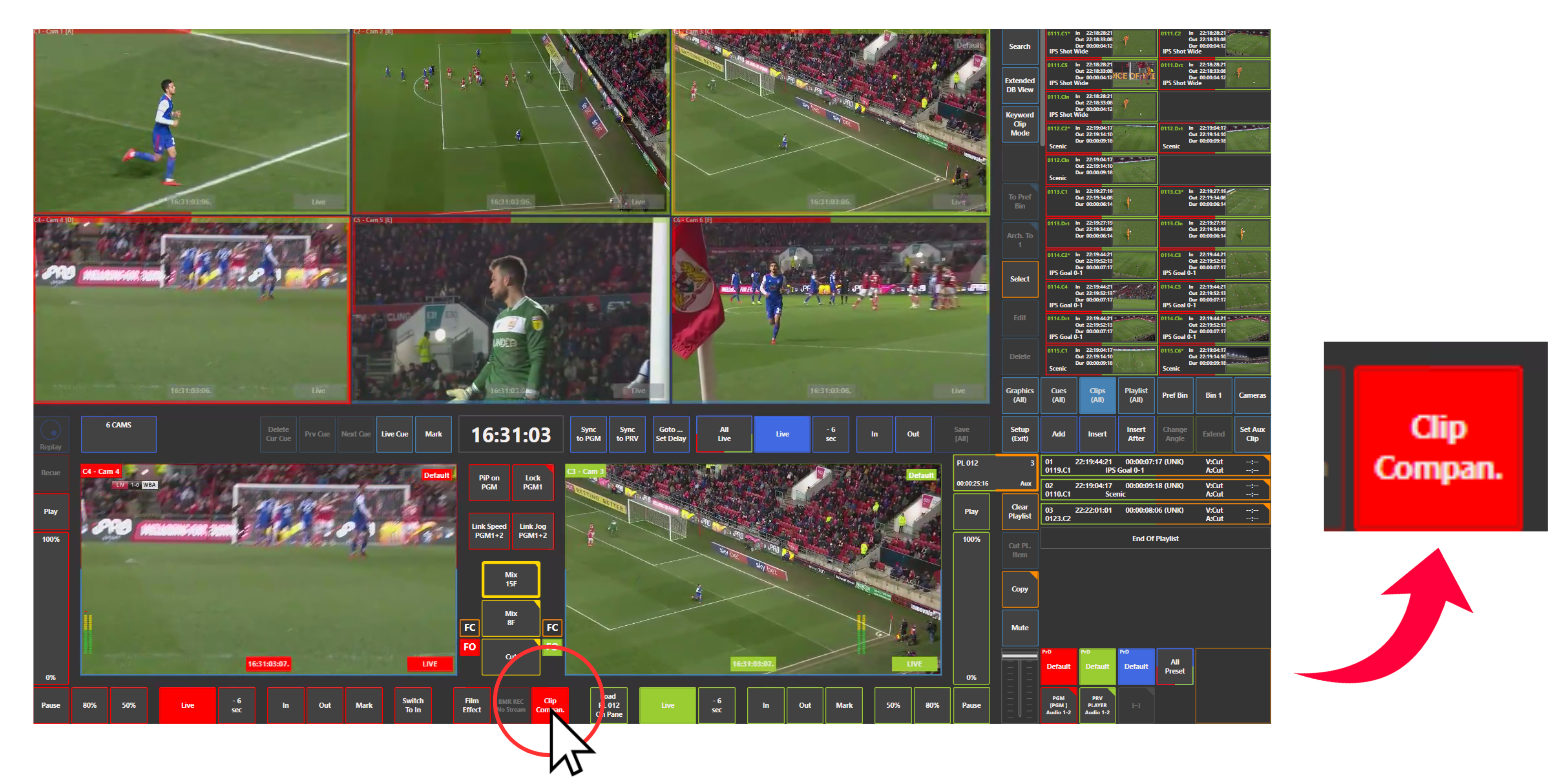
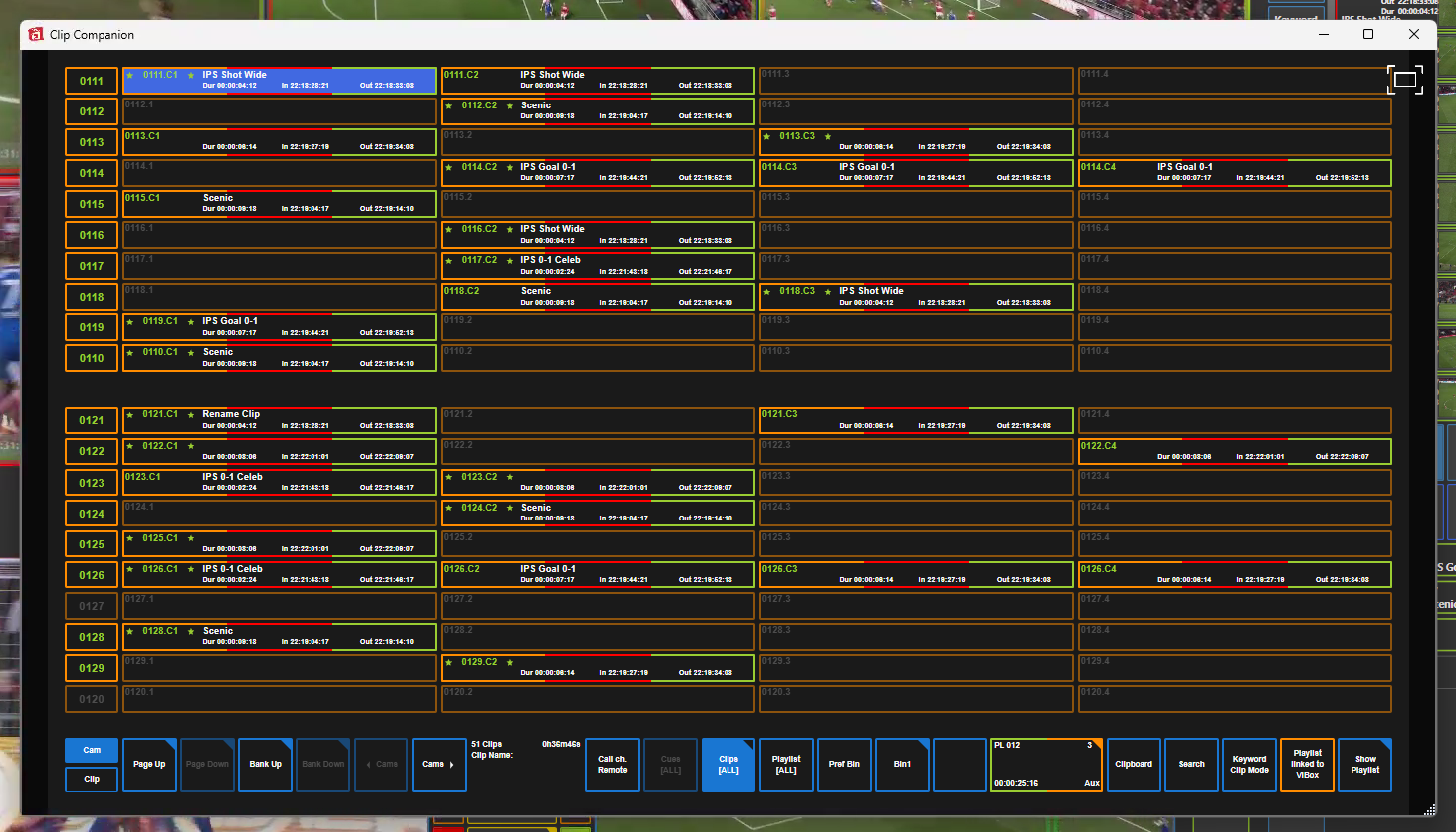
Clip Companion will open as a new window, and ideally will be moved to a secondary monitor and made fullscreen by clicking the button in top right corner of the window.
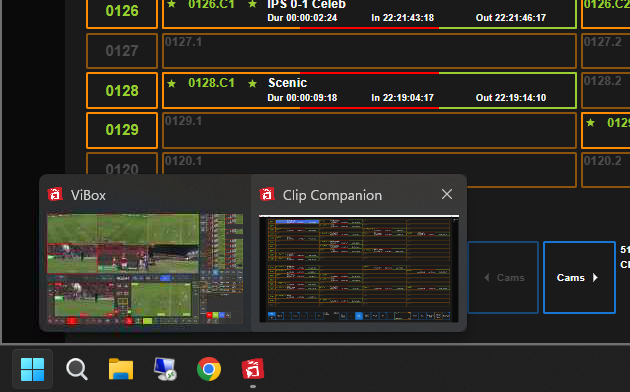
If you need to close Clip Companion at any moment, you can either click the “Clip Companion” button in ViBox Slomo, or you can press the windows key “WIN” on the keyboard and you can close the application by clicking on the ViBox application.
Setting Up Extra Touchscreen
In order for the touchscreen functionality to work on an additional monitor for Clip Companion you must set this screen up correctly within windows.
-
Go to the Control Panel
-
Click “Hardware and Sound”
-
Select “Tablet PC Settings” - this will only be visible if the additional monitor is connected.
-
Click “Setup”
-
Touch the touchscreen that is asked to touch ("Touch this screen to identify it as touchscreen"). If it is not a touchscreen, press [Enter].
-
The application should close when all attached monitors are accounted for. You can now test if touch works on both screens (you cannot use the touch of both screens simultaneously).
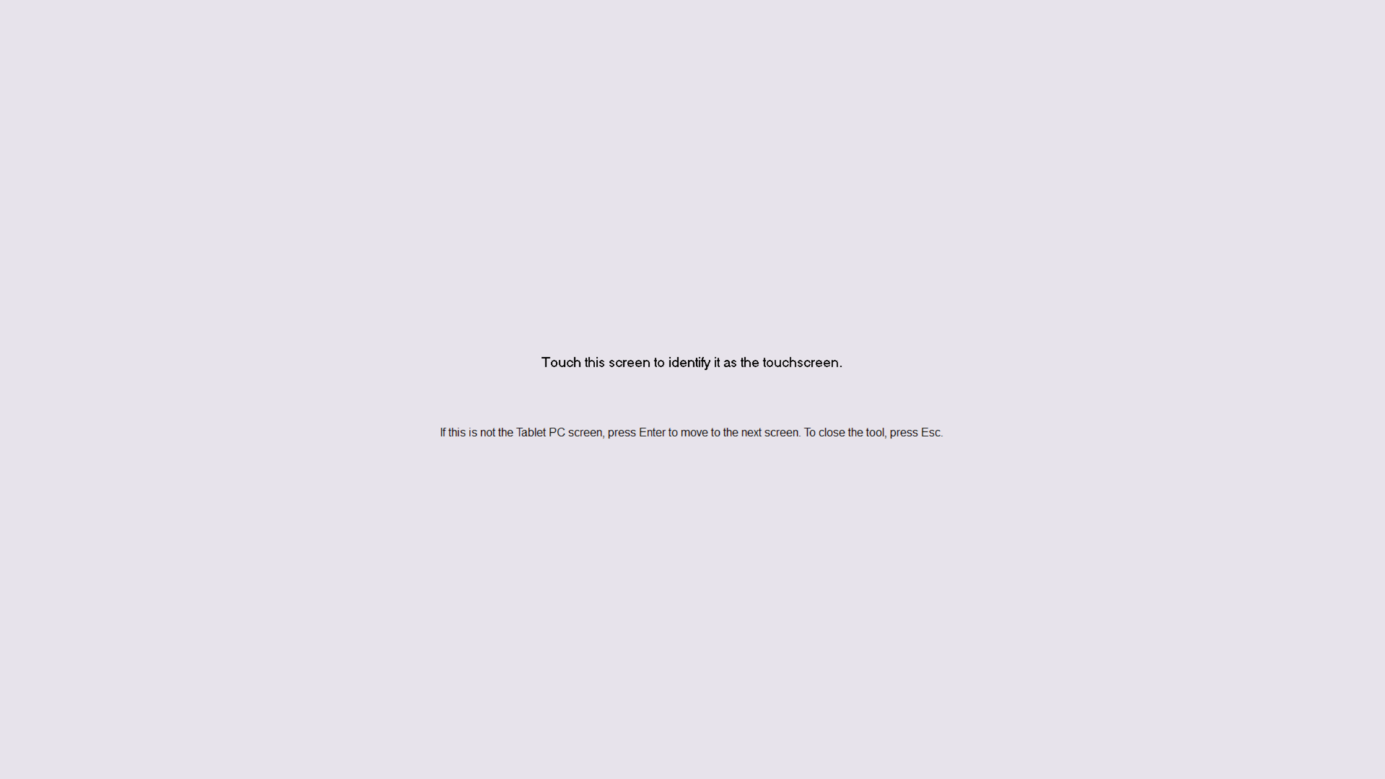
If this hasn’t work, if you touch one screen, the same touch will happen on the other screen.