
The configuration of a SAME Application can be memorized as a preset for instant recall. A preset can then be recalled to apply the memorized settings to the current configuration screen. A newly created preset is personal; only you can see and use it. In a second step, you can share a preset so that any user can apply it to their SAME Application.
This feature is available with most SAME Applications. The example below is for the Signal Conditioner, however presets work the same way for all SAME Applications.
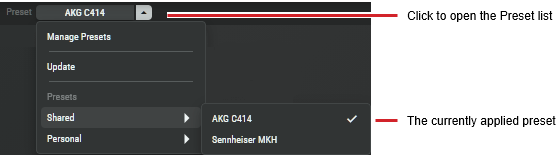
In the SAME Application or Plugin configuration window, open the Preset list.
|
Preset |
Click to open the Preset list. |
|
Manage Presets |
Opens the Preset Manager. See below. |
|
Update |
Click to reapply the current preset to the Signal Conditioner. |
|
Presets |
Shows a list of previously created presets. Click a preset to apply the preset to the SAME Application. Shared: These presets have been shared; any user can apply it to their SAME Application. Personal: All newly created presets are Personal; only you can see and use it. |
Manage Presets
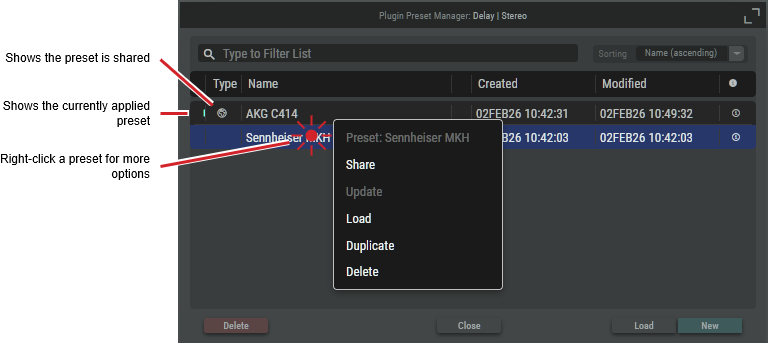
Create and manage preset in this window.
|
Sorting |
Set the table column by which the table is to be sorted. |
|
[Default] |
Shows the currently applied preset. |
|
Type |
Shows a symbol when a preset is being shared with all users (it has been set to Share; see below). |
|
Name |
Shows the preset’s name. |
|
Created |
Shows the time when the preset was created. |
|
Modified |
Shows the time when the preset was modified. |
|
|
Click to show more information about the preset. |
|
Share |
Click to make this preset public; so that it is available for use by all users. By default, a preset is Personal; only you can see and use it. Once a preset has been set to Share, it cannot be undone. Un-share a preset as follows.
|
|
Update |
Click to apply your changes to the preset.
|
|
Duplicate |
Click to make a copy of a preset. |
|
Delete |
Click to remove the selected preset from the preset list. |
|
Close |
Click to apply and changes you have made. |
|
Load |
Click to make the selected preset the default snapshot. The default preset is the preset that is loaded by default when the mixer is opened / started at runtime. |
|
New |
Click to create a new preset. |
