
Offline Activation and Renewal is always available when Online Activation and Renewal is unavailable or does not complete. Use the Offline method specified by the Licensed Product.
Choose the Correct Offline Method
|
File Provided by the Licensed Product |
Portal Component |
Portal Result |
Procedure |
|---|---|---|---|
|
Identity Lease Request ( |
Manual Device Identity Lease Request |
Manual Identity Lease Confirmation ( |
Continue on this page. |
|
Host Signature Request ( |
Manual Host Signature Request |
New or updated License File ( |
|
|
No Request File; the Product requires a License File |
License Files |
License File ( |
Never upload a file to a different request area because its name appears similar. Follow the Licensed Product manual when choosing the Offline method.
Manual Device Identity Lease Eligibility
The Manual Device Identity Lease Request component is available for an eligible Virtual Device that does not use Host Signatures. If it is unavailable, do not substitute Manual Host Signature Request. Confirm the Product-supported method or contact Riedel Customer Success.
For a Licensed Product that uses Manual Device Identity Leases, Initial Activation and Renewal use the same Request and Confirmation exchange.
Before You Begin
-
Confirm the Customer Account, Product, and Serial Number.
-
Generate a current
.ilrRequest File from the Product-Side Licensing Interface. -
Prepare a secure location for the Request File and returned Confirmation File.
-
Keep files from different Devices and request cycles separate.
Complete the Manual Device Identity Lease Exchange
1. Generate the Request File
1.1. Open the Product-Side Licensing Interface.
1.2. Start the Product-specific Offline Activation or Renewal procedure.
1.3. Generate the .ilr Request File and preserve its filename.
2. Upload the Request File
2.1. Sign in to the Portal and confirm the Customer Account shown owns the Device.
2.2. Select Devices and find the Device by its Serial Number.
2.3. Confirm Product, Serial Number, and Account.
2.4. Under Manual Device Identity Lease Request, select Choose File and choose the current .ilr Request File.
2.5. Select Upload.
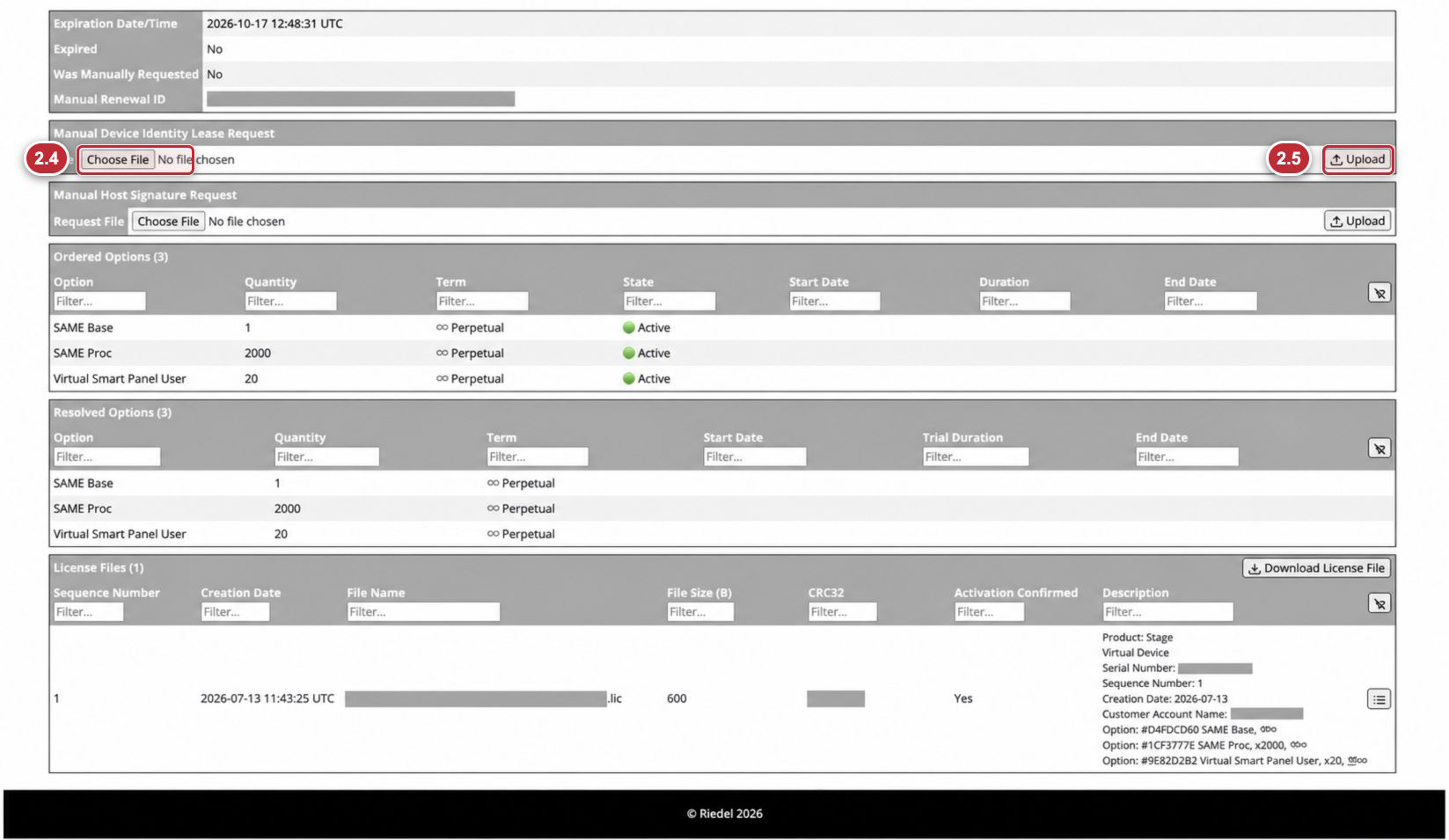
Callouts 2.4 and 2.5 correspond exactly to the upload steps above. Serial Numbers, filenames, Customer Account values, and customer-specific identifiers are masked.
3. Confirm That the Request Was Accepted
Wait for the Portal to return to the Device Page and display Device identity lease request accepted. If an error appears, do not retry with a different Device or request area. Correct the stated problem or contact Riedel Customer Success.
4. Download the Manual Identity Lease Confirmation
4.1. On the same Device Page, select Download Manual Identity Lease Confirmation.
4.2. Save the downloaded .ilc file.
4.3. Preserve its filename and store it with the matching Request File.
Some Licensed Product documentation calls this file a Response File or Confirmation File.
5. Import the Confirmation File
5.1. Return to the Licensed Product that generated the Request File.
5.2. Open its Confirmation File or Response File import control.
5.3. Select and apply the downloaded .ilc file.
5.4. Complete a reload or restart only when required by the Licensed Product manual.
6. Verify the Result
6.1. Confirm the Product-Side Licensing Interface accepted the Confirmation File.
6.2. Refresh the matching Device Page in the Portal.
6.3. Review Expiration Date/Time, Expired, and Was Manually Requested.
6.4. Review Ordered Options and Resolved Options.
6.5. Verify the expected licensed functions in the Licensed Product.
File Rules
-
Use only files from the current Device and request cycle.
-
Do not rename, edit, or reuse Request Files or Confirmation Files.
-
Do not substitute a License File for a Manual Identity Lease Confirmation.
-
Generate a new Request File if a previous request was superseded.
-
Contact Riedel Customer Success if the current Request File or Confirmation File is rejected.