
Initial License File
The initial License File is normally supplied by Riedel Order Management or your Authorised Reseller or Distributor.
After your Account User is configured and you sign in, the Portal provides access to available License Files and the Product and licensing information for Devices in your Customer Account.
A License File is different from the Manual Identity Lease Confirmation used during Offline Activation and Renewal.
Create or Download a License File
-
Confirm the Portal shows the correct Customer Account.
-
Select Devices and open the required Device.
-
Confirm Product, Serial Number, and Account.
-
Review the Device warning and License File message.
-
If Create License File is displayed, select it and wait for the Device Page to refresh.
-
Select Download License File.
-
Store the downloaded
.licfile with the correct Device records. -
Confirm that the filename and Device Serial Number match the intended Licensed Product.
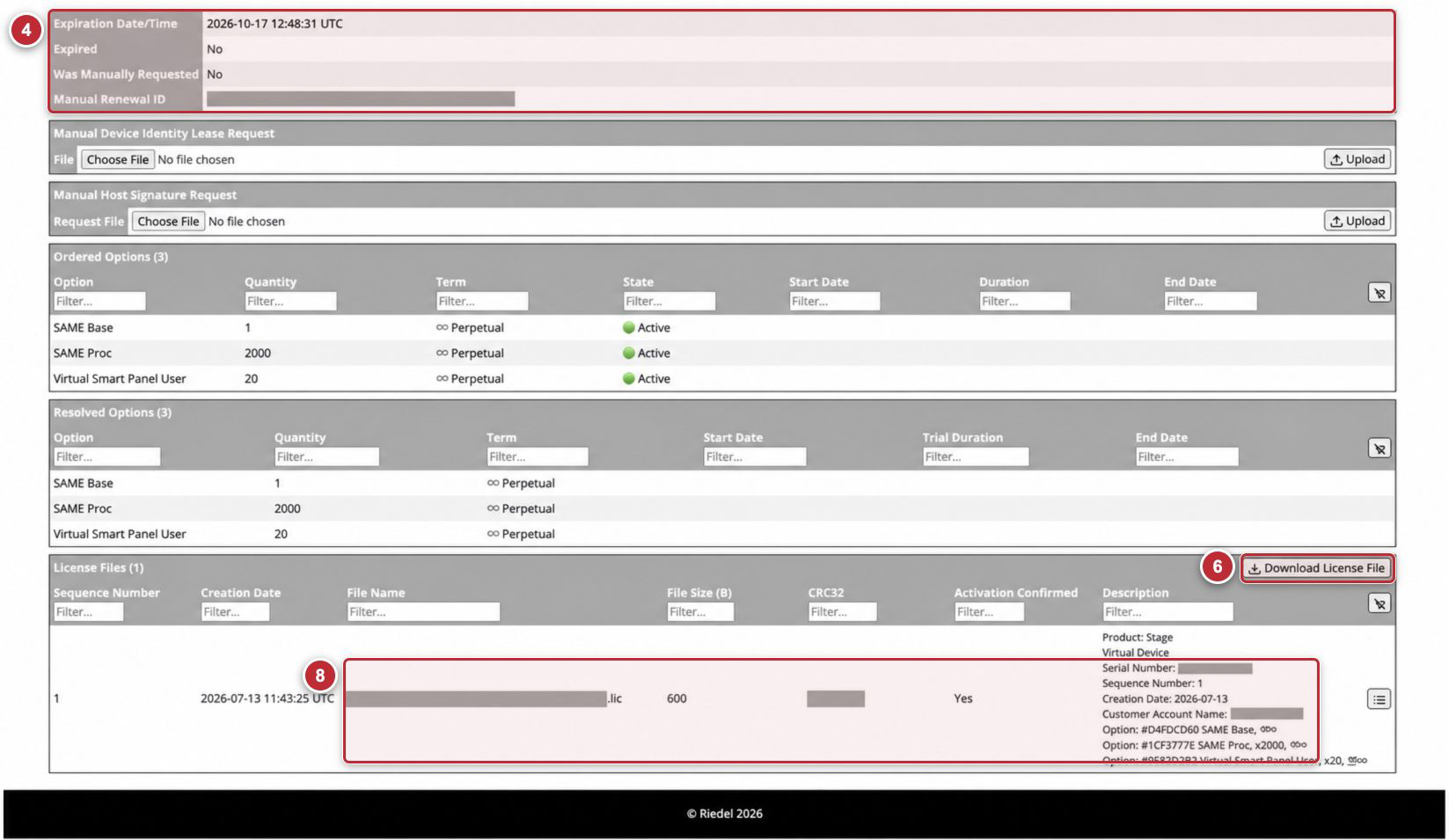
Callouts correspond to the visible steps in Create or Download a License File. Create License File is conditional and is not shown in this Device state. Filenames containing Serial Numbers and other customer identifiers are masked.
If the Portal does not provide Create License File or Download License File, review the displayed message. A License File may be unavailable when the Device has no active Options or a licensing change is incomplete. Contact Riedel Customer Success if the state is unexpected.
License File Information
Select View to open the License File record.
|
Field |
Explanation |
|---|---|
|
Sequence Number |
Sequence of the License File record for the Device. |
|
Creation Date |
Date on which the file was created. |
|
File Name |
Generated |
|
File Size (B) |
Portal help: “The total size of the file. Can help telling if the download completed correctly.” Compare the displayed byte count when validating a download. |
|
CRC32 |
Portal help: “A checksum that can help determine if the file has been downloaded without corruption.” |
|
Activation Confirmed |
Portal help: “Tells if a confirmation that the license file has been activated on the device was received. The confirmation is automatic if the device is online. Otherwise it can be done manually by entering the activation confirmation code on the license file detailed view.” |
|
Description |
Product, Device, and Option summary recorded by the Portal. |
Apply and Verify a License File
-
Confirm the License File belongs to the intended Serial Number.
-
Apply it through the Product-Side Licensing Interface as described in the Licensed Product manual.
-
Complete a reload or restart only when required by the Licensed Product manual.
-
Verify the expected Options and licensed functions.
-
Complete Portal activation confirmation when the Product supplies a confirmation code and the Portal still displays Activation Confirmed: No.
Confirm License File Activation
-
Obtain the Activation Confirmation Code from the Licensed Product after it applies the License File.
-
In the Portal, open the matching Device and select View for the License File.
-
Select Confirm Activation.
-
Enter the Activation Confirmation Code.
-
Select Save.
-
Confirm the License File record displays Activation Confirmed: Yes.
If the Licensed Product confirms activation automatically, the record can already display Yes and no manual confirmation is required. If the code is rejected, confirm that it belongs to the displayed License File and contact Riedel Customer Success.
Download All License Files
-
Open Devices for the current Customer Account.
-
Select Download All Licenses.
-
Save the downloaded ZIP file in a controlled customer-specific location.
-
Review the ZIP contents before distribution.
-
Match each
.licfile to its Device before application.
The ZIP contains the License Files currently available for the Customer Account. A file can be absent depending on the current state of its Device. The ZIP filename can contain the Customer Account Name and download date and must be treated as customer-specific data.
Keep original filenames and transfer License Files only through an approved secure method. Direct every download, generation, activation-confirmation, or access issue to Riedel Customer Success.