
Before You Begin
You need:
-
An email address provisioned for Portal access.
-
Access to the Customer Account that owns the relevant Devices or Licensed Product installations.
-
The password created during First-Time Registration.
If the email address has not been provisioned or linked to the correct Customer Account, First-Time Registration alone may not provide access to the required Devices.
Sign In
-
In Email Address, enter the email address used for the Portal identity.
-
In Password, enter the Portal password.
-
Select Sign in.
-
If more than one Customer Account is available, select the Customer Account containing the Device you intend to manage.
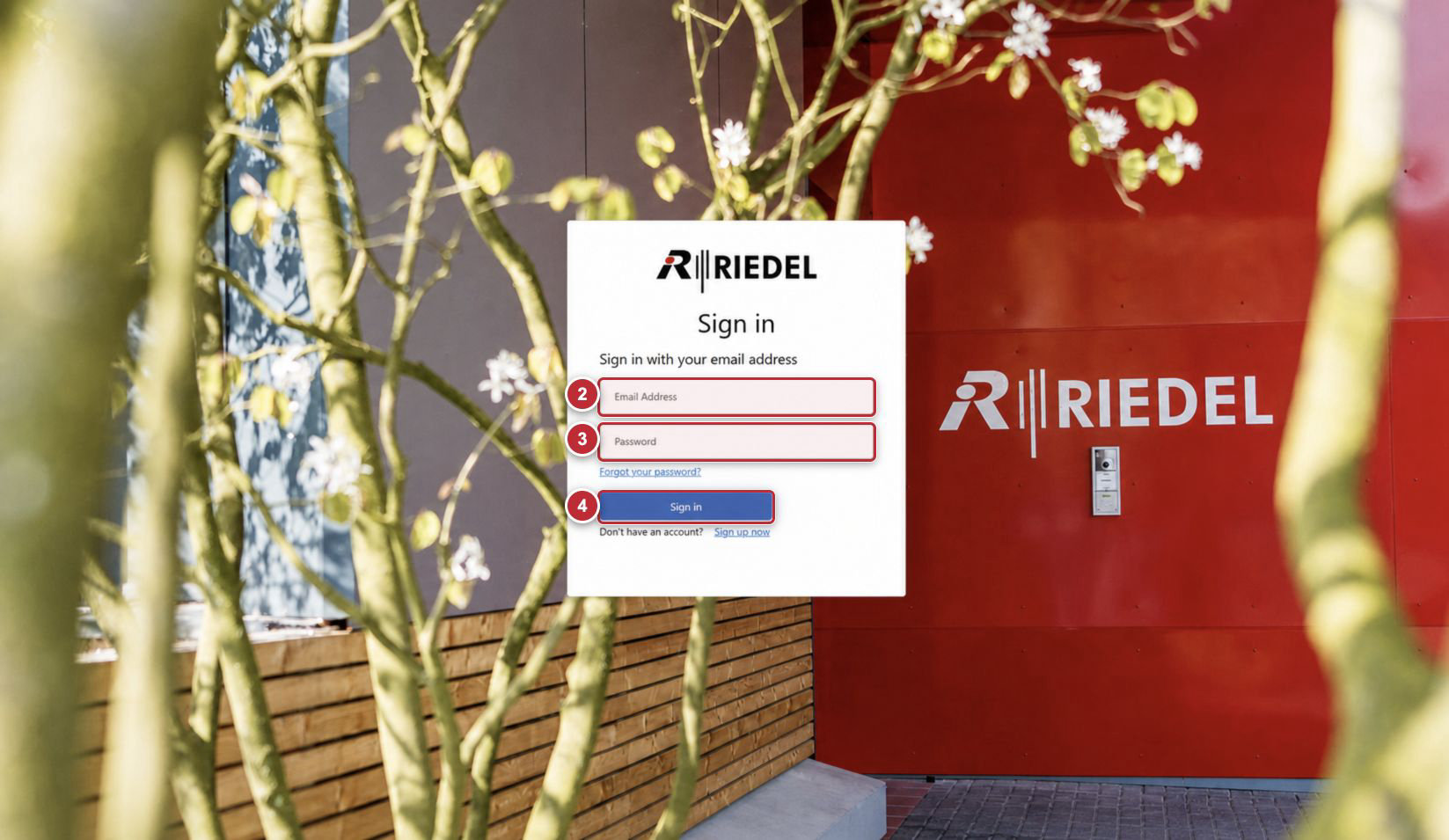
Callouts correspond to the visible steps in the Sign In procedure. The public Sign-In Page contains no customer data.
Field and Control Reference
|
Component |
Guidance |
|---|---|
|
Email Address |
Portal help: “Please enter a valid email address.” Use the address provisioned for Customer Account access. |
|
Password |
Enter the password created during First-Time Registration or the most recent Password Reset. |
|
Forgot your password? |
Starts Password Reset using email verification. |
|
Sign in |
Submits the entered credentials. |
|
Sign up now |
Opens First-Time Registration. Use the email address intended for Portal access. |
If Sign-In Succeeds but No Devices Appear
-
Confirm the Customer Account shown.
-
Ask an Account Administrator to confirm that your email identity is listed under Admin for the Customer Account.
-
If the Customer Account is correct but the Device is absent, contact Riedel Customer Success.
Do not create a second identity with another email address as a workaround; it may not be linked to the required Customer Account.
For any missing permission, inaccessible Customer Account, or other access issue, contact Riedel Customer Success.