
The Home Page is the starting point after sign-in. It shows the Portal areas and current Customer Account. The Account Selector is relevant only when the Account User has access to more than one Customer Account.
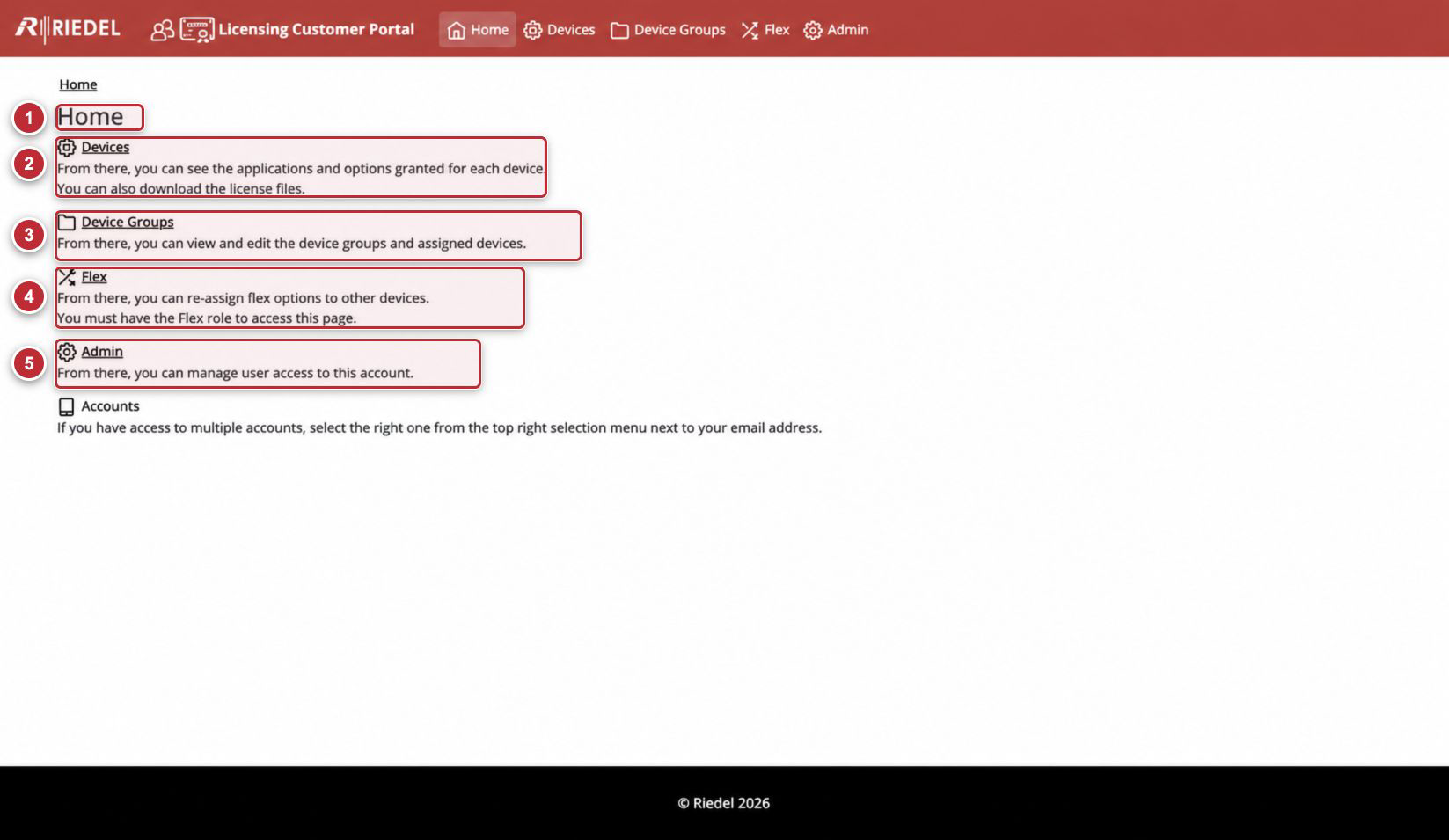
Callouts correspond to the Portal Areas table. Signed-in identity and Customer Account values have been removed.
Portal Areas
|
Callout |
Area |
Purpose |
Availability |
|---|---|---|---|
|
1 |
Home |
Introduces the Portal and returns to the starting page. |
Available after sign-in. |
|
2 |
Devices |
Finds Devices, warnings, Device Identity Leases, Options, and License Files. |
Available for the current Customer Account. |
|
3 |
Device Groups |
Reviews organizational groups and assigned Devices. |
Available after sign-in; changes require Authorize Admin. |
|
4 |
Flex |
Reviews Customer Account-entitled Flex Options and their assignments. |
Assignment operations require Authorize Admin or Authorize Flex. |
|
5 |
Admin |
Adds Account Users and controls Admin, Flex, and warning-email settings. |
Requires Authorize Admin. |
The Home Page text can refer to a Flex role. In the current Portal, Authorize Flex provides Flex assignment operations without Customer Account User Administration, while Authorize Admin also permits those operations.
Confirm the Customer Account
-
Confirm the Customer Account shown in the Portal Header.
-
If more than one Customer Account is available, select the one that owns the Device or entitlement.
-
Open Devices and confirm that the expected inventory is displayed.
-
Recheck the Customer Account before uploading a Request File or downloading a License File.
When available, changing the Account Selector changes the working context. It does not transfer a Device, License, or entitlement between Customer Accounts.
Safe Navigation Pattern
For licensing operations, use this sequence:
-
Confirm the Customer Account.
-
Find the Device by its Serial Number or approved Device Name.
-
Open the Device and confirm its Product, Customer Account, and Serial Number.
-
Review the Device Identity Lease and Option state.
-
Perform the required upload, download, or administrative action.
-
Verify the resulting status before leaving the Device Page.
If an Area Is Missing
-
If Flex assignments are visible but assignment controls are missing, ask an Account Administrator to review Authorize Flex. Authorize Admin also permits Flex operations.
-
If Admin is missing, the signed-in Account User does not have Authorize Admin for the current Customer Account.
-
If the expected Customer Account is missing, contact Riedel Customer Success.
-
If the Customer Account is present but its Devices remain missing after you clear filters and confirm ownership, contact Riedel Customer Success.
For any missing permission or other access issue, contact Riedel Customer Success.