
Reset the Password
-
Select Forgot your password?.
-
Enter the Email Address associated with the Portal identity.
-
Select Send verification code.
-
Retrieve and enter the code sent to the address.
-
Select Continue when it becomes available.
-
Follow the on-screen password prompts.
-
Return to sign-in and use the new password.
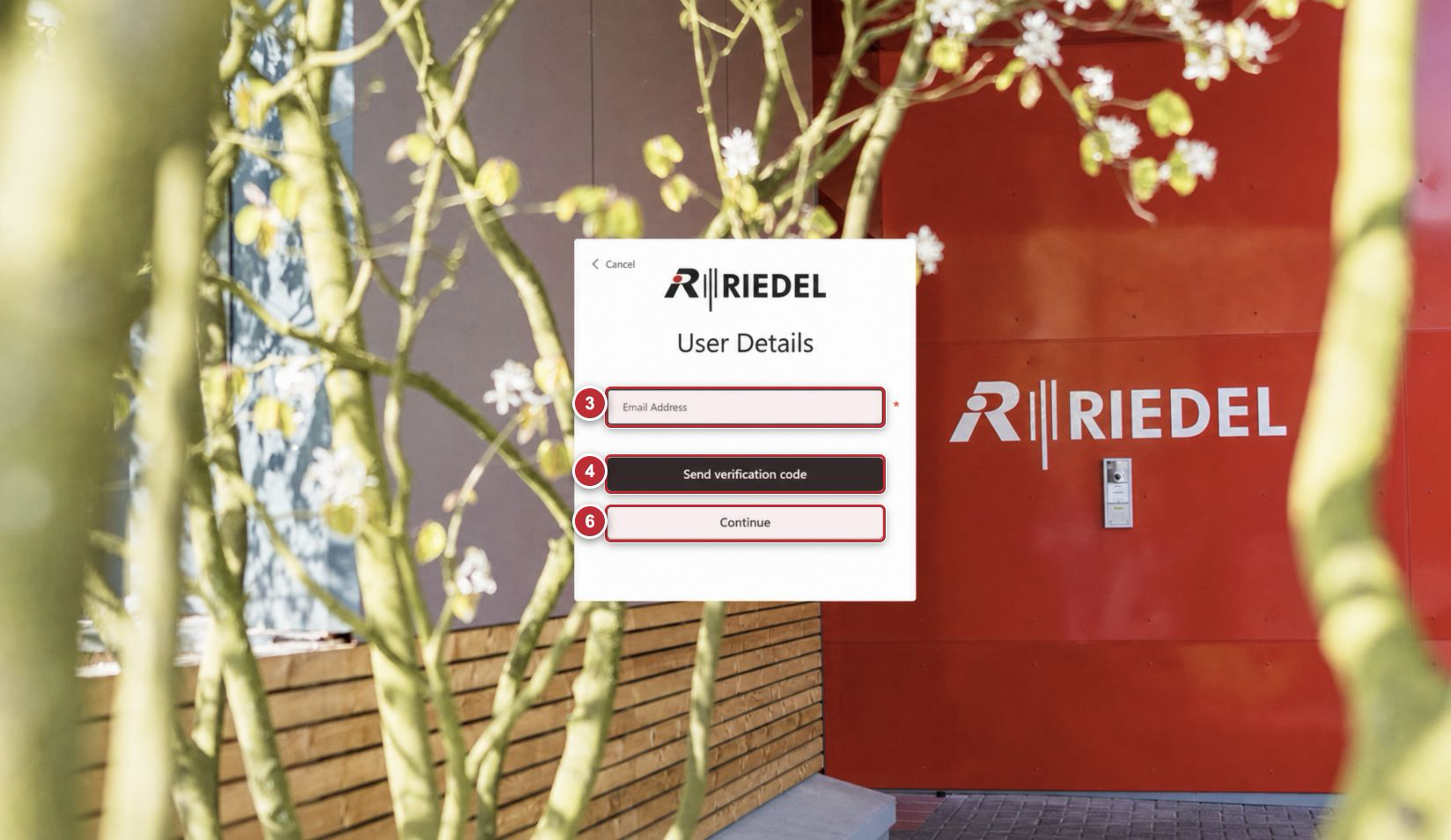
Callouts correspond to the visible steps in the Reset the Password procedure. Email retrieval and later password prompts are not visible on this screen.
Field and Control Reference
|
Component |
Guidance |
|---|---|
|
Email Address |
Portal help: “Email address that can be used to contact you.” Use the same email address as the Portal identity. |
|
Send verification code |
Sends a one-time code to prove control of the address. |
|
Continue |
Continues after the required verification step is complete. |
|
Cancel |
Leaves Password Reset without changing the password. |
Security Notes
-
Never share a verification code.
-
Riedel Customer Success will never ask for your current password or verification code.
-
If you no longer control the registered mailbox, contact Riedel Customer Success rather than registering an unrelated address.