
You can export one or multiple clips directly from RefBox.
To export a clip, open the Clips panel, select the required clip or clips, and press the Export panel.
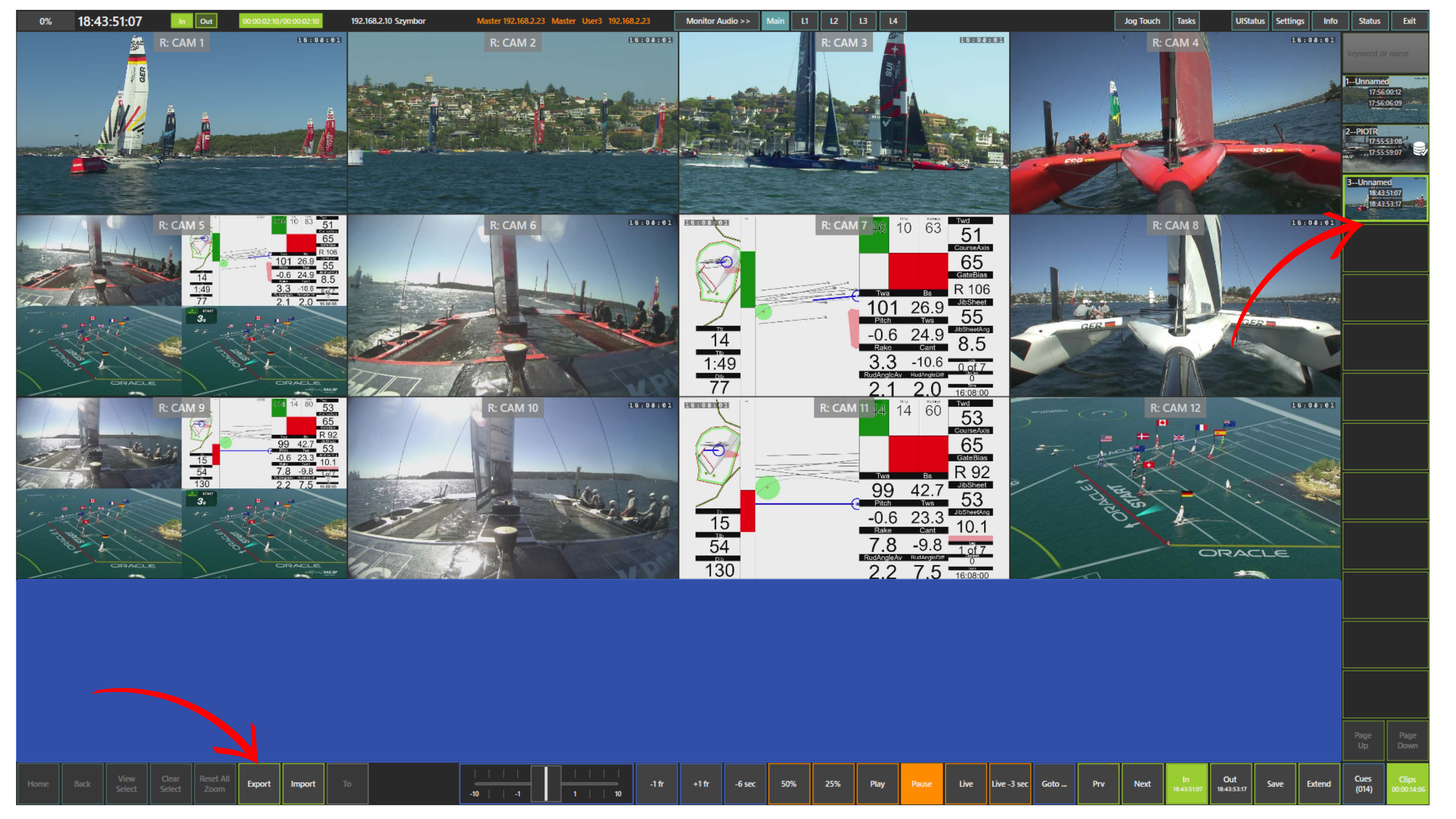
The export process starts immediately. Progress is shown directly on the clip thumbnail. Once completed, an icon appears confirming that the clip has been successfully exported.
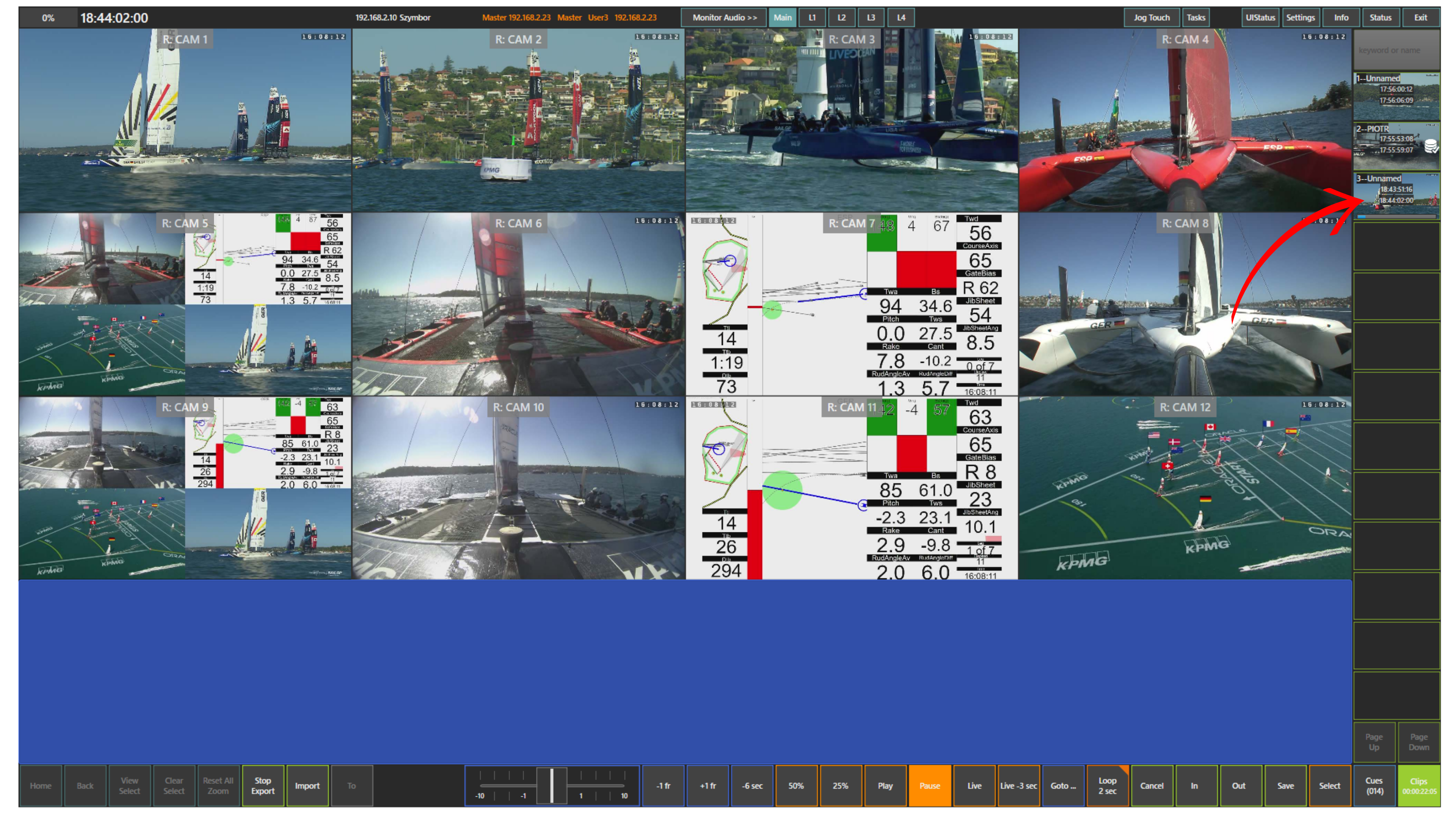
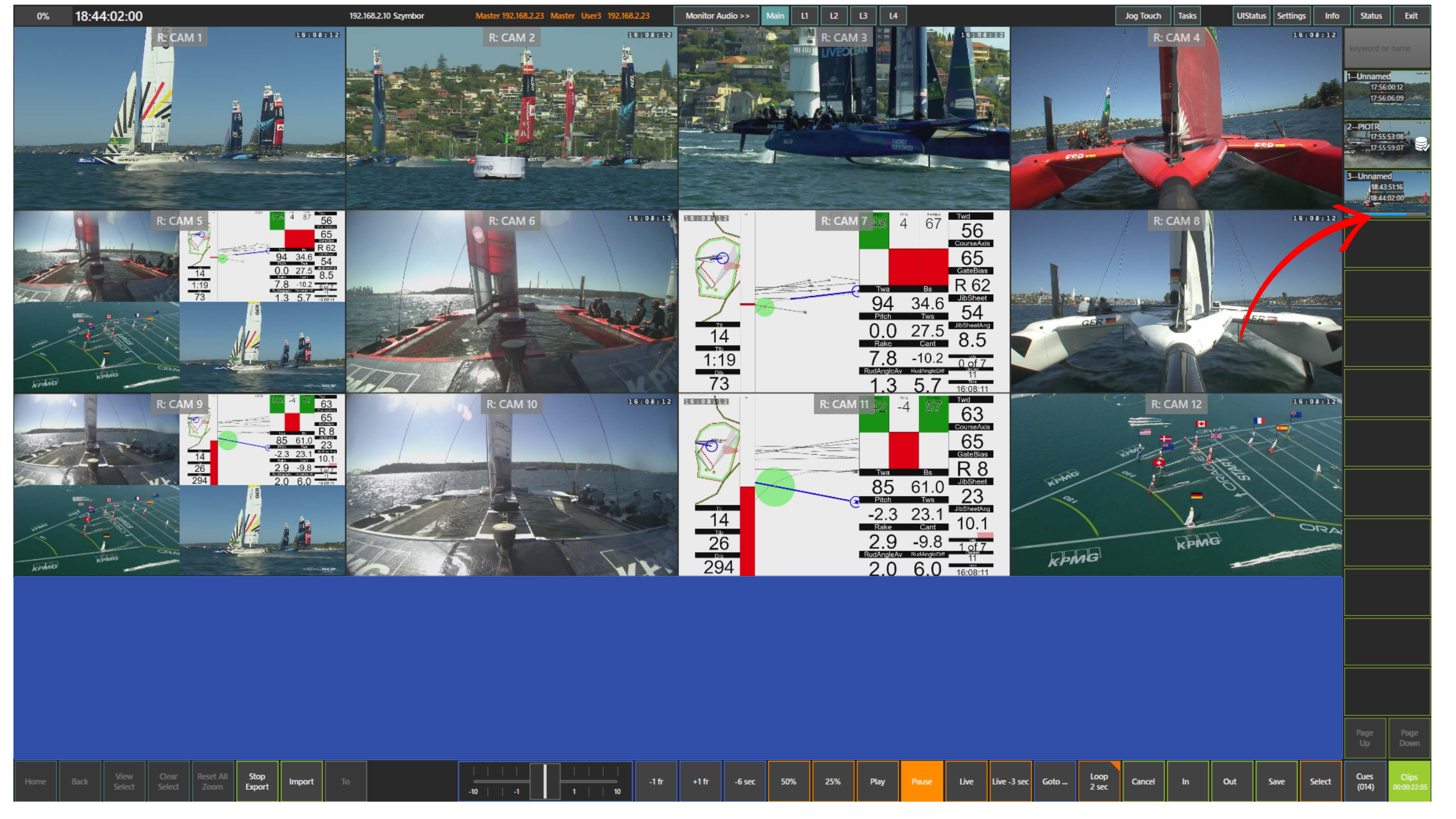
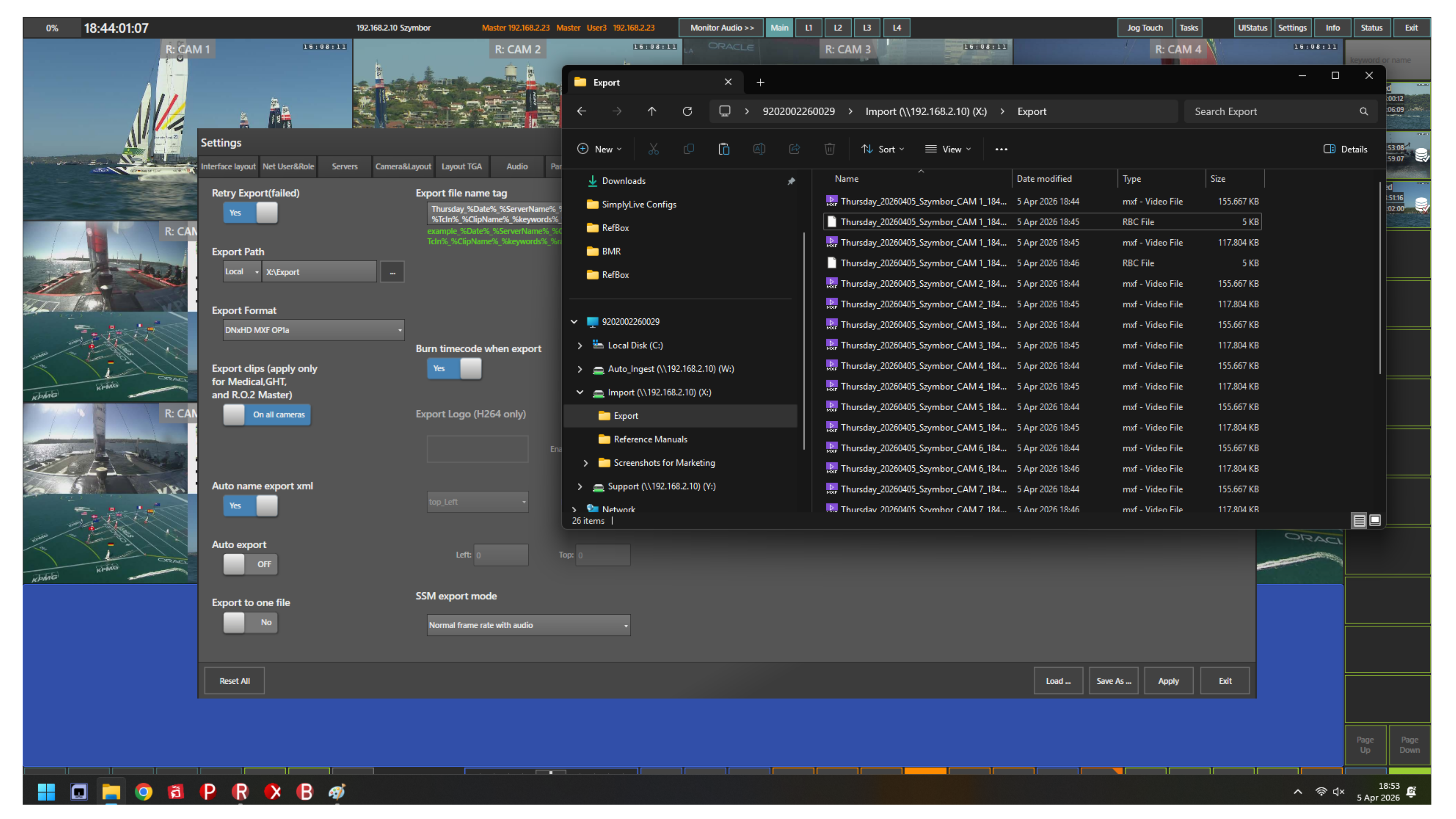
Export behaviour can be configured in Settings → Export.
Here you can define the export path, file format, naming, and additional parameters.
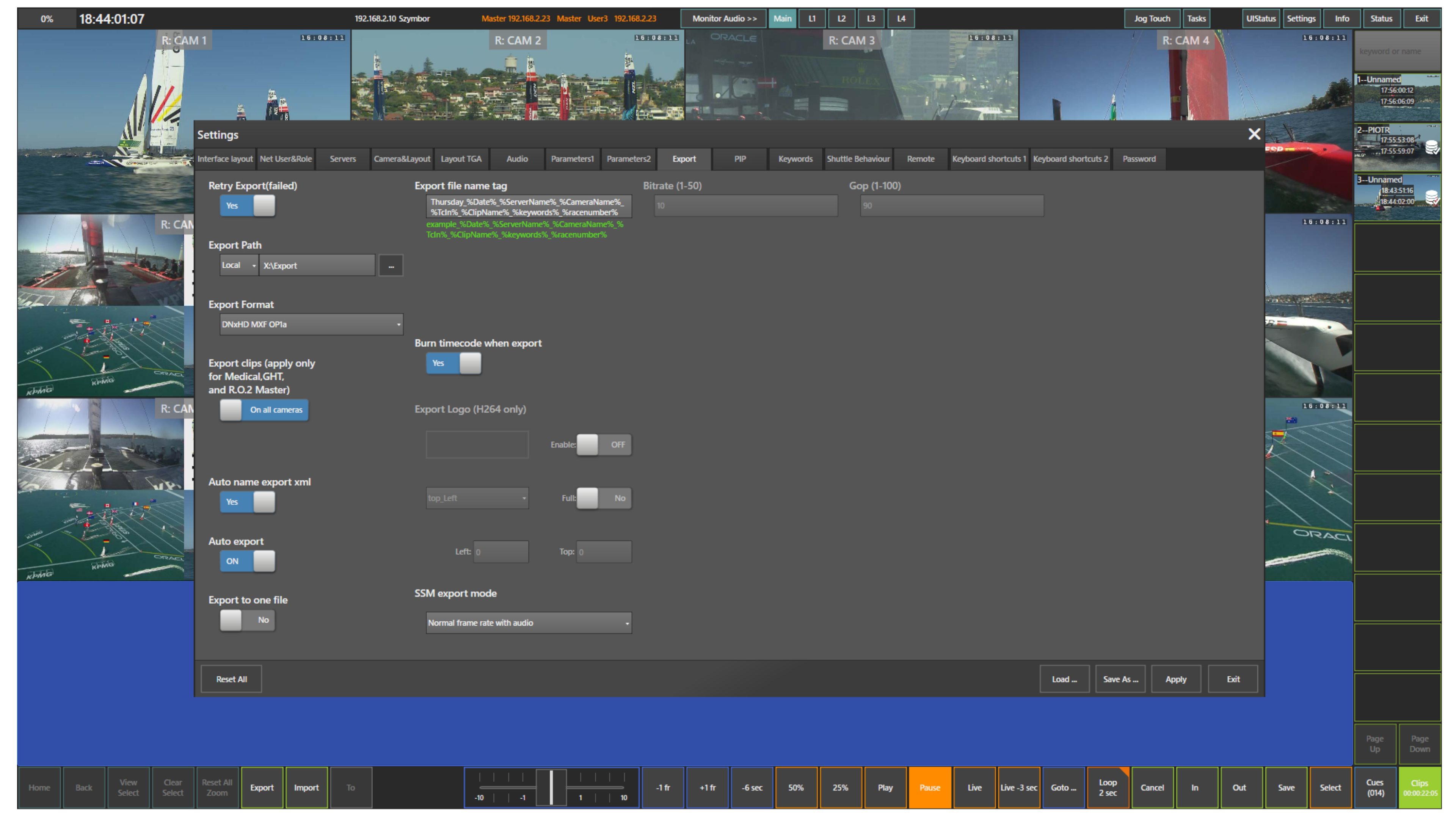
You can also enable auto-export. When this is active, every clip you create is exported automatically to the selected destination.
Pro Tip
Use auto-export and set the export path to a scan folder used by replay operators or the director. This ensures key moments are instantly available in other systems without manual transfer.
Info
If Export to one file is disabled, all camera angles are exported.
If enabled, only the selected main camera angle is exported.
Pro Tip
Try auto-naming your clips to include the event date, camera name, and clip timecode IN to make them easy to identify for others.
You can define this in Settings → Export using the Export File Name Tag option.