
Inputs Area (Main Screen)
The main part of the screen displays all available camera inputs.
Each tile represents one camera angle.
All inputs are synchronised.
This allows instant multi-angle comparison of the same moment.
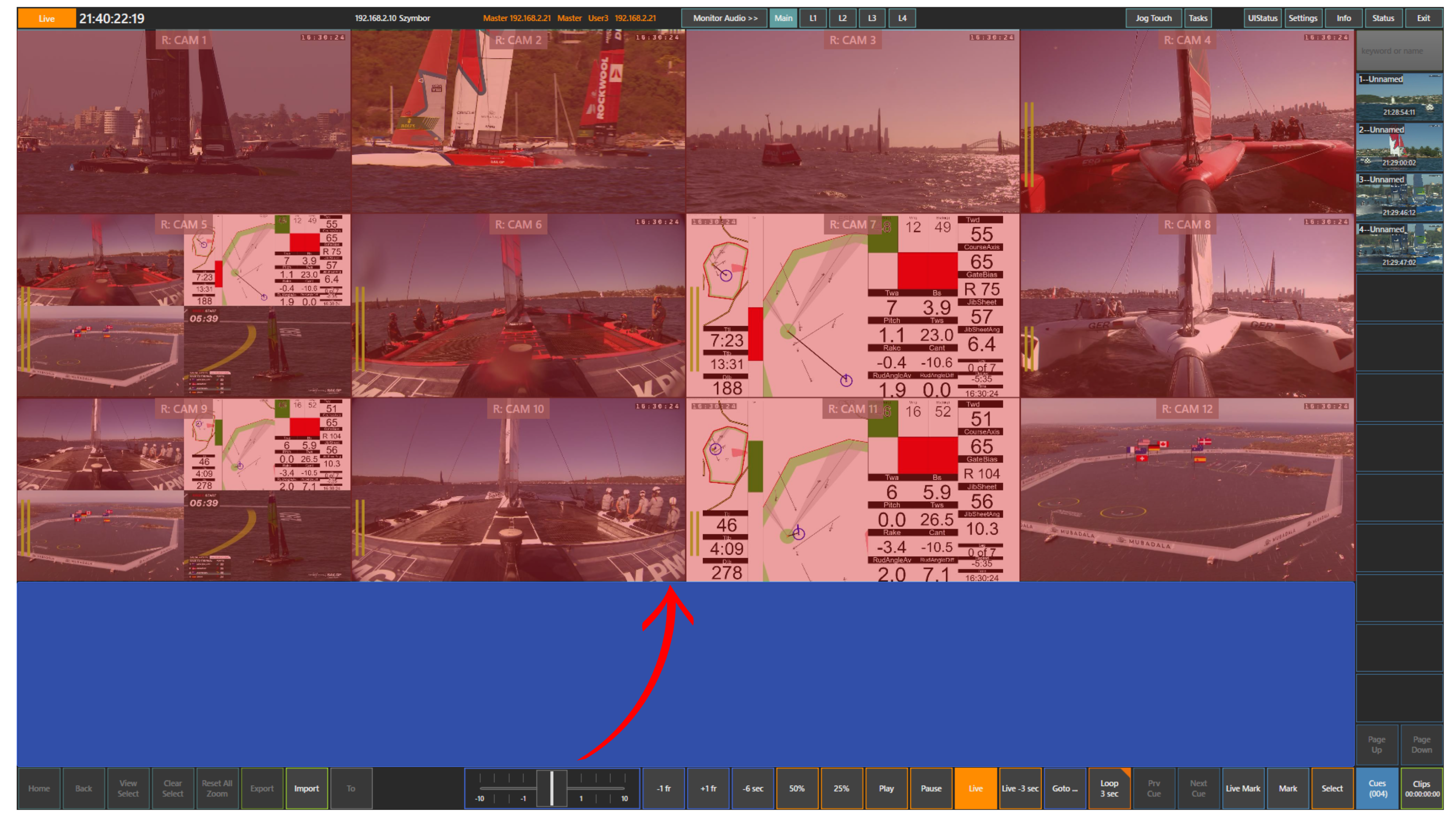
Timeline / Jog Area
The blue panel in the lower part of the screen is the timeline navigation area.
You can swipe left or right to move through time.
This acts as a touch jog and allows fast positioning on the action.
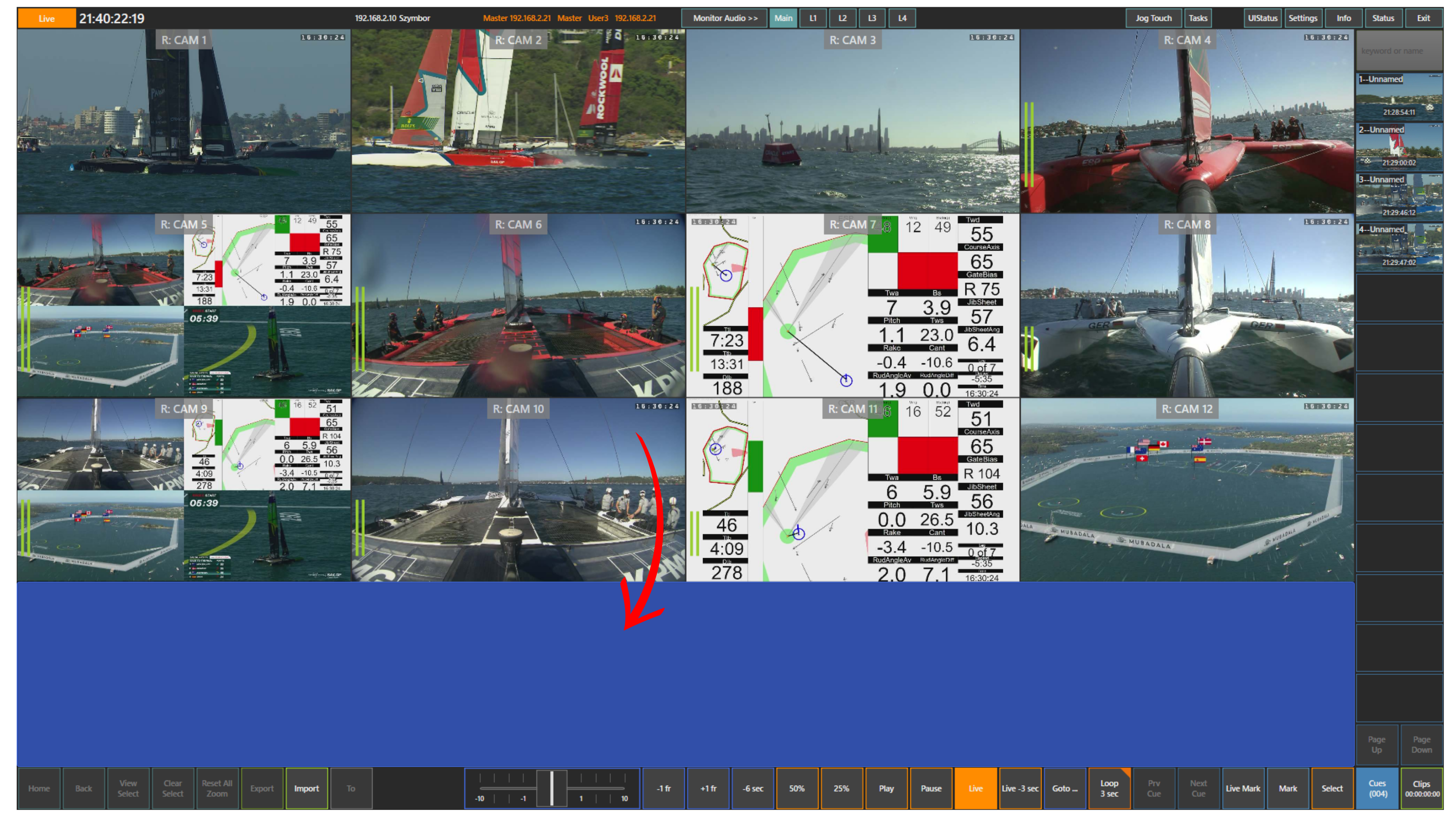
Transport Controls
The bottom row provides precise playback control.
-1 fr and +1 fr allow frame-by-frame navigation
-6 sec and Live -3 sec allow quick jumps
25% and 50% provide slow-motion playback
Play, Pause and Live control playback state
These controls allow both fast browsing and precise analysis.
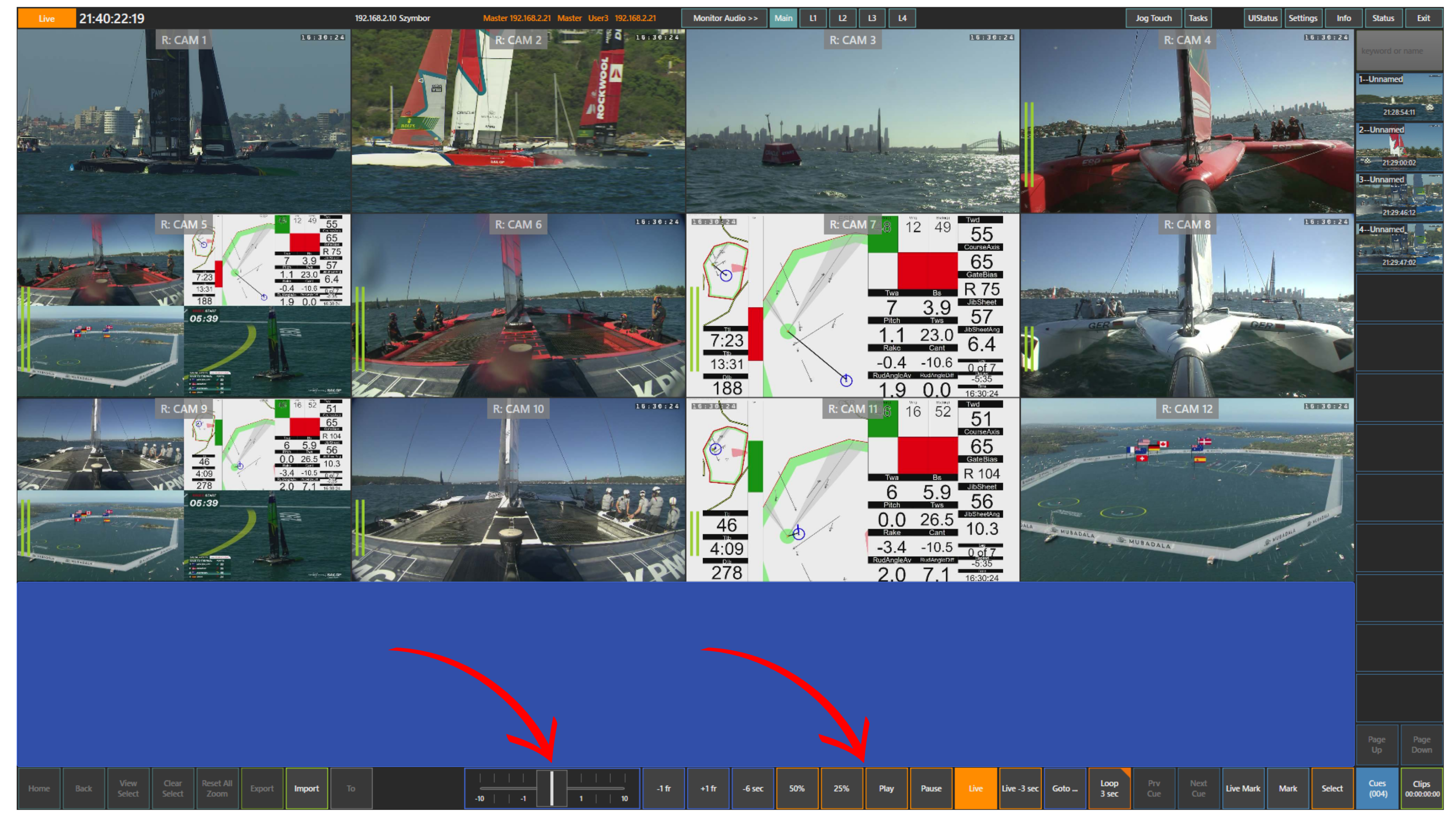
Cues Panel
On the right side of the screen, you have the cues panel.
This is where all marked moments are stored.
Each cue contains a reference point and thumbnail.
You can return to any moment instantly.
Mark and Cue Controls
In the lower right section:
Mark creates a cue at the current position
Live Mark creates a cue while live
Prev Cue and Next Cue allow navigation between cues
Cues button opens the cue list
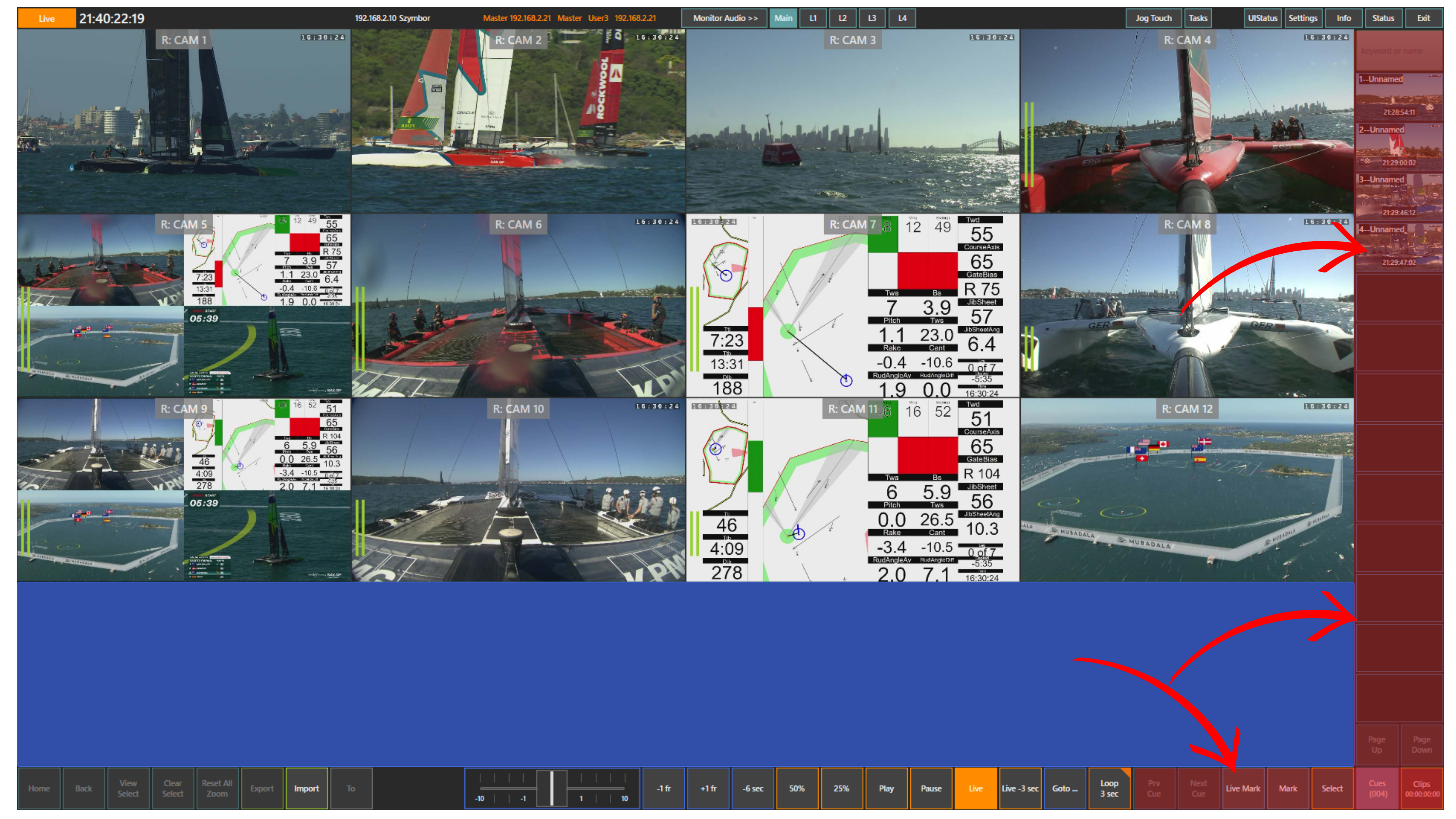
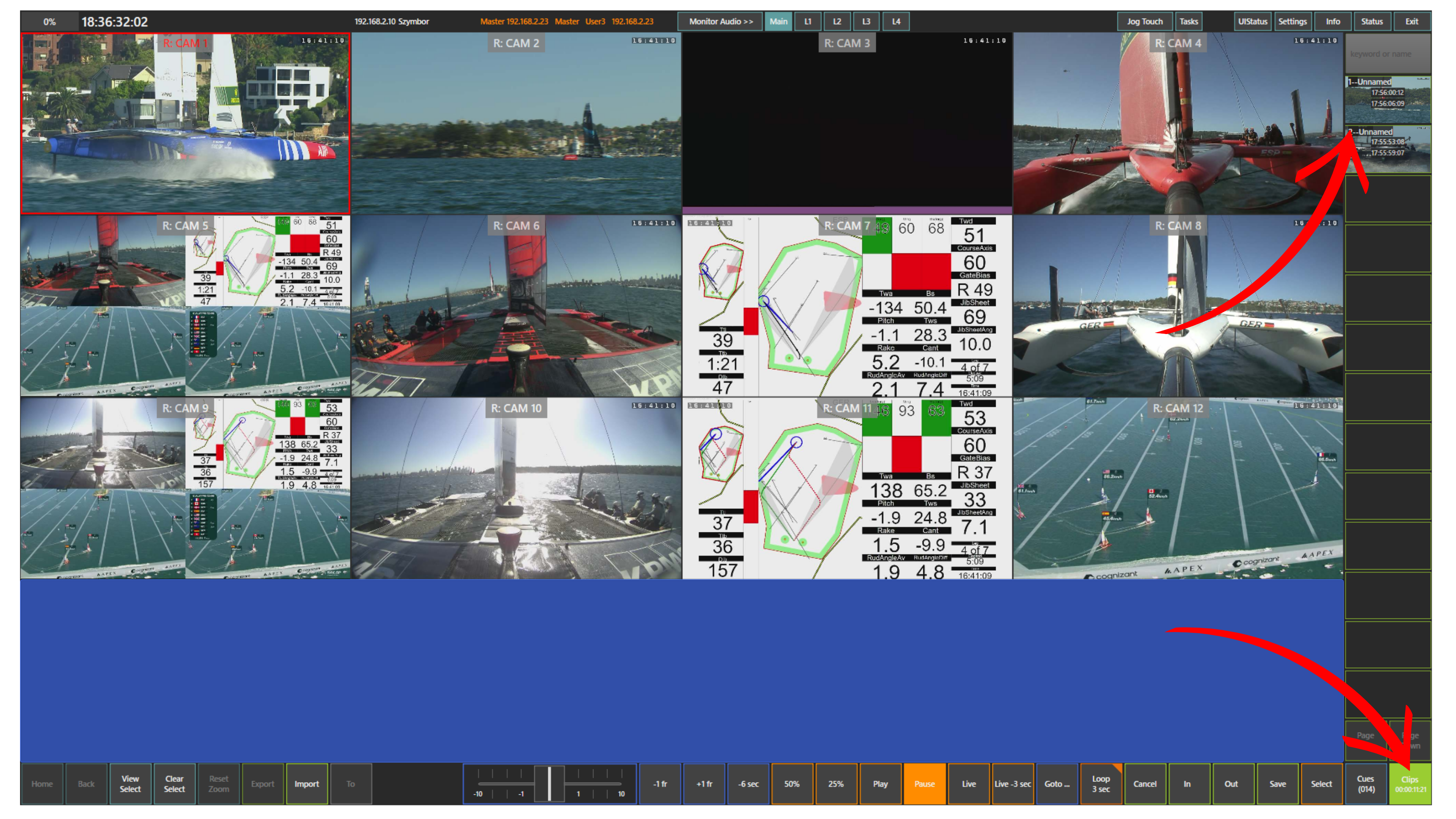
Clips Panel
On the right side of the screen, you also have the Clips panel.
The Clips panel stores created clips and shows them as thumbnails in a vertical list.
This allows you to keep longer actions organised and ready for later review, playback, or export.
Unlike cues, which are used to mark a single moment, clips are used when you want to save a selected sequence with a defined duration.
Utility Panel
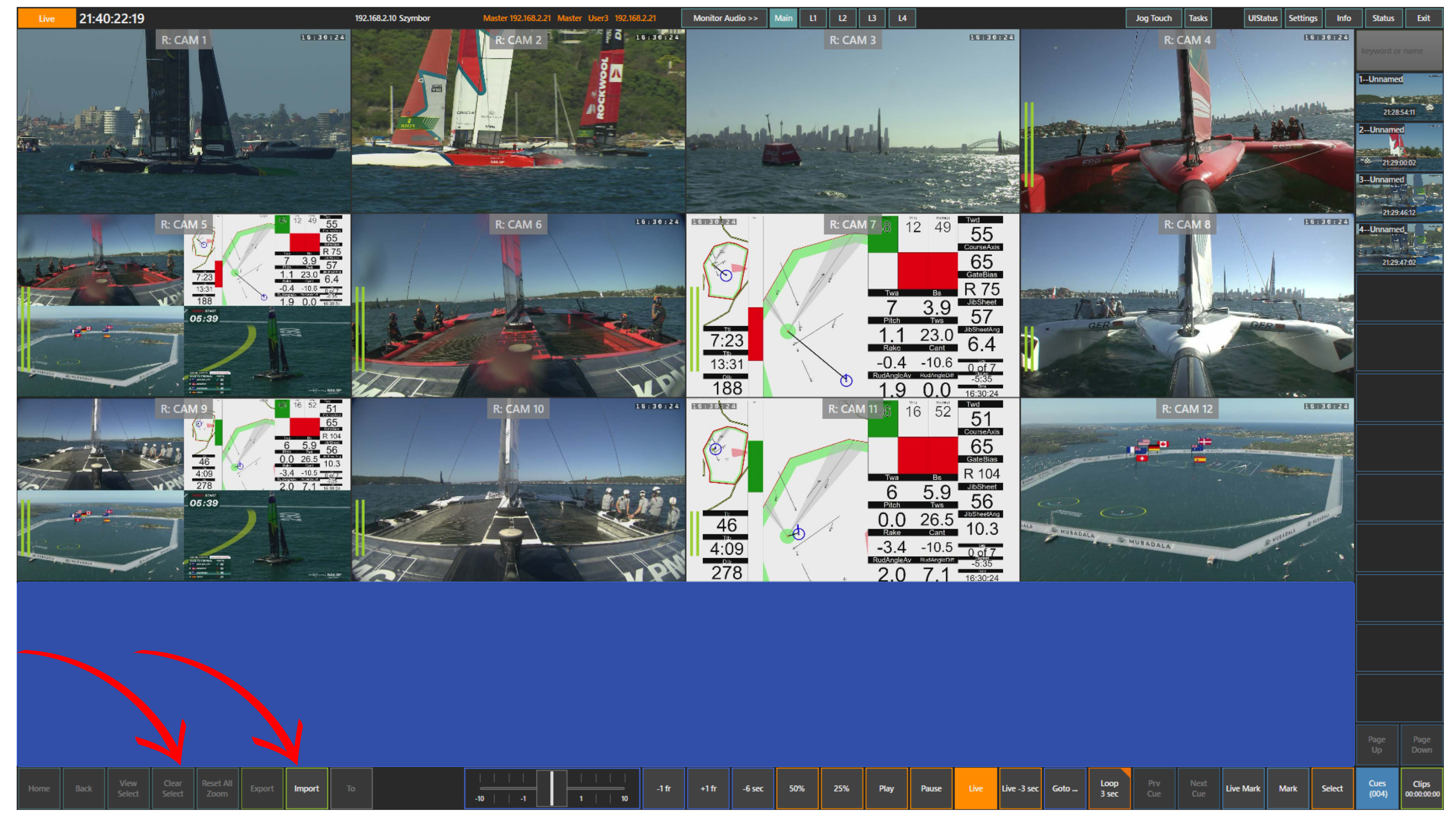
On the lower left side:
Import and Export are used for clip handling
View Select and Clear Select are used for screen control
Core Functionality
Multi-Angle Analysis
RefBox allows you to review all camera angles in sync.
You can quickly switch between inputs and compare the same moment from different perspectives.
This is essential for referee decision-making.
Use Case – Live VAR Scenario
Possible foul in the penalty area.
Jump back using -6 sec
Scrub to the moment using the touch panel
Adjust using frame buttons
Press Mark
Check multiple camera angles
Create additional cues if needed
Referee reviews all saved moments instantly
This allows fast and controlled decision-making.
Pro Tip
Use a consistent workflow.
Jump to get context
Scrub to find the action
Use frame control to confirm
Mark immediately
This keeps your operation fast and clean.