
To keep your work organised, you can delete cues that are no longer needed.
To delete selected cues, open the Cues panel, press Select, choose the cues you want to remove, and then press Delete.
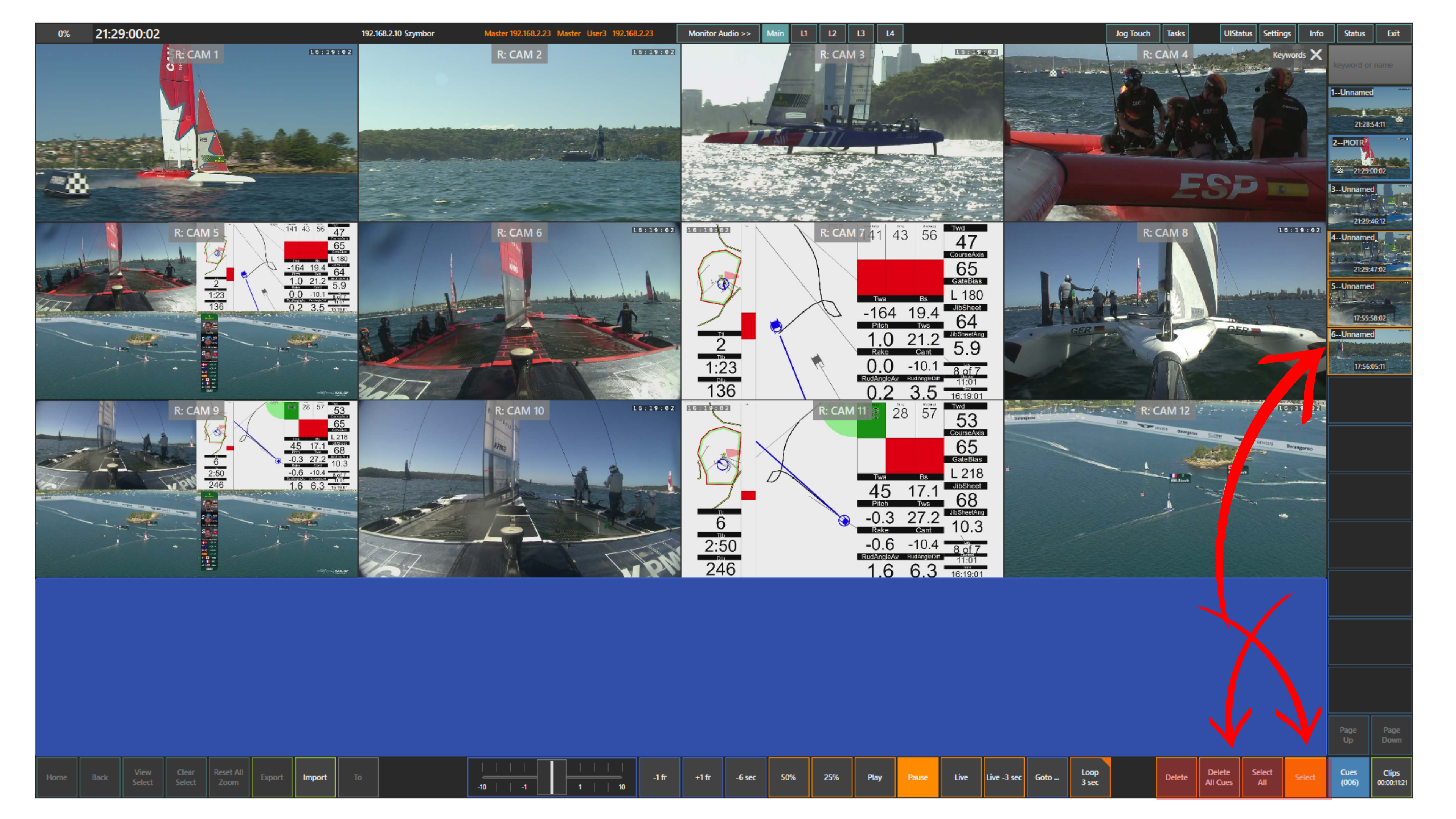
If you want to remove all cues at once, use the Delete All Cues panel.
You can also select all cues at once by pressing the Select All panel.
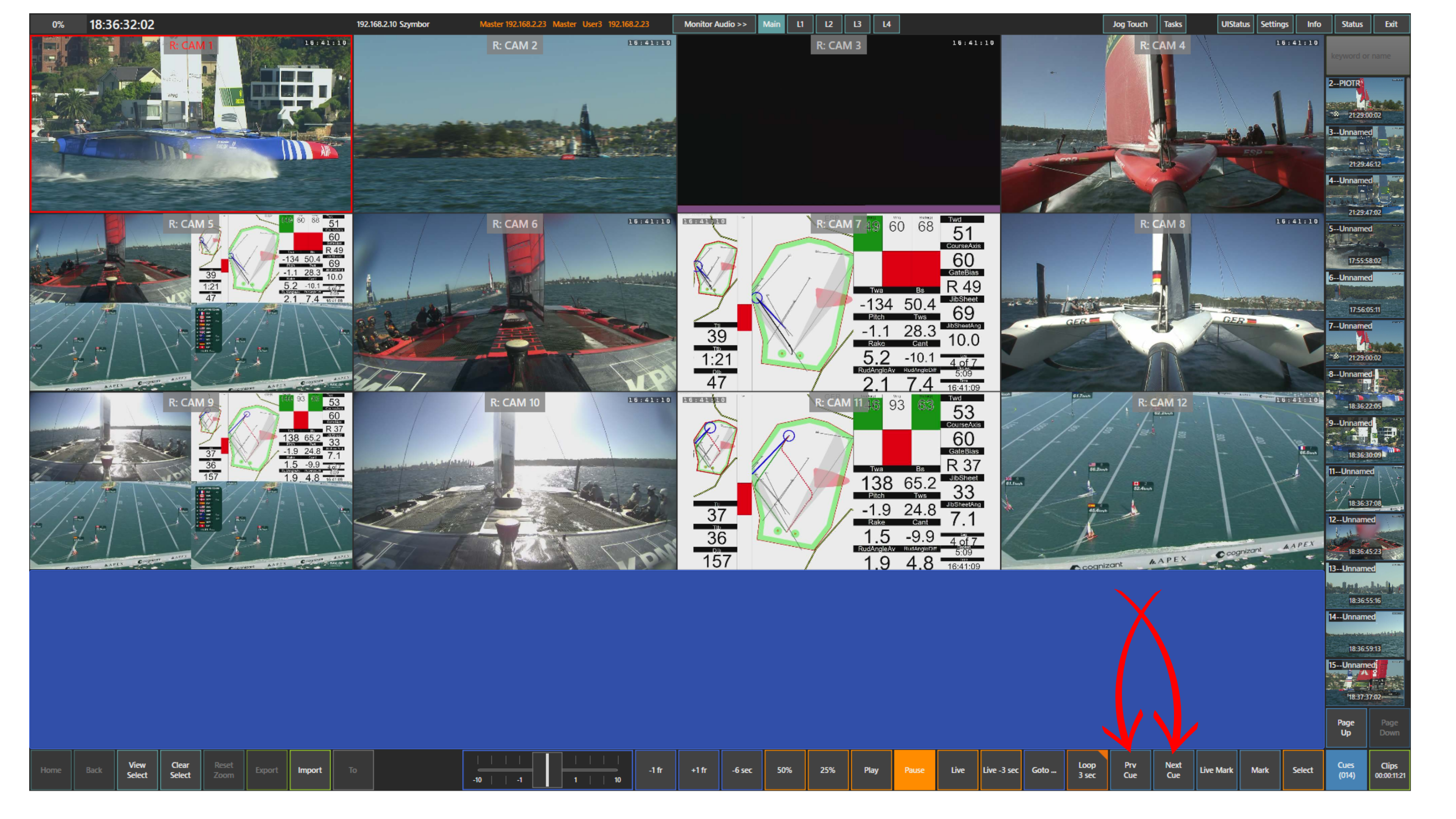
To preview your cues, use the Prv Cue and Next Cue panels. This lets you jump directly to the previous or next cue in the list.
When recalling a cue, all camera angles are synchronised to the timecode of that cue. This allows you to review the same moment across all available angles and continue jogging through the action from that point.
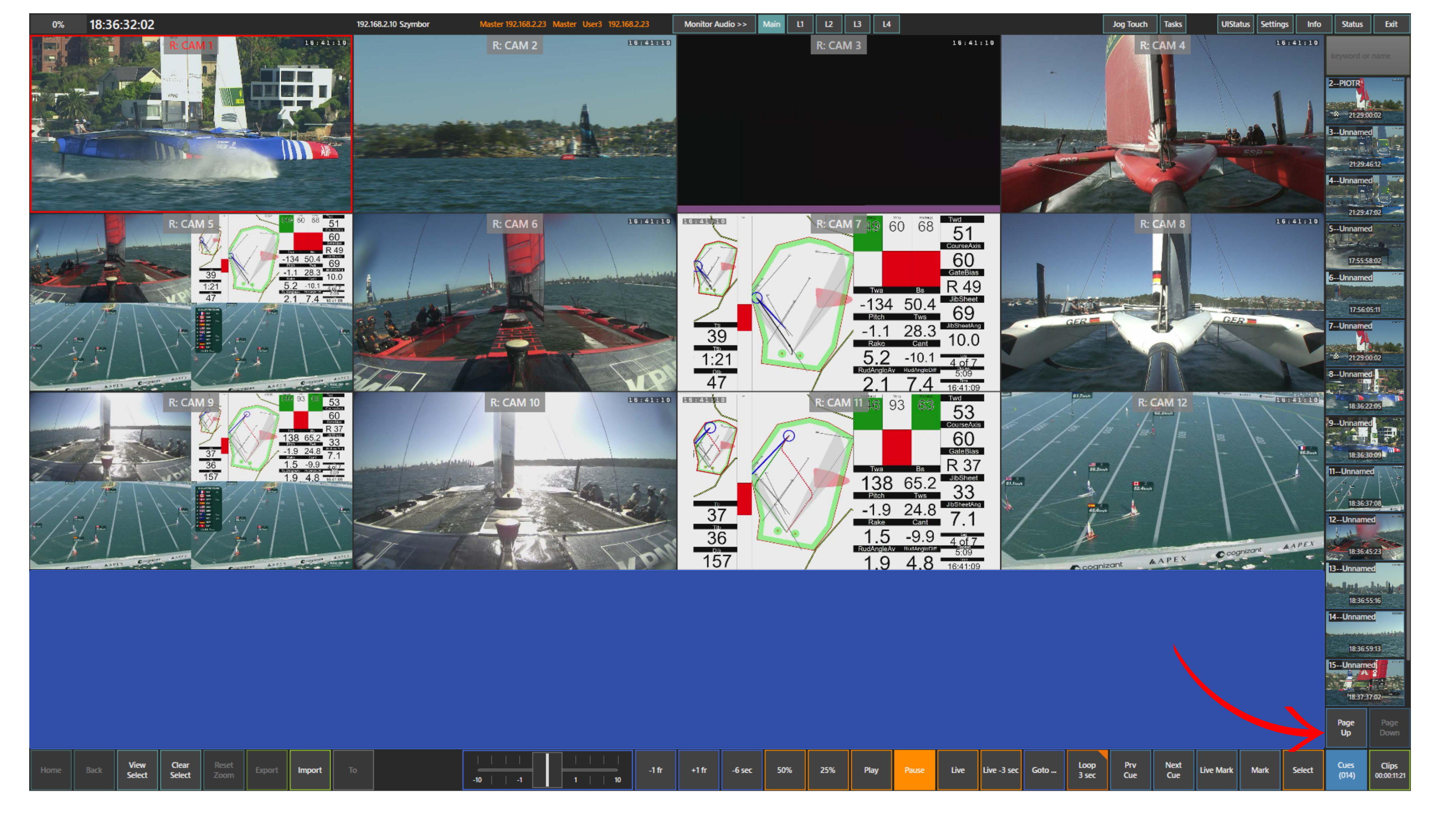
If you have many cues, you can use the Page Up and Page Down panels to move through additional cue pages.
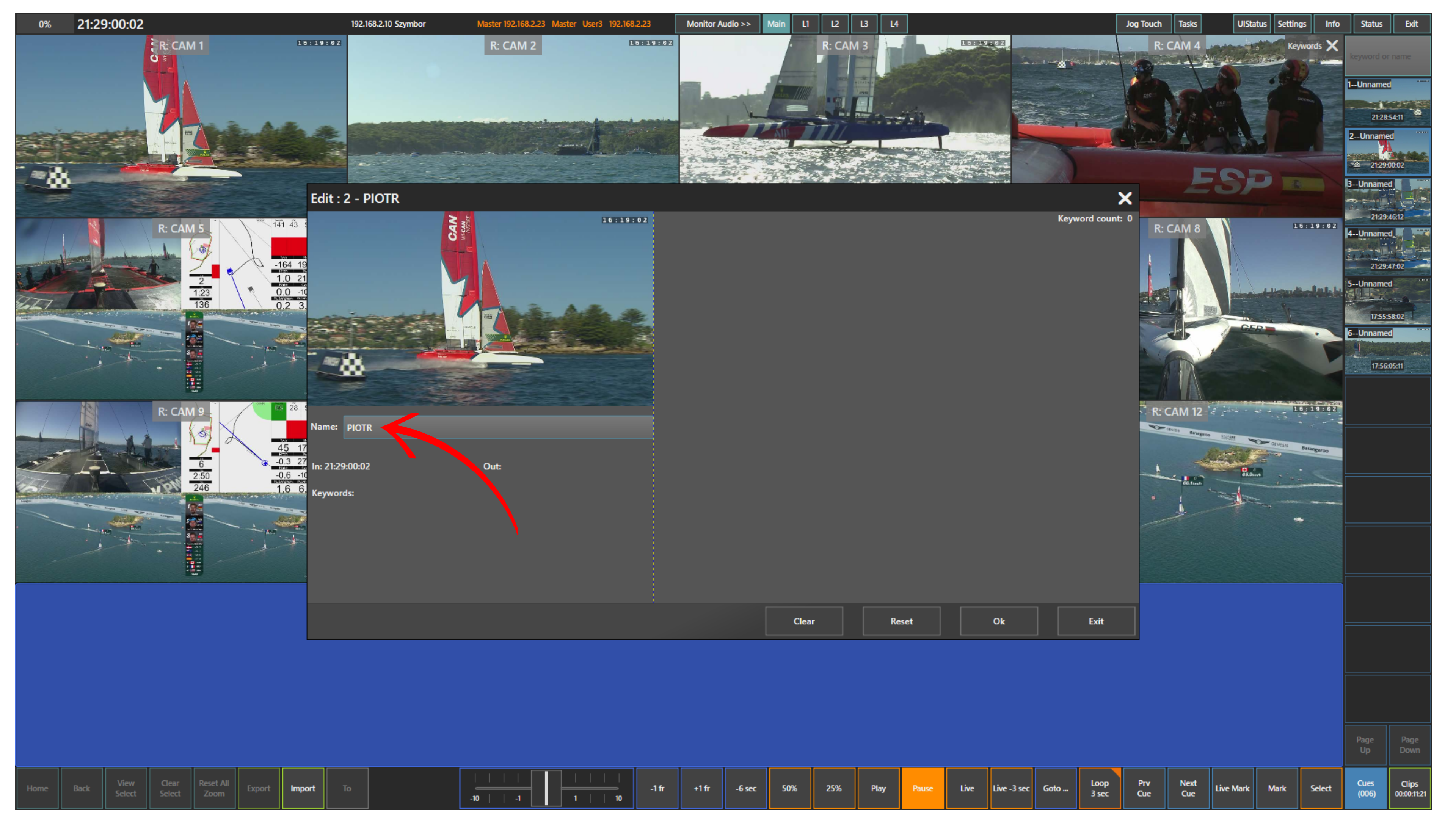
You can also name each cue to keep the list clear and easy to manage.
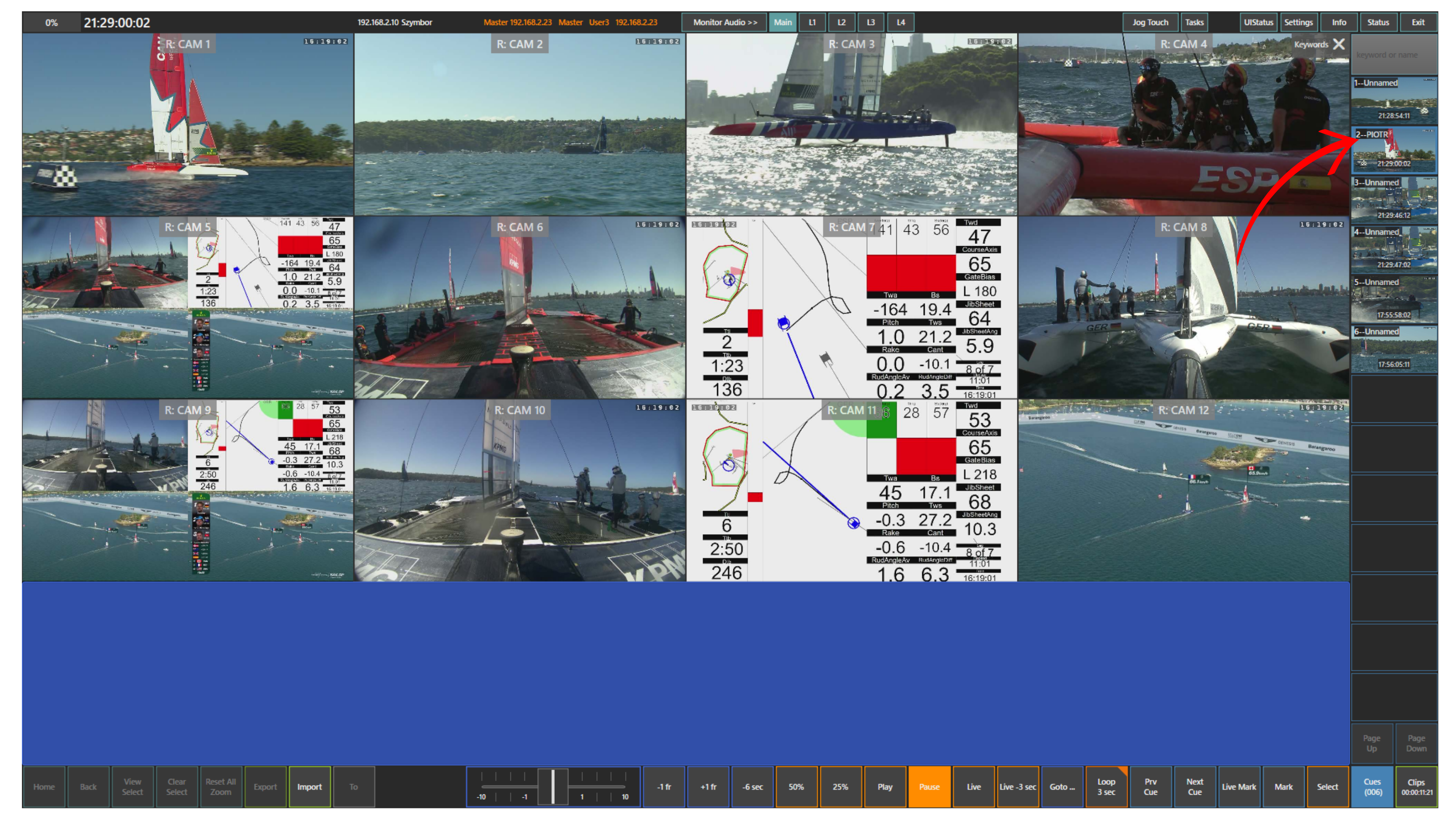
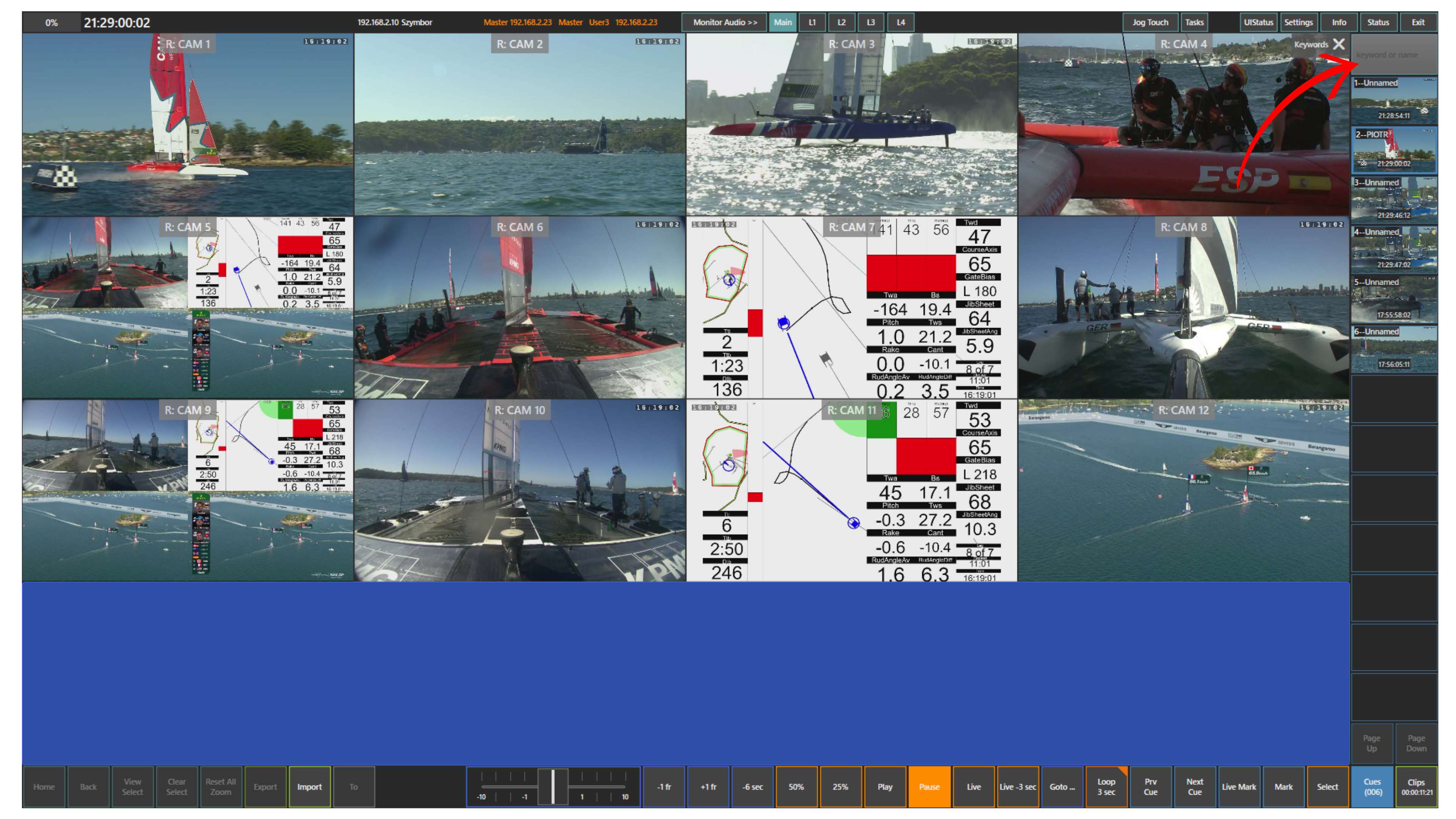
If you need to find a specific cue later, use the keyword or name field at the top of the Cues panel to filter the list.
Pro Tip
Use ShuttleXpress for faster cue review, saving, and playout.