
RefBox gives you several ways to navigate through the action and find the key moment for review.
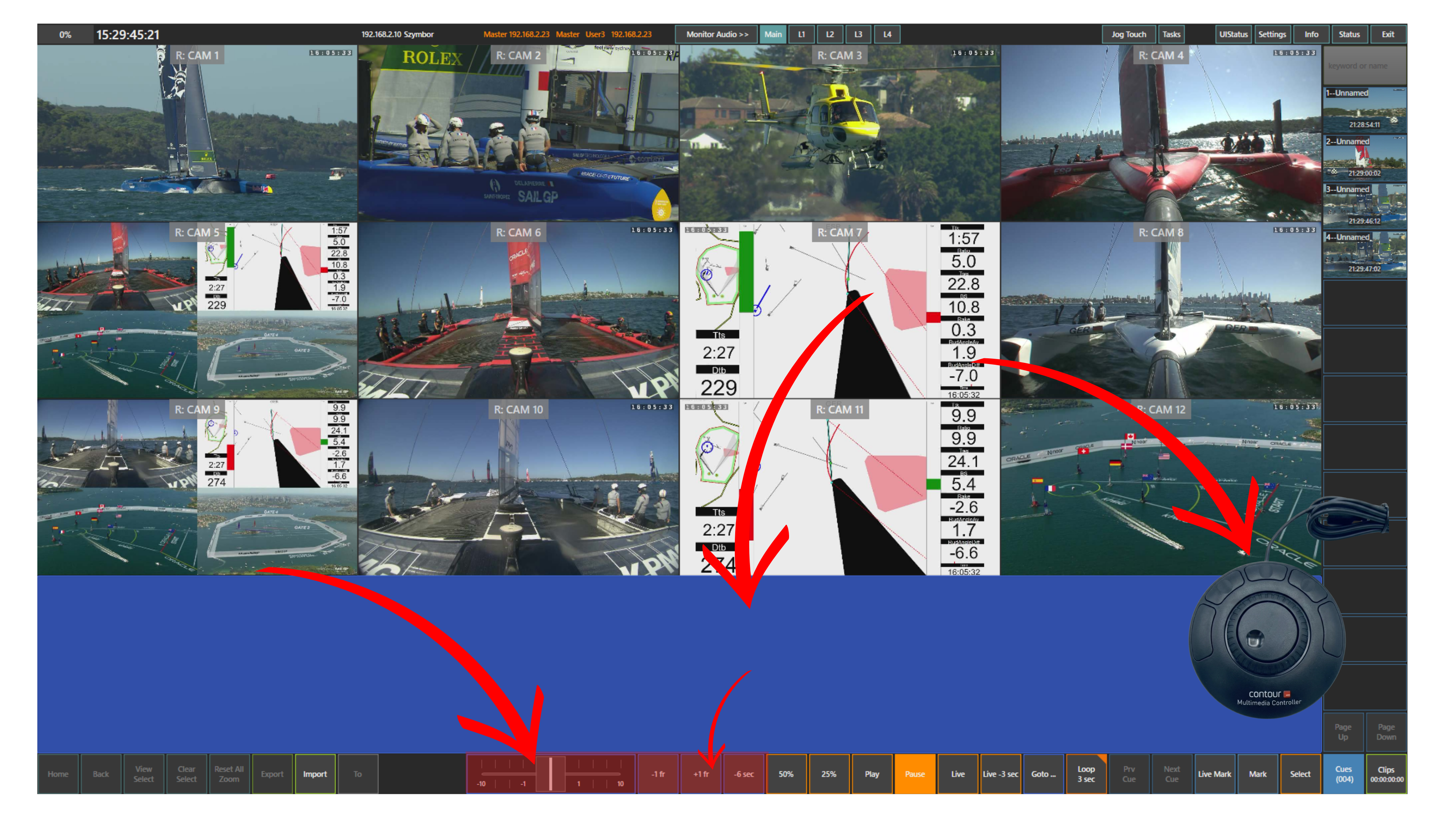
The main method is the blue touchpad located at the bottom of the screen. By swiping your finger left or right, you can scroll back and forward through the action across all cameras in sync.
You can also choose to navigate only the selected cameras, depending on your current selection.
Info
The position of the blue touchpad can be configured in Setup → Prefs, depending on the selected layout.
For quick repositioning, RefBox also provides predefined jump controls. These let you move by values such as +1 frame, -1 frame, or -6 seconds. The jump values can be customised in Setup → Prefs.
Pro Tip
Activate the Jog Touch panel to enable touch-based jogging.
Touch any camera in the layout, then swipe left and right to move through time. All cameras will stay synchronised and scroll together, allowing fast multi-angle review of the same moment.
For more tactile control, you can use ShuttleXpress. It allows you to jog smoothly through the action without touching the screen. Its buttons can also be assigned to functions such as Mark, IN, and OUT in Setup → Prefs.
Info
You can use the Live panel at the bottom of the screen to return instantly to the live feed.
You can also use the slider at the bottom of the screen to move back and forward through the footage. This gives you another quick way to navigate during live review.
Pro Tip
Use the Live -3 sec panel at the bottom of the screen to jump directly to three seconds before the live feed. This is especially useful when the action happens faster than your reaction time, as it helps compensate for operator delay and can take you straight to the incident you need to review.