
Selecting cameras for review is quick and intuitive.
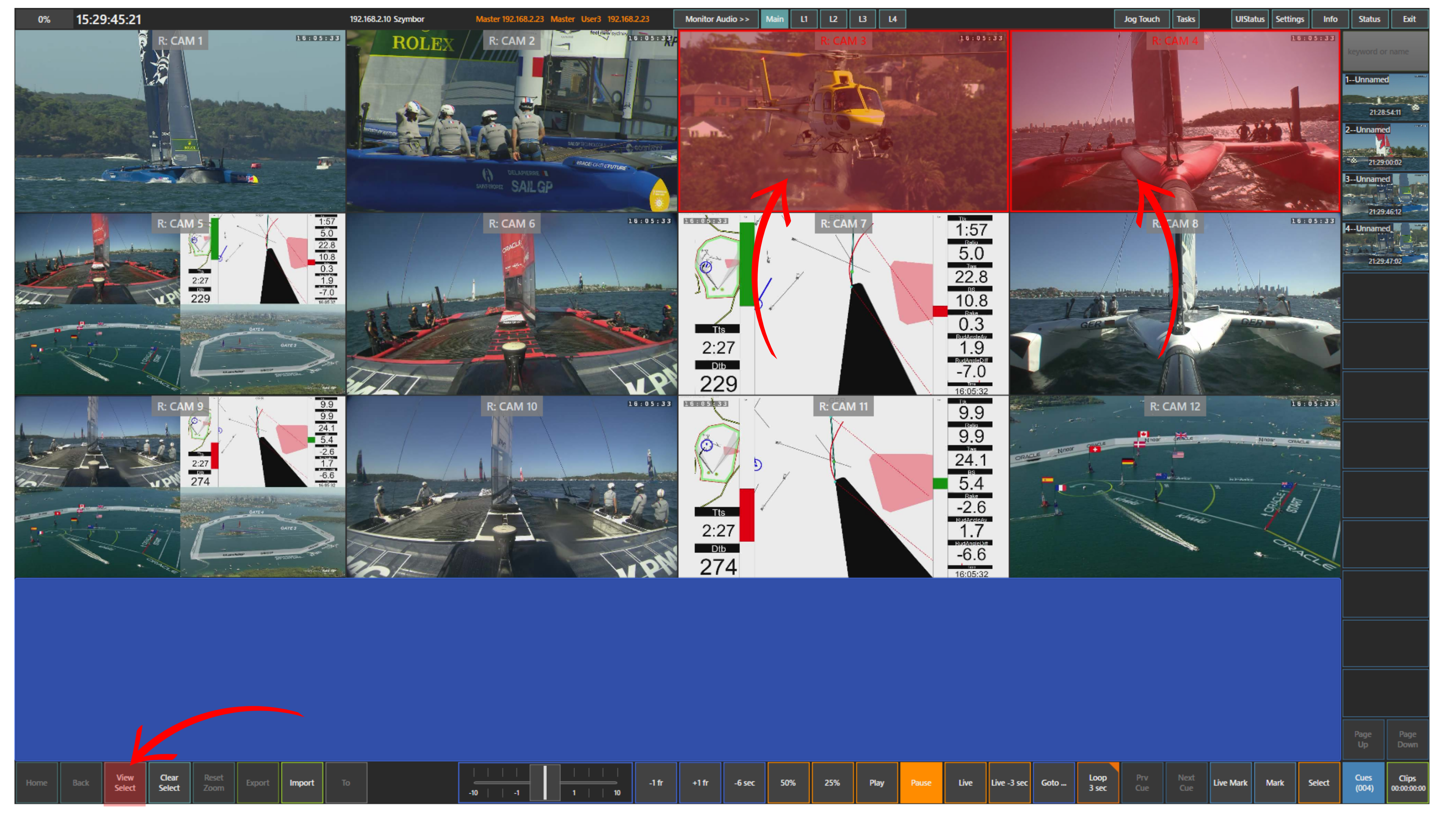
To choose the cameras you want to review, tap the required camera windows on the main screen. The selected cameras are highlighted with a red border.
Once the required cameras are selected, press the View Select panel. The selected cameras will then open in the review layout.
Info
If the Jog Touch panel is active, the View Select panel is not accessible.
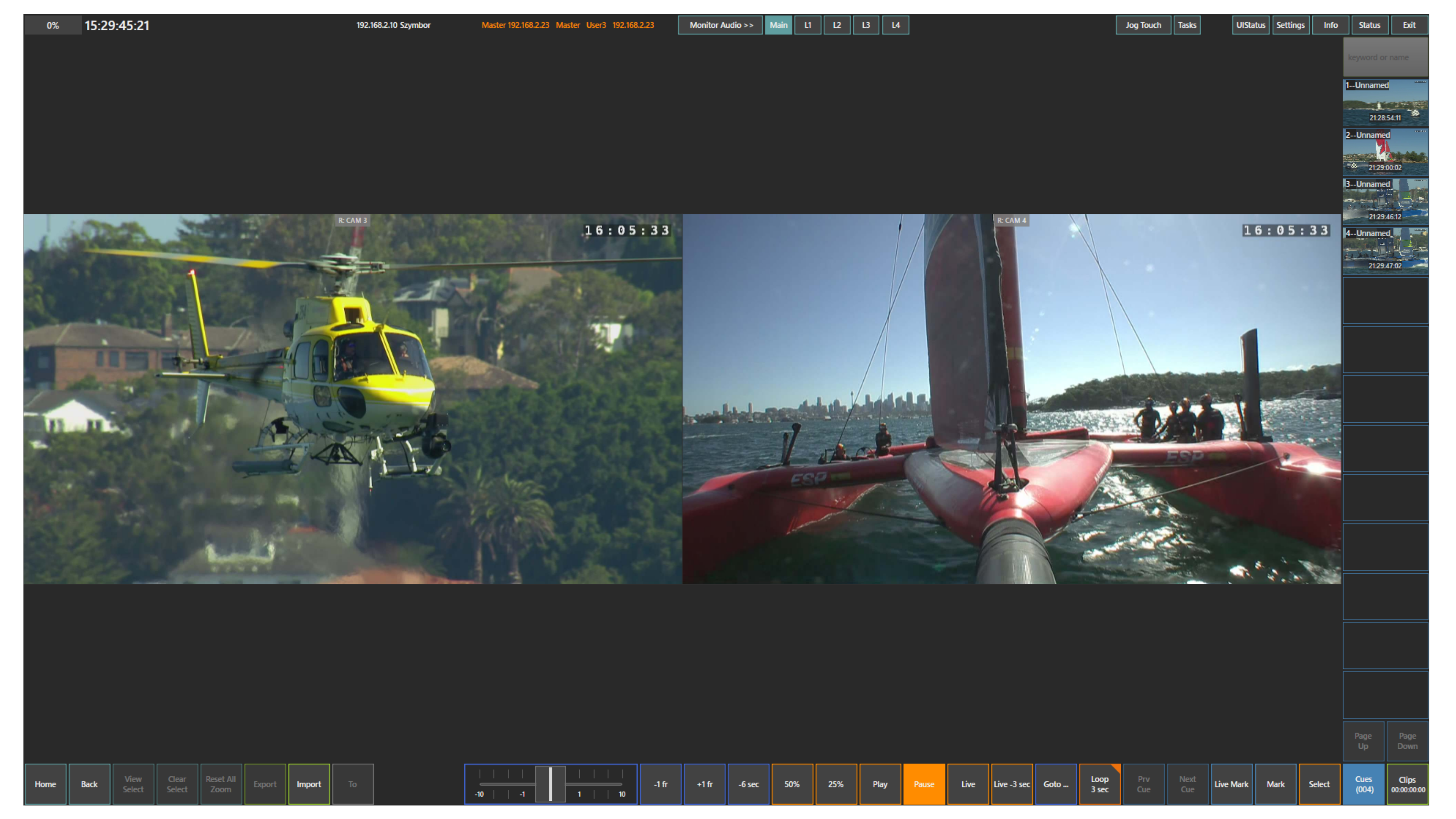
In the example shown here, two selected cameras are opened for closer review.
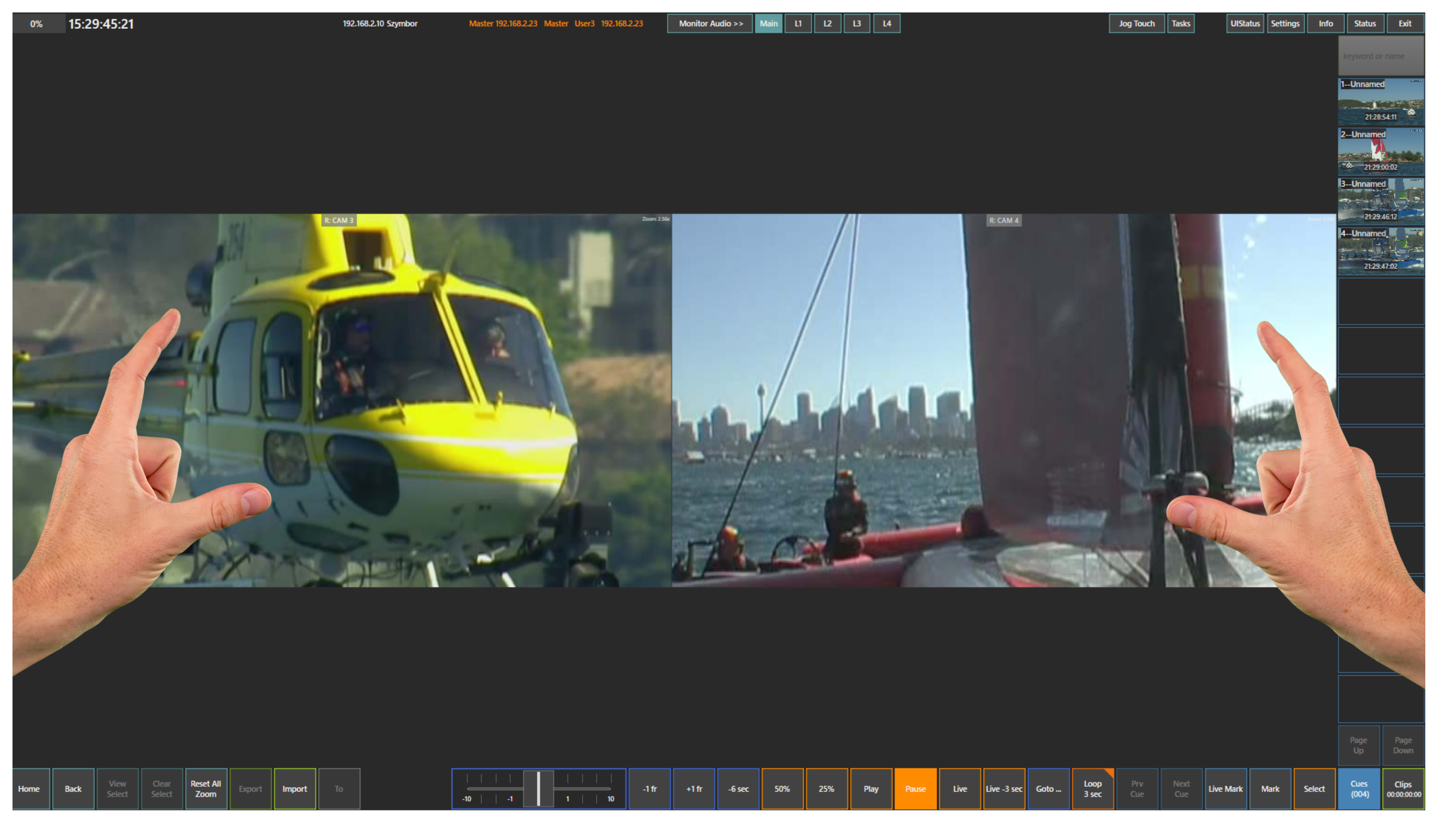
If you want to zoom in or out, use a standard pinch gesture directly on the touchscreen. Pinch out to zoom in and pinch in to zoom out.
This allows you to focus on the exact part of the image you want to inspect more closely.
Info
To reset zoom on all cameras, use the Reset All Zoom panel.
Info
To return from the View Select panel to the main layout, press the Back panel.
Pro Tip
Combine zoom in and zoom out with swiping left and right on the touchscreen to follow the action, then use frame-by-frame controls for precise review.