
Roles decide exactly what each RefBox screen can see and control.
Roles define what each screen can control and what it can display.
One operator can control the review, while other screens follow the selected angles.
This is especially useful for referee review, coaching, medical analysis, commentary, or horseracing steward workflows.
Selecting a Role
-
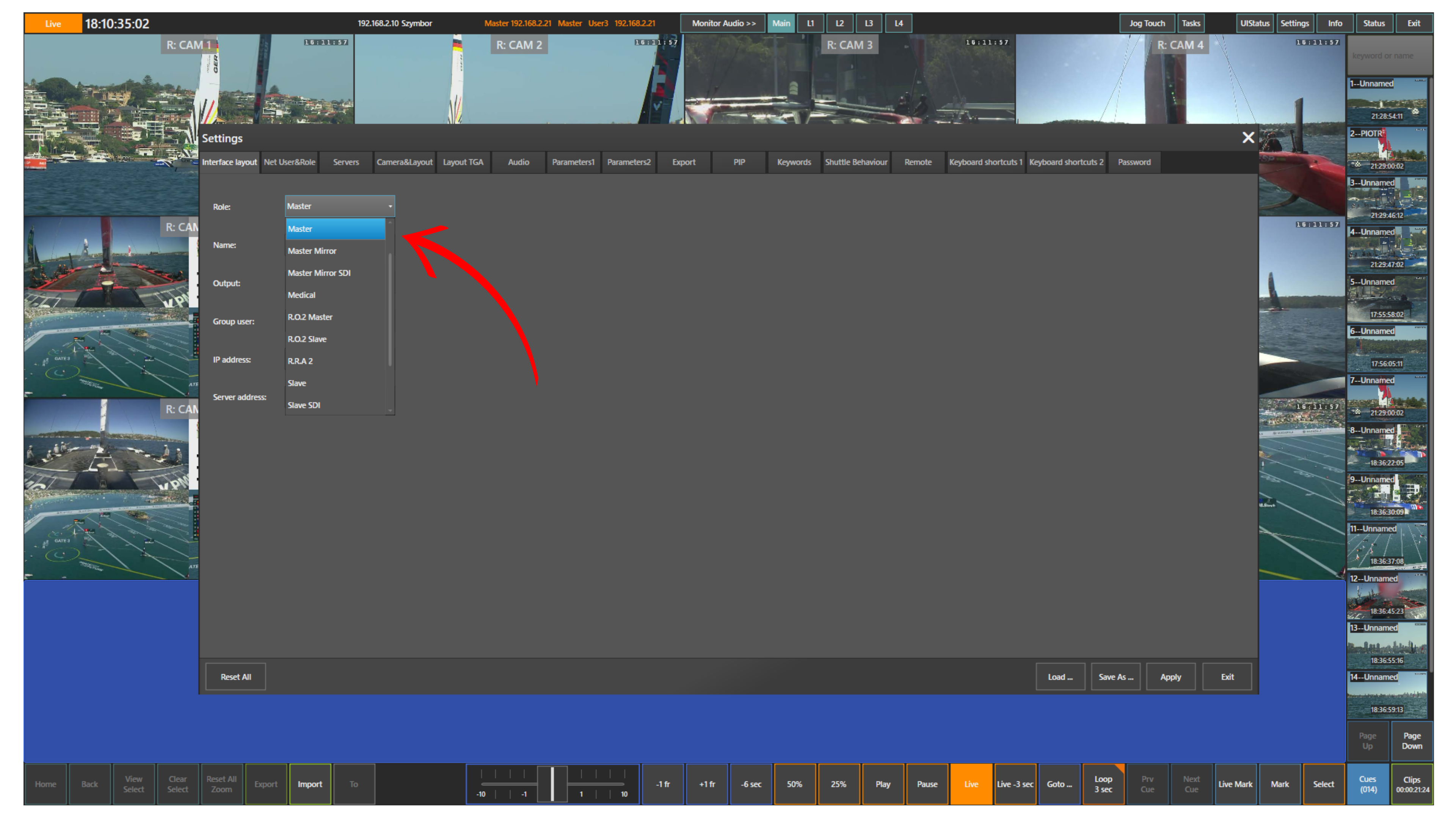
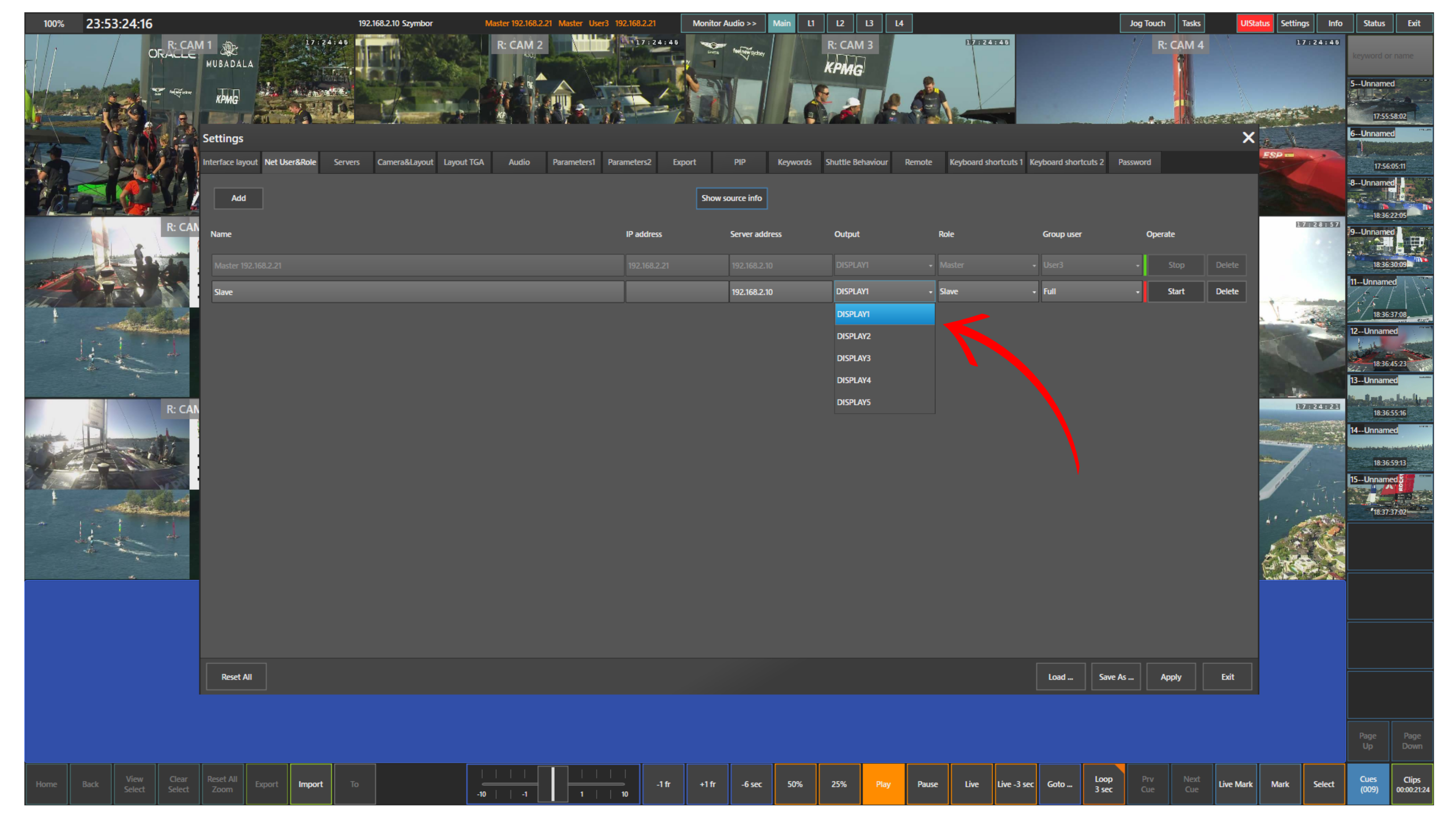
Click the Settings button at the top right of the screen.
-
Go to Interface Layout.
-
Choose the required role from the dropdown list.
The selected role is shown at the top left of the screen next to the word Role.
Available Roles
Master
Full control role.
This is the main operator position.
You control playback, navigation, layouts, clips, and cues, and you can send selected angles to other screens such as Slave or Sync.
Best used for: The primary replay operator or referee review coordinator.
Master Mirror
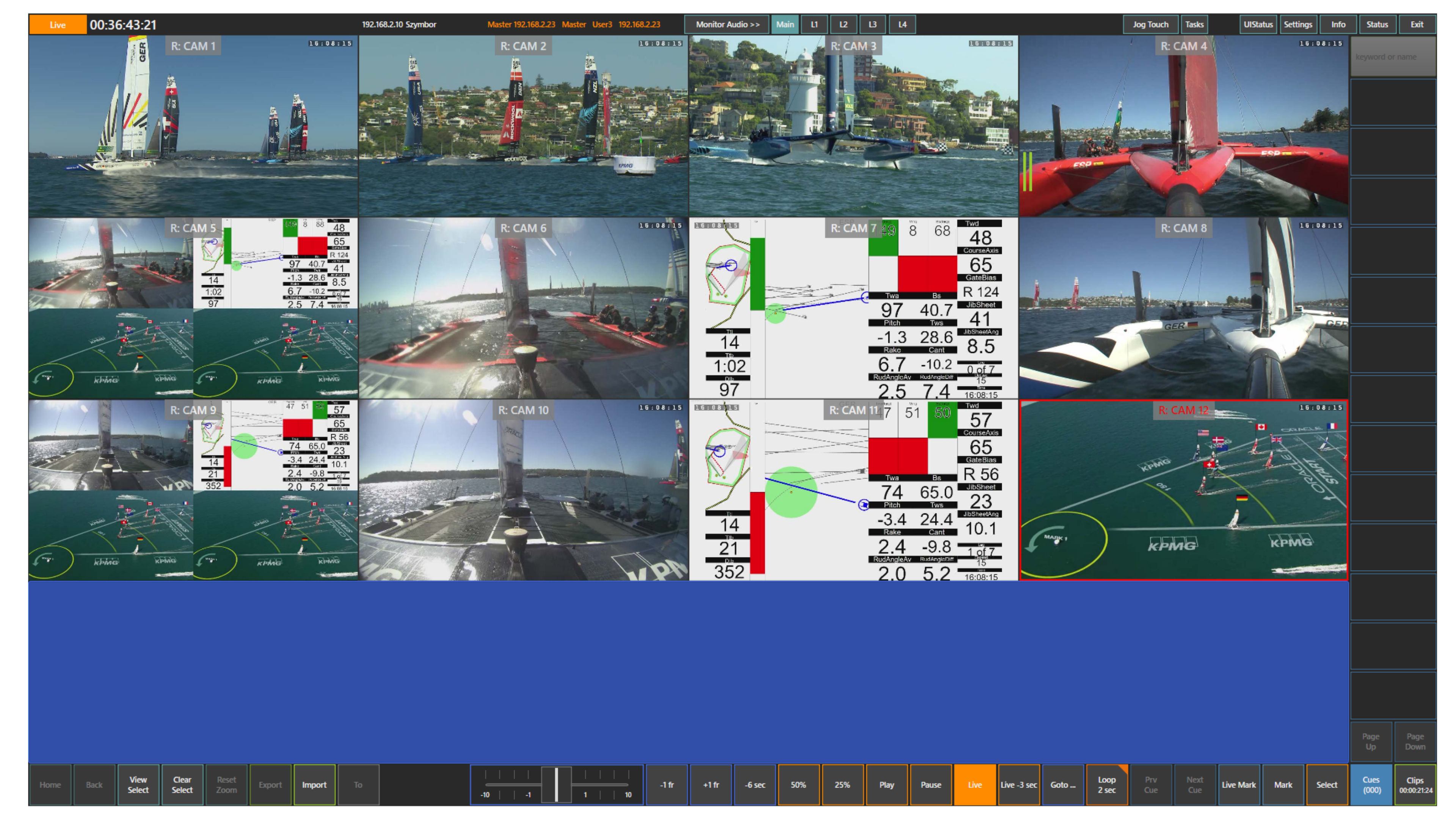
Follows the Master screen.
Everything the Master operator does appears on this screen.
You cannot control the system from here. It simply follows the Master.
Best used for: A second screen for a producer, coach, match official or supervisor who wants to see exactly the same view.
Master Mirror SDI
Same as Master Mirror, but with SDI output enabled.
It mirrors the Master and also sends a clean video signal through the SDI connector.
Best used for: Very convenient when you want to show your screen on a large display for a bigger audience or auditorium, or use it with an external recorder.
Medical
Browse and analysis role.
You can change layouts, zoom into any angle, create mark points, and export clips.
It is designed for detailed review without full production control.
Best used for: Team doctors, physiotherapists, or performance analysts who need to study injuries or key moments.
Commentary
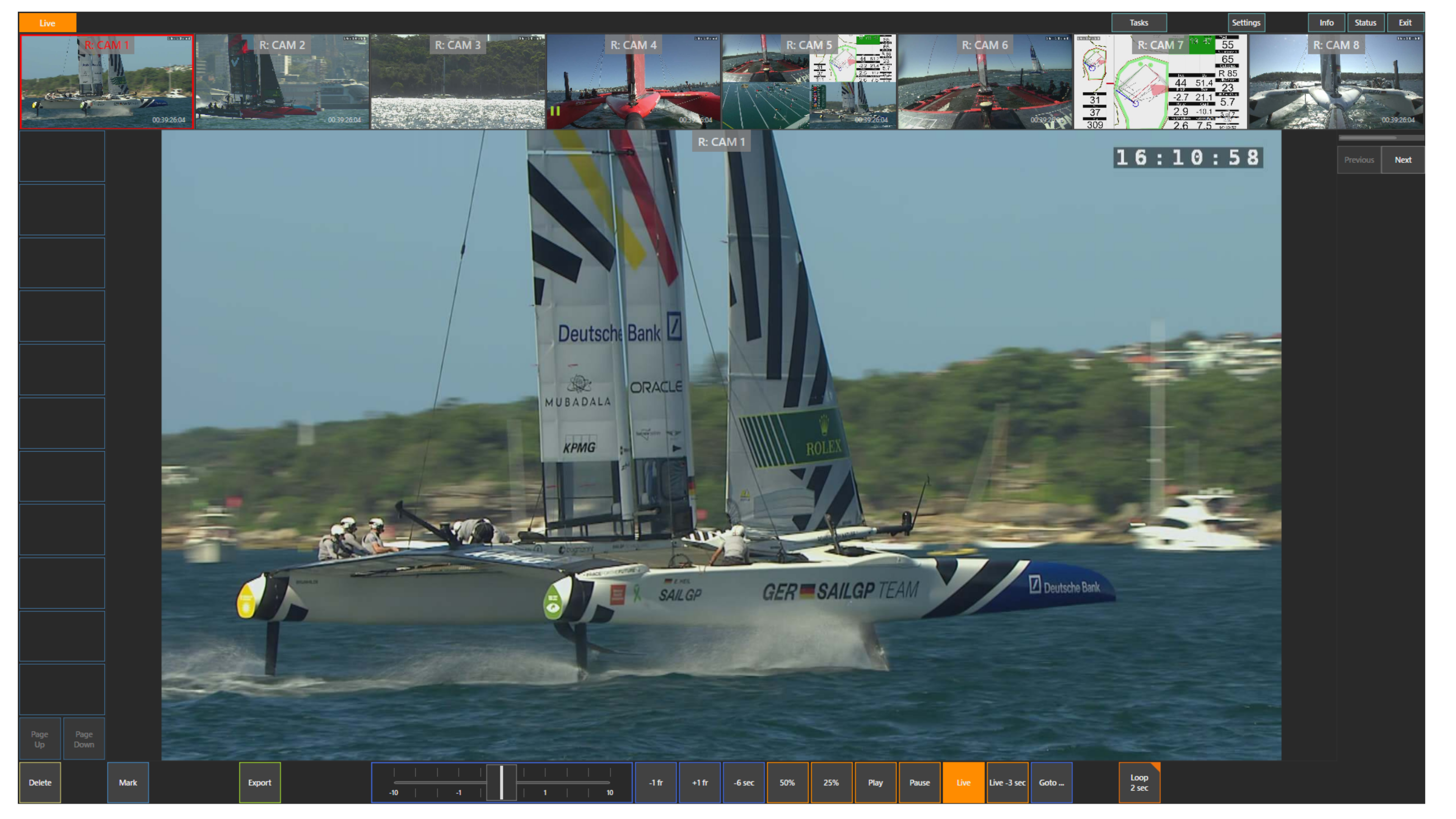
Browse-only role focused on commentary positions.
You can view video with different layouts and watch replays.
No clip creation or advanced control tools are available.
Best used for: TV or radio commentators who only need clean video feeds during live broadcast.
GHT
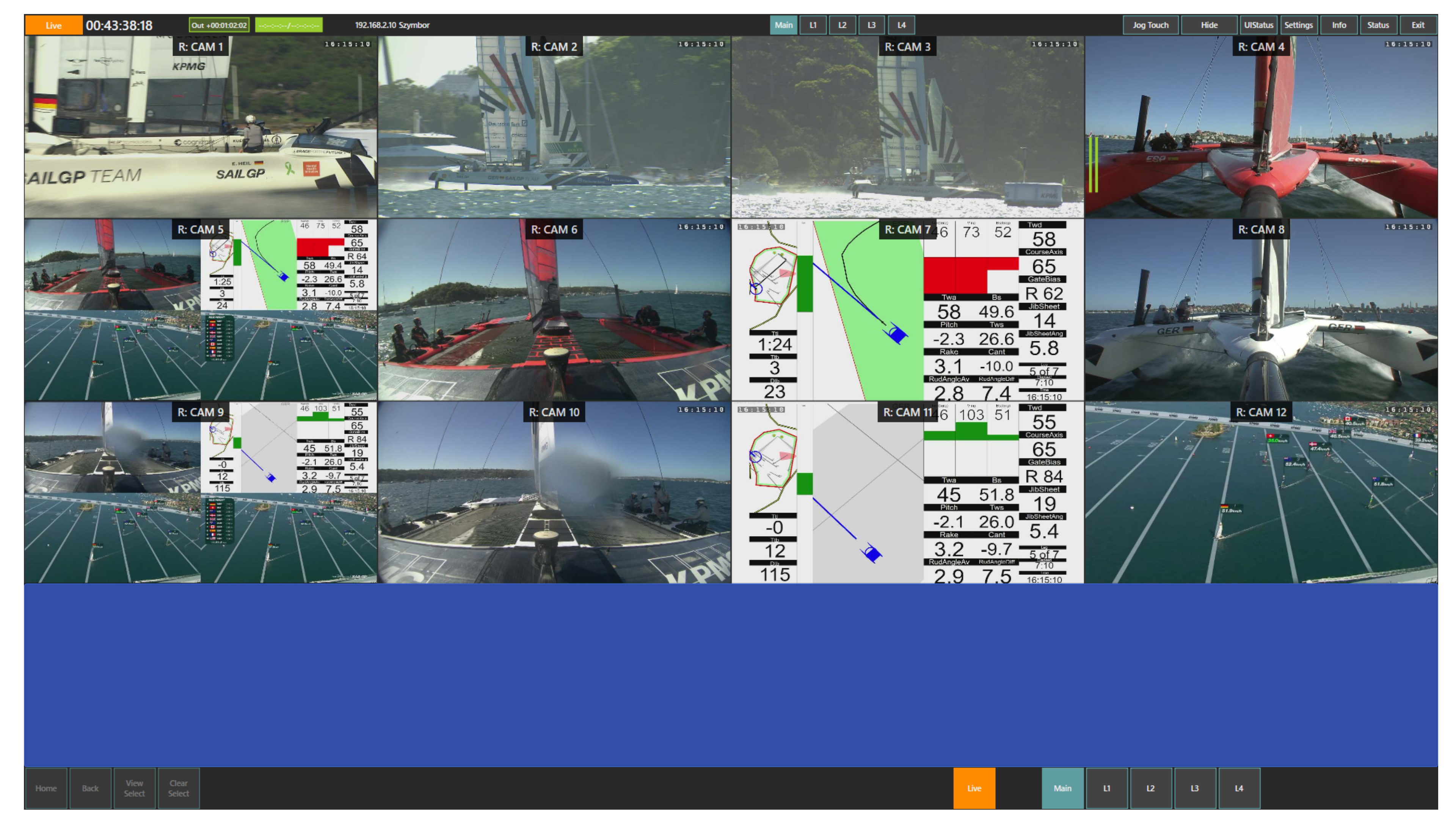
Special simplified role for horseracing stewards.
It works like a traditional ViBox with SDI output on both screen 1 and screen 2.
The interface is clean and fast, making it well suited to quick single-angle or basic multi-angle review.
Best used for: Stewards reviewing race incidents in horseracing events.
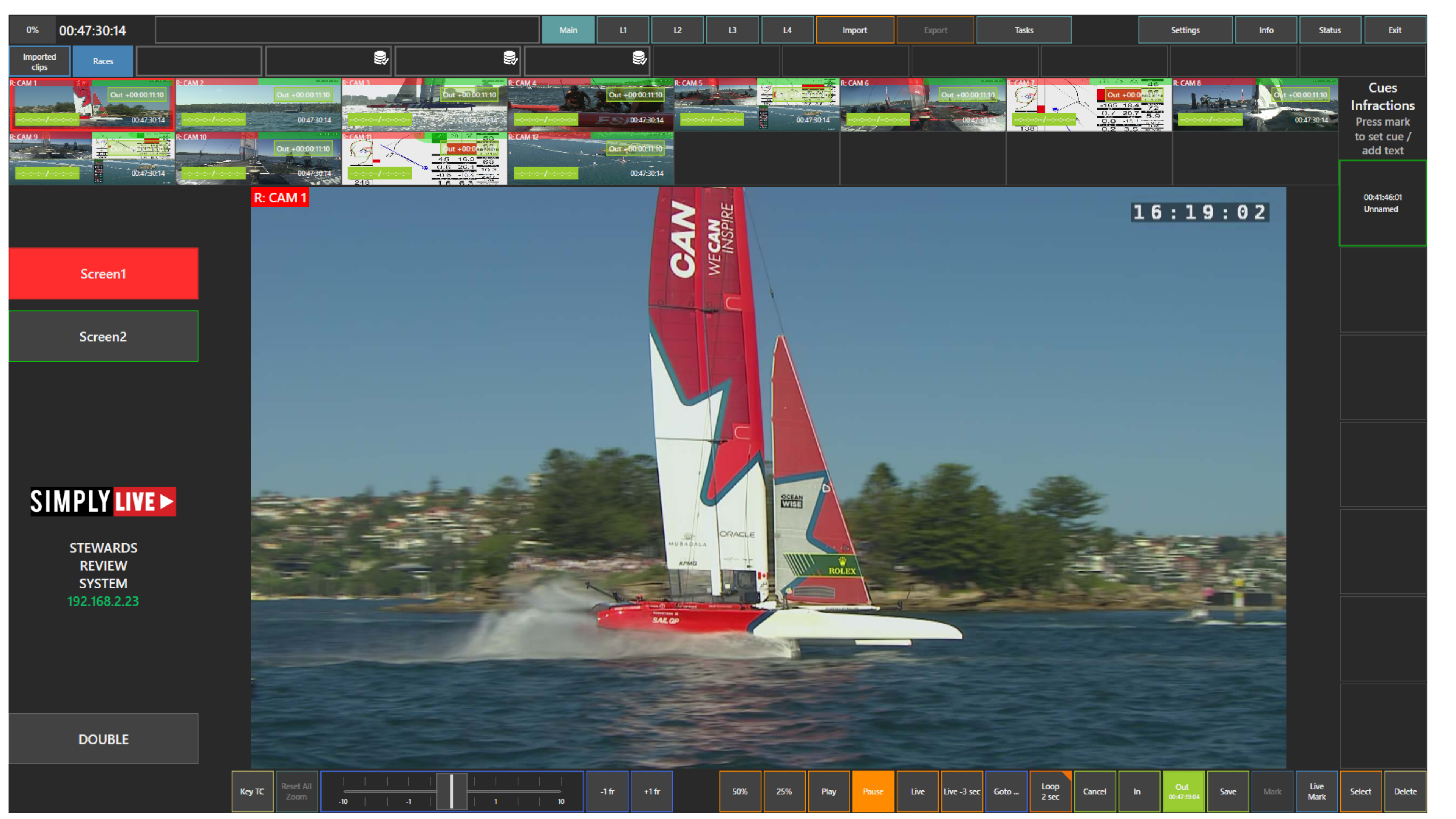
A key advantage of the GHT role is that you can assign one camera angle to Screen 1 and another camera angle to Screen 2, then press the DOUBLE button to compare both angles side by side.
If you want to assign a camera angle to Screen 1, click on the left (red) part of the camera tile.
To assign a camera angle to Screen 2, click on the right (green) part of the camera tile.
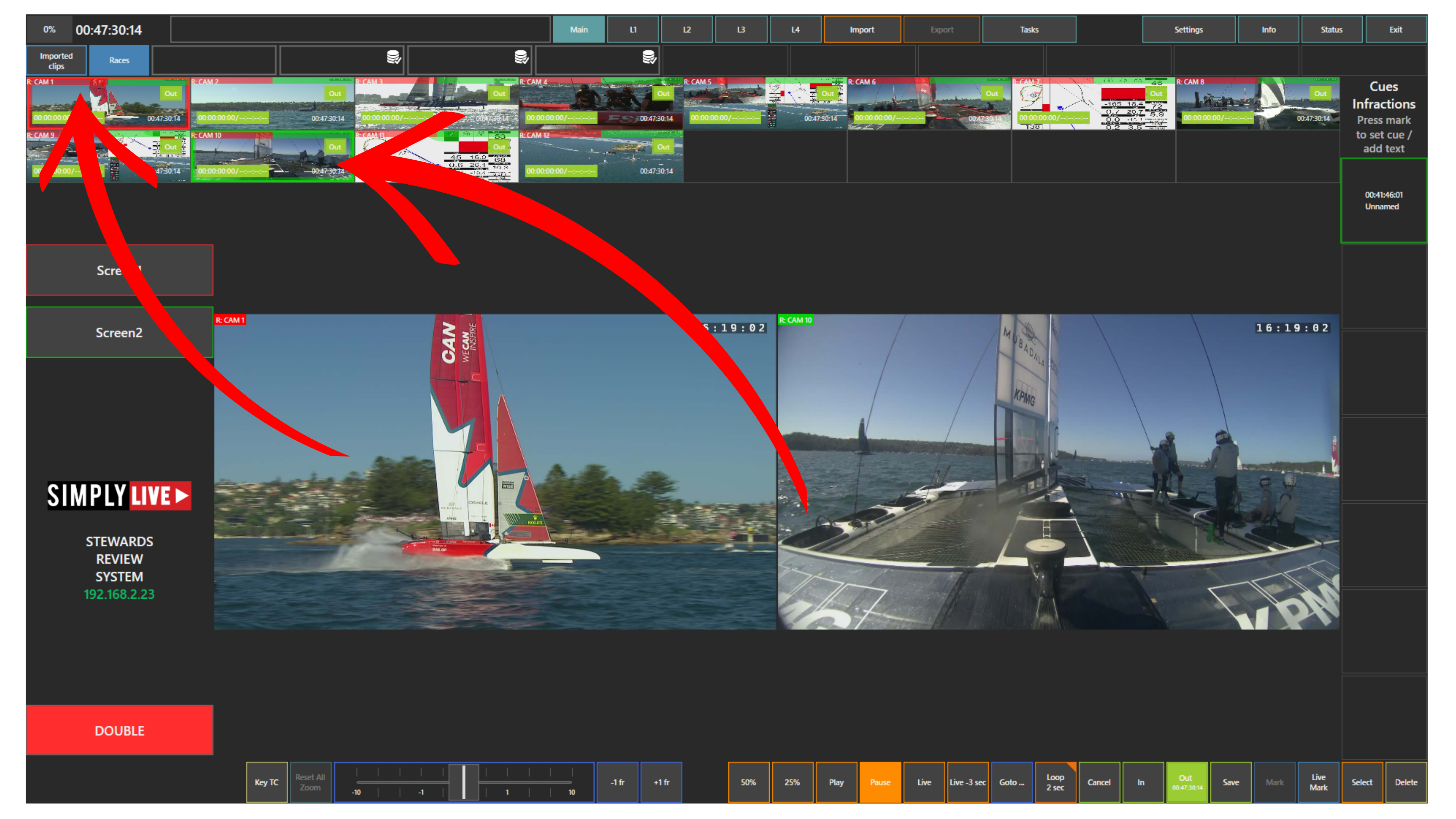
Once selected, press the DOUBLE button to display both chosen cameras next to each other. The system will use the cameras you have already assigned to Screen 1 and Screen 2.
If you switch between Screen 1 and Screen 2, each will show the camera you selected using the red or green area of the tile.
This allows you to navigate back and forth through the action while reviewing both views at the same time.
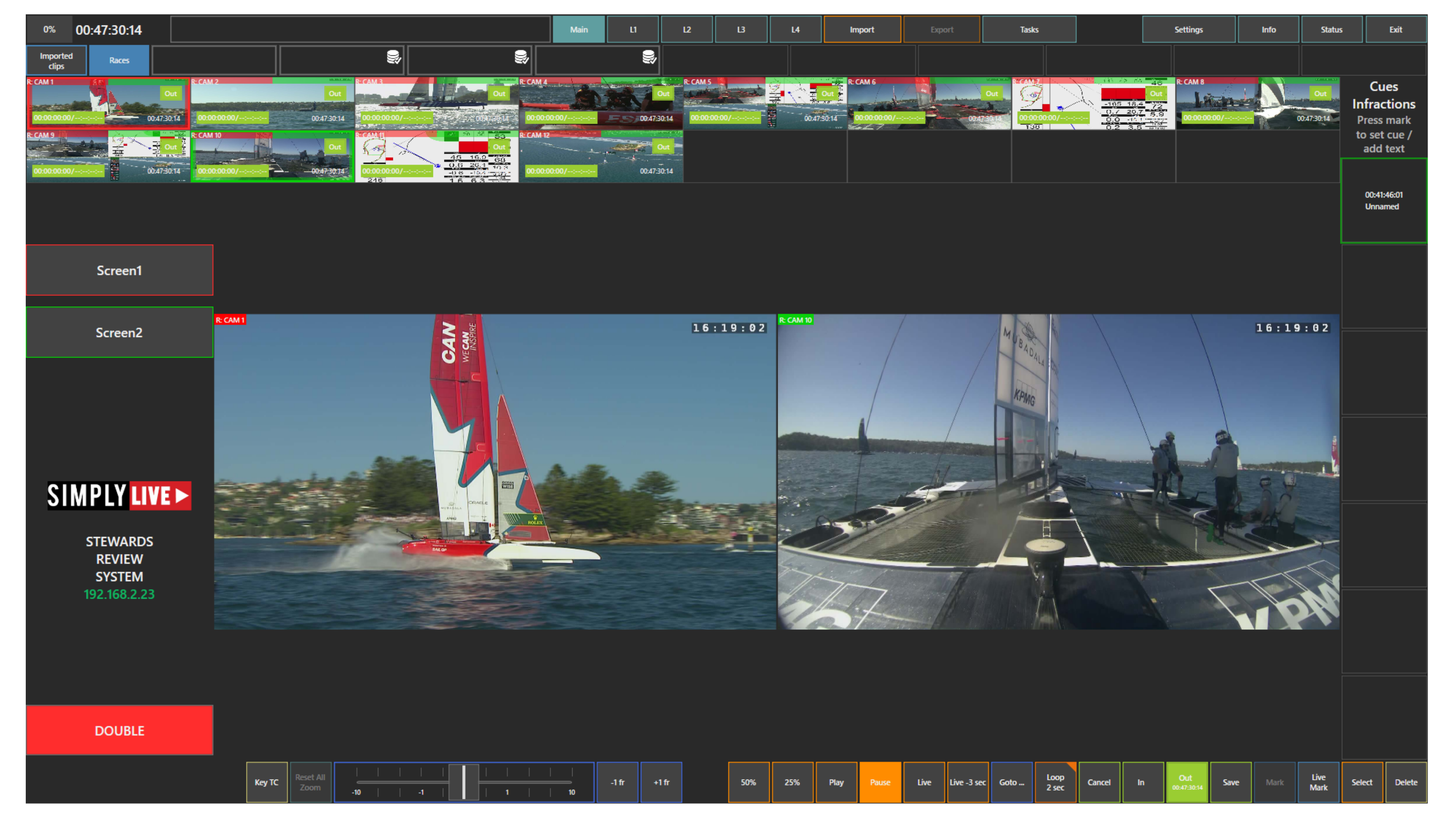
Pro Tip
Use the DOUBLE screen mode especially when reviewing a horseracing finish, where you need to accurately assess which horse crossed the finish line first.
Pro Tip
You can change the camera angles while staying in DOUBLE mode. Simply click on the red (Screen 1) or green (Screen 2) part of another camera tile to update the comparison in real time.
R.O.2 Master
Special Referee Official 2 Master role.
Full control, similar to the normal Master role.
You can send video to R.O.2 Slave and R.R.A 2 screens.
It is designed for more advanced referee review workflows.
Best used for: The main operator in specific referee official setups.
Pro Tip
Use the R.O.2 Master together with VAR2 and R.R.A 2 screens for full FIFA-style VAR workflows. The R.O.2 Master controls the review while VAR2 and R.R.A 2 screens automatically follow the selected angles.
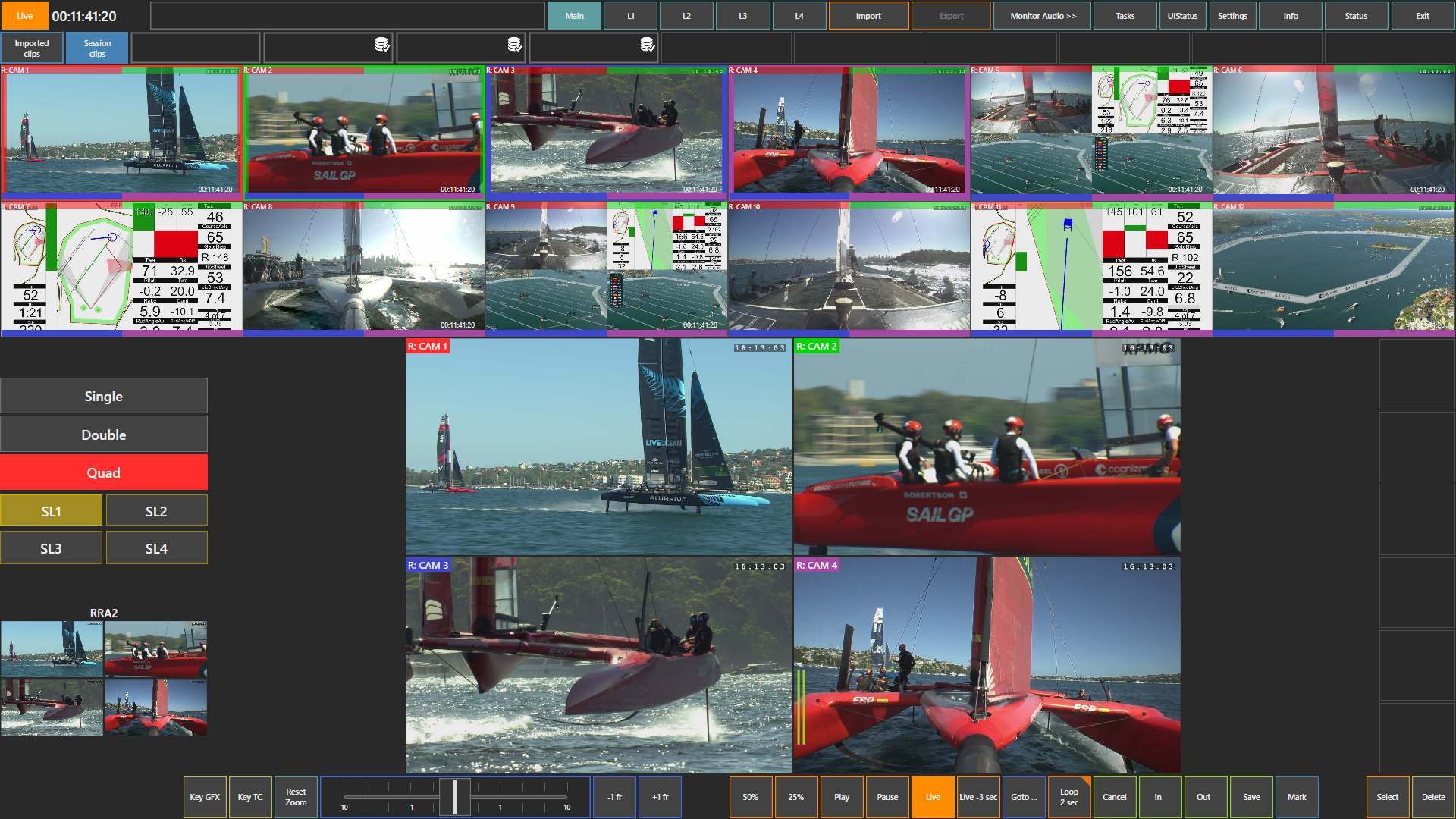
R.O.2 Slave
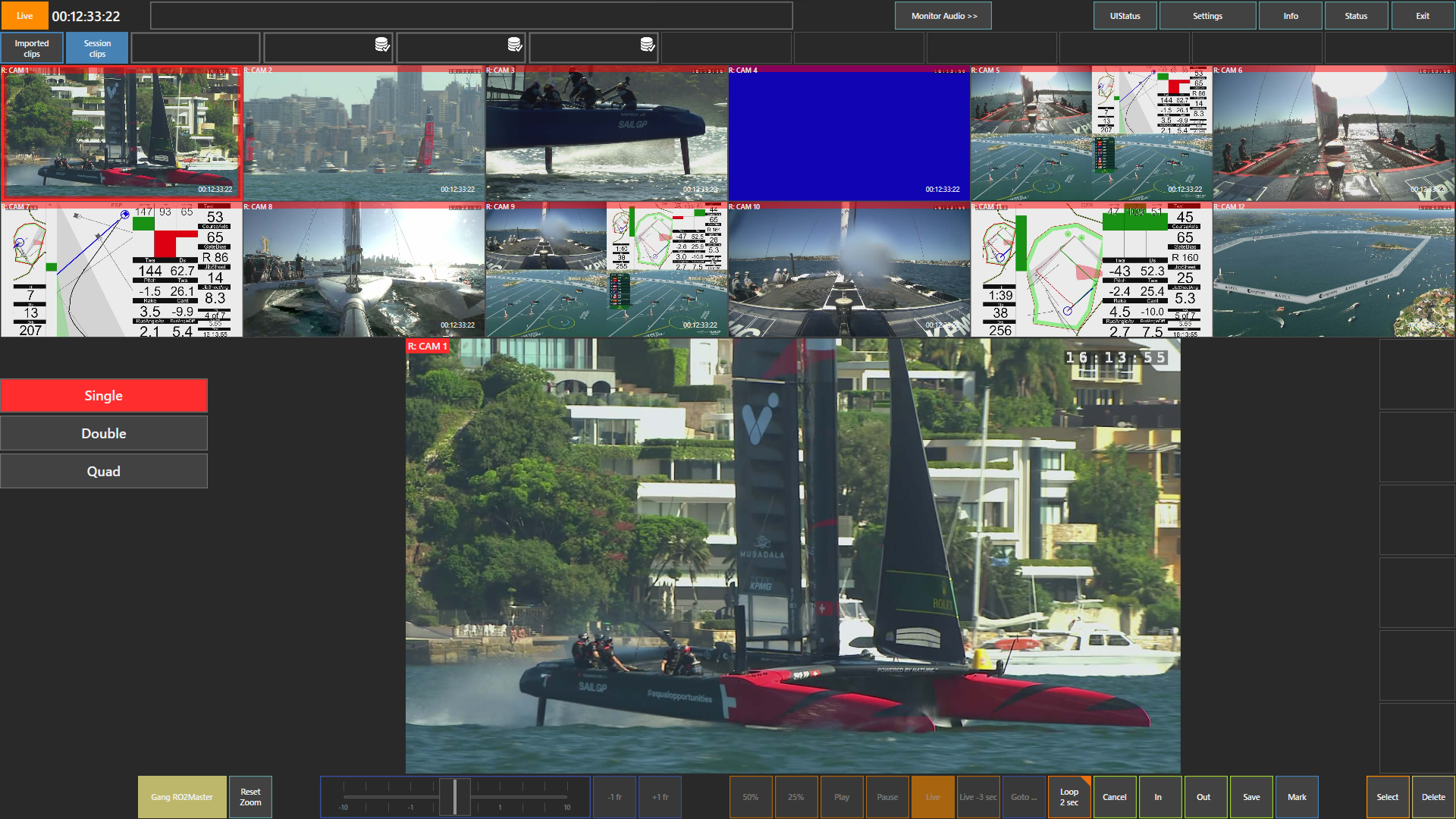
Full Control Role with "Gang" option.
Unlike a standard "Slave," the R.O.2 Slave is a fully functional workstation. As an operator here, you have full control to browse video, change your own layouts, and analyze the play independently; your actions will not affect the R.O.2 Master's screen.
The "Gang" Feature: If the lead official needs you to look at their exact angle, you can click the "Gang RO2Master" button. This temporarily hands over control of your interface to the R.O.2 Master, locking your screen to theirs so you can make a joint decision.
Best used for: A secondary replay operator or assistant referee who needs to do their own independent searching, but must be able to instantly link up with the lead referee when asked.
R.R.A 2
Browse-only synchronized viewing station.
This is a strict "Browse and videos only" role. You have no playback controls. The videos on this screen will automatically follow the layout chosen by the R.O.2 Master.
Best used for: Additional viewing stations (like a medical room or a broadcast supervisor) where the user just needs to watch the Master operator's final camera selections without ever touching the controls.
Slave
The most common follower role.
Browse only, with no control over the server.
You see exactly what the Master selects in real time.
Best used for: On-field officials, coaches, or anyone who only needs the best angle quickly without any extra controls.
Slave SDI
Same as Slave, but with SDI output enabled.
You get a clean SDI feed of the selected angle.
Best used for: Sending the replay view to a referee monitor, coach tablet, or external device via cable.
Sync
Full Control Role (Limited Distribution).
The Sync role provides the exact same full-control administrative workspace as the Master role. You have total authority over your own multi-viewer, playback controls, clip creation, and cue management. The only difference is in distribution: a Sync operator can push video feeds only to Slave screens.
Best used for: A secondary replay operator or review assistant who needs full independent control to search and create clips, while still having the ability to push their selected angles to supporting Slave monitors (like an on-field official).
VAR2
Browse-only role designed for Video Assistant Referee workflows.
Video automatically follows the layout of the R.O.2 Master.
Best used for: VAR teams in football or soccer.
Pro Tip
For most referee review setups, use one Master plus Slave screens. The Master finds the best angle while the officials on Slave see it instantly.
Pro Tip
Test your selected role setup before the event starts. Changing roles while the event is live can interrupt the workflow.