
You can customise and switch between different camera layouts in RefBox to match your workflow.
Each layout defines how camera inputs are arranged on the screen.
You have one primary layout (Main) and four additional layouts (L1, L2, L3, L4) that can be used for different review scenarios.
You can switch between layouts instantly by pressing the layout buttons at the top of the screen (Main, L1, L2, L3, L4).
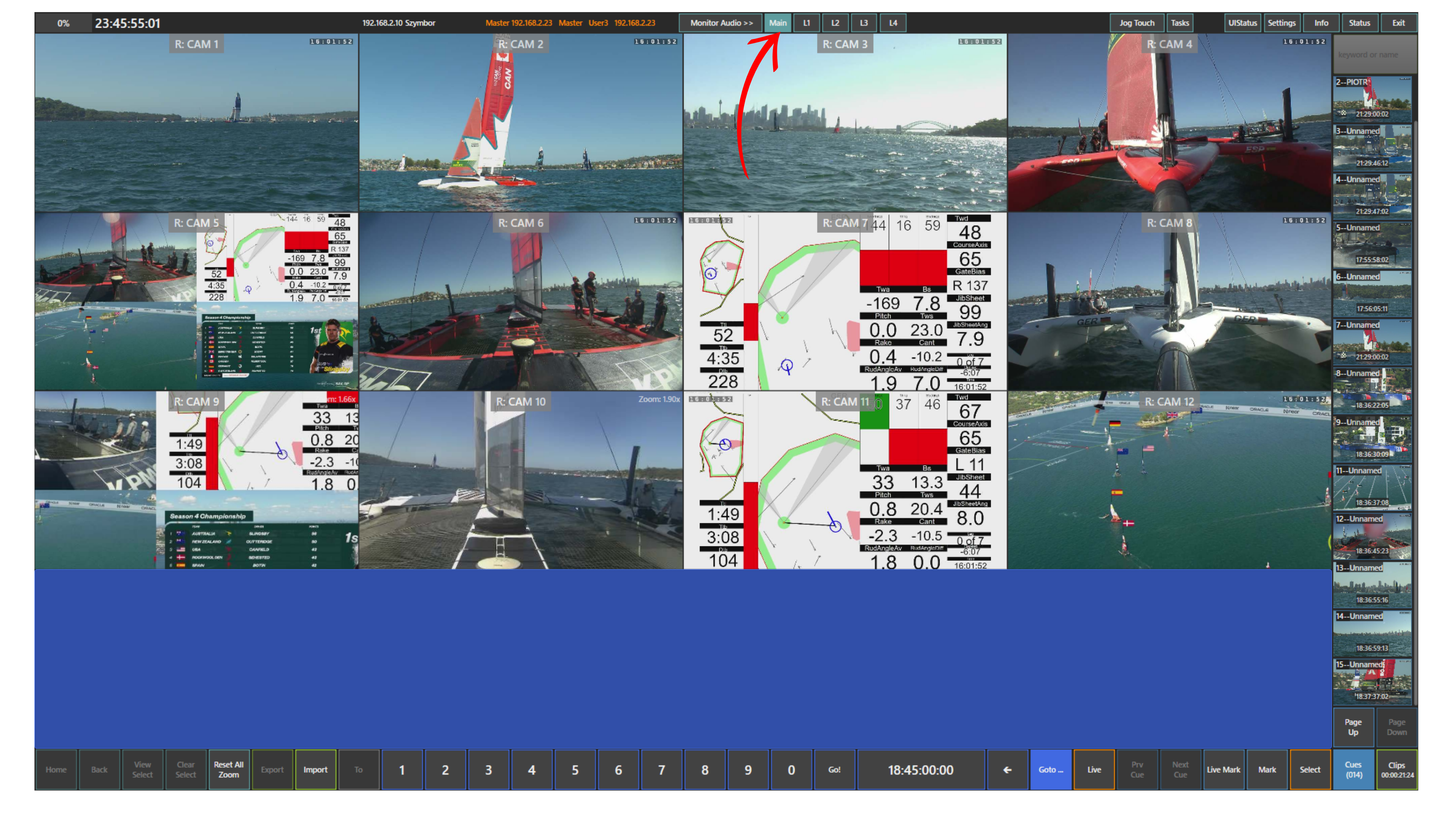
To modify layouts, go to Settings → Camera Layout.
From there, you can assign cameras to layout positions by simply dragging and dropping them into the desired slots.
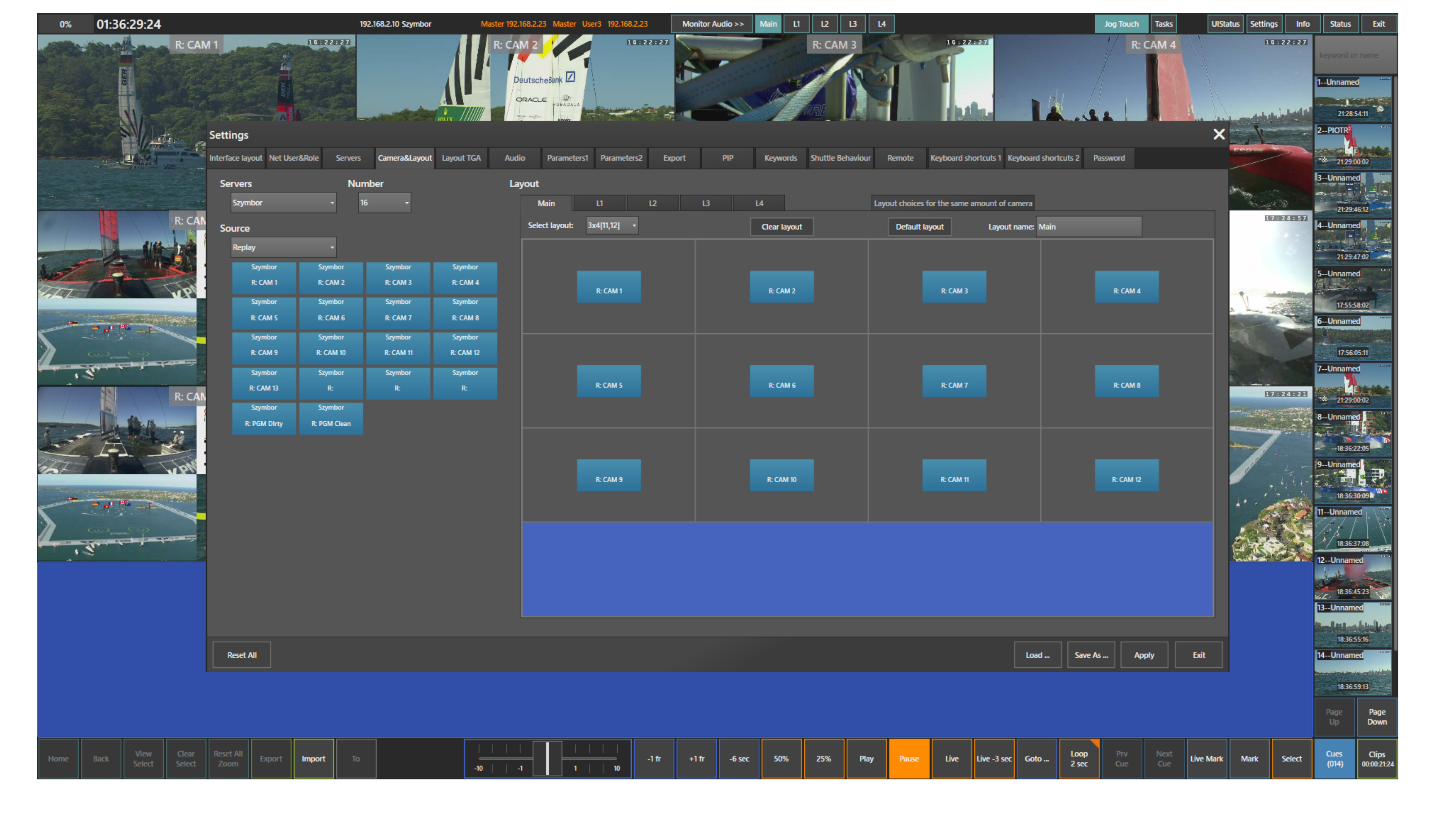
This allows you to prepare dedicated views, for example:
-
A full multi-angle overview
-
A reduced set of key cameras
-
A layout focused on specific zones or incidents
Pro Tip
Prepare multiple layouts in advance for different situations. Switch between them instantly instead of rebuilding your view during live review.