
Use Manual Host Signature Request only when the Licensed Product procedure explicitly provides a Host Signature Request File. This is a separate Offline workflow from Manual Device Identity Lease Renewal.
Eligibility
The Portal provides this component for an eligible Virtual Device that does not already have Host Signatures. If the component is unavailable, do not upload the file through Manual Device Identity Lease Request. Contact Riedel Customer Success if the expected workflow is unavailable.
Complete Manual Host Signature Licensing
1. Generate the Host Signature Request
1.1. Open the Product-Side Licensing Interface.
1.2. Start its Host Signature or host-bound Offline Licensing procedure.
1.3. Generate the .hsr Request File and preserve its filename.
2. Open the Matching Device
2.1. Sign in to the Portal and confirm the Customer Account shown.
2.2. Select Devices and open the Device that matches the Product and Serial Number in the Request File.
3. Upload the Host Signature Request
3.1. Under Manual Host Signature Request, select Choose File.
3.2. Choose the current .hsr file.
3.3. Select Upload.
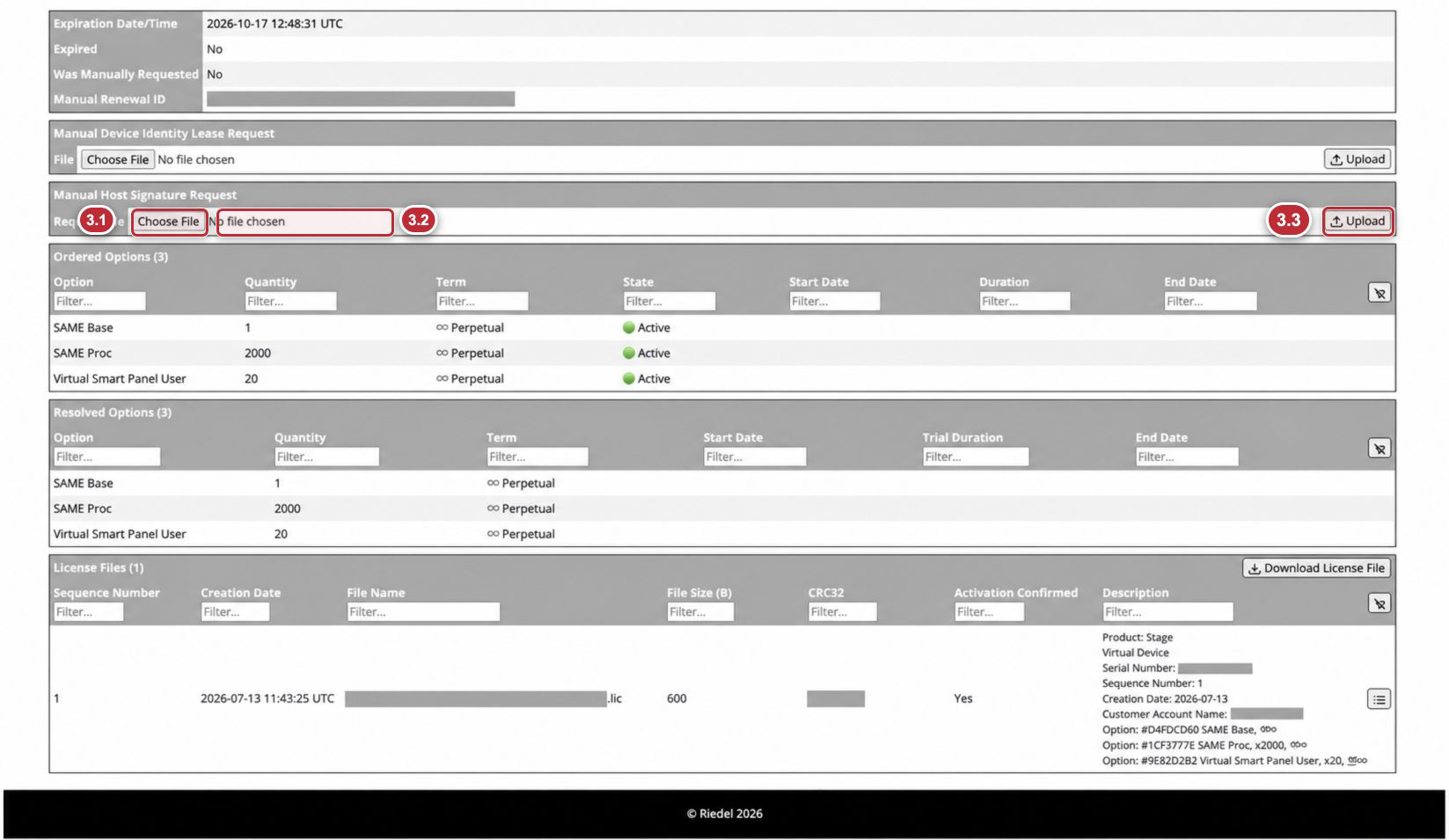
Callouts 3.1 through 3.3 correspond exactly to the upload steps above. Customer-specific values are masked.
4. Confirm That the Request Was Accepted
Wait for the Portal to display Device host signatures request accepted. You may download a new license file to use it.
5. Create or Download the License File
5.1. Select Create License File if the Portal reports that the latest License File is missing or outdated.
5.2. After the Device Page refreshes, select Download License File.
5.3. Store the .lic file with the matching Device records.
6. Apply the License File
6.1. Return to the Licensed Product that generated the Host Signature Request.
6.2. Apply the downloaded License File through its Product-Side Licensing Interface.
6.3. Complete a reload or restart only when required by the Licensed Product manual.
7. Confirm Activation When Required
If the License File record displays Activation Confirmed: No and provides Confirm Activation, follow Download License Files.
8. Verify the Result
Confirm the Product accepted the License File, review the Device and License File status in the Portal, and verify the expected licensed capability.
Do not expect a Manual Identity Lease Confirmation from this workflow. For any rejected file, missing action, or access issue, contact Riedel Customer Success.