
In the Live module of SimplyLive Production Suite Flex, you can create clips manually at any time, without relying on a replay operator. This gives the director or production user immediate control over replay content during live production.
Activating Replay Control
To start working with clips, activate the P1 (Replay panel).
When active, the panel turns blue, indicating that you are now controlling the replay timeline. From here, you can scroll through the record train, move backward and forward, and prepare your clip.
Creating a Clip
To create a clip manually:
-
Scroll through the timeline using the touch panel
-
Set the IN point by pressing IN
-
Set the OUT point by pressing OUT
-
Press SAVE to store the clip
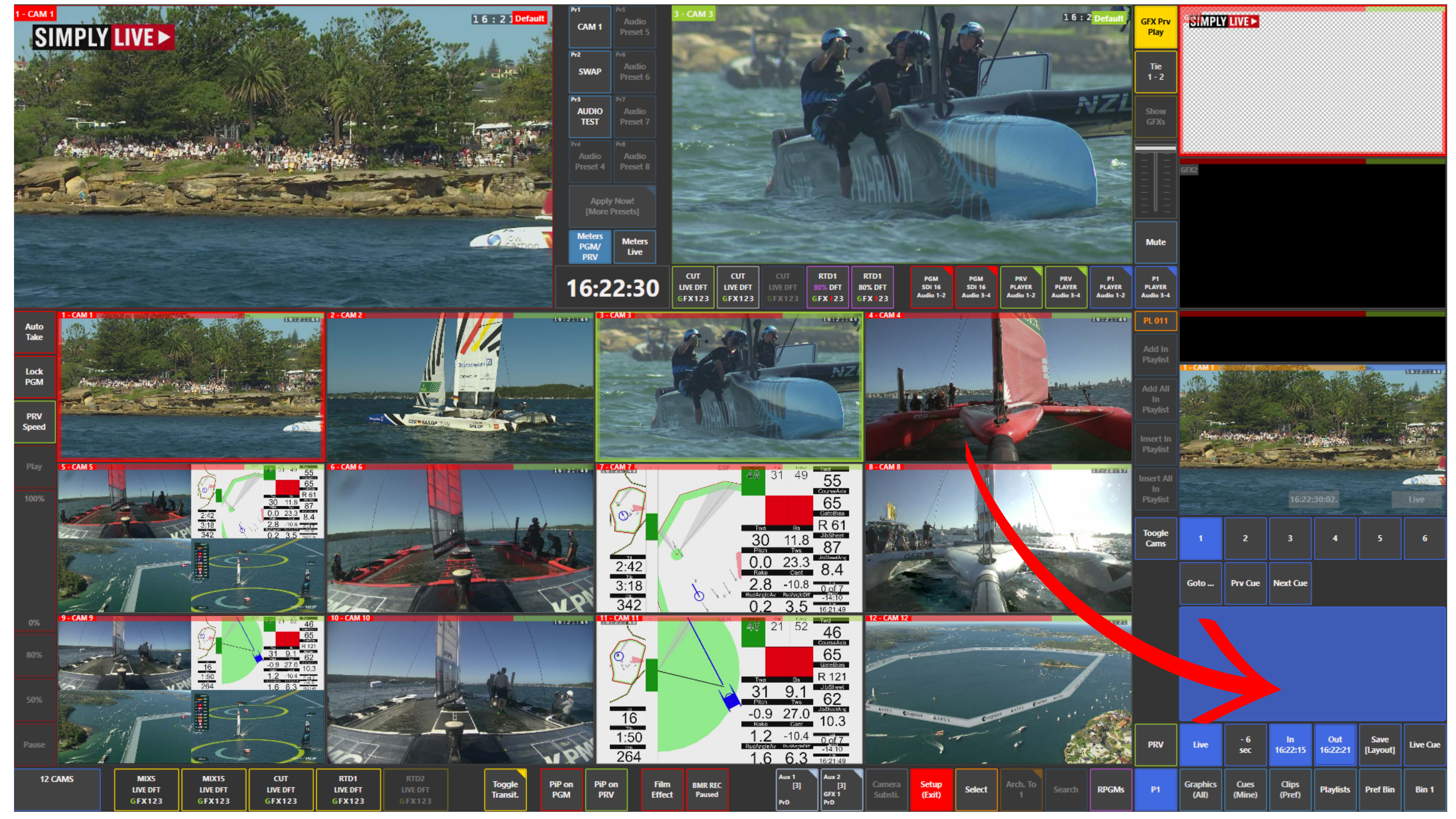
You can also use predefined jumps such as −3 sec to move quickly to a recent action.
Using Cues and Markers
Markers allow you to quickly tag important moments:
-
Press MARK to create a cue point
-
These cues are stored in the Cues panel and can be recalled anytime
-
Press LIVE CUE to instantly mark a moment directly from the live signal
This is especially useful when something important happens while you are still preparing another replay.
Returning to Live
At any moment, you can return to real time by pressing LIVE.
This brings your timeline back to the current live position.
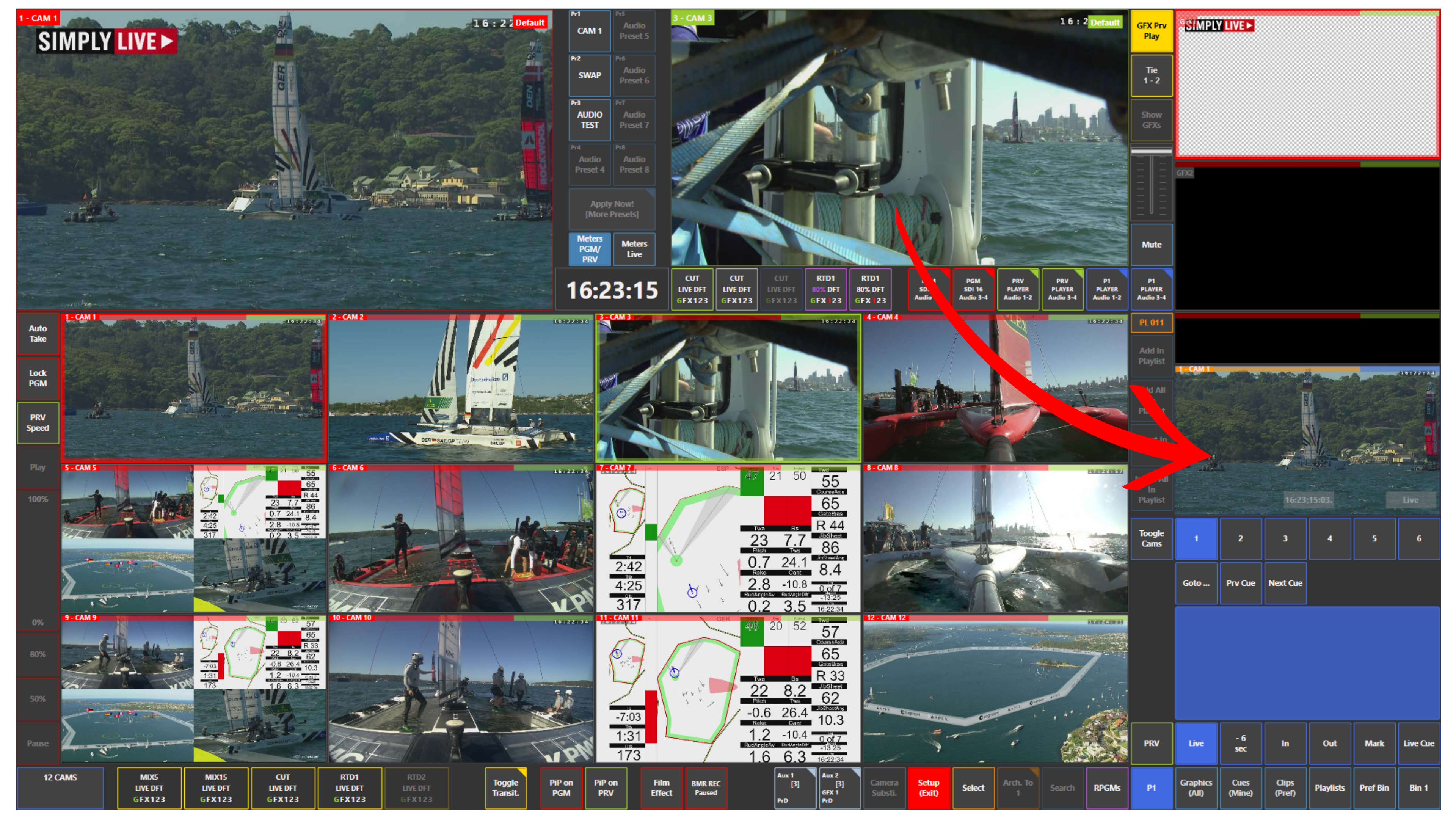
Monitoring and Editing Area
-
The blue touchpad area is where you navigate through the timeline
-
The monitor above shows exactly what you are editing
-
This is your working preview before sending anything to air
Use Case – Live Production Scenario
You are directing a live event. A key moment happens, but the replay operator is still busy.
Instead of waiting:
-
You activate P1
-
Scroll back a few seconds
-
Mark IN and OUT
-
Load to Preview
-
Cut to Program
You are on air faster than the replay operator.
Pro Tip
Do not always wait for a replay operator.
In fast productions, you can often react quicker by creating the replay yourself, especially for simple actions.
Info
The clip you are currently preparing (IN/OUT selection) is always visible in the monitor above the blue control area. This gives you precise visual feedback before taking it to air.
This workflow reflects the integrated design of SimplyLive systems, where multiple users can access and create content simultaneously within the same production environment.