
In the Live module of SimplyLive Production Suite Flex, you can directly monitor and control the outputs of your replay operators using the RPGM(s) view.
Accessing Replay Operator Outputs
To see what your replay operators are preparing:
-
Press RPGM(s)
-
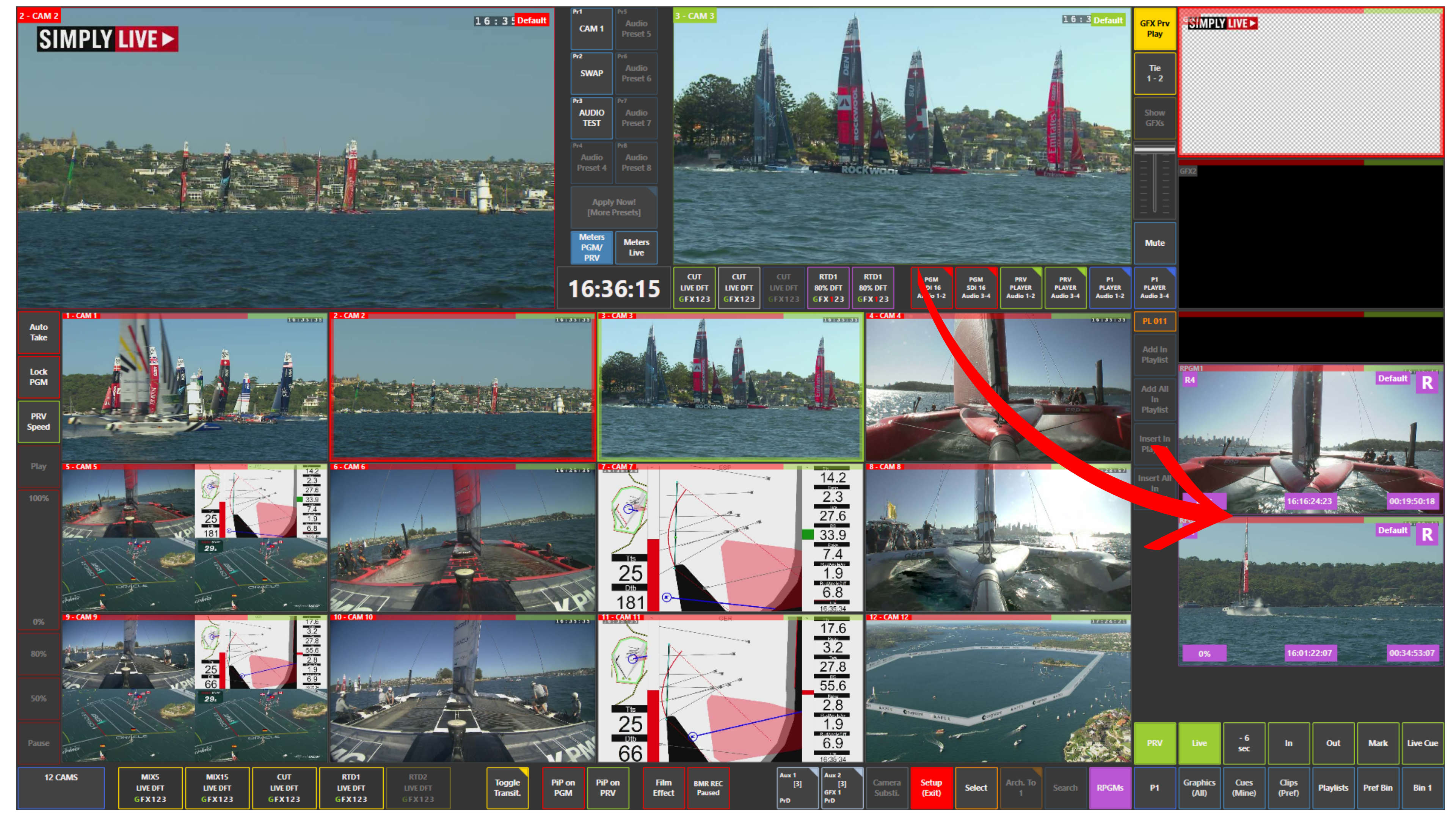
The interface will display the RPGM channels (Replay Program outputs)
Each tile represents a replay operator output, including:
-
Current playback position
-
Playback speed (e.g. 80%, 0%)
-
Assigned replay channel (e.g. R1, R4)
-
Status (live, paused, replay)
This gives you full visibility of what each operator is doing in real time.
Taking Replay from RPGM
Once you see the desired replay:
-
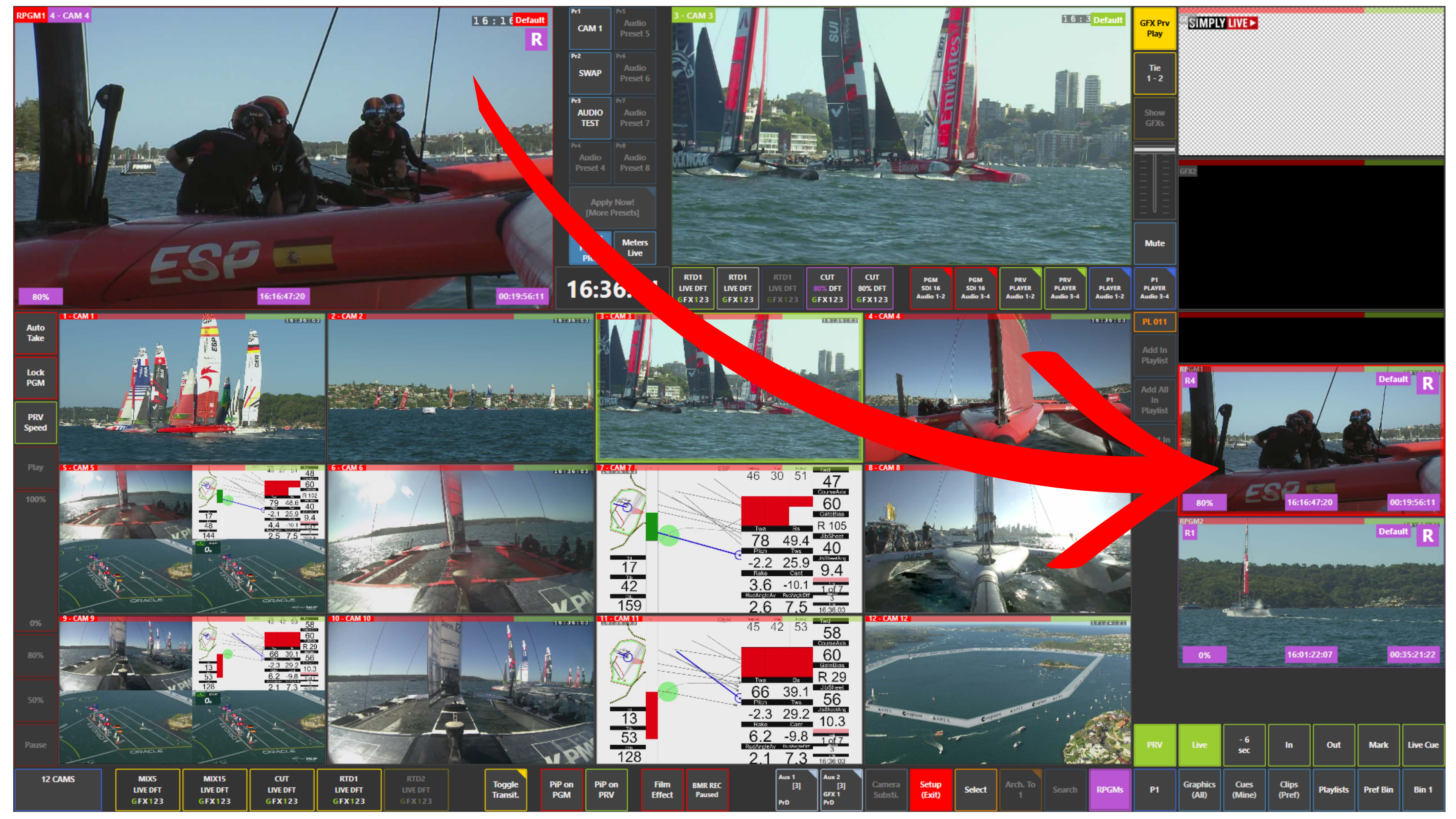
Tap the replay output (RPGM tile)
-
Load it to Preview (PVW) or take it directly to Program (PGM)
The replay will automatically start when taken to air.
Pro Tip
Use RPGM view as your decision layer.
You are not guessing what the operator prepared
You see it live, with timing and speed
You choose the exact moment to take it
Pro Tip
You don’t need to wait for a “ready” call every time.
If you see:
-
Correct angle
-
Correct speed
-
Correct position
You can take it immediately.
That’s how you stay fast in live production.
Info
Each RPGM output is a live feed from the replay operator’s channel.
When you take it to Program:
-
Playback starts automatically
-
The system follows the current speed and position of that replay
This is part of the integrated multi-user workflow, where replay and production operate on the same timeline environment.
Use Case – Live Production Scenario
You are on air during a sailing race.
-
Operator prepares two angles: R1 and R4
-
You open RPGM(s)
-
You tap it → load to Preview
-
Confirm visually
-
Take to Program
Replay goes on air instantly, perfectly timed.
That’s the power of having replay fully integrated into your production layer.