
In the Live module of SimplyLive Production Suite Flex, playlists can be managed directly from the Live interface. This allows you to build, review, and play sequences while staying fully focused on the live workflow.
Accessing Playlists
To start working with playlists:
-
Activate the Playlists panel
-
The currently active playlist is displayed
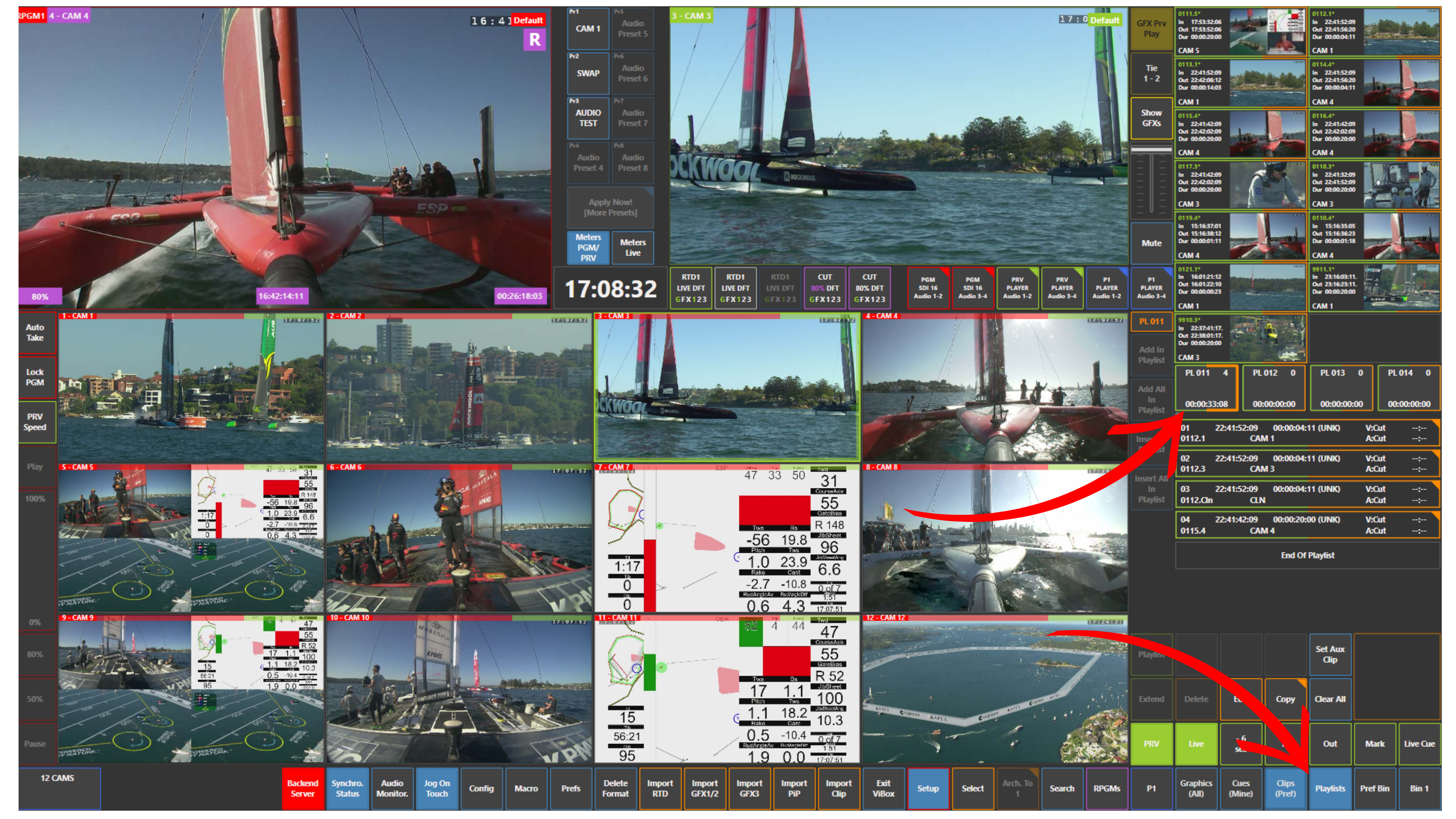
You can navigate between playlists by:
-
Swiping left or right across the playlist numbers
Previewing and Loading Playlists
Each playlist tile has two functional areas:
-
Orange side (right side)
-
Selects the playlist
-
Allows you to preview it without loading
-
-
Green side (left side)
-
Loads the playlist directly to Preview (PVW)
-
This gives you control over whether you want to inspect or immediately prepare the playlist.
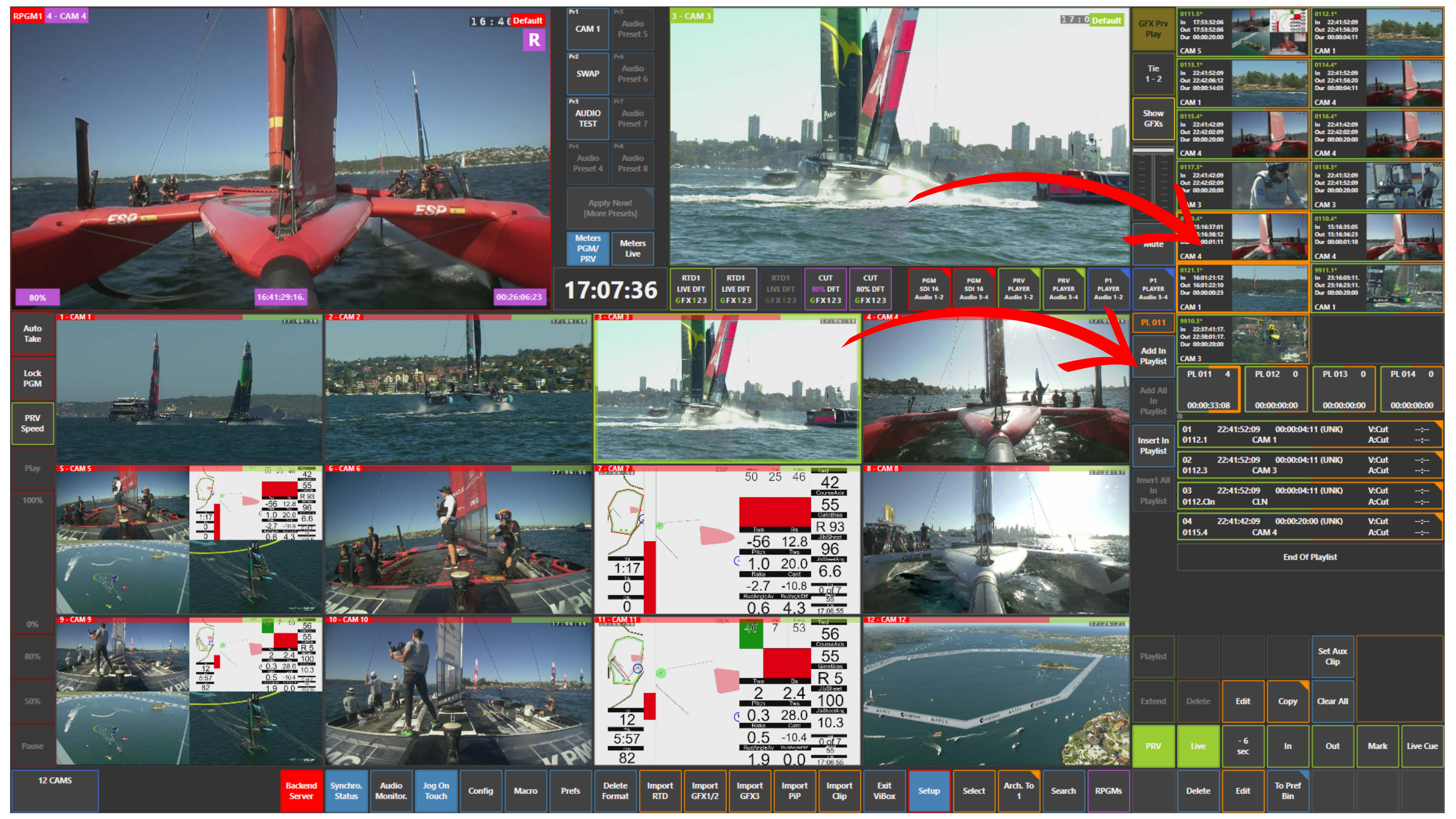
Adding Clips to a Playlist
To build or extend a playlist:
-
Open the Clips panel
-
Select clips:
-
Tap the orange area of clips to select one or multiple items
-
-
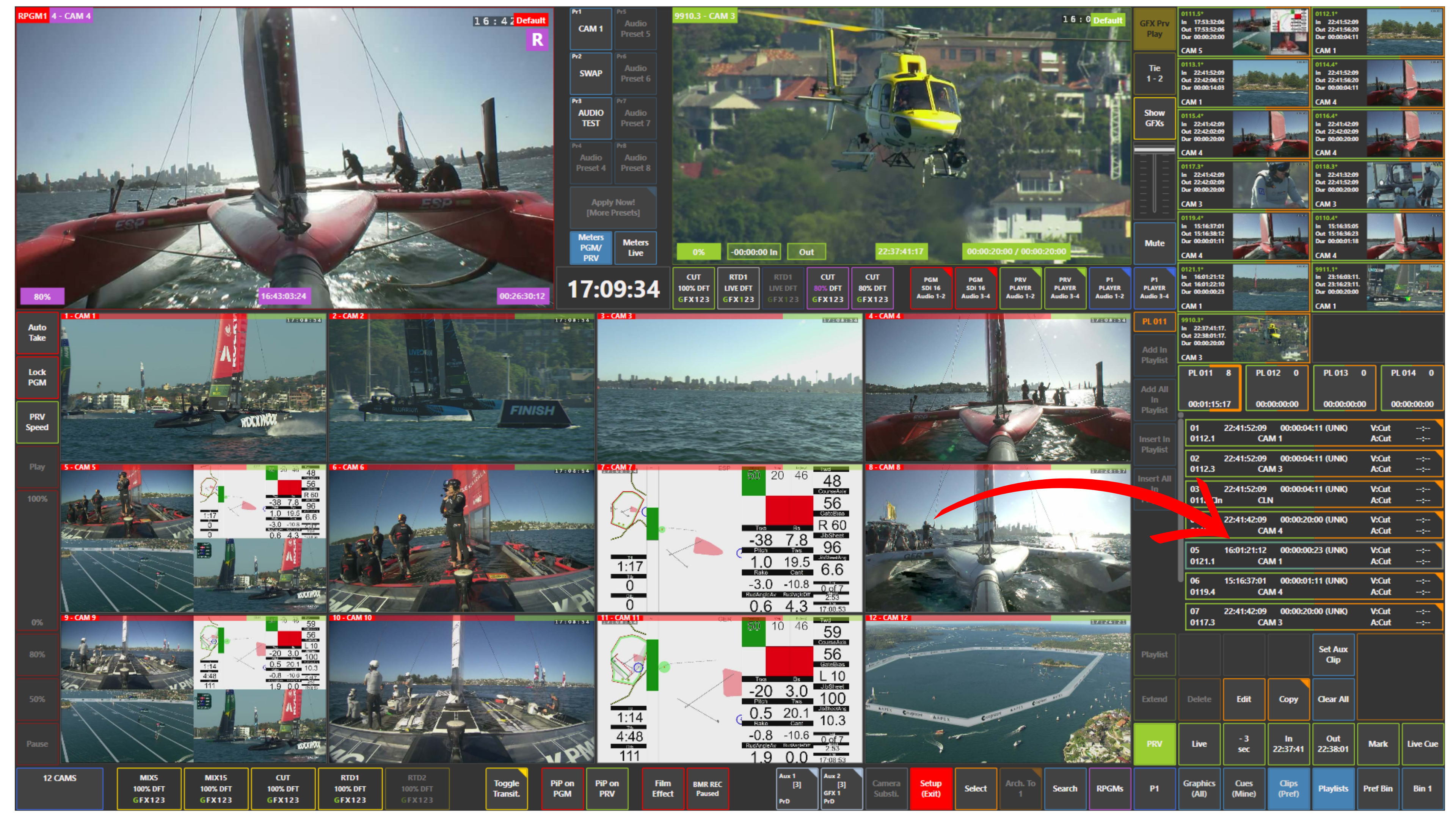
Choose an action:
-
Add to Playlist
-
Adds the clip(s) to the end of the playlist
-
-
Insert in Playlist
-
Inserts the clip(s) before the current active item
-
Info
Playlists can be:
-
Created in the Live module
-
Shared between users
-
Taken from replay (SloMo) operators
This gives you flexibility to either use prepared content or build your own sequences.
Use Case – Live Scenario
Replay operator prepares a highlight playlist.
-
You open Playlists panel
-
Swipe to the correct playlist
-
Tap green side → load to Preview
-
Check content
-
Take to Program
At the same time, you can:
-
Add extra clips
-
Adjust order
-
Build your own version if needed
Pro Tip
Use playlists prepared by the replay operator whenever possible.
But if needed, create or adjust your own playlist in the Live module to stay fast and flexible.