
Preferences > Role UI
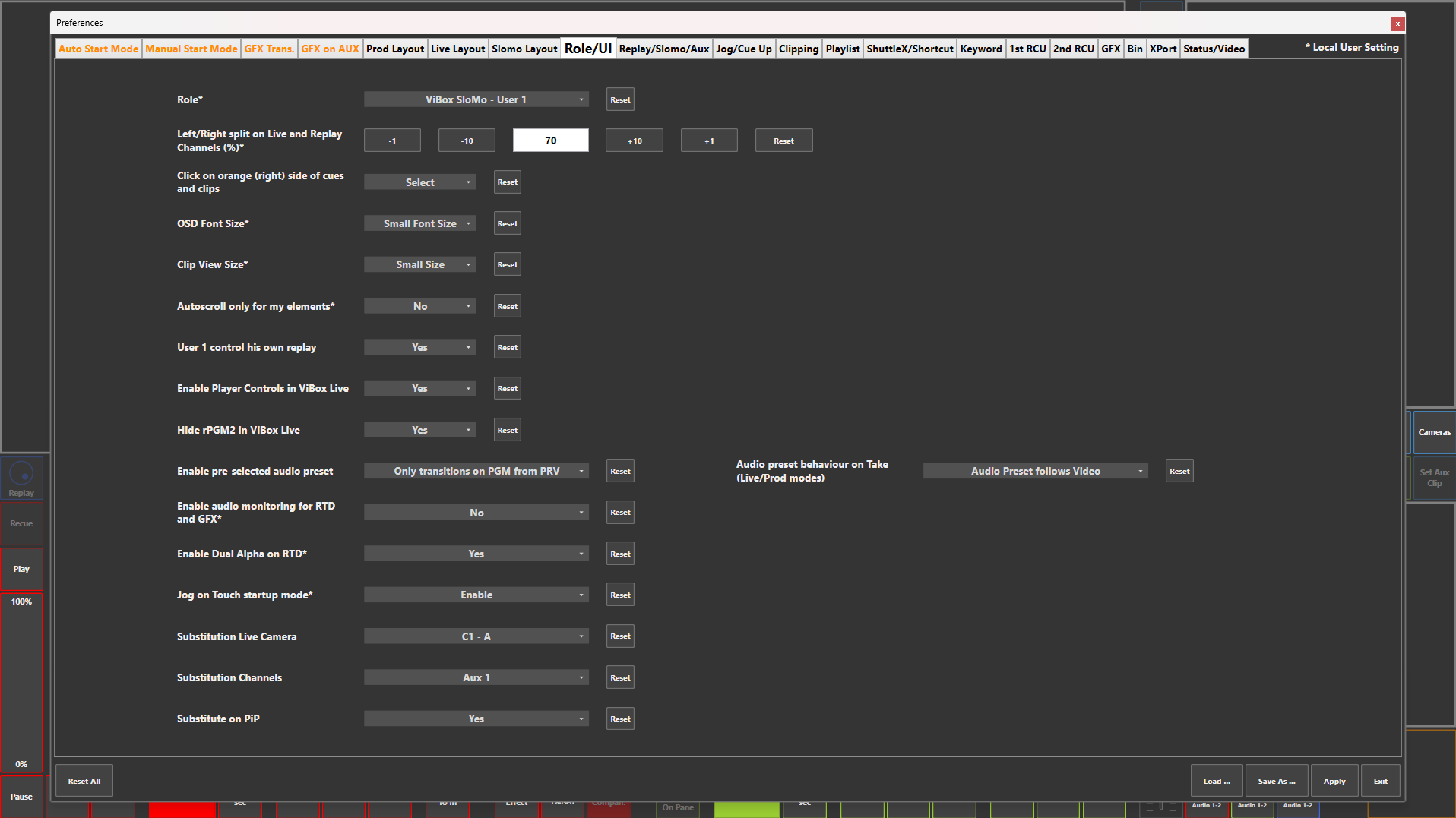
Preference Breakdown
|
Button Label |
Dropdown Menu |
Description |
Specific to Role |
|---|---|---|---|
|
Role |
|
The user number is linked to the number of users on that server - You cannot have multiple "User 1" on the same server |
|
|
|
ViBox Prod Single - User 1 |
One user only, all operations including replays to be done from this role |
Prod |
|
|
ViBox Prod Multi - User 1 |
Same layout and operations as Prod Single, with in-built option to take replays from 1x Slomo user internally |
Prod |
|
|
ViBox Live - User 1 |
Live switching focused role, option to take replays from 2x Slomo users interally - all operations can be done from this role if desired |
Live |
|
|
ViBox Slomo - User 1 |
Replay, clip and playlist editing done from a dedicated user - User 1 |
Slomo |
|
|
ViBox Slomo - User 2 |
Replay, clip and playlist editing done from a dedicated user - User 2 |
Slomo |
|
|
ViBox Slomo - User 3 |
Replay, clip and playlist editing done from a dedicated user - User 3 |
Slomo |
|
Reset |
|
Resets the role to ViBox Prod Single - User 1 |
|
|
Left/Right split on Live and Replay Channels (%)* |
|
The percentage of the colour indicator around each channel in the ViBox UI - Percentage number is going from left to right - 30% will have more of the right colour, 70% will have more of the left colour |
All Roles |
|
Click on orange (right) side of cues and clips |
Select |
Click the orange (right) side of cues and clips will select the element |
Prod |
|
|
Send to Pref bin |
Click the orange (right) side of cues and clips will send this element to the Pref Bin |
Prod |
|
OSD Font Size* |
Small Font Size |
On Screen Display predefinded small font size - Visible on PGM and Camera Layout |
Slomo |
|
|
Big Font Size |
On Screen Display predefinded big font size - Visible on PGM and Camera Layout |
Slomo |
|
Clip View Size* |
Small Size |
Clips will be in 2 columns in ViBox Slomo UI |
Slomo |
|
|
Big Size |
Clips will be in 1 column in ViBox Slomo UI |
Slomo |
|
Autoscroll only for my elements* |
Yes |
When a new clip is created, the clip management space will autoscroll to the new clip |
All Roles |
|
|
No |
The clip management is space is controlled manually by the user |
All Roles |
|
User 1 control his own replay |
Yes |
The replay channels controlled by the Prod or Live user operate independently of the Slomo 2 replay channels |
Prod + Live |
|
|
No |
The replay channels controlled by the Prod or Live user are ganged with the Slomo 2 replay channels |
Prod + Live |
|
Enable Player Controls in ViBox Live |
Yes |
P1 button is visible, allows the Live user to control PRV channel, their own replay channels and operator with a Shuttle Xpress |
Live |
|
|
No |
P1 button is disabled, no control with a Shuttle Xpress |
Live |
|
Hide rPGM2 in ViBox Live |
|
Will display only rPGM1 from the live user |
Live |
|
|
Yes |
Will hide the rPGM2 internal input in the ViBox UI |
Live |
|
|
No |
Will make visible the rPGM2 internal input in the ViBox UI |
Live |
|
Enable pre-selected audio preset |
On any transition on PGM |
Will take the audio preset pre-selected when taking any input to PGM |
Prod + Live |
|
|
Only transitions on PGM from PRV |
Will take the audio preset pre-selected only when transitioning from PRV to PGM |
Prod + Live |
|
|
Never |
All audio presets must be manually applied |
Prod + Live |
|
Audio preset behaviour on Take (Live/Prod modes) |
Audio Preset follows video |
Will hold the previous audio preset after the transition, unless deselected |
Prod + Live |
|
|
Apply Audio Preset to PGM and PRV |
Audio preset must be pre-selected before Take |
Prod + Live |
|
Enable audio monitoring for RTD and GFX* |
Yes |
Display the audio monitoring options for RTD and GFX |
All roles |
|
|
No |
Hide the audio monitoring options for RTD and GFX |
All roles |
|
Enable Dual Alpha on RTD |
Yes |
Option for to import and take Dual Alpha transitions is turned on |
Prod + Live |
|
|
No |
Option for to import and take Dual Alpha transitions is turned off |
Prod + Live |
|
Jog on Touch startup mode* |
Enable |
Ability to jog on the touchscreen is enabled when ViBox UI is started |
Slomo |
|
|
Enable with Transparency |
Ability to jog on the touchscreen is enabled with a transparent box to show the touchscreen field when ViBox UI is started |
Slomo |
|
|
Disable |
Ability to jog on the touchscreen is disabled when ViBox UI is started |
Slomo |
|
Substitution Live Camera |
|
Camera Substitution is used to replace a replay or PiP going to output |
|
|
|
None |
Camera Substitution is disabled |
Prod + Live |
|
|
Inputs 1…16 |
Selected input will display on the Substitution channel when button is enabled |
Prod + Live |
|
Substitution Channels |
None |
Camera Substitution is disabled |
Prod + Live |
|
|
Aux 1 |
Camera Substitution will take over Aux 1 when button is enabled |
Prod + Live |
|
|
Aux 2 |
Camera Substitution will take over Aux 1 when button is enabled |
Prod + Live |
|
|
Aux 1 + Aux 2 |
Camera Substitution will take over Aux 1 + Aux 2 when button is enabled |
Prod + Live |
|
Substitute on PiP |
Yes |
Camera Substitution will take over when PiP is sent to PGM 1 |
Prod + Live |
|
|
No |
PiP will go to all outputs |
Prod + Live |