
Mixer Snapshots
Create and manage mixer snapshots. A snapshot recalls a mixer’s state to make it ready-to-go when loaded.
-
"Start Snapshot": The mixer will start-up by loading the Start Snapshot. These snapshots are configured here; see below. Each snapshot records the mixer’s current state that meets a user’s requirements for a starting point. For example, the slider levels and muting options can be preset.
-
Live Snapshot: The mixer will start-up and be in the same state as when it was closed/shut-down the last time, ready to resume operation, by loading the Live Snapshot. This option is set during runtime.
This is the snapshot that is automatically loaded should there be a restart after a failure, to ensure continued operation.

|
Snapshot |
Set the Start Snapshot to use at startup. Start Snapshot: the current default included snapshot. This snapshot can be deleted or modified; see below. [Snapshotname]: Snapshots that have been previously added. |
|
New |
Click to add a new Snapshot. See below. |
|
Update |
Click to memorize the current mixer settings to the currently selected Start Snapshot. For example, memorize the current slider levels and muting options to the snapshot. |
|
Manage |
Click to add, delete, change the order in the list set the default, or modify snapshots. See below. |
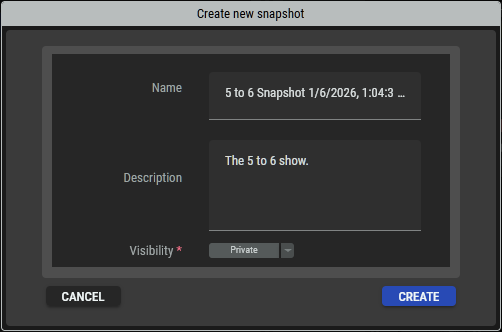
Create New Snapshot
|
Name |
Set the name for the snapshot by which it will be known in STAGE. |
|
Description |
Set a description for this snapshot. |
|
Visibility |
Set who will have access to this snapshot. Private: Only you can see and use this snapshot. This option is for testing purposes where you do not want others to use this preset. Global: Everyone can see and use this snapshot. |
|
Cancel |
Click to discard changes. |
|
Create |
Click to create the snapshot. |
Manage Snapshots
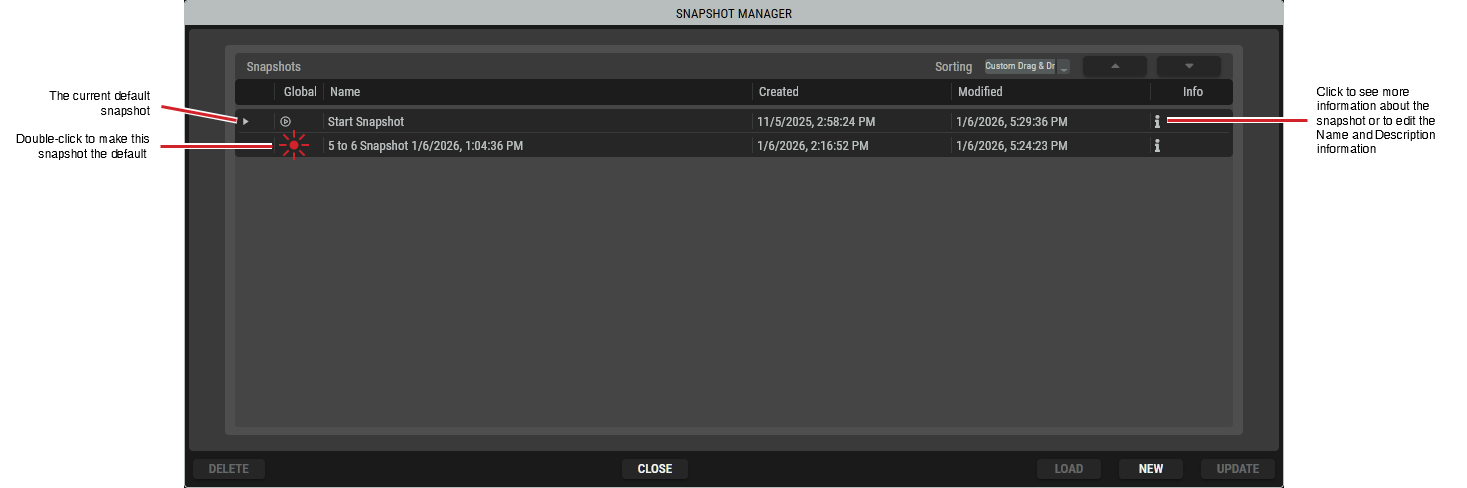
This shows a list of currently available snapshots. It also allows you to create and manage existing snapshots.
|
Sorting |
Set the table column by which the table is to be sorted. |
|
|
Set the order that the snapshots are shown in the table and in the dropdown selector.
|
|
|
Shows the current default Start Snapshot that the mixer will load at start up. |
|
Global |
The |
|
Name |
Shows the name for the snapshot. |
|
Created |
Shows the time when the snapshot was created. |
|
Modified |
Shows the time when the snapshot was modified. |
|
Info |
Click to see more information about the snapshot or to edit the snapshot’s Name and Description information. 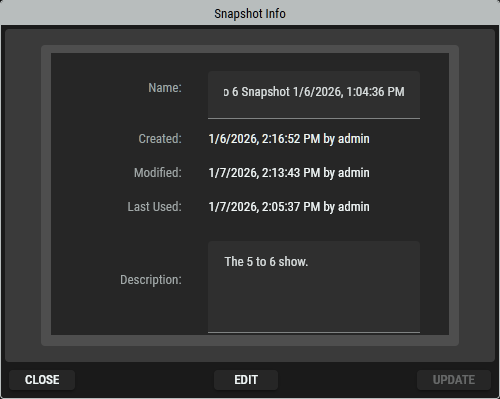
|
|
Delete |
Click to remove the selected snapshot from the snapshots list. |
|
Close |
Click to apply and changes you have made. |
|
Load |
Click to make the selected snapshot the default snapshot. The default snapshot is the snapshot that is loaded by default when the mixer is opened / started at runtime. |
|
New |
Click to create a new snapshot. See #Create New Snapshot. |
|
Update |
Click to apply your changes. |


