
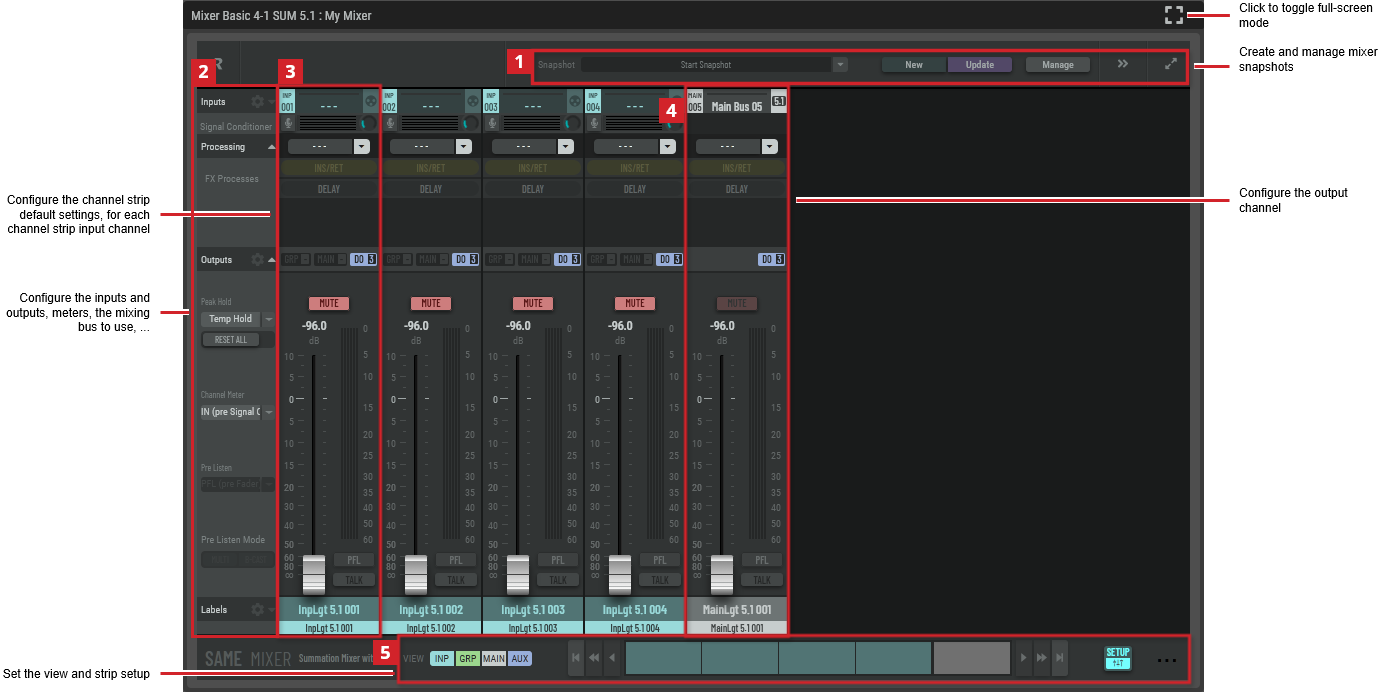
The mixer configuration shown below is for a Basic: 4x1 - SUM 5.1. This is used as an example of the features that can be generalized to any mixer.

Mixer Snapshot Configuration
See create and manage mixer snapshots. See #Mixer Snapshots.

General Mixer Configuration
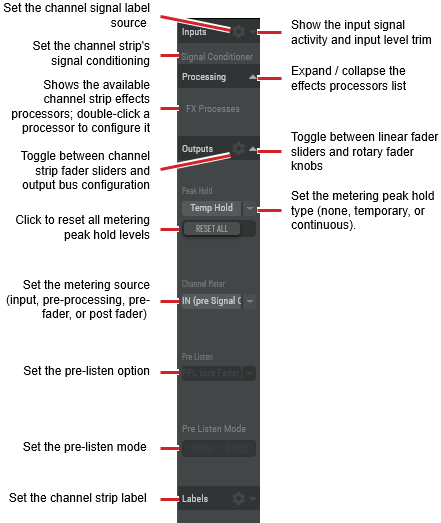
Configure the inputs and outputs, meters, the mixing bus to use, and so on.
|
Inputs |
Click Click |
|
Signal Conditioner |
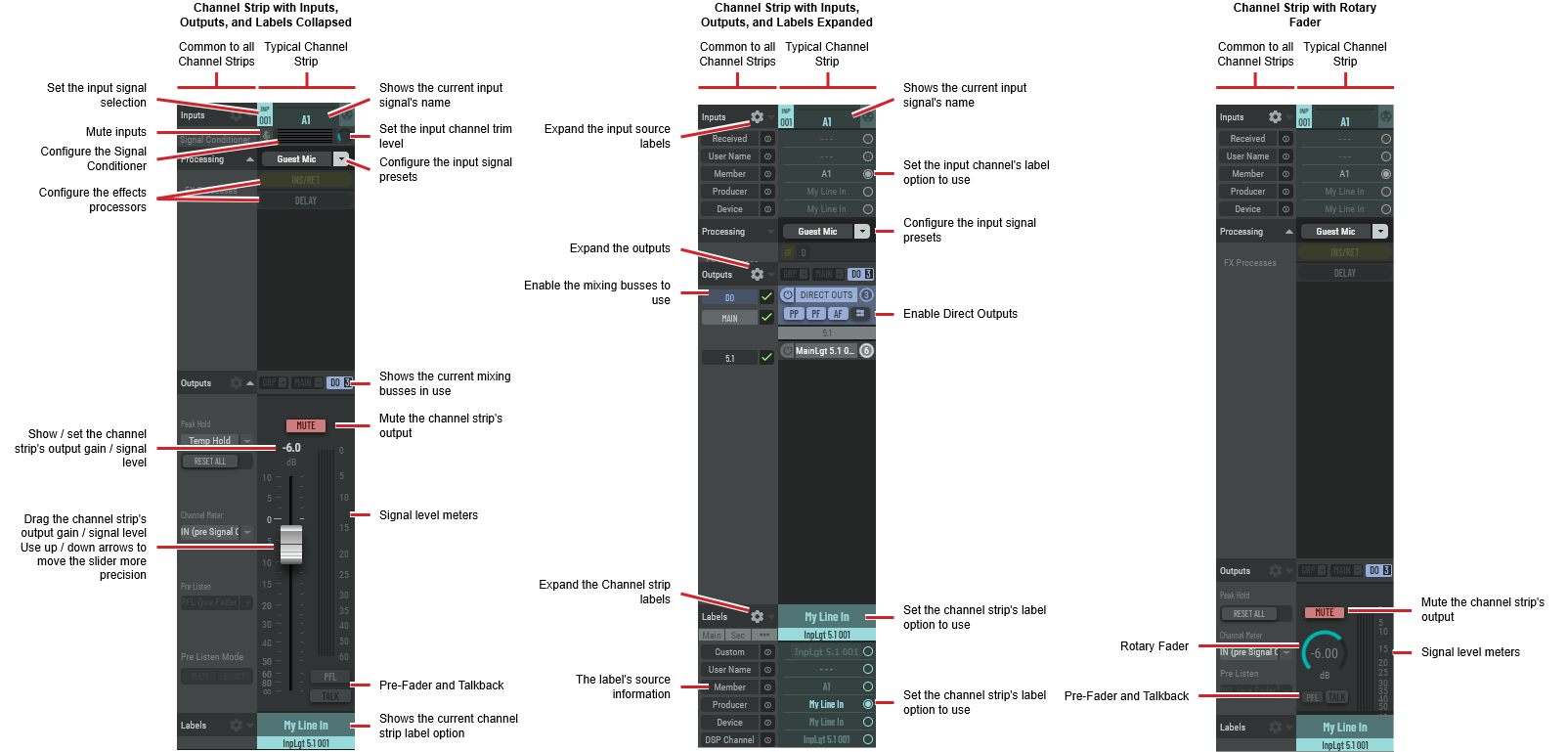
Show the input signal activity and input level trim. Each channel strip input has a signal conditioner. Double-click this row in the channel strip to open the configuration. See #Signal Conditioner Configuration. |
|
Processing |
Click |
|
FX Processes |
Shows the available channel strip effects processors; double-click a processor to configure it. Click on the three dots and drag the effect to its new position to change the effects processing order. 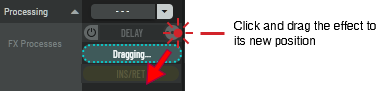
|
|
Outputs |
Click Click |
|
Peak Hold |
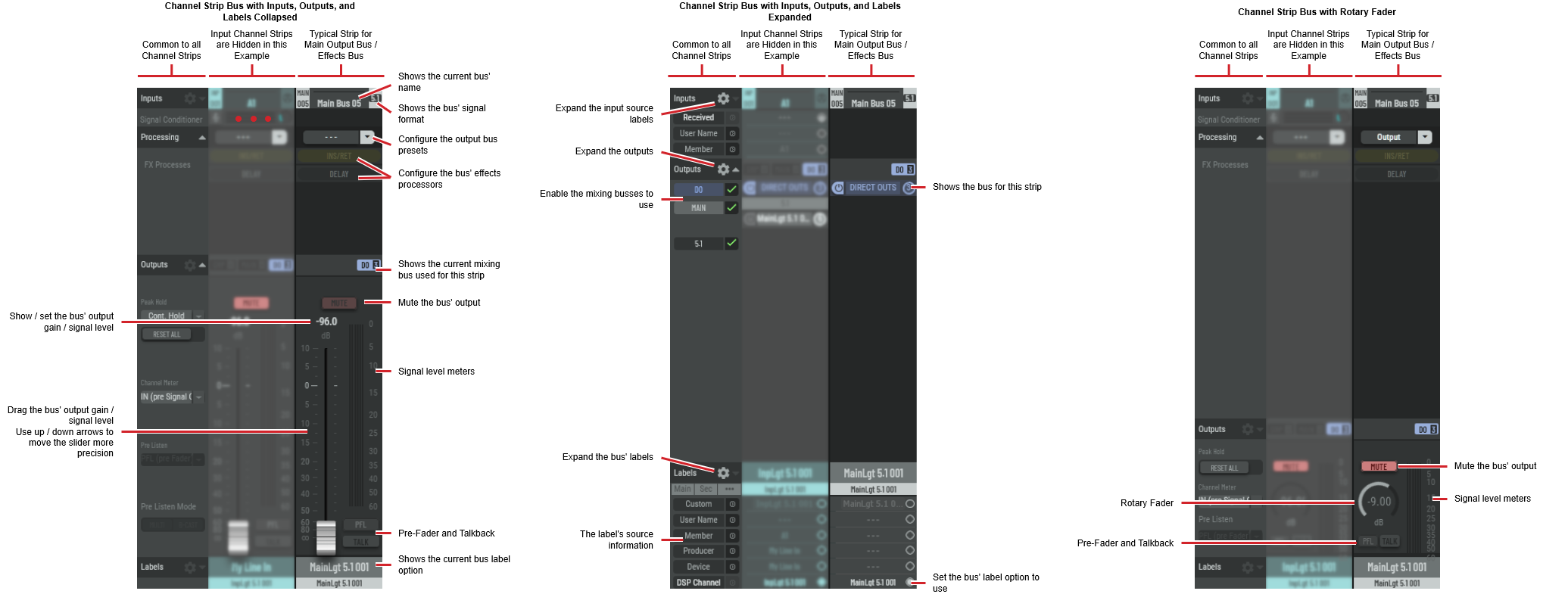
Click No hold: Shows sound levels. Transient peaks are not frozen. Temp hold: Shows sound levels while also freezing the display of the highest instantaneous peaks for a short period. Cont. hold: Shows sound levels while also freezing the display of the highest instantaneous peaks. Click RESET ALL to clear the peak signal display on all level meters. |
|
RESET ALL |
Click to clear the peak signal display on all level meters when the level meters are set to peak hold mode. |
|
Channel Mixer |
Set the metering source. In: Input. PP: Pre-processing. PF: Pre-fader. AF: After fader. See the mixer block diagram for more information. |
|
Pre-Listen |
Set the pre-listen option. |
|
Pre-Listen Mode 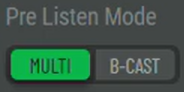
|
Set the pre-listen modes. Multi or Exclusive modes: Multi (disabled): Listen to one channel strip at a time. When a PFL is active, and you activate another, this will deactivate the first PFL. Multi (enabled): Allow listening to one or more Pre-Fader Listening (PFL) enabled channel strip signal signal at once; the sound is additive. In this mode, the PFL button toggles to enable / disable the audio from that channel strip. Broadcast or Normal modes: B-cast (disabled): PFLs stay on for as long as they are selected. B-cast (enabled): An enabled PFL is temporarily switched off while the channel is “opened” (Fader opened and MUTE off) and gets switched on again, when the channel is closed. Here is an example of a use case for the B-cast mode: If the Talk Back (TB) from a remote location is the same path as the actual production signal (that is, the talent talks to the engineer through the channel input when off air), the engineer listens to the talent through PFL off air. In B-cast mode:
|
|
Labels |
Click |


Channel Strip Configuration
Configure the channel strip default settings, for each channel strip input channel.
Keyboard / mouse shortcuts
|
Changing the level position of a linear fader |
Click a fader and press the up / down arrows to move the fader by 1 db increments. Click a fader, hold <Ctrl>, and press the up / down arrows to move the fader by 0.1 db increments. Press <Shift> and double-click a fader to directly set its level to 0 dB. Click a fader and and use your mouse’s scroll wheel to move the fader. Click a fader, hold <Ctrl>, and and use your mouse’s scroll wheel to move the fader with more precision. |
|
Changing the level position of a rotary fader |
Click the rotary fader and drag your mouse left to right to set the level. |

Output Strip Configuration
Configure the output channel strip.

Mixer Setup Configuration
Set the view and strip setup.

Mixer Settings
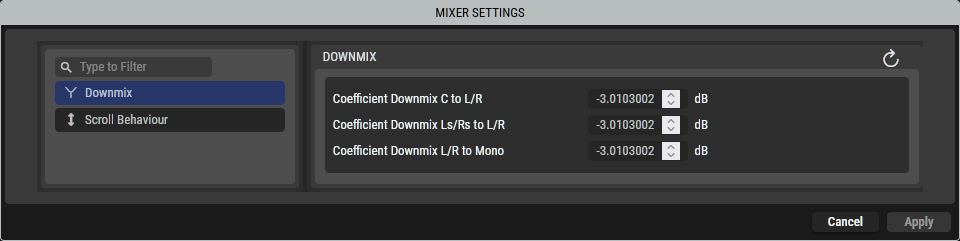
Downmix
Set the attenuation coefficients to be used when downmixing channels. For example, for a 5.1 source, when downmixing the center channel to stereo, the center channel signal is reproduced in both left and right channels at 3 dB signal level lower than the original center channel signal level. This maintains the same relative level as this compensates for the additive effect of the sound coming from two speakers instead of one.
Scroll Behaviour
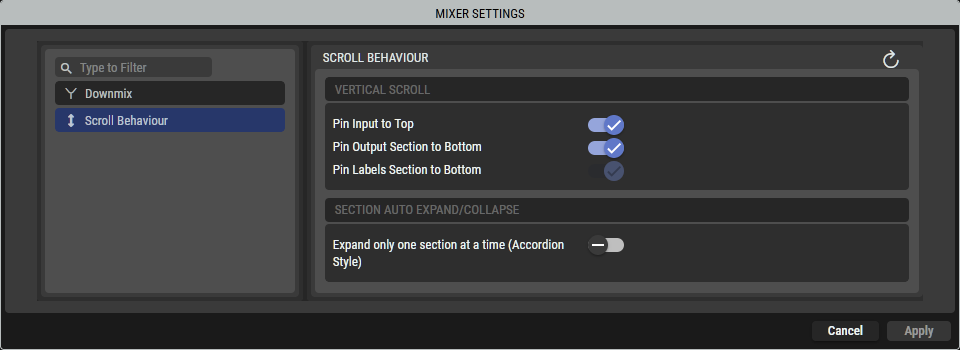
Set the mixer’s user interface behavior.
|
|
Click to reset any changes you have made to the default settings. |
|
Pin Input to Top |
Set to always show the Inputs row or not. Should your mixer view need to be scrolled to see all configuration options, set this option to always show the Inputs row at the top of the screen. |
|
Pin Output Section to Bottom |
Set to always show the Outputs row or not. Should your mixer view need to be scrolled to see all configuration options, set this option to always show the Outputs row at the bottom of the screen. |
|
Expand only one section at a time (Accordion Style) |
Set to allow more than one expandable / collapsible row to be expanded at a time. |
