
You can add a single clip or multiple clips to a playlist in Production.
To do this, first open the Clips panel and select the clip or clips you want to use.
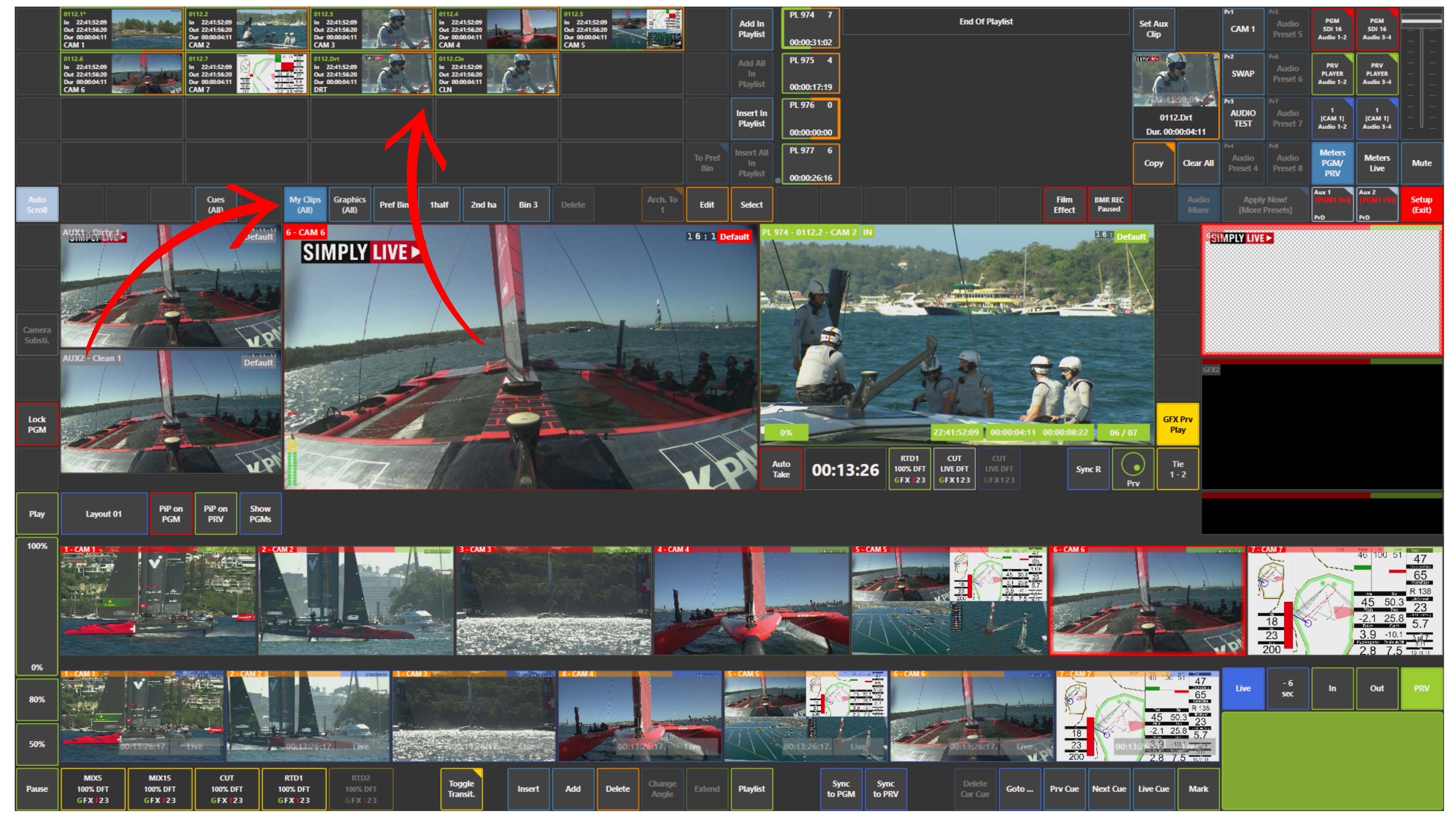
If you want to select multiple clips:
-
press Select
-
or tap the right side of the clip thumbnails so they become orange
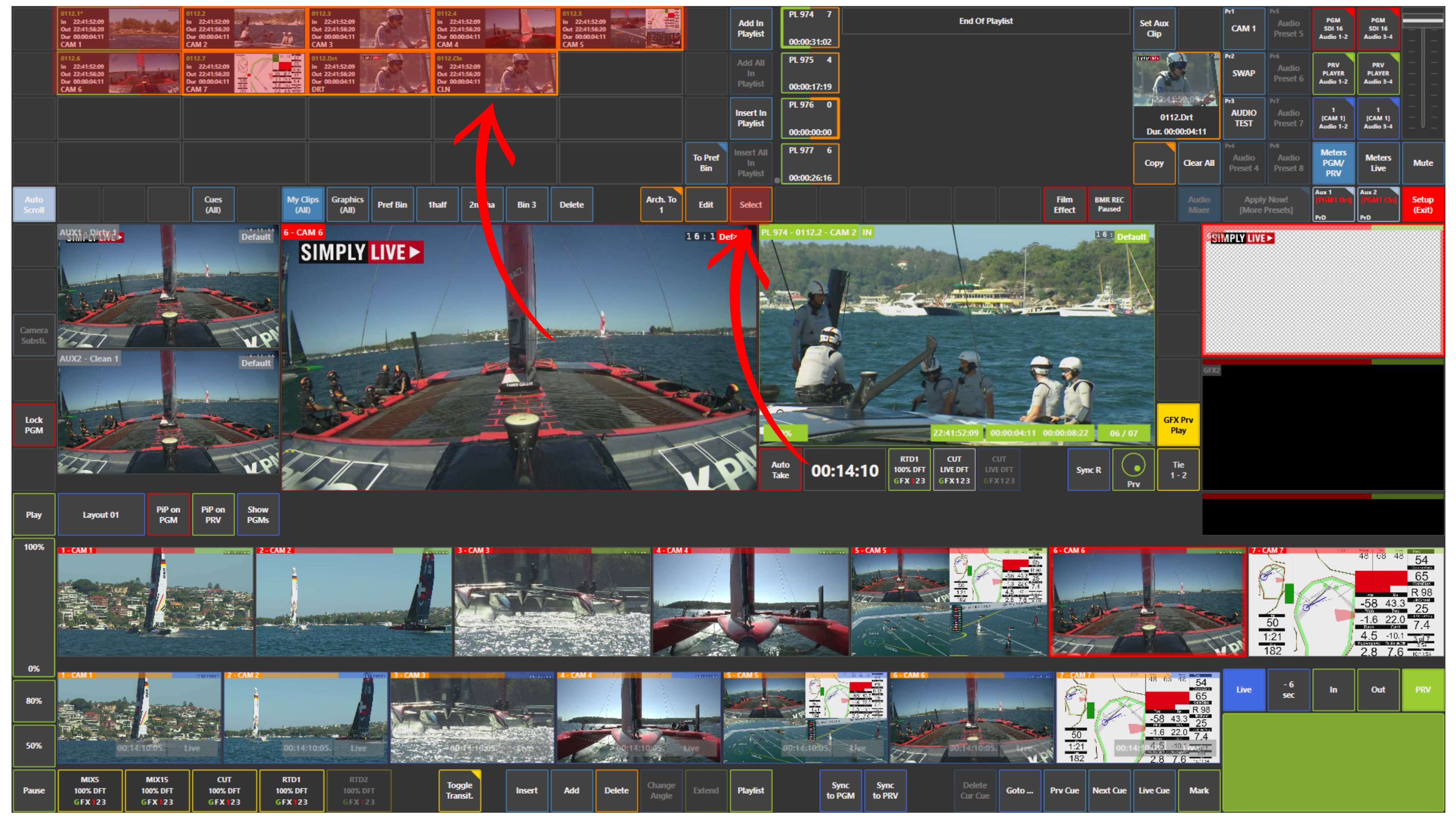
Once the clips are selected, you can use:
-
Add in Playlist
-
Insert in Playlist
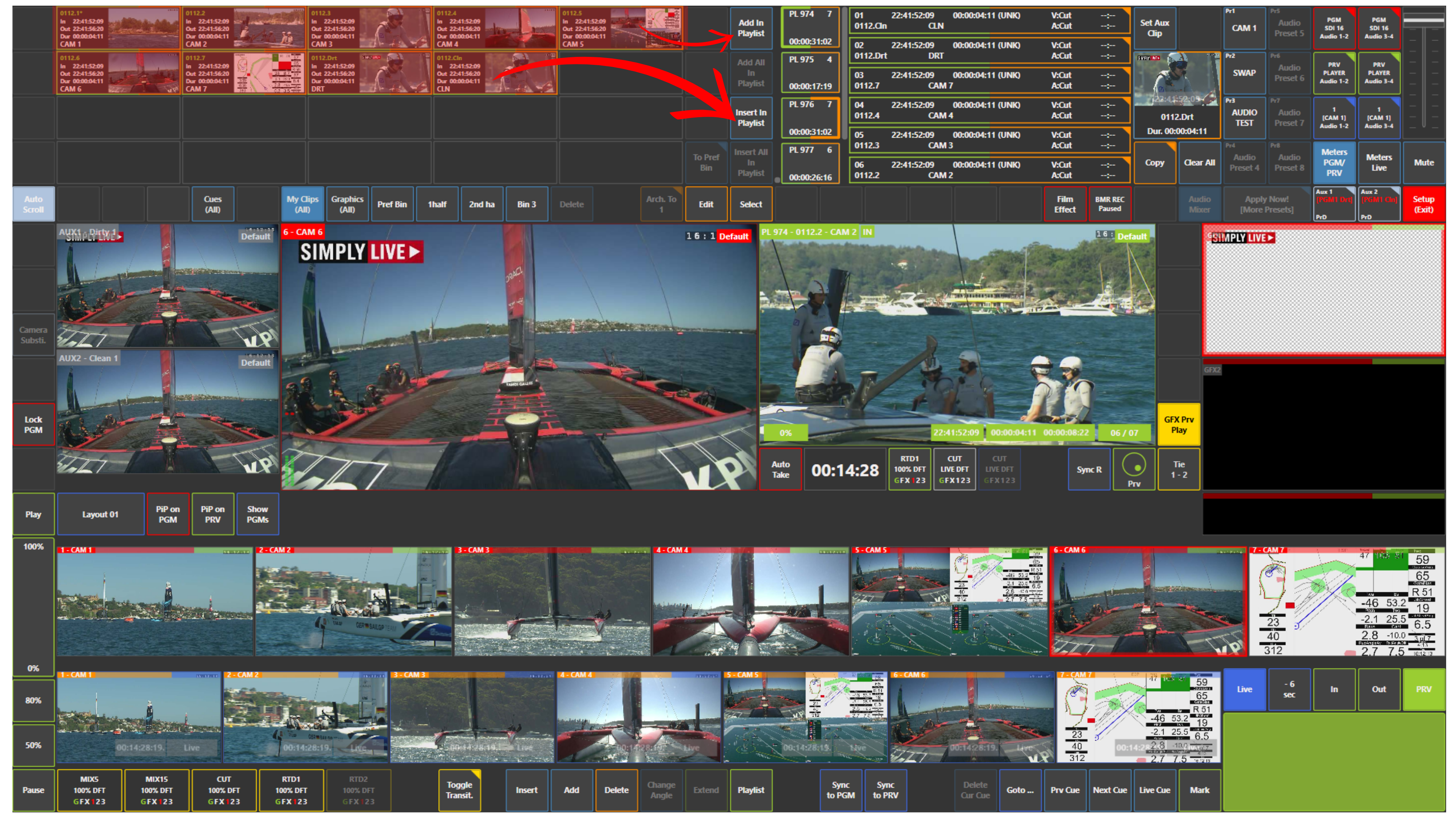
How It Works
-
Add in Playlist places the selected clip or clips after the current playlist item
-
Insert in Playlist places the selected clip or clips before the current playlist item
If the playlist is empty, both options will simply add the selected clips to that playlist.
Copying Playlist Items
You can also use Copy next to the playlist area.
This allows you to copy one or more playlist items, move to another playlist, and then use Add in Playlist or Insert in Playlist again.
Info
There is no need to create playlists from scratch. In SimplyLive Production Suite Flex, 1000 empty playlists are already available from the start, so you can simply start filling them.
Editing Playlist Items
If you want to edit a playlist item, first select the item you want, then press Edit.
The Playlist Item Properties window opens.
From there, you can edit:
-
Name
-
Playlist Video Transition
-
Playlist Audio Transition
-
Playlist Default Speed
-
Audio Preset
Deleting Playlist Items
You can delete a single clip or multiple clips from a playlist.
To do this:
-
tap the right side of the playlist item thumbnails so they become orange
-
or press Select and then tap the playlist items you want to delete
Then press Delete at the bottom of the screen.
Clearing a Playlist
If you want to clear the whole playlist, press Clear All and confirm the action.
Adding Content Directly from Replay Cameras to a Playlist in Production
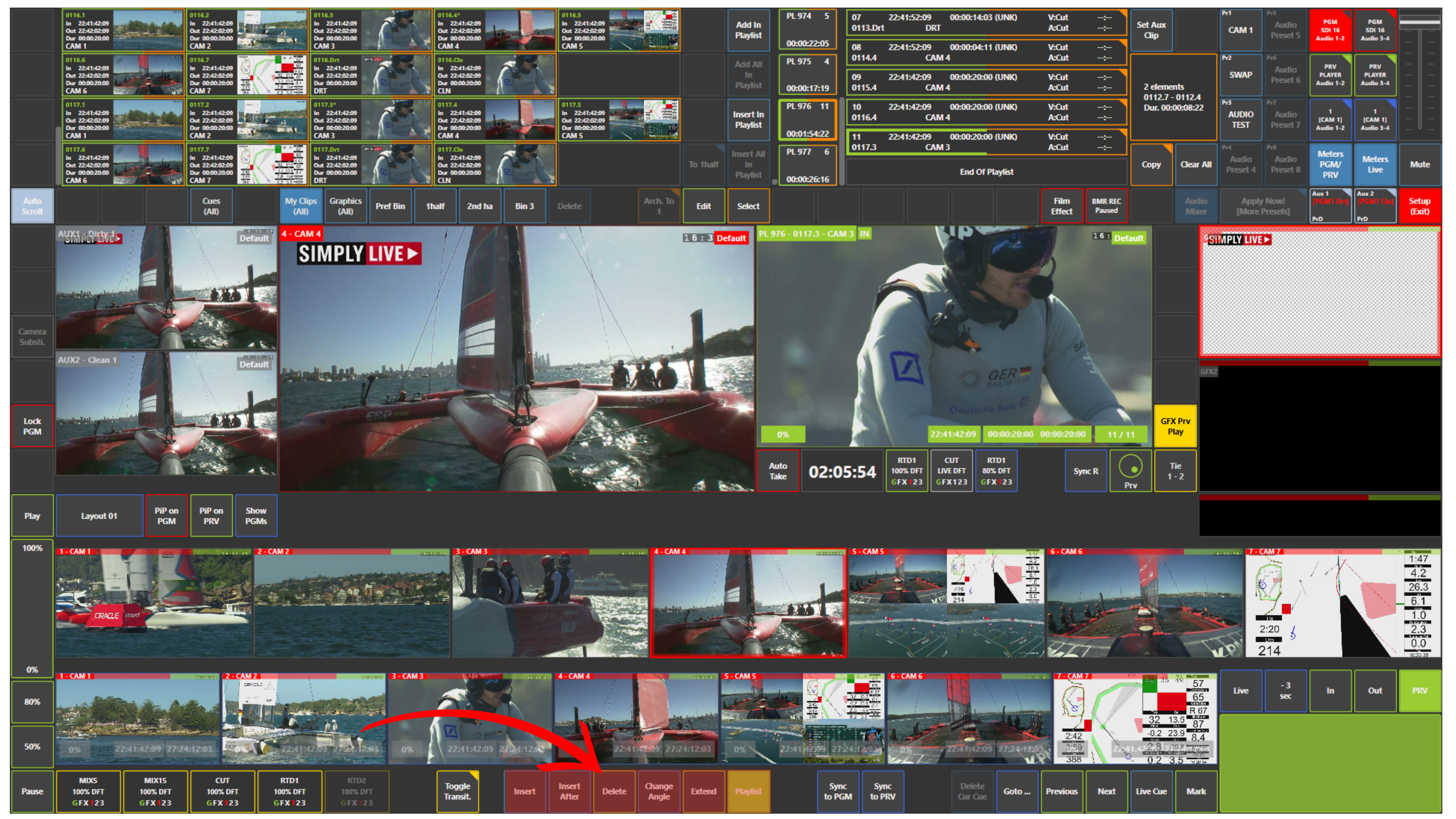
In Production, you can also use the lower panel to add content directly from the replay cameras to a playlist.
This allows you to work quickly without first creating a separate clip manually.
You can use:
-
Insert
-
Insert After
-
Delete
-
Change Angle
-
Extend
Insert and Insert After
If you want to add content directly from the replay cameras to a playlist, use Insert or Insert After.
-
Insert adds the new item before the current playlist item
-
Insert After adds the new item after the current playlist item
Before using these functions, choose the correct moment on the replay cameras.
If you insert content directly from the replay cameras, the item is created using a predefined duration. This behaviour matches the SimplyLive workflow where missing IN and OUT boundaries can be defined by default durations set in Preferences.
For example:
-
10 seconds before the selected moment
-
10 seconds after the selected moment
This creates a 20-second item.
These default durations can be configured in:
Setup → Prefs
Change Angle
If you want to change the angle of an item already inside a playlist, load that playlist item on Preview and press Change Angle.
The replay cameras become active, allowing you to choose a different camera angle for that playlist item. This follows the SimplyLive playlist editing workflow where replay channels show all available angles for the current playlist item so you can replace the existing one.
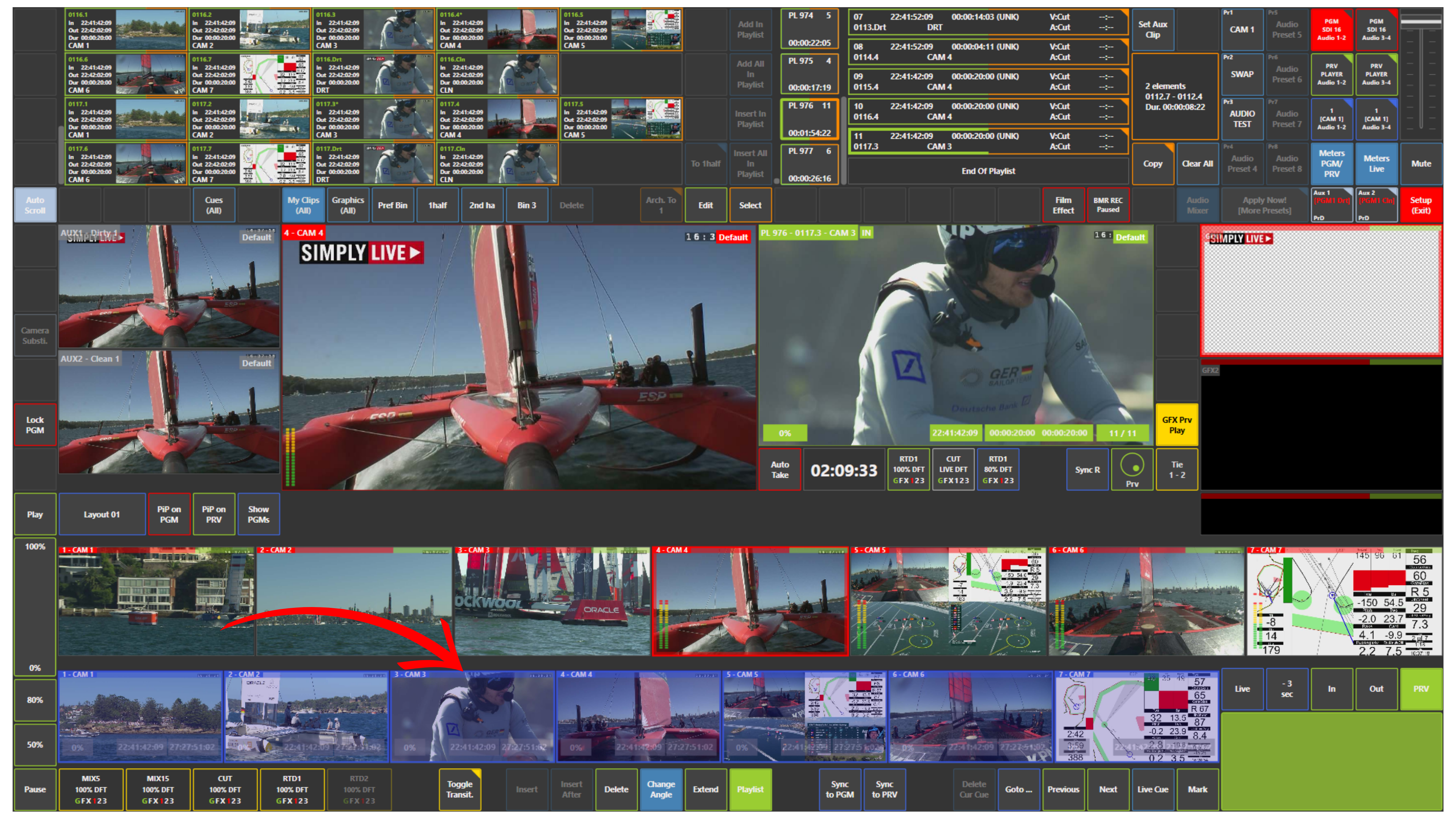
Extend
If you want to make a playlist item longer, press Extend.
This allows you to extend the boundaries of the playlist item beyond its current duration.
The practical limit is the record train. In other words, you can extend the item as far back as the recorded material is still available on the server. The original SimplyLive workflow notes that Extend works within the available record train and recorded material.
For example:
-
if the current item is 10 seconds
-
and the server has been recording for the last 2 hours
you can theoretically extend that playlist item up to the available recorded material.
Delete
If you want to remove an item from the playlist, select the playlist item and press Delete.
This removes the selected item from the playlist.
Pro Tip
Use the lower playlist panel when you want to build or adjust playlists quickly during live production.
It is especially useful when you are looking for a replay, adding it straight into a playlist, changing the angle, or extending the item without leaving Production.
Info
In SimplyLive Production Suite Flex, you can work with up to 9000 clips and 1000 playlists in total.
Pro Tip
Use Insert in Playlist when you want the new clip to appear before the current playlist item.
Use Add in Playlist when you want the new clip to go after the current item.
Info
You can also apply Film Effect to a playlist item by activating the Film Effect panel.
If needed, you can also define an Aux Clip by activating the Set Aux Clip panel.