
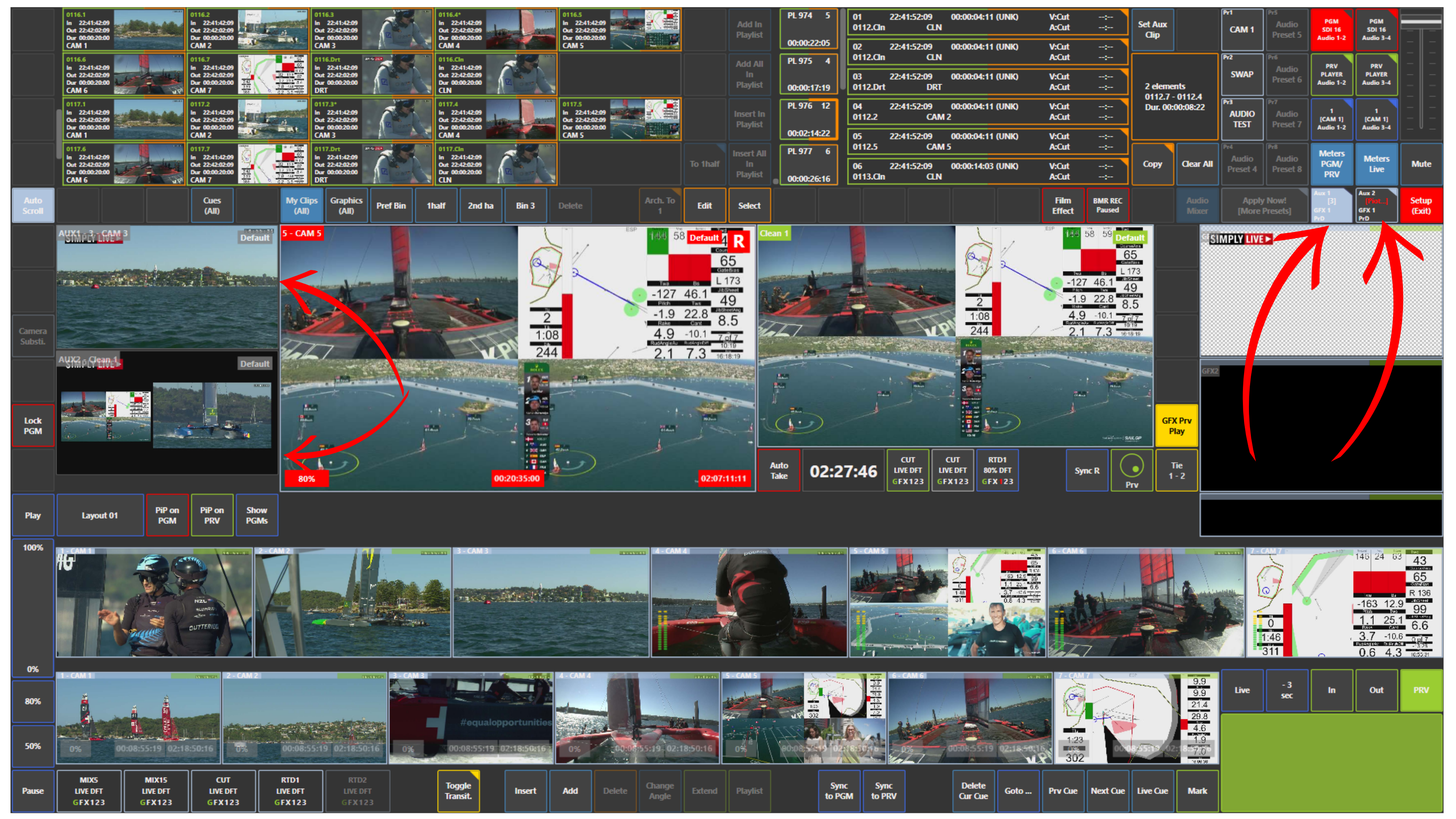
In Production, you can use two additional AUX outputs:
-
AUX 1
-
AUX 2
This allows you to create different outputs at the same time from the same system.
How to Activate AUX 1 or AUX 2
To activate an AUX output, press:
-
AUX 1
-
AUX 2
Once activated, the available sources and outputs become active for that AUX workflow.
You can then use the same operational logic as in the main production workflow, including:
-
switching input cameras
-
switching replay cameras
-
loading clips
-
loading playlists
-
playing different content on different outputs
-
Info
You can also play different PiP layouts on different outputs at the same time.
For example:
-
one PiP on PGM
-
another PiP on AUX 1
-
another PiP on AUX 2
This allows you to create three different PiP outputs from the same system.
What You Can Do with AUX Outputs
Using AUX 1 and AUX 2, you can create additional productions in parallel with the main output.
For example, you can:
-
send one signal to the main client
-
send another signal to LED screens at the venue
-
send a third signal to an internet stream
You can also play different clips and different playlists on:
-
PGM Dirty
-
AUX 1
-
AUX 2
Use Case – Live Production Scenario
You are producing a football match.
You send the main feed to the client.
At the same time:
-
AUX 1 is used for the LED screens in the venue
-
AUX 2 is used for the internet stream
Each output can carry different content depending on the production needs.
Info
You can play multiple playlists from different outputs at the same time.
For example:
-
PGM Dirty can play Playlist 1
-
AUX 1 can play Playlist 2
-
AUX 2 can play Playlist 3
This gives you three separate outputs instead of only one.
Pro Tip
Use AUX outputs when one production needs multiple versions of the same event, for example a main programme feed, a venue feed, and a digital feed. This makes Production much more flexible and powerful.
Info
With PGM Dirty, AUX 1, and AUX 2, you can deliver three different signals at the same time from one system.