
PiP is a practical way to make your production more visually engaging.
It allows you to place an additional source inside the main picture, for example:
-
live programme in the background
-
replay or B-roll in the PiP box
This is useful when you want to show two sources at the same time and add more visual context for the viewer.
Where to Find PiP
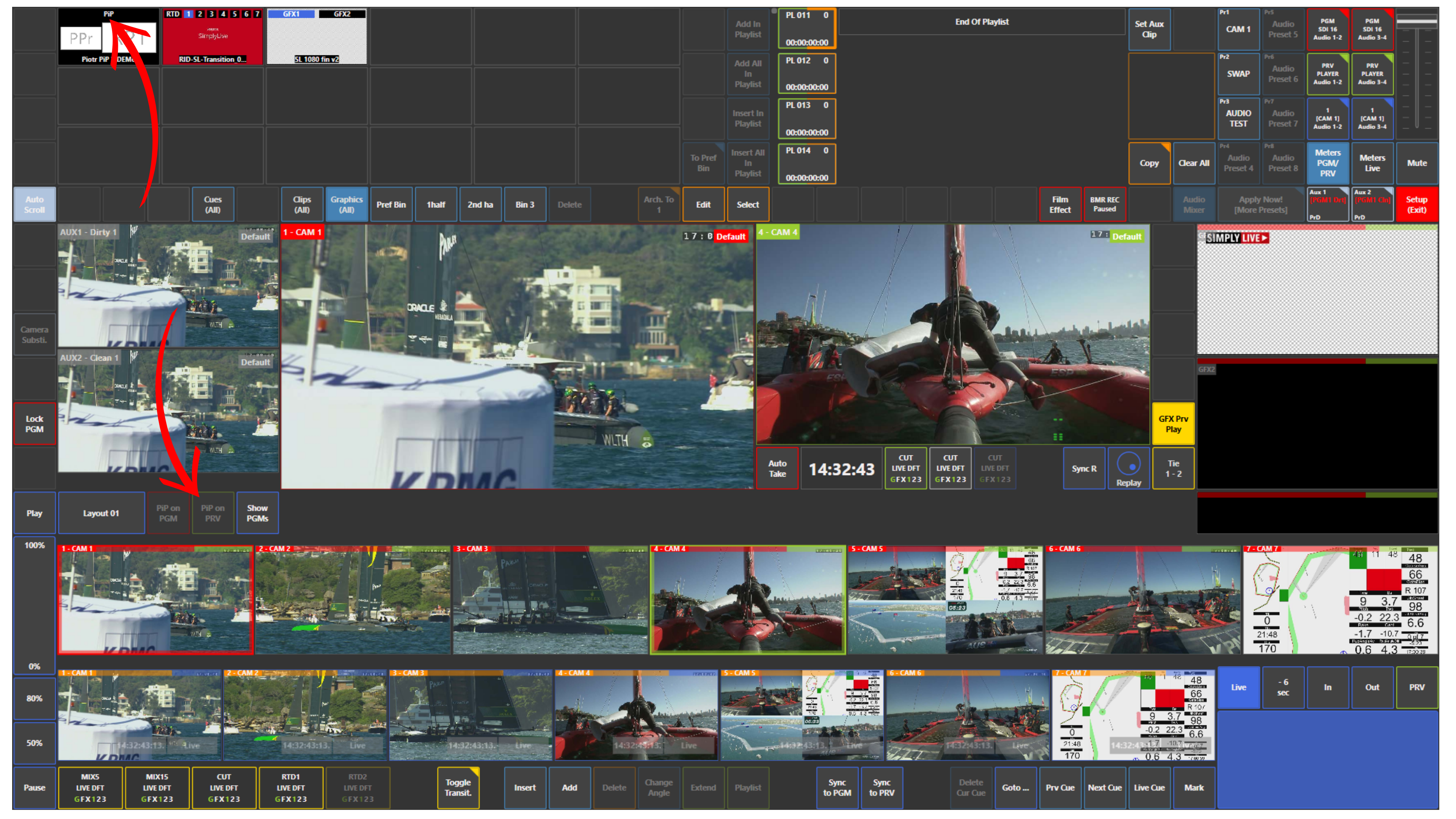
PiP assets appear in the Graphics panel.
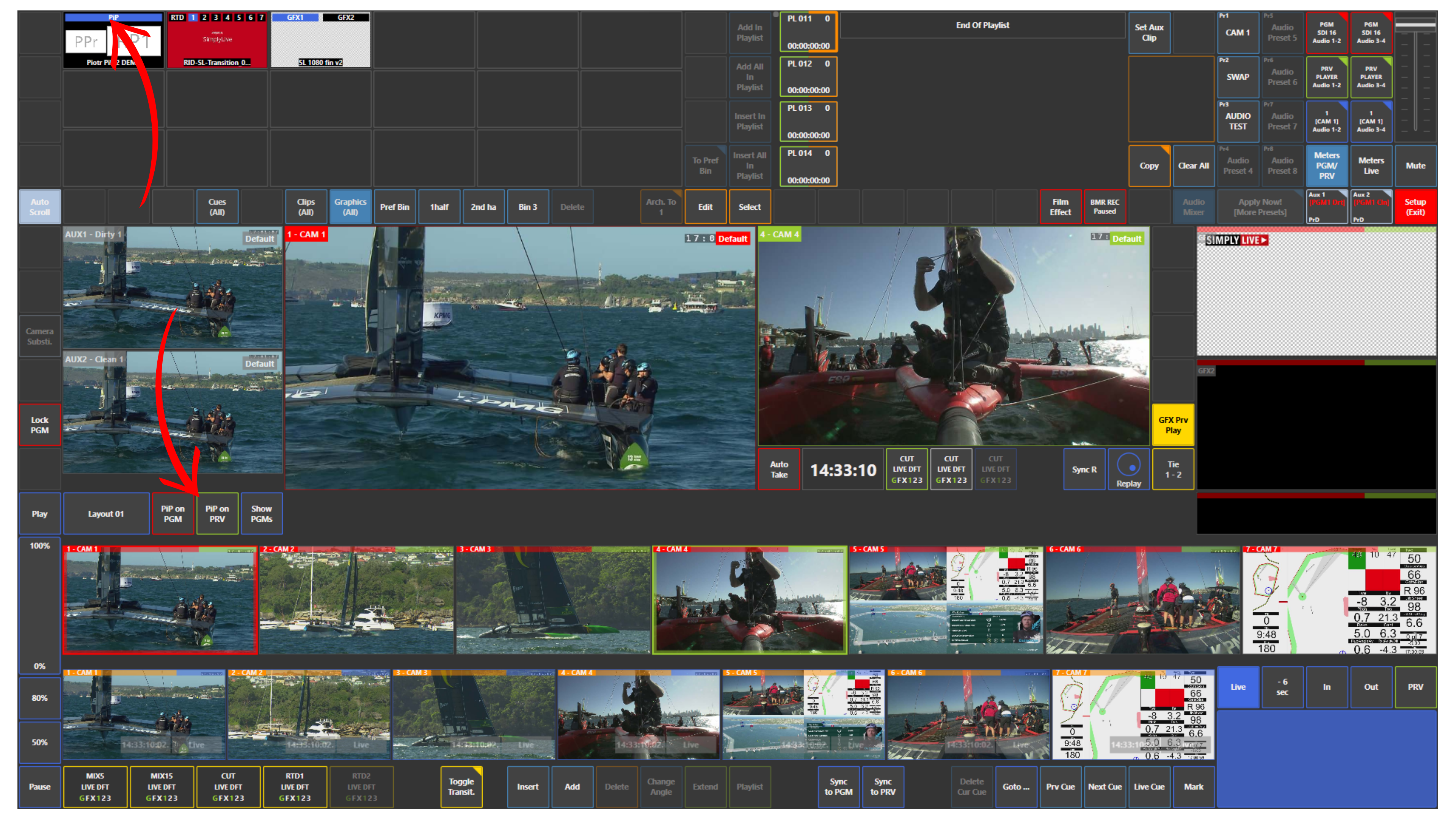
To activate a PiP, tap the top label of the PiP thumbnail.
When the label is blue, the PiP is active.
Warning
Until PiP is activated in the Graphics panel, the following buttons remain inactive:
-
PiP on PGM
-
PiP on PRV
How to Use PiP
Once the PiP is activated, you can:
-
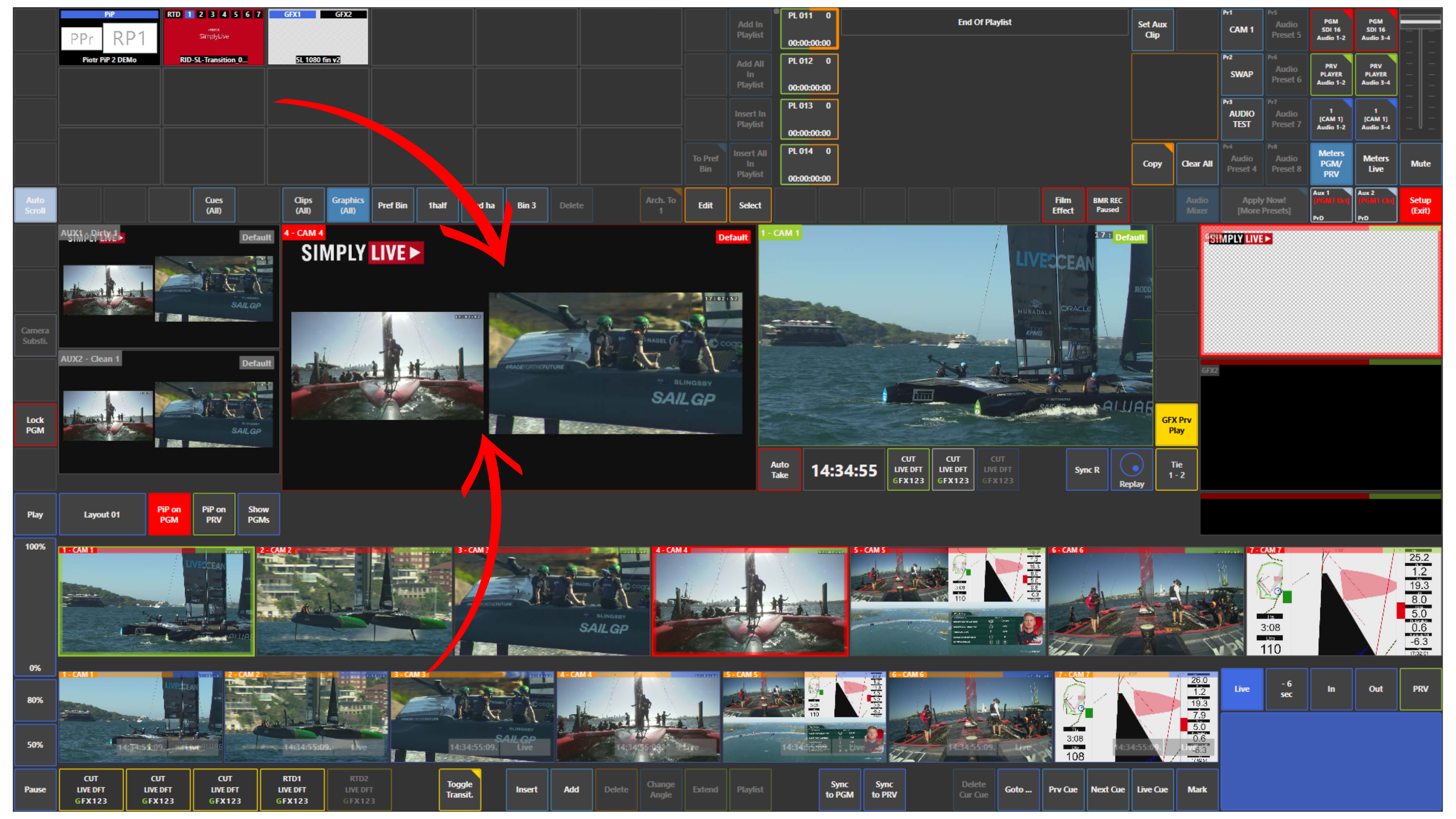
tap PiP on PGM to place the PiP directly on Program
-
tap PiP on PRV to place the PiP on Preview
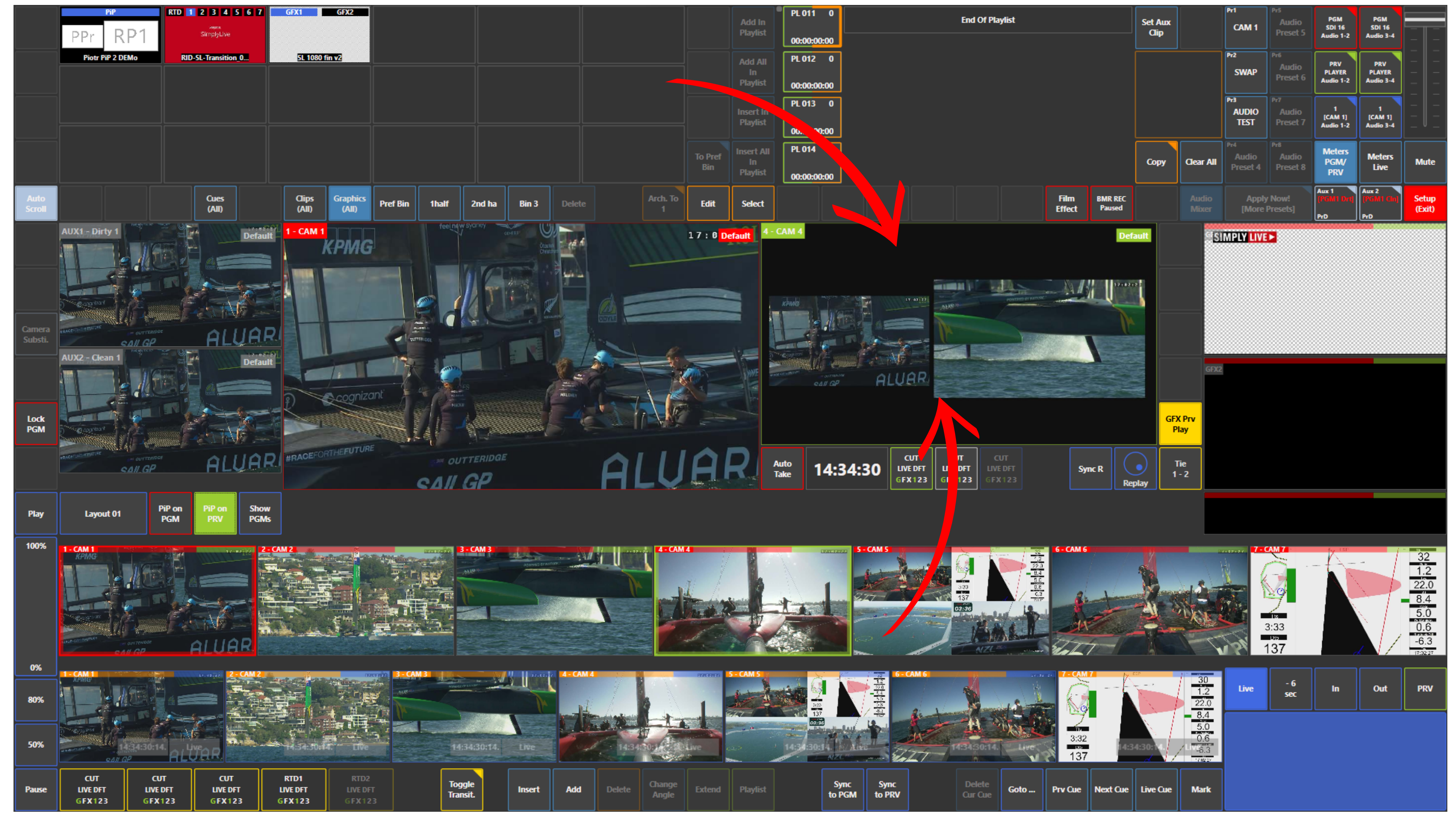
After that, the PiP layout appears on the selected output.
Use Case – Live Production Scenario
You are producing a live event and want to make the output more dynamic.
You keep the main live shot in the background and place an additional source in the PiP box, for example a replay, B-roll shot, or another live camera.
You activate the PiP in the Graphics panel, load it first on Preview, check the result, and then take it to Program.
Pro Tip
It is usually better to load PiP on Preview first.
This gives you a chance to check the layout before taking it to air.
In SimplyLive Production Suite Flex, there is a separate application called PiPTool, where you can create PiP templates and use them directly in Production.