
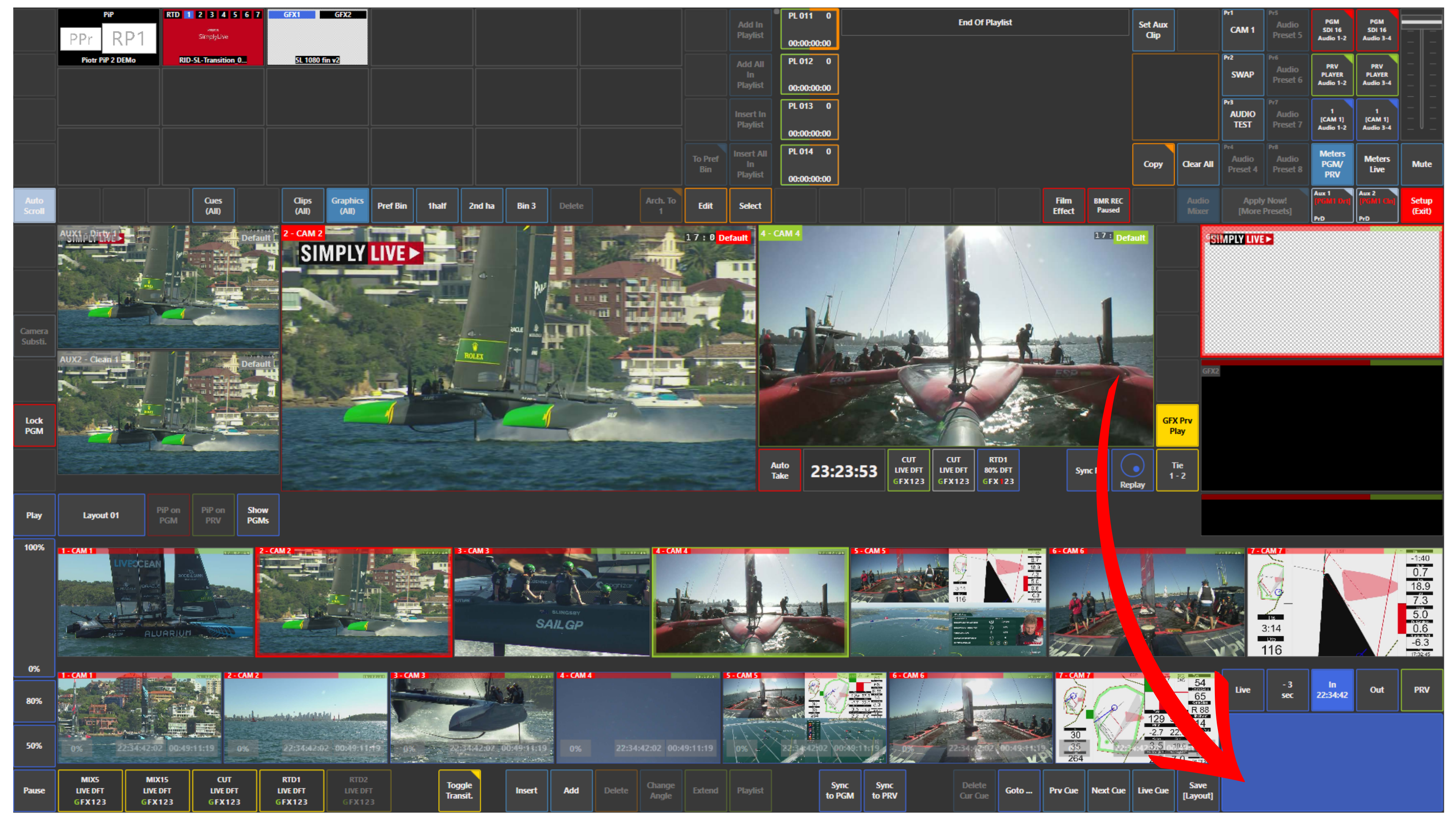
If you want to find the correct moment for a replay, use the blue touchpad in the bottom right corner of the screen.
Swipe your finger on the blue touchpad to jog through the replay:
-
Swipe left to move backward
-
Swipe right to move forward
This allows you to move through the replay and find the exact frame or action you want.
When the replay is ready, you can load it to Preview or Program.
If you select PRV above the blue touchpad, you can jog directly on the Preview channel.
Info
If you want to return instantly to the live point on your replay, use the Live button above the blue touchpad.
Use Case – Live Production Scenario
You are switching input cameras during live production.
At the same time, you are preparing a replay in the background.
Using the replay camera layer and the blue touchpad, you jog backward and forward to find the exact moment of the action.
Once the replay is ready, load it to Preview and then take it to air.
Pro Tip
Use Preview to prepare the replay safely before taking it to Program. This gives you more control and helps avoid taking the wrong frame to air.