
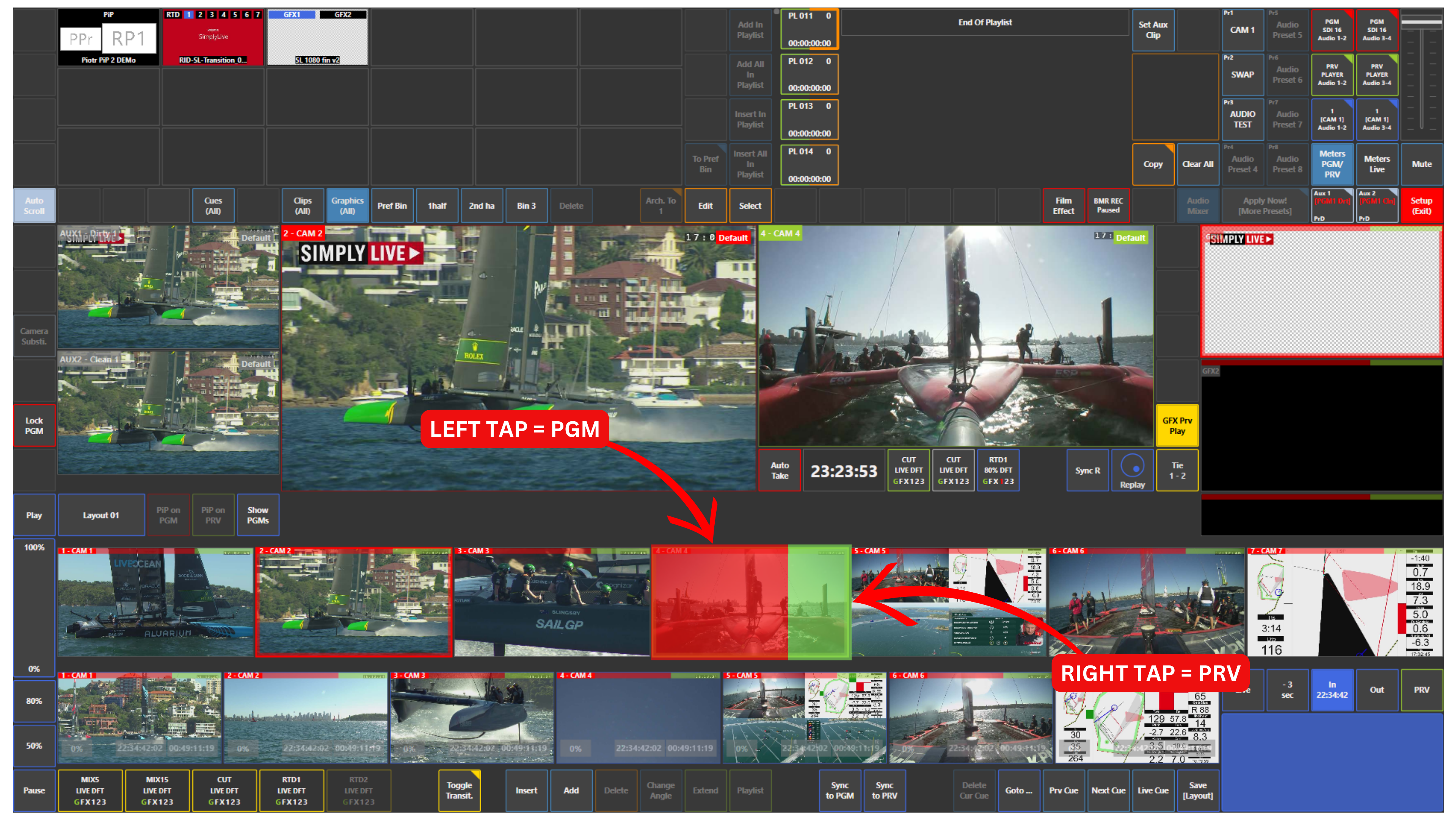
To switch cameras in Production, simply tap the camera thumbnail on the touchscreen.
-
If you tap the left side of the thumbnail, highlighted in red, the camera is loaded to Program (PGM)
-
If you tap the right side of the thumbnail, highlighted in green, the camera is loaded to Preview (PRV)
This allows you to send a source directly to air or prepare it first in Preview before taking it to Program.
Pro Tip
You can switch cameras directly to Program by tapping the red side of the thumbnail when you need to go to air instantly.
For more control, it is usually better to work through Preview first.
For example:
-
Camera 2 is on Program
-
You prepare Camera 4 on Preview
-
If the shot is correct, you take it to Program
-
Then you prepare Camera 5 on Preview
-
When ready, you take it to Program
This gives you a cleaner and safer switching workflow during live production.
Info
If you want to cut from Program to Preview, you can simply tap the Preview window on the touchscreen.