
Using Mark and Cues in Production, you can save important moments and return to them later while continuing with other tasks.
This is useful when you are switching cameras, preparing replays, and do not want to lose a key action.
How to Use Mark and Cues
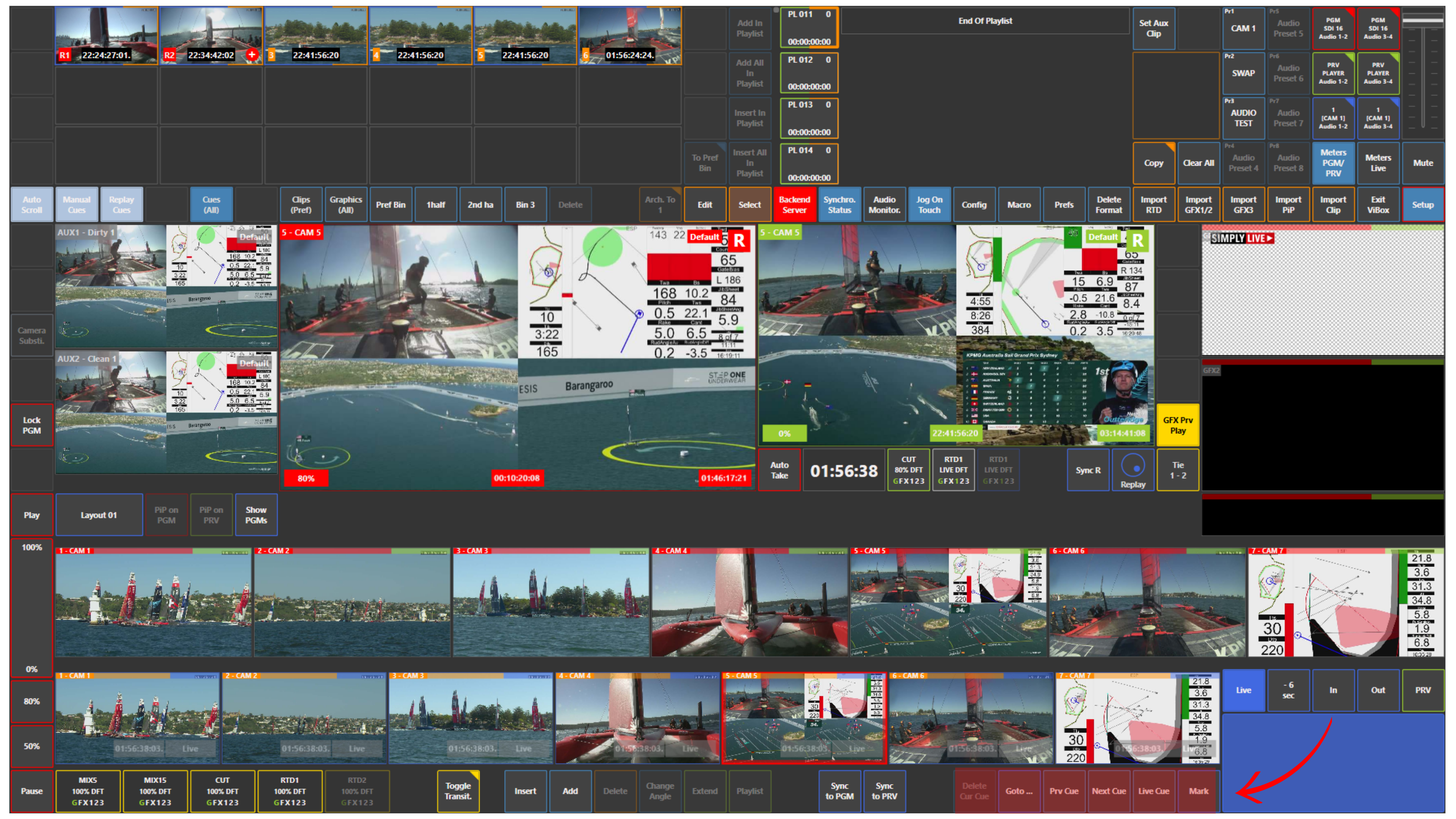
To create a cue, press Mark.
The cue then appears in the Cues panel.
If you want to save a moment that is happening live while you are still jogging back in the past, press Live Cue.
To move through your saved cues, use:
-
Prv Cue to go to the previous cue
-
Next Cue to go to the next cue
If needed, you can also use:
-
Goto... to jump directly to the required timecode
-
Delete Cur Cue to remove the current cue
Use Case – Live Production Scenario
You are switching input cameras during live production.
At the same time, you are jogging through replay cameras to prepare a replay.
While doing that, another important action happens live and you want to come back to it later.
Press Live Cue to save that moment immediately.
In this workflow, you are doing three things at once:
-
switching video
-
preparing a replay
-
marking important live moments for later use
Pro Tip
Use Live Cue whenever something important happens live while you are still working on an earlier replay. This helps you keep your current replay position and still save the new action.