
To edit a clip, tap the right side of the clip thumbnail, inside the orange area, and then press Edit.
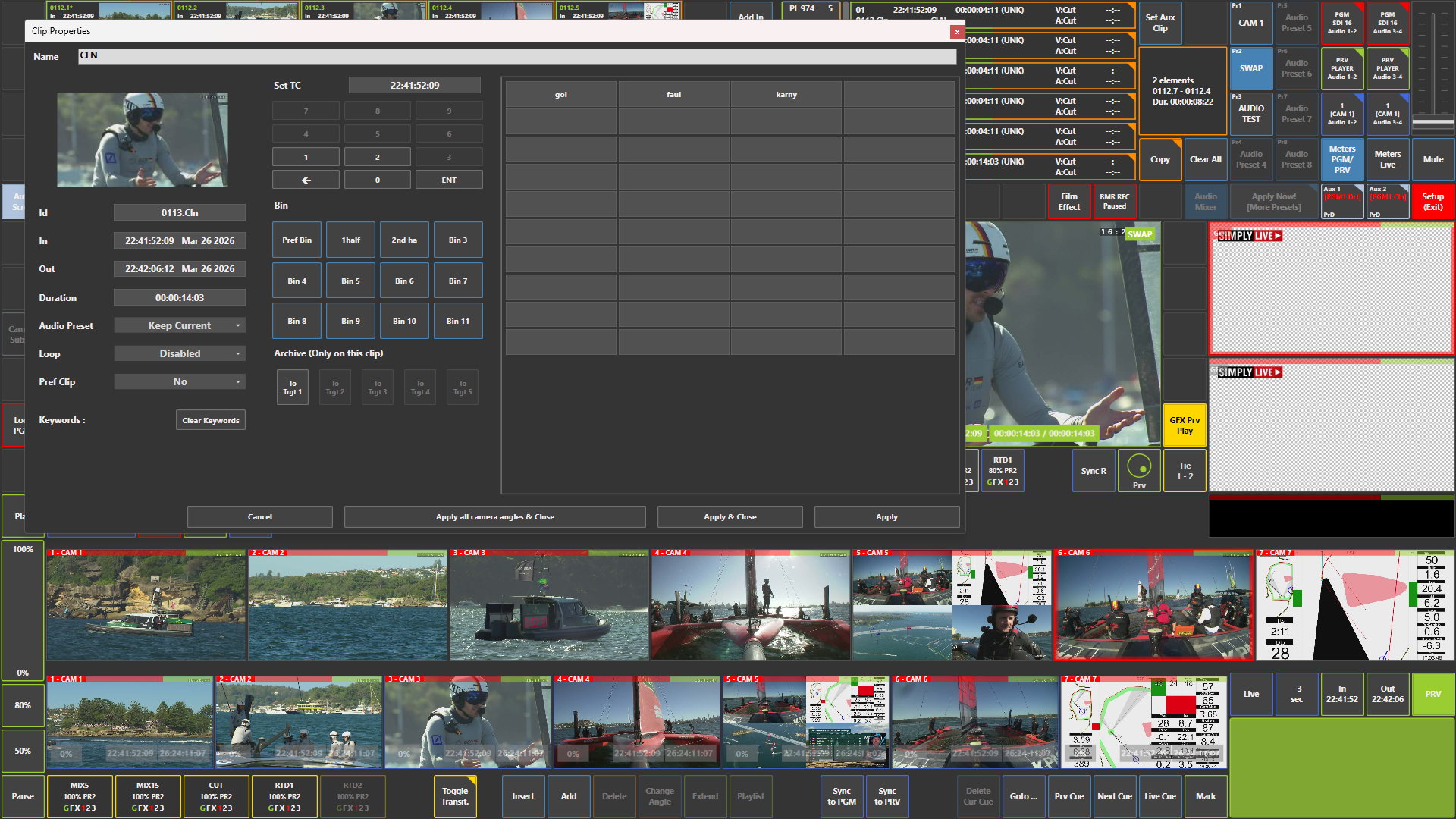
The Clip Properties window opens.
From there, you can edit clip information such as:
-
Name
-
Set TC
-
Bin
-
Audio Preset
-
Loop
-
Pref Clip
-
Keywords
-
Archive target
You can also assign the clip to a bin directly from this window.
Pro Tip
Use the Clip Properties window to name clips clearly and assign them to the correct bins while the production is still organised.
Editing Playlists in Production
You can also edit playlists in Production.
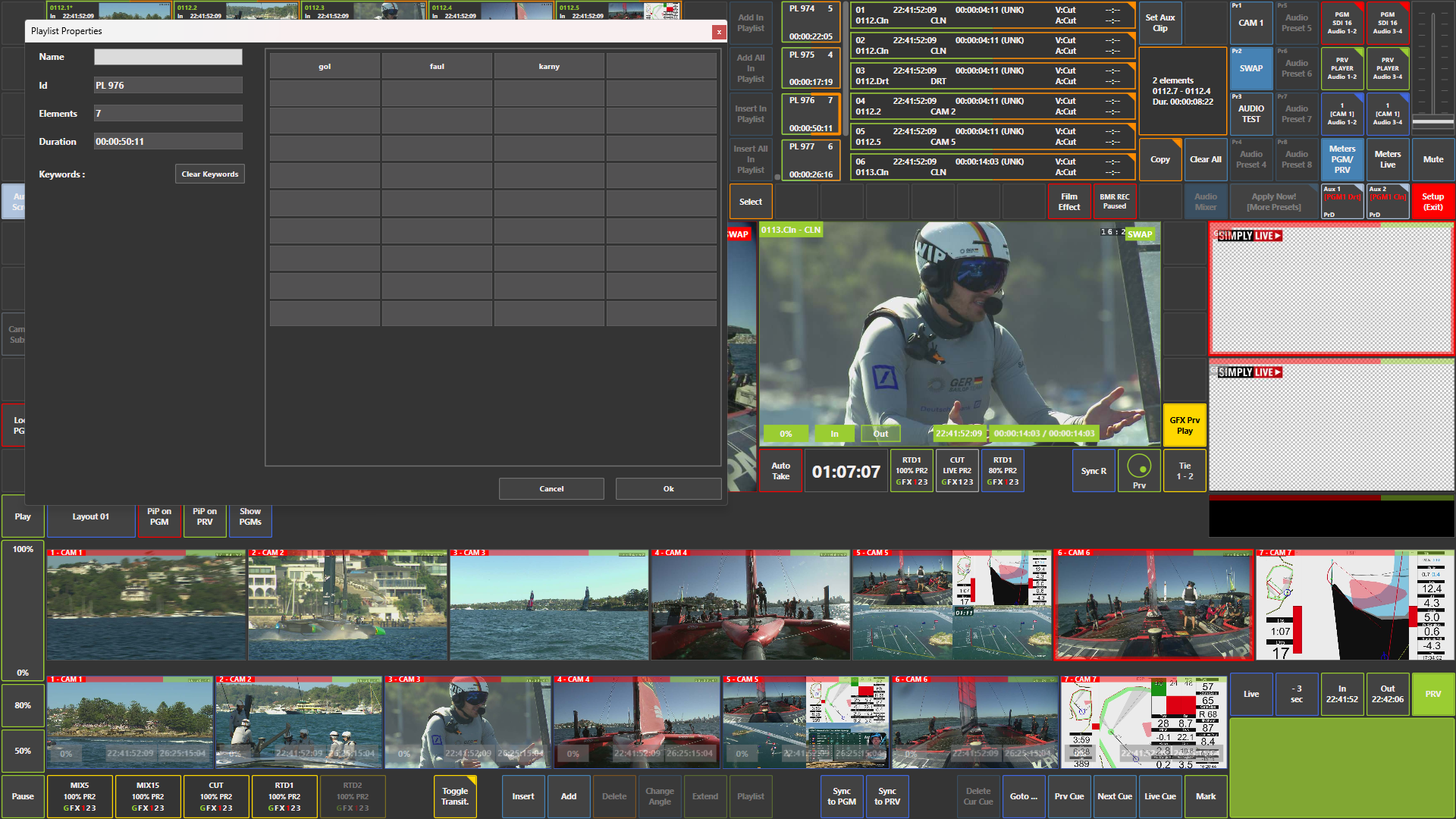
If you press Edit without selecting a playlist, the active playlist editor window opens.
If you want to edit a specific playlist, tap the right side of the playlist thumbnail, inside the orange area, and then press Edit.
The playlist edit pop-up window then appears.
Pro Tip
If you want to edit a specific playlist, first select it using the orange area so you are sure you are editing the correct one.