
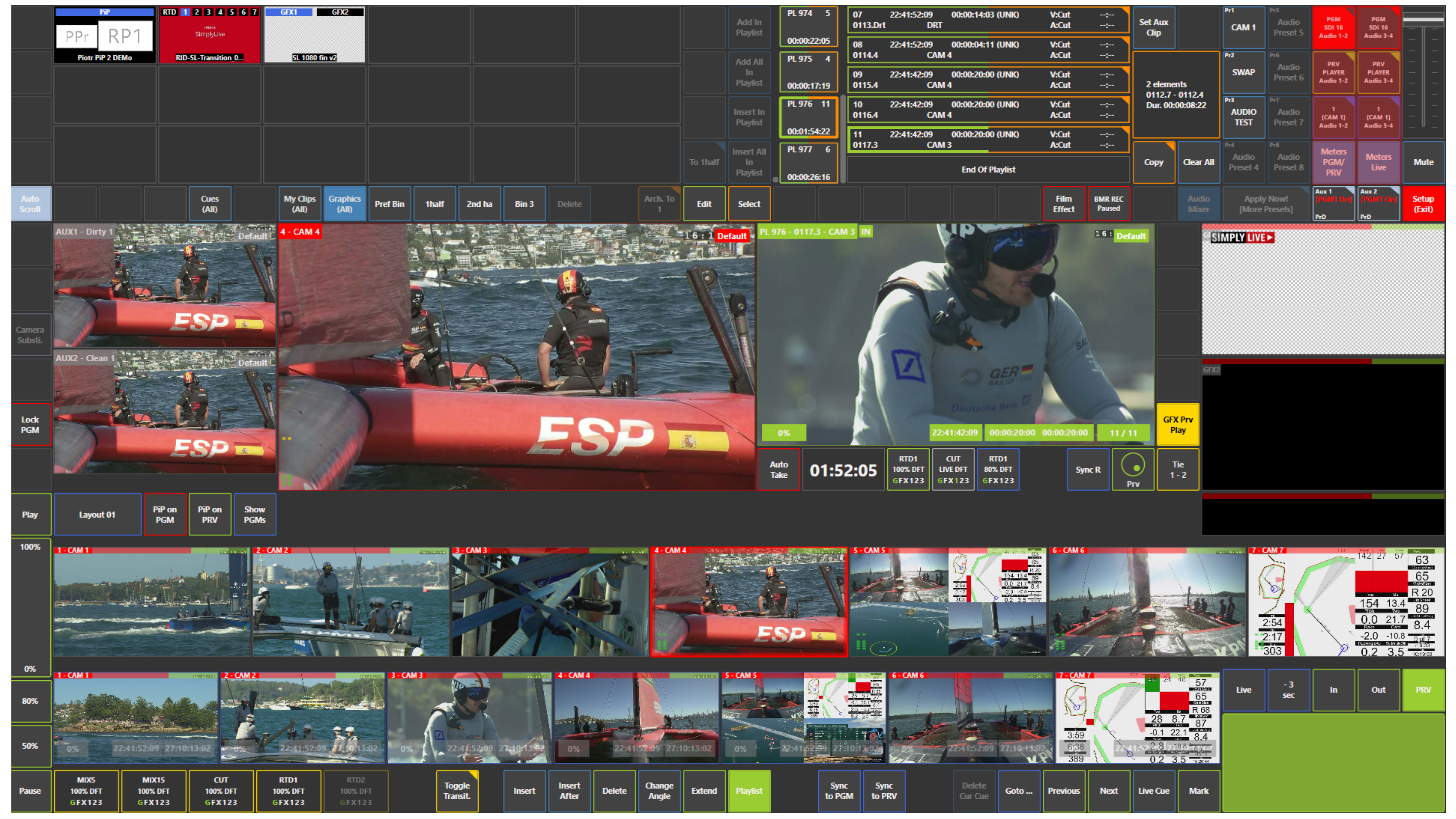
You can monitor audio from:
-
Program
-
Preview
-
replay channels
To do this, press the output you want to monitor:
-
red for Program
-
green for Preview
-
blue for replay channels
Then select the audio track pair you want to listen to.
In the original SimplyLive audio monitoring workflow, you can monitor PGM, PRV, or a selected replay channel, and choose track pairs such as 1-2 or 3-4.
More Audio Tracks
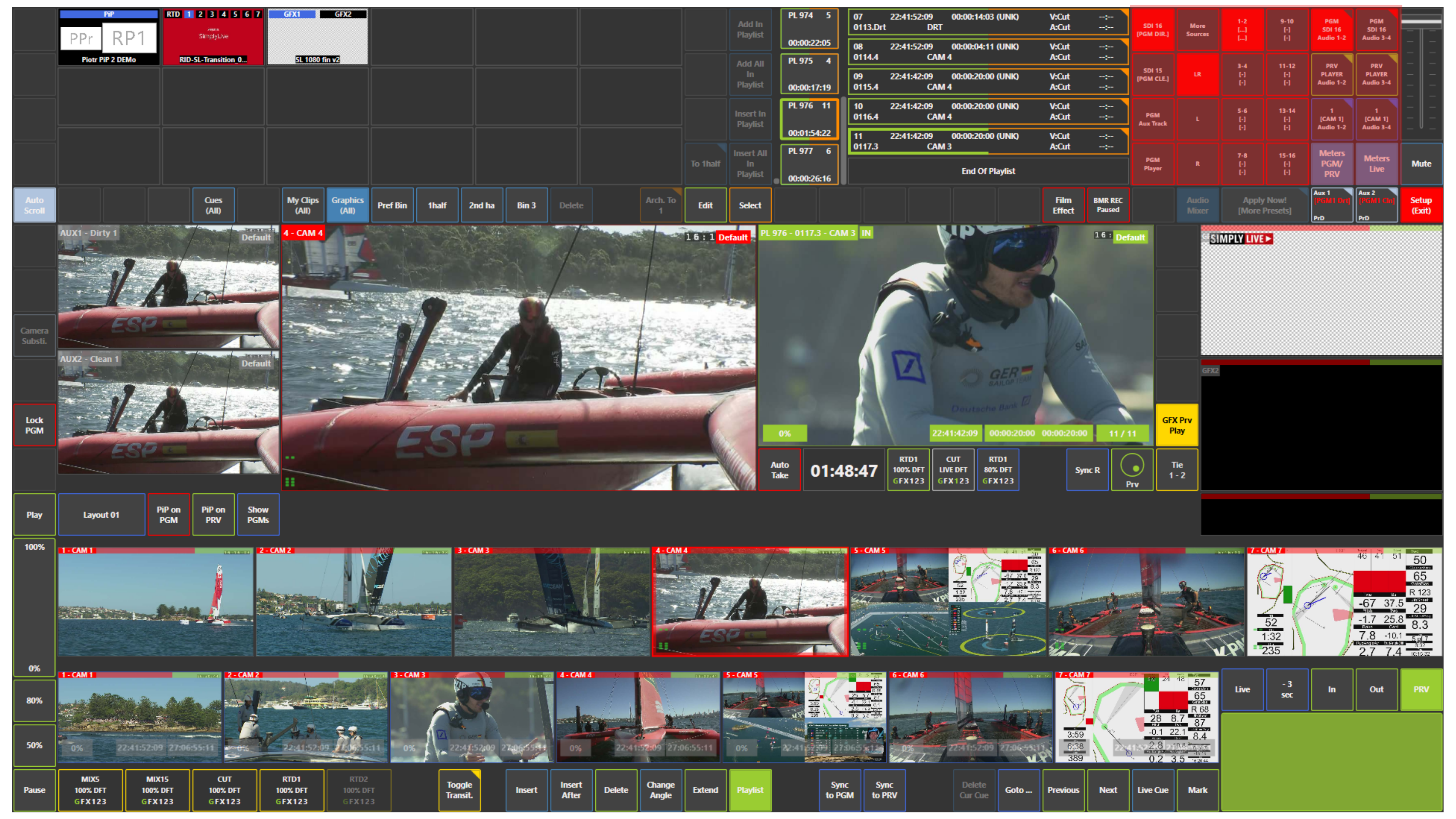
If more audio tracks are available, press and hold the selected output to open the additional audio layer.
From there, you can choose which audio tracks you want to monitor.
Use Case – Live Production Scenario
You are preparing a soundbite on Preview before taking it to air.
Before playback, you monitor the selected audio tracks to make sure the correct sound is present and routed properly.
This helps you confirm that the clip is ready before it goes on air.
Pro Tip
Use audio monitoring to check soundbites, clips, and replay content before playout. It is a fast way to confirm that the selected source has the correct audio before you take it to Program.