
Monitor Walls
Information
Related task: See Manage Monitor Walls to create and operate Monitor Walls.
Overview
Monitor Walls provide a room-based representation of physical monitoring environments in hi. They model locations, rooms, and displays so operators can work with Multiviewer Heads and single-signal monitors from the hi web interface.
Monitor Walls support:
-
Room-based organization - monitors are arranged in a layout that can match the physical room.
-
Direct routing - operators can select a monitor in the layout and route a Source to it.
-
Layout management - Multiviewer layouts can be saved and recalled as part of the room configuration.
-
Tag-based visibility - room Tags determine which monitors appear on relevant Control Panels.
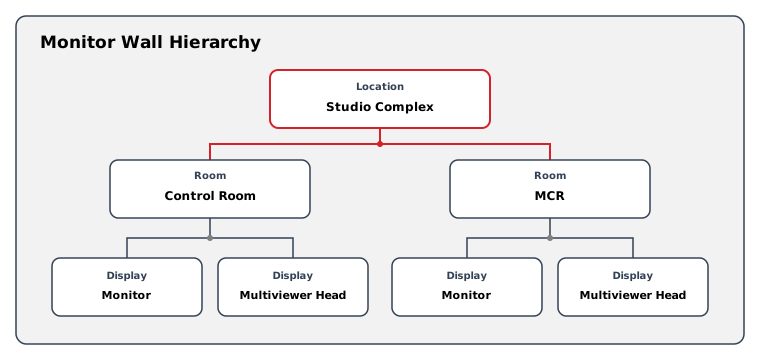
Hierarchy Overview
Monitor Walls are organized in a three-level hierarchy:
|
Level |
Description |
|---|---|
|
Location |
A top-level grouping such as a building, studio complex, or facility. |
|
Room |
A physical or logical space within a location, representing a single Monitor Wall. |
|
Display |
An individual screen on the Monitor Wall, either a single-signal monitor or a Multiviewer Head. |
When only a single location exists in the system, hi automatically navigates to that location, bypassing the location list.
Locations
A Location represents a site or facility that contains one or more rooms. Locations exist primarily for organizational purposes - separating Monitor Walls that belong to different buildings, studios, or operational areas.
Information
When the first room is created under a location named "Default", hi prompts the user to rename the location before proceeding.
Rooms
A Room models a single physical Monitor Wall. Each room belongs to exactly one location and contains an arbitrary number of displays arranged in a spatial layout. Rooms appear as tabs within the location view, allowing quick switching between different walls.
Tag Assignments
Rooms support Tag assignments. Assigning Tags to a room determines which monitors from that room appear on the Control Panel. This provides operators with contextual monitoring alongside their routing controls.
Caution
Tags assigned to a room control the visibility of that room's displays on the Control Panel. Assign Tags to ensure operators see the relevant monitors for their workflow.
Snapshots
Use Save Snapshot to add the room's Monitor Wall state to a new or existing Snapshot. The dialog offers the choice of creating a Snapshot or adding the room state to one that already exists.
Display Types
Each display on a Monitor Wall is one of two types:
Monitor (Single Signal)
A Monitor represents a single physical screen showing one video signal. It references a Destination Port from the system's Flow Topology. Selecting a monitor in the layout view opens the Control Panel, scoped to that Destination, allowing the operator to change the routed Source.
Multiviewer Head
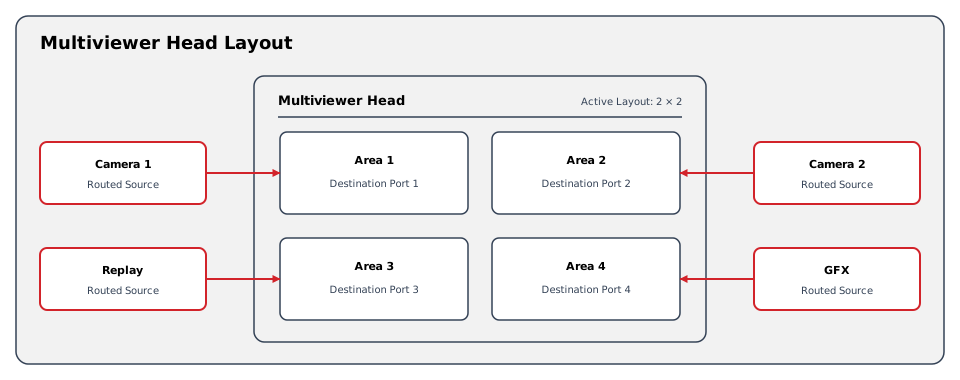
A Multiviewer Head represents a physical screen driven by a Multiviewer device. Unlike a single monitor, a Multiviewer Head can display multiple inputs arranged in a layout of defined areas. Each Multiviewer Head contains:
-
Layouts - Configurations that define how the screen is divided into areas (picture-in-picture boxes).
-
Layout Control - An optional link to a Parameter Control parameter on the Multiviewer device. When configured, recalling a layout sets the parameter value, which in turn commands the physical device to switch layouts. The Monitor Wall view reads the live parameter value, matches it against the layout-recall value configured for each layout, and shows the matching layout as active.
-
Areas - Each area within a layout can be mapped to a Destination Port, representing one input window on the Multiviewer.
Caution
When Layout Control is not configured on a Multiviewer Head, layouts can still be saved and recalled within hi as a "default layout", but hi does not send layout-change commands to the physical device.
Display Sizes and Orientation
Displays on the Monitor Wall layout support Small, Medium, and Large size presets in both landscape and portrait orientation:
|
Orientation |
Small |
Medium |
Large |
|---|---|---|---|
|
Landscape |
2 x 1 |
4 x 2 |
6 x 3 |
|
Portrait |
1 x 2 |
2 x 4 |
3 x 6 |
Sizes and orientation can be adjusted in the layout editor to approximate the physical arrangement of screens on the real Monitor Wall.
Integration with Other Features
Nodes and Flow Devices
Both monitor types reference Ports and Nodes from the Flow Topology. Single monitors point to a Destination Port, while Multiviewer layout areas map to individual Destination Ports on the Multiviewer Node.
Control Panel Navigation
Selecting any display in the Monitor Wall view navigates to a Control Panel scoped to that display. For Multiviewer Heads, this panel shows the areas of the active layout as Destinations, with routing and parameter controls available for each area.
Licensing and Permissions
Monitor Walls require the following:
|
Requirement |
Details |
|---|---|
|
License entitlement |
Existing hiBase installations use hiPowerWidgets for Monitor Walls. hiAdvancedWorkflows is the commercial replacement for new bundles; check the installation's license record for its enabled feature scope. |
|
Workspace access |
Control Panel access or Monitor Wall admin is required to open Monitor Walls. |
|
Administrative Role |
Creating or changing locations, rooms, displays, Tags, layouts, or room Snapshots requires Monitor Wall admin. |
The workspace shows Monitor Walls in the navigation. With one configured location, opening the workspace takes the user directly to that location. See Manage Monitor Walls for the current screens and controls.