
Parameter Control
Parameter Control exposes supported device parameters inside hi. Depending on the device template and protocol implementation, parameters can be browsed on a Node, pinned for quicker access, assigned to Ports, grouped in Parameter Containers, used in Rules, and included in Snapshots.
Overview
Parameter Control is available for device integrations that expose parameters through a supported protocol or template.
Parameters can be read-only or writable.
Assigned parameters appear on the Control Panel for the selected Port or Port Container.
Widget admins can also configure supported parameters in Widgets and delegate them through the simplified Power Widget workspace.
Parameter Control on a Node
When a Node Template and its protocol expose parameters, the Node view presents those parameters in a tree structure. Availability and write access depend on the connected device and integration.
Types of Parameters
There are different types of parameters in the system:
|
Type |
Purpose |
Example |
|---|---|---|
|
Select from predefined values |
The device offers options, and the user selects one of them. |
Select from different types of test signals in a signal generator. |
|
Numeric value |
Accepts a number within the defined minimum and maximum values. |
Audio delay. |
|
On/Off value (boolean) |
Accepts an on or off state. |
Enable or disable frame synchronization. |
|
Text value (string) |
Accepts text. |
Text for character insertion. |
|
Read-only text value |
Displays text that cannot be changed through the hi system. |
Device serial number. |
|
Read-only numeric value |
Displays a number that cannot be changed through the hi system. |
Power supply temperature. |
|
Read-only on/off value |
Displays a state that cannot be changed through the hi system. |
Power status. |
Pinning Parameters
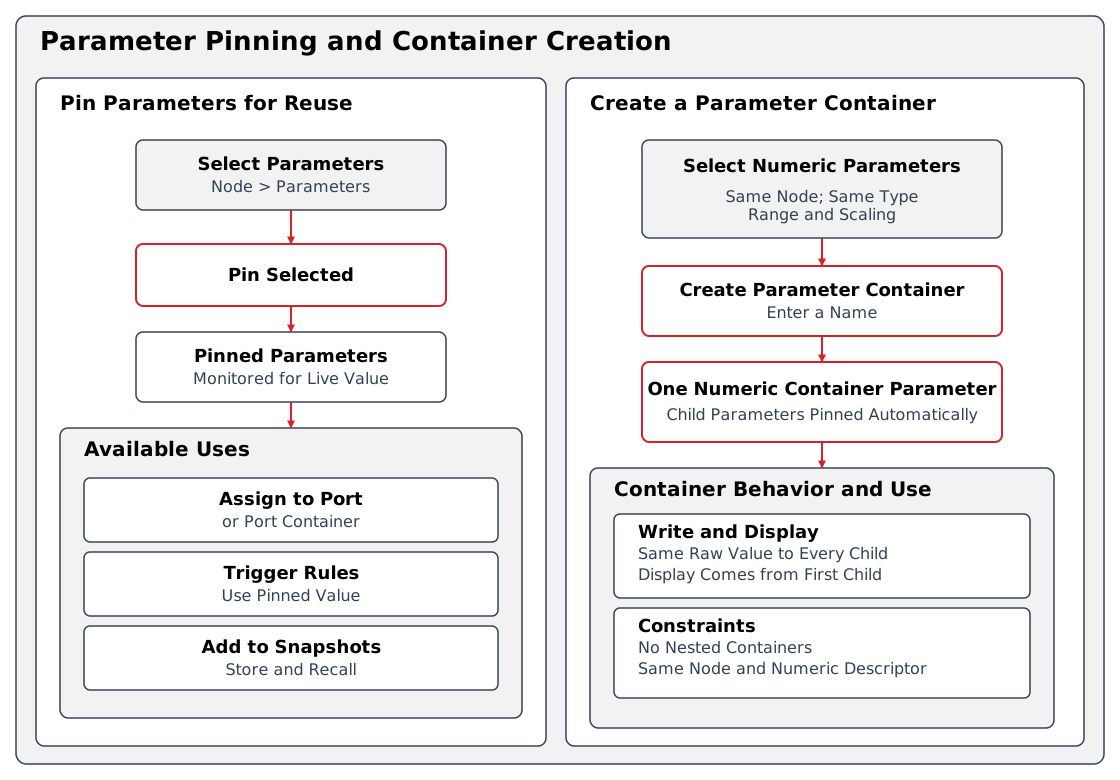
Pinning makes frequently used parameters available in the Node view. The hi system monitors pinned parameters and displays their current values.
Information
Pinned parameters are available as inputs when configuring Rules in the Rule Engine.
Assigning a Pinned Parameter to a Port or Port Container
A pinned parameter can be assigned to one or more Ports or Port Containers. Its control appears when an operator selects an assigned Port or Port Container in the Control Panel. Use Assign a Parameter Control for the procedure.
Parameter Containers
Parameter Containers combine compatible numeric parameters on the same Node and expose them as one pinned parameter.
Every child must have the same numeric data type descriptor, including the same range and scaling settings.
Parameter Containers cannot contain other Parameter Containers.
When an operator sets a value on a Parameter Container, hi sends the same raw value to every child parameter.
The displayed value comes from the first child parameter; the Container does not calculate an aggregate value.
Missing child parameters are skipped. The displayed value does not confirm that every device accepted the requested change.
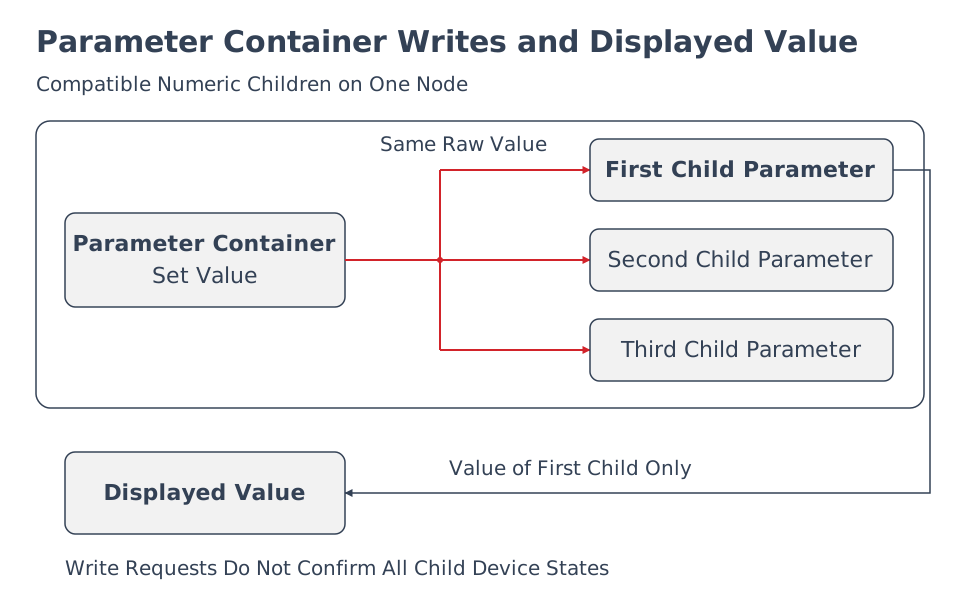
This example shows three compatible child parameters on one Node. Write requests go to the available children; only the first child's value supplies the display.
Assign a Parameter Container to a Port or Port Container to show it as one numeric widget on the Control Panel.
Use Manage Parameter Containers to create and manage the container.
Related Topics
-
See Use a Video Server Widget for playback controls exposed through a configured Video Server Player.
-
See Manage Widgets for available Parameter Control Widgets and their display options.
-
See Manage Nodes for browsing and managing parameters across all Nodes in the system.
-
Parameter Containers and pinned parameters can be saved in Snapshots for recall; see Manage Snapshots for details.