
Troubleshooting
Overview
Find the observed symptom, follow its diagnostic page, and verify the result. These guides are for operators and system administrators. Use an account with the roles and Tag access required by the linked task; ask an authorized administrator to review settings you cannot access.
Information
Capitalized terms, including Node, Port, Source, Destination, and Tally, are defined in the Glossary.
Start Here
If a server or service fault affects a multi-server installation, start with A Multi-Server Installation Reports a Server or Service Fault. Contact Riedel Customer Success before infrastructure intervention.
Preserve the displayed message, affected Node or Port names, time of occurrence, and recent changes. Start with missing Ports if an object is absent, queued routing if a selection has not changed the route, or an offline Node if its Connection State is unavailable. Use the symptom groups below for other problems.
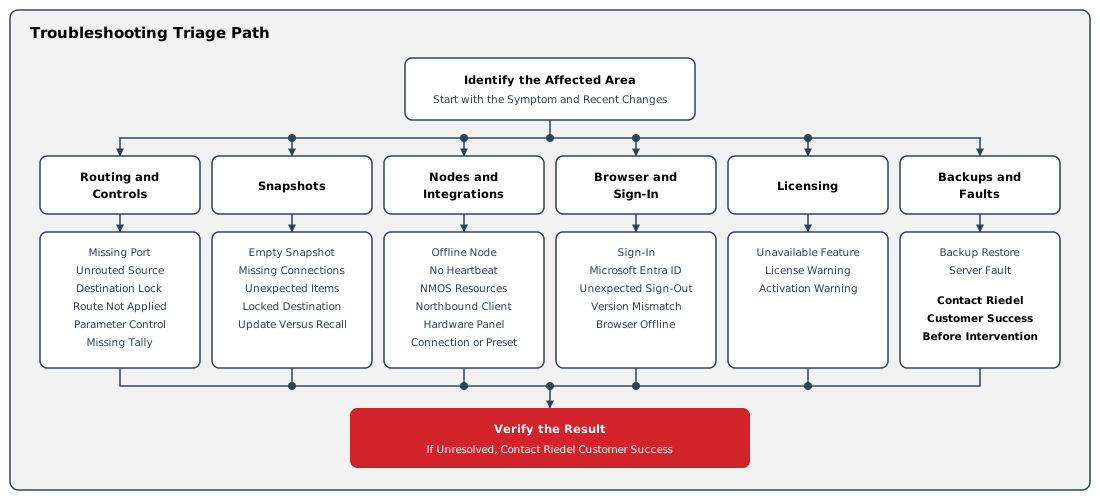
Explore
The audience shown beside each symptom identifies who performs the checks. Operators can record symptoms and review accessible state; configuration changes require the roles listed on the diagnostic page. Snapshot admin identifies actions requiring that role, not unrestricted infrastructure access.
Routing, Port Visibility, and Controls
-
An Expected Port Is Missing - Find a Source or Destination hidden by filters or account access. Audience: Operator and User admin.
-
A Selected Source Has Not Been Routed - Apply a staged connection in Take Mode. Audience: Operator.
-
A Destination Lock Prevents Routing - Identify lock ownership and release an authorized Destination lock. Audience: Operator and lock owner or Unlock admin.
-
A Route Does Not Appear on the Destination - Inspect an applied route and its integration path. Audience: Operator and responsible administrator.
-
A Parameter Control Is Missing - Review Widget Area settings and pinned parameter assignments. Audience: Operator and responsible administrator.
-
Tally Does Not Reach a Downstream Device - Trace the configured Tally path and integration support. Audience: Operator and responsible administrator.
Snapshots
-
A New Snapshot Is Empty - Populate a Snapshot created in the workspace. Audience: Snapshot admin.
-
A Snapshot Is Missing Expected Connections - Review captured Ports, component types, visibility, and online Node scope. Audience: Snapshot admin.
-
Snapshot Recall Includes Unexpected Items - Review selections retained across Snapshot detail tabs. Audience: Snapshot admin.
-
A Locked Destination Is Unchanged After Snapshot Recall - Account for Destination locks during recall. Audience: Snapshot admin.
-
Updating a Snapshot Did Not Restore the Live State - Distinguish saving live values from restoring saved values. Audience: Snapshot admin.
Nodes, Integrations, and Hardware Panels
-
A Node Remains Offline or Unreachable - Diagnose a Node connection using the displayed state and commissioned settings. Audience: Operator, hi administrator, and network administrator.
-
A Hardware Panel Does Not Connect - Review power, addressing, integration settings, and licensing. Audience: Operator and responsible administrators.
-
A Connected Hardware Panel Shows the Wrong Preset - Review delegation to a connected Hardware Panel. Audience: Operator; delegation requires Preset admin and User admin.
-
A Node Reports No Heartbeat from Service - Separate a hi service fault from a device connection fault. Audience: Node admin; Riedel Customer Success.
-
An External Control System Cannot Use the Northbound Node - Check the listener, the matrix definition, and the Port assignment. Audience: Node admin and network administrator.
-
NMOS Nodes or Ports Do Not Appear in hi - Check registry discovery, the Registry URL, and device registration. Audience: Node admin and NMOS network administrator.
Browser, Sign-In, and Licensing
-
Sign-In Does Not Complete - Use the displayed message to diagnose local or Microsoft Entra ID sign-in. Audience: User and account or identity administrator.
-
Microsoft Entra ID Sign-In Does Not Complete - Diagnose an Entra ID sign-in that returns Error or Failed to login. Audience: User, Licensing admin, and identity administrator.
-
You Are Signed Out During a Session - Use the You have been logged out message to find why a session ended. Audience: User and User admin.
-
The Version Mismatch Dialog Appears - Reload a browser that runs a different hi version than the server. Audience: Operator.
-
hi Reports That the Browser Is Offline - Restore the connection between the browser and the hi server. Audience: Operator and network administrator.
-
A Licensed Feature Remains Unavailable - Review active entitlements, activation, synchronization, and account roles. Audience: User and Licensing admin or User admin.
-
A License Warning Remains Unresolved - Distinguish identity, activation, Option, and capacity states. Audience: Licensing admin; operators record the displayed messages.
-
An Activation Warning Banner Appears - Renew the activation online or offline before its date passes. Audience: Licensing admin and network administrator.
Backups and Infrastructure Faults
-
A Backup Does Not Restore - Preserve the restore result and follow the release-specific recovery workflow. Audience: Backup admin; Riedel Customer Success if recovery needs assistance.
-
A Multi-Server Installation Reports a Server or Service Fault - Collect diagnostic information safely and contact Riedel Customer Success before infrastructure intervention. Audience: Riedel Customer Success; system administrators perform status and diagnostic checks only.
Customer Support
-
Customer Support - Report an issue, request a feature, or ask for workflow guidance through the Customer Portal.