
Use the Control Panel
Overview
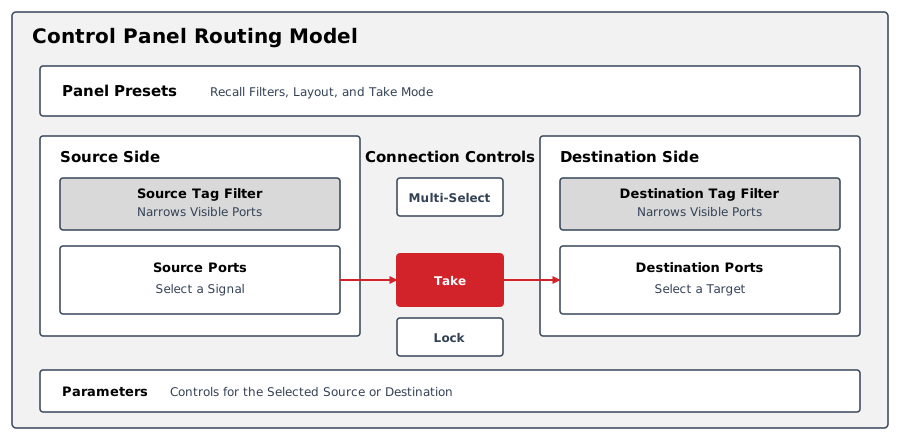
The Control Panel is the operator workspace for routing Sources to Destinations and inspecting their current connections. A Preset controls its Port lists, filtering, Take Mode, and available Widget Area.
Use it to make a production route, verify a Destination's connected Source, or operate configured parameter controls. The visible resources and actions depend on your access and the selected Preset.
Read Nodes and Layers to understand the Ports being routed. Use Tagging to understand how Preset filters organize them.
Start Here
Create a Preset, then route a Source to a Destination.
Explore
Panel Presets
Create a Control Panel Preset. Save the current Port filtering and panel settings as a reusable Preset.
See Preset Menu.
See Delegating Presets to Hardware Panels.
See Customizing a Preset.
See Preset Groups. To rename, reorder, or delete groups, see Edit, Reorder, and Delete Preset Groups. To delete several Presets, see Delete Multiple Presets.
Filtering Sources and Destinations using Tags
Look up Tag filter relations in the Control Panel Port List and Filtering Reference.
The Port List
Look up Port types, search, sorting, and folder navigation in the Control Panel Port List and Filtering Reference.
See Port and Port Container Priorities.
See Port and Port Container References.
Take Operations
Route a Source to a Destination. Connect an authorized Source to a Destination using the selected Preset's Take Mode.
Review and Connect Port Containers. Review and adjust the Port pairings before a Port Container route is taken.
Widget Area
Control Panel Port List and Filtering Reference. Look up the Widgets shown for a selected Source or Destination.
Multi-Select Mode
Route Multiple Sources and Destinations. Queue and apply multiple connections in Multi-Select Mode.
See Creating Snapshots from the Control Panel.
Crosspoint Authorization
Destination Lock States Reference. Understand Destination lock states and the permission required to override locks.
Undo
Undo a Routing Change. Restore the previous Source connection for a Destination after a Take.
Hardware Panel Simulator
Simulate a Hardware Panel. Open the Hardware Panel Simulator to verify a delegated Preset and panel layout without physical hardware.
Static Preset Editor
Edit a Static Preset. Assign fixed Source and Destination Ports to Hardware Panel button positions in the Static Preset Editor.
Signal Path Inspector
Inspect a Signal Path. Trace a Port's signal through the system topology without changing the routing.
Simplified Control Panel and Simplified Power Widget Access
Simplified Control Panel Access. Understand the restricted routing and Widget interfaces available through simplified access roles.
Next Steps
-
Use View and Edit Topology when the expected Signal Path is unavailable.
-
Use Manage Users when a required Port, Preset, or action is not visible.