
Tagging
Overview
Tags provide semantic organization for resources in hi. They can describe location, signal type, purpose, operational area, or other categories defined for the installation.
Tags are used for:
-
Panel navigation - operators can filter Sources and Destinations by Tag.
-
Hardware Panel layout - Tags determine which Ports appear on physical panels.
-
Access control - Tag assignments and pre-filters contribute to which Ports and related resources a user can see.
-
Consistent organization - Tag categories provide a common grouping structure across the system.
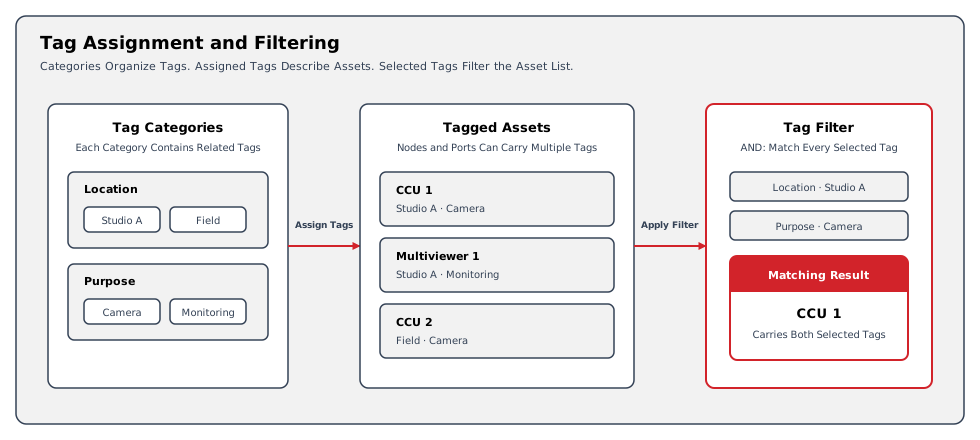
The diagram illustrates an AND filter: a Port must carry both selected Tags to appear.
Information
Related task: See Manage Tags to create, assign, reorder, and manage Tags.
A Tag
A Tag is a single piece of information, typically made of one to three words. Tags can describe different types of information. Examples of Tags include:
-
CAMERA
-
MONITORING
-
SYNC
-
ASYNC
-
EMBEDDED
-
PRODUCTION A
-
STUDIO A-2
Tag Categories
Tags are sorted into categories for an easier overview. A category usually describes the context of the Tags it contains. Examples of categories and their Tags:
-
Category: SIGNAL TYPE - Tag: VIDEO, Tag: AUDIO, Tag: DATA
-
Category: LOCATION - Tag: ENGINEERING, Tag: PRODUCTION A, Tag: PRODUCTION B, Tag: FIELD, Tag: TAILBOARD
-
Category: PURPOSE - Tag: CAMERA, Tag: MONITORING, Tag: REC/PLAY, Tag: MIX
hi does not limit the number of Tag categories or Tags.
Information
The Control Panel and Hardware Panels use the configured display order of Tag categories and Tags. Arrange them in the order operators need. See Manage Tags for the reordering procedure.
System-Generated Tags
Some Tags are generated by the system automatically and cannot be modified or deleted. These include:
-
Device Family Tags (Router, Switcher, Camera, CCU, Multiviewer, GPIO, Hardware Panel, and other device families) - automatically assigned when Nodes are created from templates
-
Shader Tags - automatically assigned when CCUs are added to Shader Groups through Joystick Override
System-generated Tags appear in the Tags view for reference but are managed exclusively by hi.
Assigning Tags to Assets
Tags can be assigned to Ports, Nodes, and users in hi. The more Tags a Port carries, the better it is described and the easier it is to find. Example:
|
Signal |
Tags |
|---|---|
|
CCU 1 CHARACTER OUT 1 |
SIGNAL TYPE / VIDEO
|
|
V-MIX IN 15 |
SIGNAL TYPE / VIDEO
|
|
MUV AUDIO 2 IN 15 |
SIGNAL TYPE / AUDIO
|
Tags on Nodes can be managed from the Node List. Tag assignments on users contribute to Port visibility and are managed from Users.
Filtering by Tags
Tag filtering helps operators find relevant Sources and Destinations within the resources their account can access. The selected filter relation determines the result.
For example, consider Ports tagged Studio A, Camera, or both:
|
Selected Tags |
Relation |
Visible Result |
|---|---|---|
|
Studio A and Camera |
AND |
Ports carrying both Tags, such as cameras in Studio A. |
|
Studio A and Camera |
OR |
Ports carrying either Tag, such as all Studio A resources and cameras in other locations. |
Adding a Tag to an AND filter can narrow the result. Adding a Tag to an OR filter can broaden it. See Control Panel Port List and Filtering Reference for Include/Exclude behavior.
Operational Implications
Browsing filters organize the Ports already available to an account. They do not grant roles or expand the account's access. Account Tag assignments and access restrictions are separate configuration decisions; see Access Control.
Related Tasks and Reference
-
See Manage Tags for creating, reordering, and managing Tag categories and Tags.
-
See Users for configuring Tag-based access control for Ports and related resources.