
Manage Monitor Walls
Overview
Monitor Walls organize display Destinations by location and room. Read Monitor Walls for their relationship to routing, layouts, and Snapshots.
Start Here
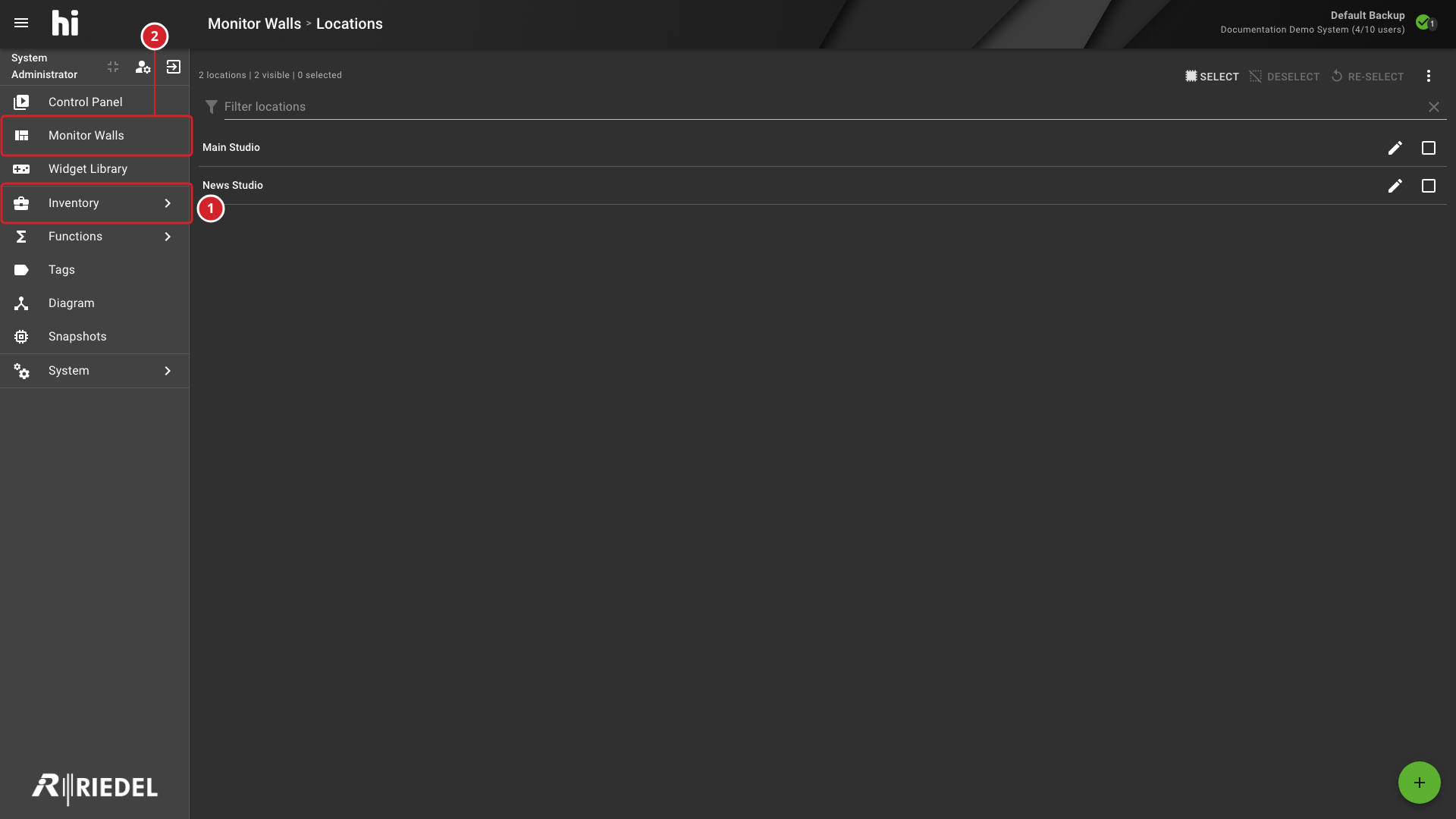
Open Monitor Walls from the navigation panel. With Control Panel access, Operate a Monitor Wall. Creating or changing its locations, rooms, displays, Tags, or layouts requires Monitor Wall admin and the enabled Monitor Wall feature.
-
Inventory opens the separate Node, Port Container, and Portal workspaces.
-
Monitor Walls opens the locations and rooms.
Explore
-
Configure a Monitor Wall to set up locations, rooms, displays, and room Tags.
-
Create and Edit Multiviewer Head Layouts to define the areas and Port assignments of a Multiviewer Head.
-
Operate a Monitor Wall to inspect layout state and route to a display.
-
Manage Snapshots to capture and recall selected operational values.
Task Illustrations
For the procedure, see Configure a Monitor Wall.
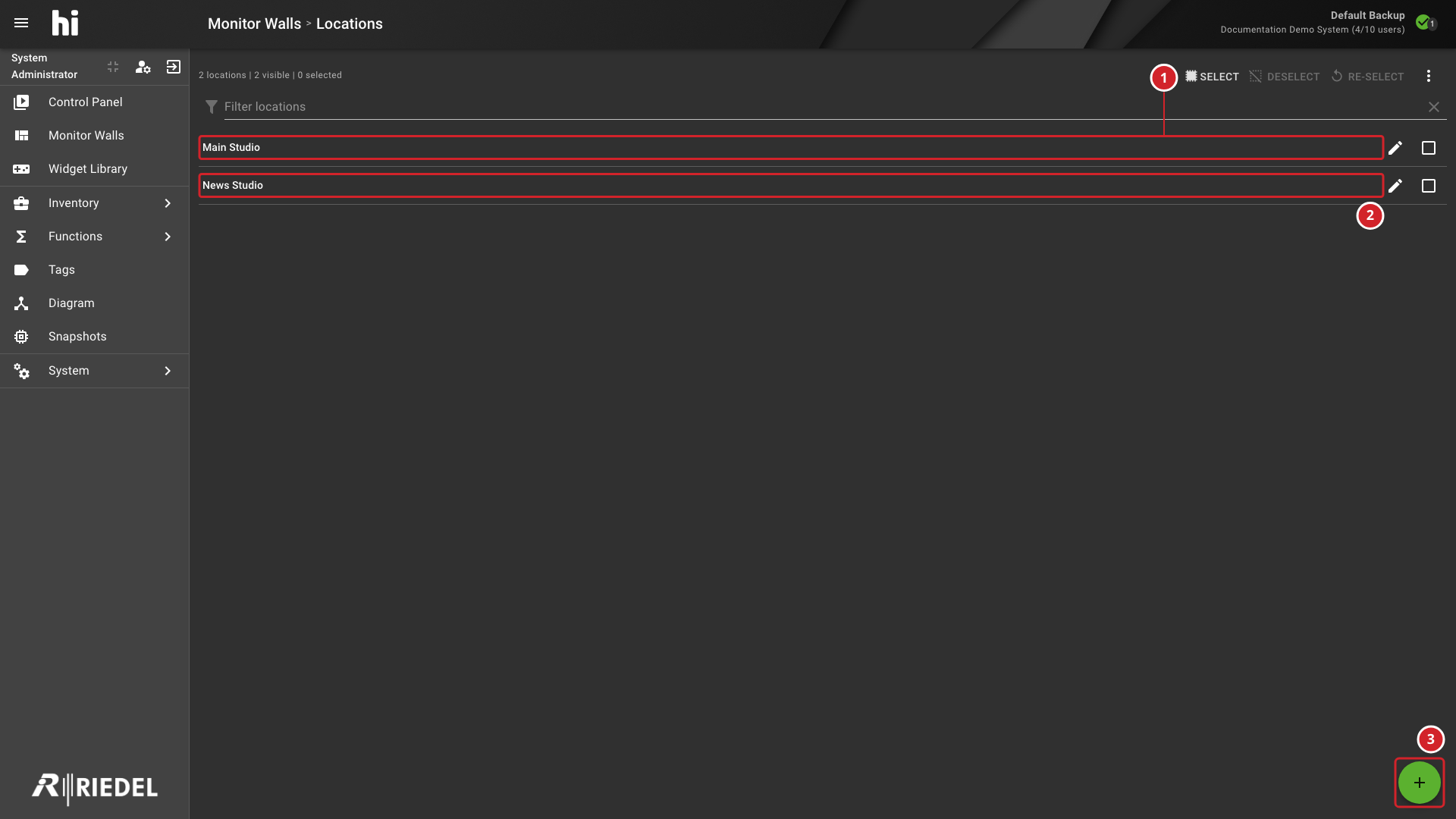
Monitor Walls Location List with Several Example Locations
-
Main Studio location.
-
News Studio location.
-
Add location action.
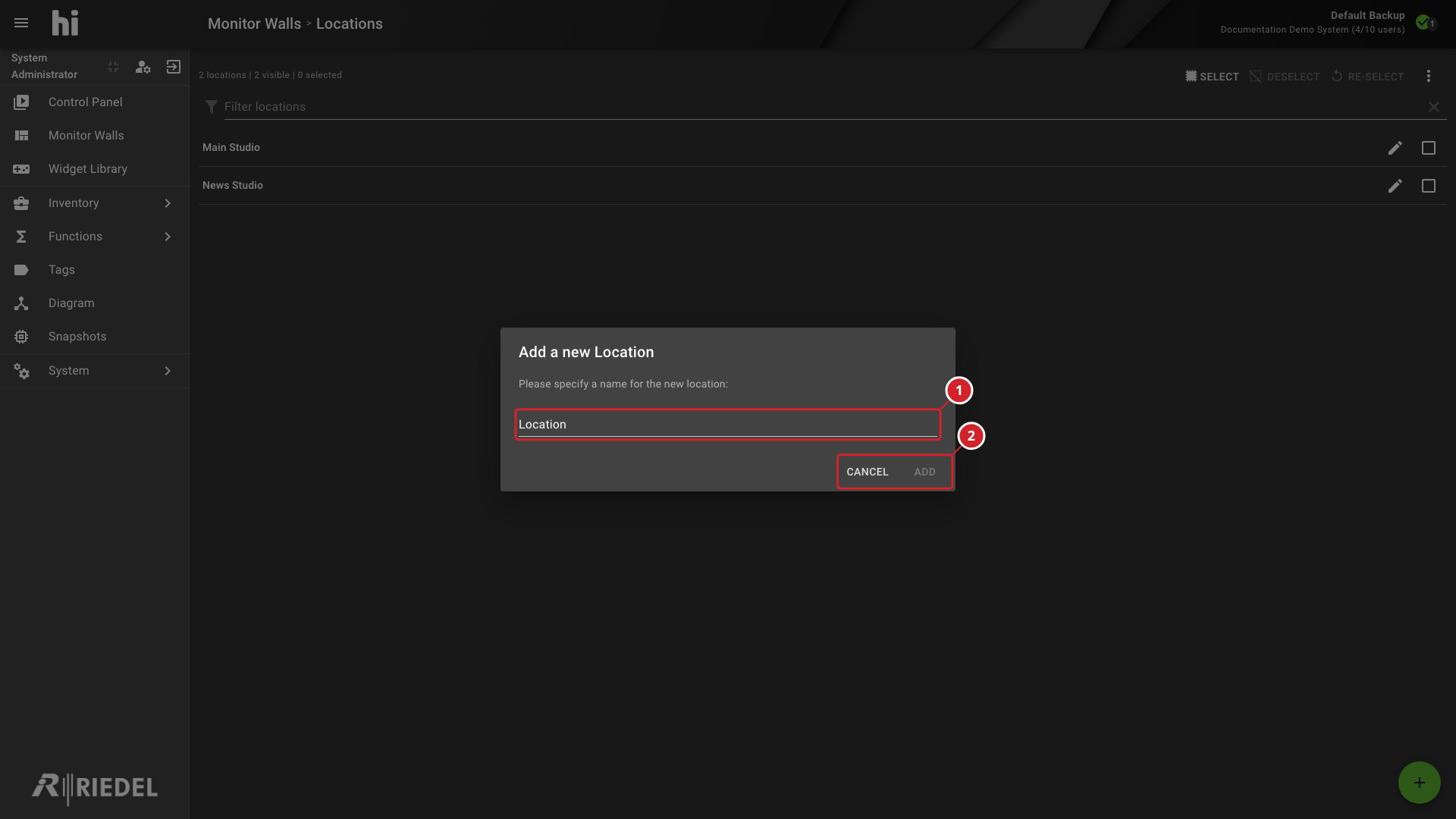
Add Location Dialog with a Relevant Example Name
-
Location name field.
-
Add the location or cancel without saving.
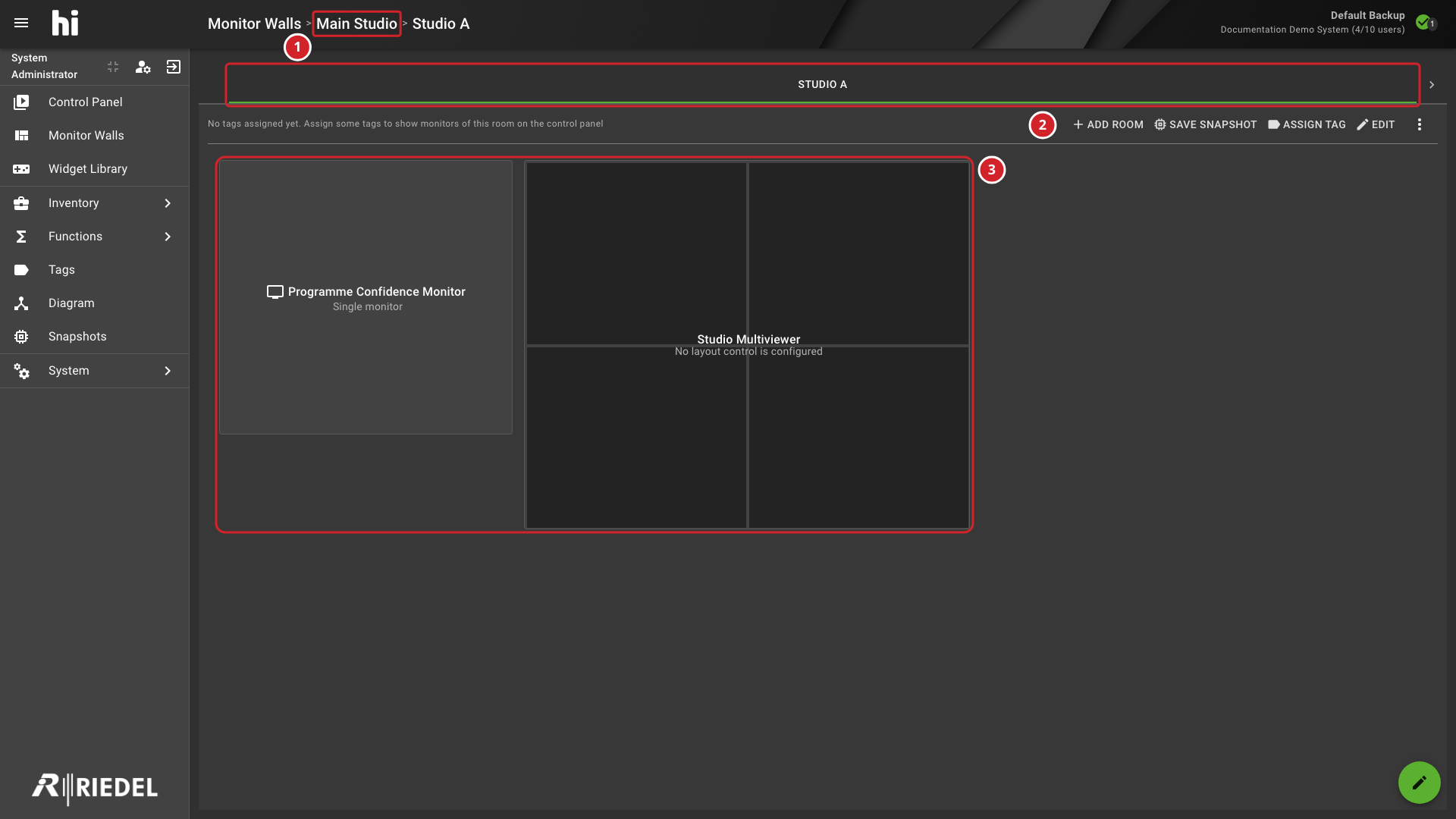
Selected Monitor Wall Room with Its Tabs and Toolbar
-
Main Studio location and the Studio A active room tab.
-
Room actions: Add Room, Save Snapshot, Assign Tag, and Edit.
-
Displays configured for the selected room.
Add Room Dialog for the Selected Location
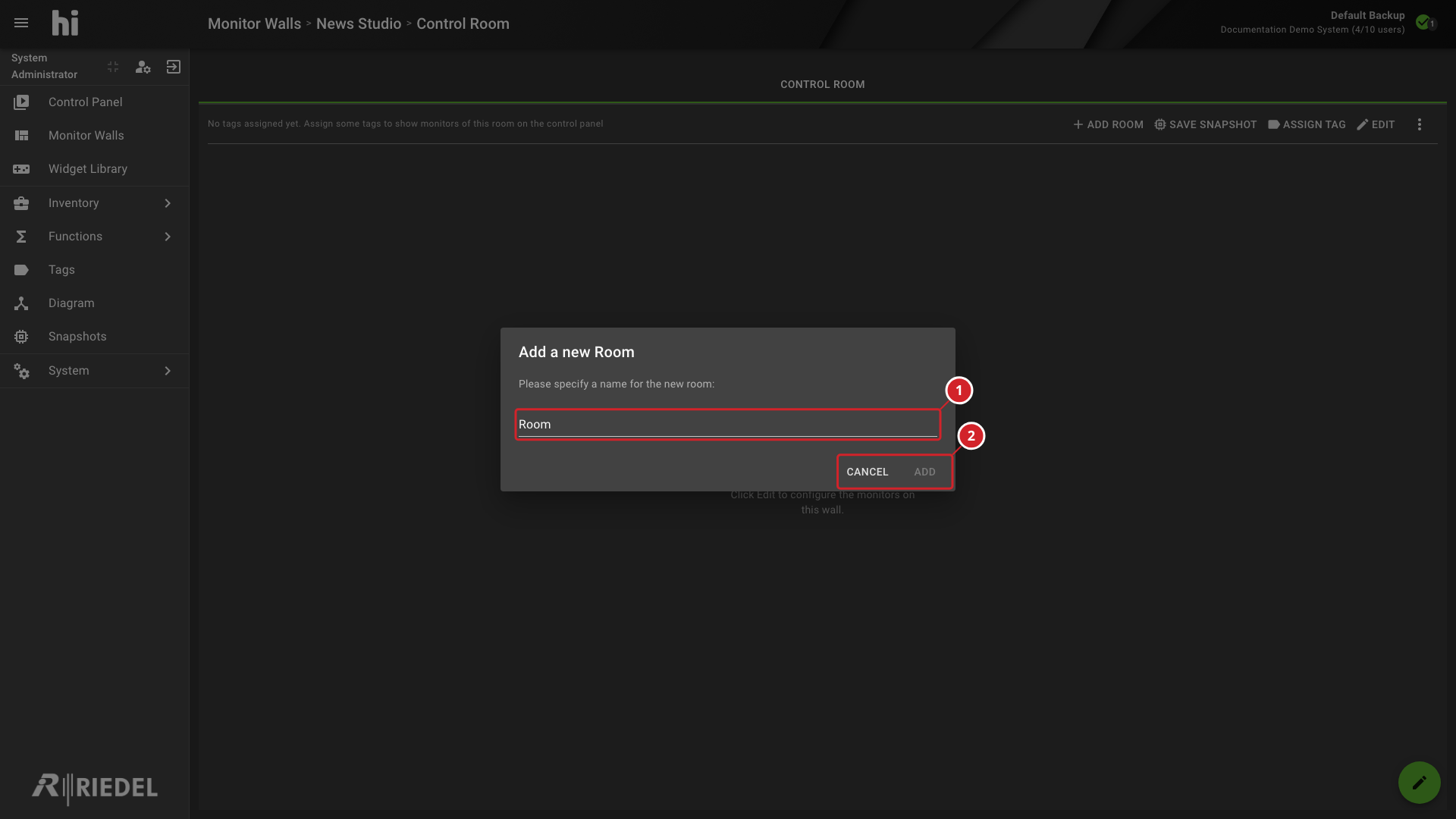
-
Room name field.
-
Add the room or cancel without saving.
Room Tag Assignment with the Relevant Categories Selected
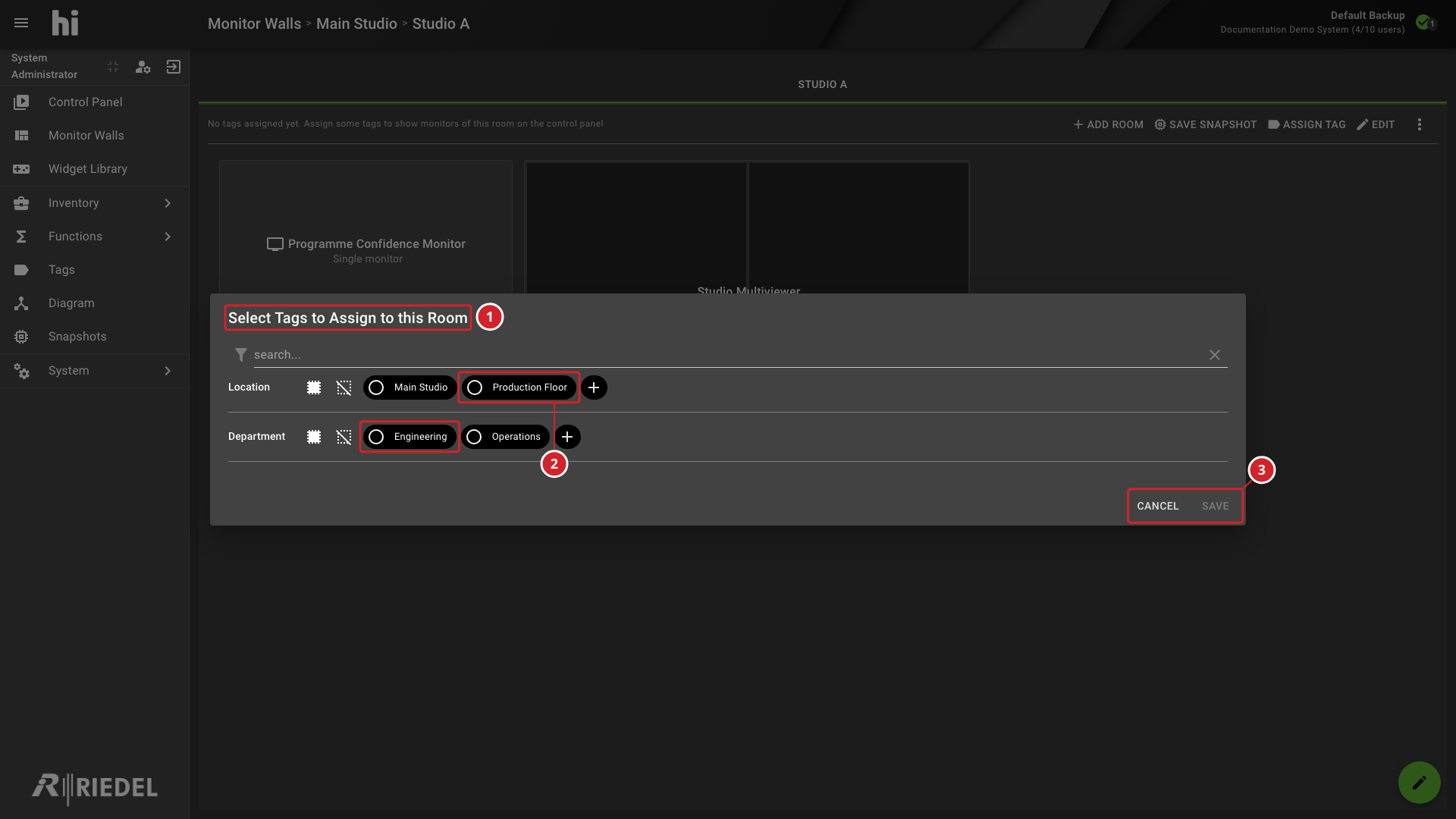
-
Select Tags to Assign to this Room dialog.
-
Available Tags, including Production Floor and Engineering.
-
Select Save to apply the room Tags or Cancel to leave without saving.
Monitor Wall Layout Editor with Displays and Edit Actions
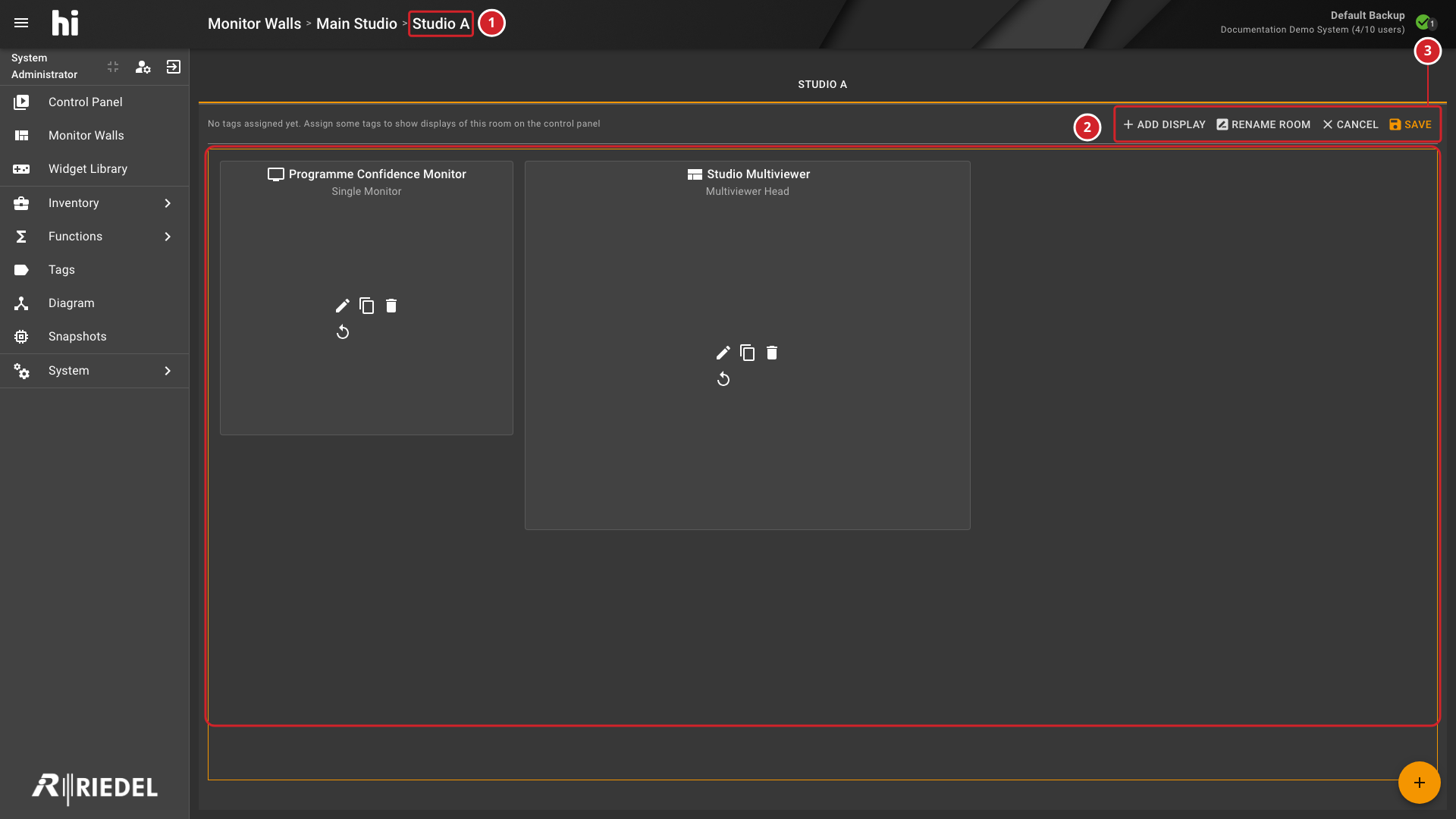
-
Studio A room being edited.
-
Add Display, Rename Room, Cancel, and Save layout controls.
-
Layout canvas showing the placed display cards.
Add Display Dialog Showing Monitor and Multiviewer Head Configuration
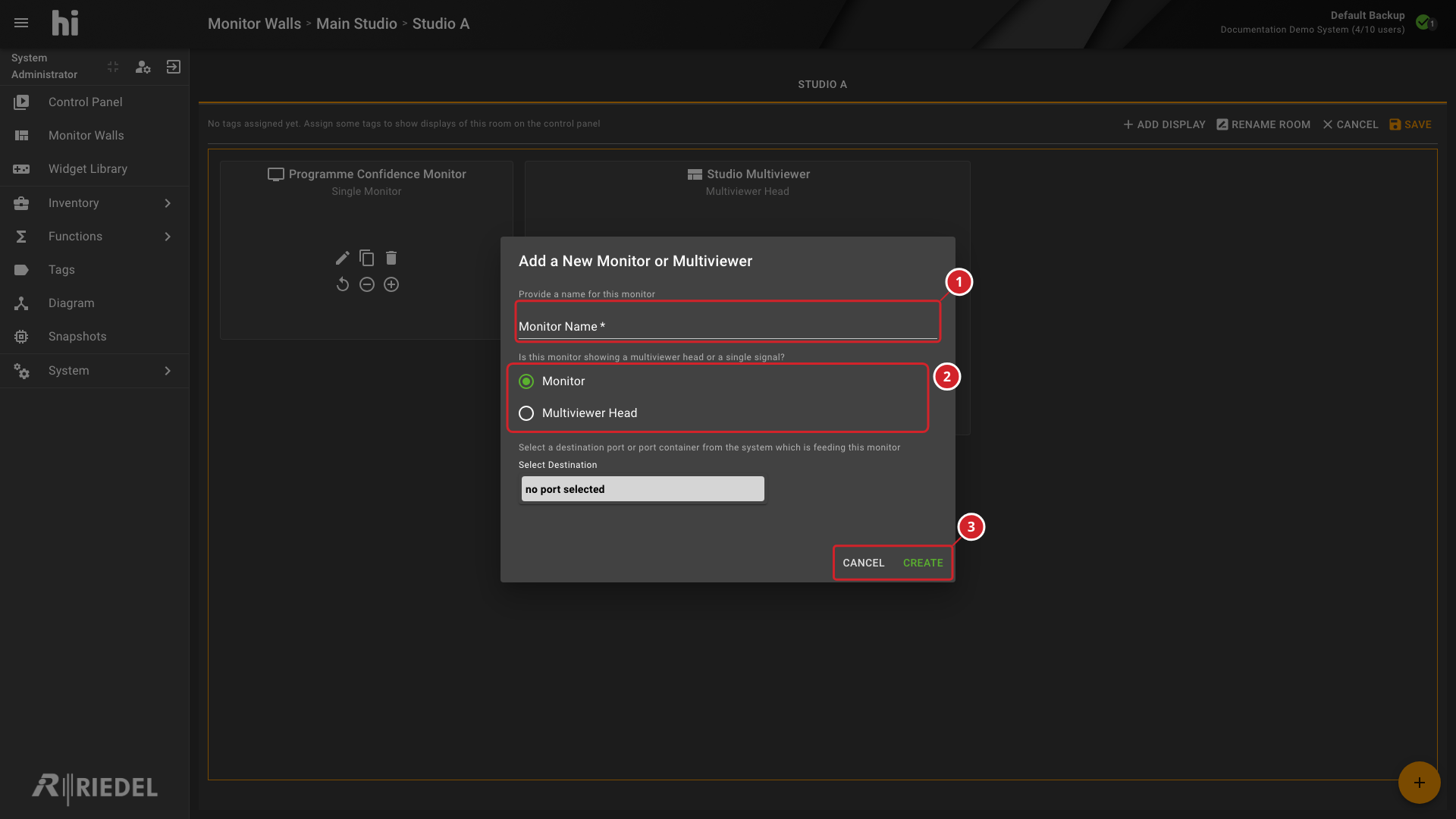
-
Monitor Name field.
-
Select Monitor or Multiviewer Head.
-
Create the display or Cancel.
Display Card Controls for Editing a Monitor Wall Layout
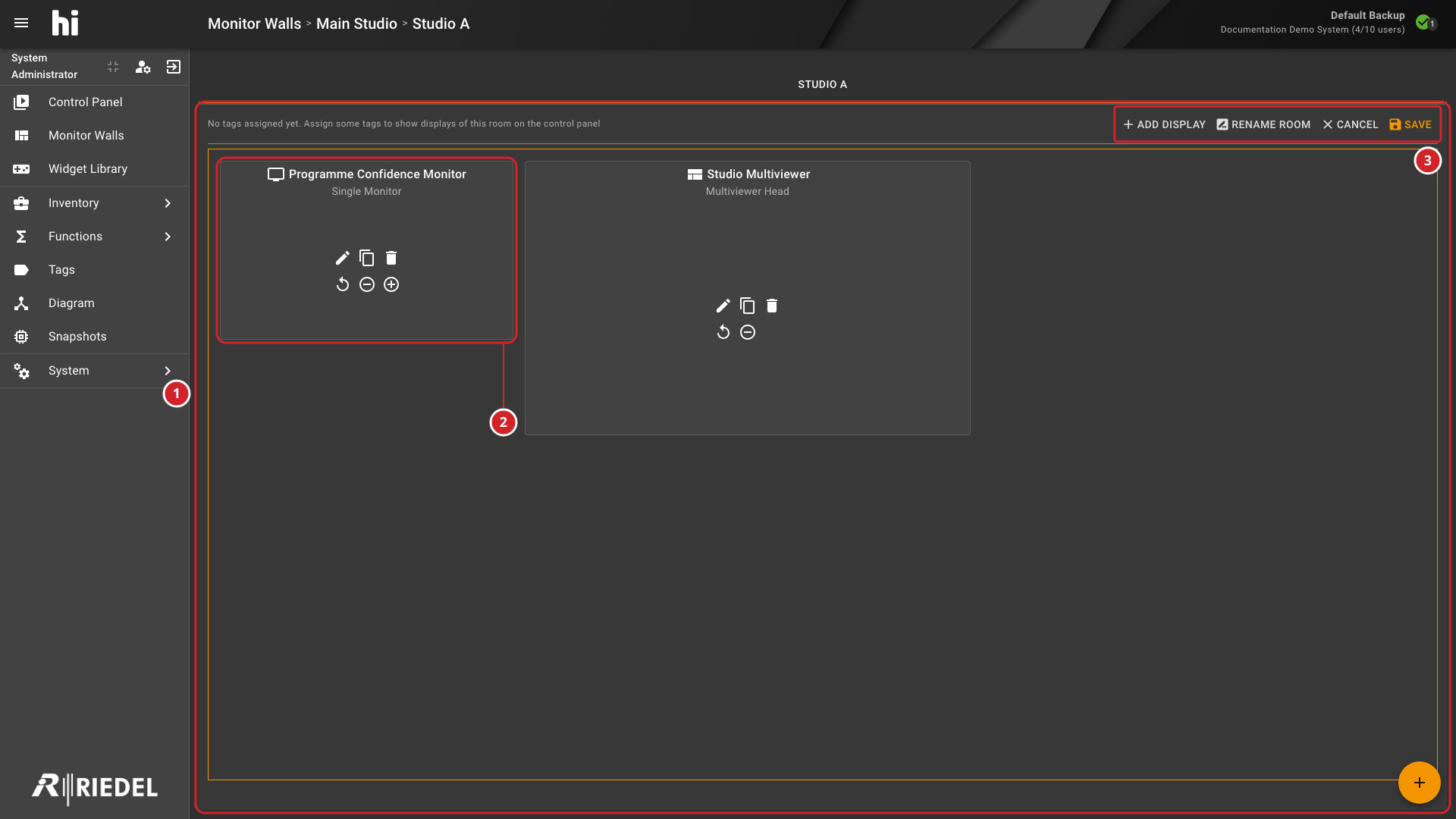
-
Room layout editor canvas.
-
Programme Confidence Monitor display card.
-
Add Display, Save, and Cancel layout controls.
For the procedure, see Operate a Monitor Wall.
Monitor Wall View Showing Example Displays and Active Layout Names
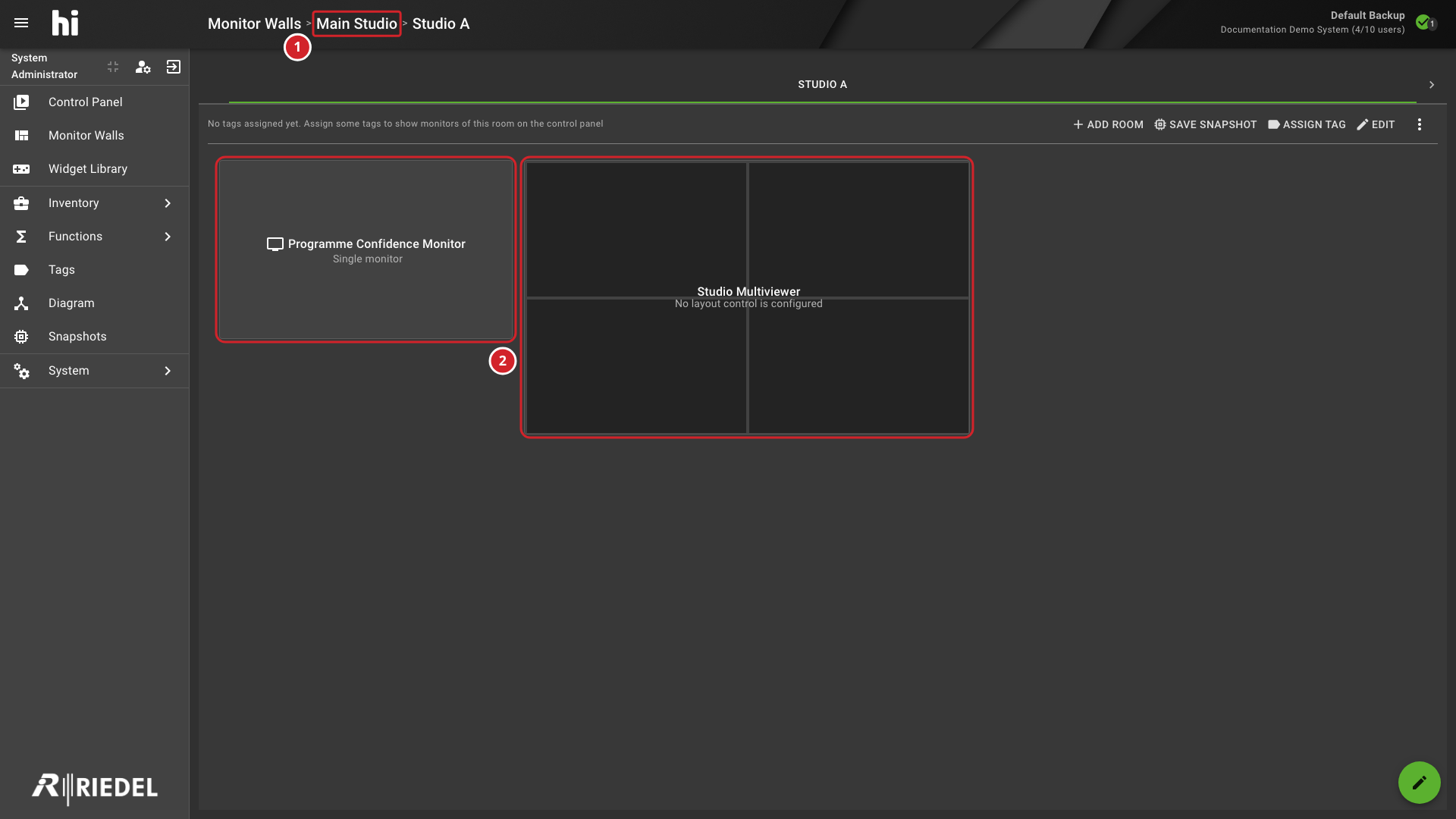
-
Main Studio location.
-
Display cards for Programme Confidence Monitor and Studio Multiviewer.
Control Panel Opened from a Multiviewer Head
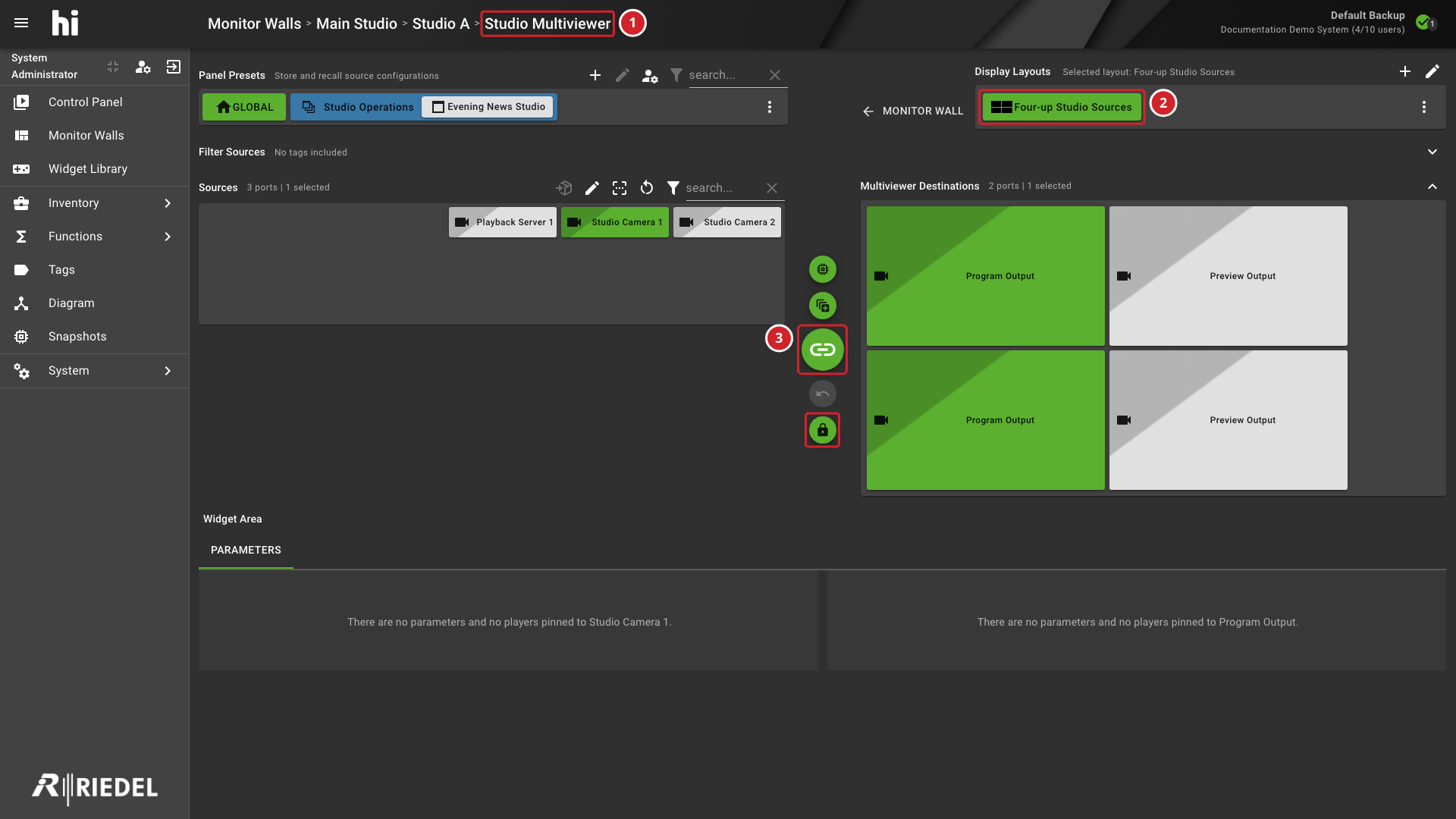
-
Studio Multiviewer head.
-
Four-up Studio Sources layout.
-
Take and Lock routing controls.