
Snapshot Workspace Reference
Overview
Look up saved component types, list actions, detail tabs, filters, and desired-state indicators.
Snapshot Components
A single Snapshot can store any combination of the following component types:
|
Component |
Description |
|---|---|
|
Connections |
Crosspoints (Source-to-Destination routes) for both flow devices and Port Containers |
|
Labels |
Port names across physical
|
|
Tag assignments |
Tags assigned to Ports and Port Containers |
|
Parameters |
Current values of parameters pinned to selected Ports |
|
Port Container Configurations |
The Port membership and ordering within Port Containers |
Snapshot List View
The Snapshots page displays saved Snapshots and folders. Each Snapshot row shows:
|
Column |
Content |
|---|---|
|
Name |
Select the Snapshot name or icon to open its details |
|
Timestamp |
Date and time the Snapshot was last saved or updated |
|
Scope summary |
Saved scope summary
|
List Actions
Each Snapshot row provides inline action buttons:
|
Button |
Action |
|---|---|
|
Clone Snapshot |
Duplicate the Snapshot. The confirmation includes update contents of the snapshot by actual state. When selected, the clone recaptures the saved scope from the current system; otherwise it copies the saved values. |
|
Rename Snapshot |
Change the Snapshot display name. |
|
Recall Snapshot |
Apply the saved items to the system after confirmation. |
Command Bar
The command bar above the list provides:
-
Select / Deselect / Re-select - bulk selection controls
-
Rename - rename the selected Snapshot or folder
-
Delete - delete selected Snapshots or folders
-
Assign to Folder - organize Snapshots into folders
Folders
Snapshots can be organized into folders. Select Assign to Folder from the command bar to move Snapshots into a folder. Select a folder row to navigate into it. Select the up-arrow row to navigate back to the parent level.
Filtering
Use the Filter Snapshots search field to narrow the list by Snapshot name.
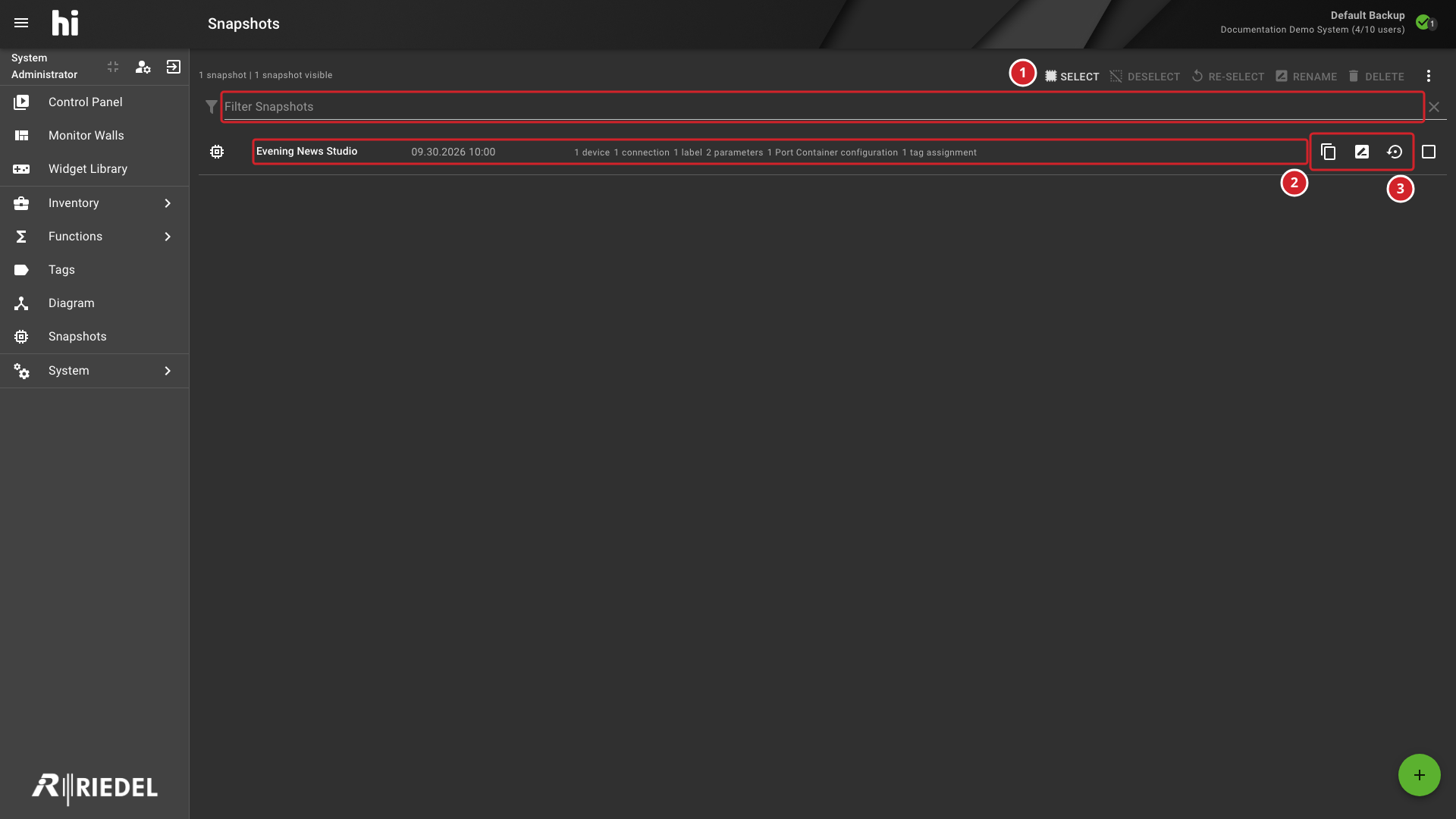
-
Filter Snapshots narrows the visible list by name.
-
Evening News Studio is the saved Snapshot and its scope summary.
-
The row actions clone, rename, or recall the Snapshot.
Reviewing a Snapshot
Select the Snapshot icon or name in the list to open the Snapshot detail view. The header area displays:
-
The Snapshot name
-
The last update timestamp
Detail View Commands
The Snapshot detail view shows the last update timestamp and provides these actions:
|
Button |
Action |
|---|---|
|
Recall All |
Apply all saved items to the live system after confirmation. Locked Destinations remain unchanged. |
|
Update All |
Replace values covered by the Snapshot with current live state. The confirmation states that the Snapshot will be overwritten with the current state. Confirm with Overwrite. |
|
Rename Snapshot |
Change the Snapshot display name. |
|
Delete Snapshot |
Permanently remove the Snapshot after confirmation. |
Tabs
The detail view organizes stored data into five tabs:
-
Connections
-
Labels
-
Tag assignments
-
Parameters
-
Port Containers
Each tab is described in detail below.
Connections Tab
The Connections tab lists all stored Crosspoints, grouped by Node (device). Port Container connections appear in a separate section.
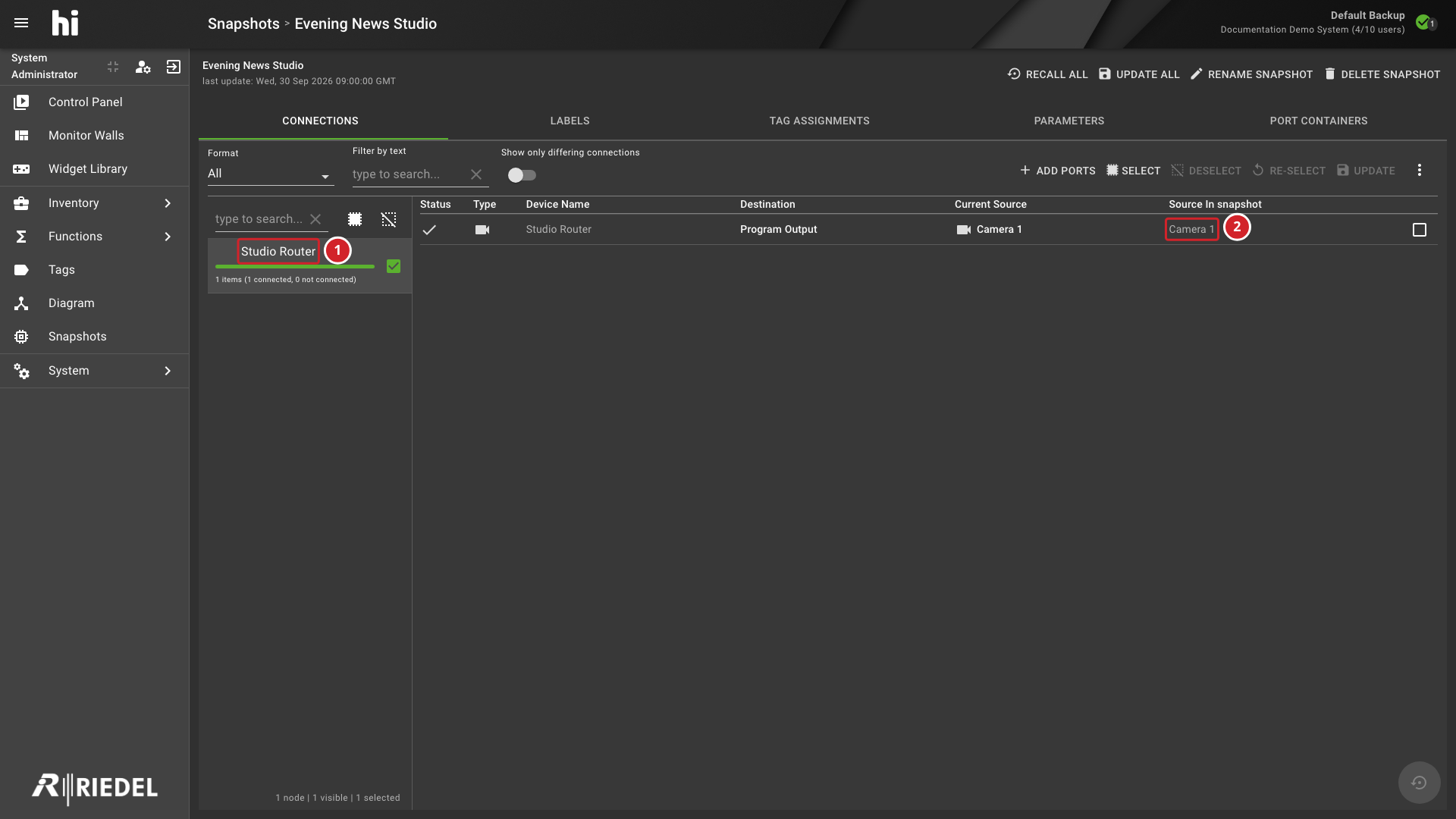
-
Studio Router is the Node whose saved connections are shown.
-
Camera 1 is the Source stored for the Program Output Destination.
Status Indicators
Each connection row displays a color-coded status bar:
|
Color |
Meaning |
|---|---|
|
Green |
The stored Crosspoint matches the current live routing (desired state). |
|
Orange |
The stored Crosspoint differs from the current live routing. |
A connection matches the desired state when its saved Source is routed to the corresponding Destination. A saved disconnected Destination also shows green when the live Destination is disconnected.
Toolbar
The Connections tab toolbar provides:
-
Format type filter - filter connections by flow format type (for example, Video, Audio, and Data)
-
Filter by text - free-text search across Port names
-
Show only differing connections - toggle to hide green (matching) items and display only orange (differing) items
-
Select / Deselect / Re-select - bulk selection for selective recall
-
Update - update the Snapshot with the current state of selected connections
-
Delete - remove selected connections from the Snapshot
-
Add ports - open the Port Picker to add new Destination Ports and their current connection state to the Snapshot.
Selective Recall
Use Recall Selected Snapshot Items to apply a selected scope from the detail tabs.
Labels Tab
The Labels tab lists all stored Port names, grouped by Node. Each entry shows the Port name as it was stored in the Snapshot.
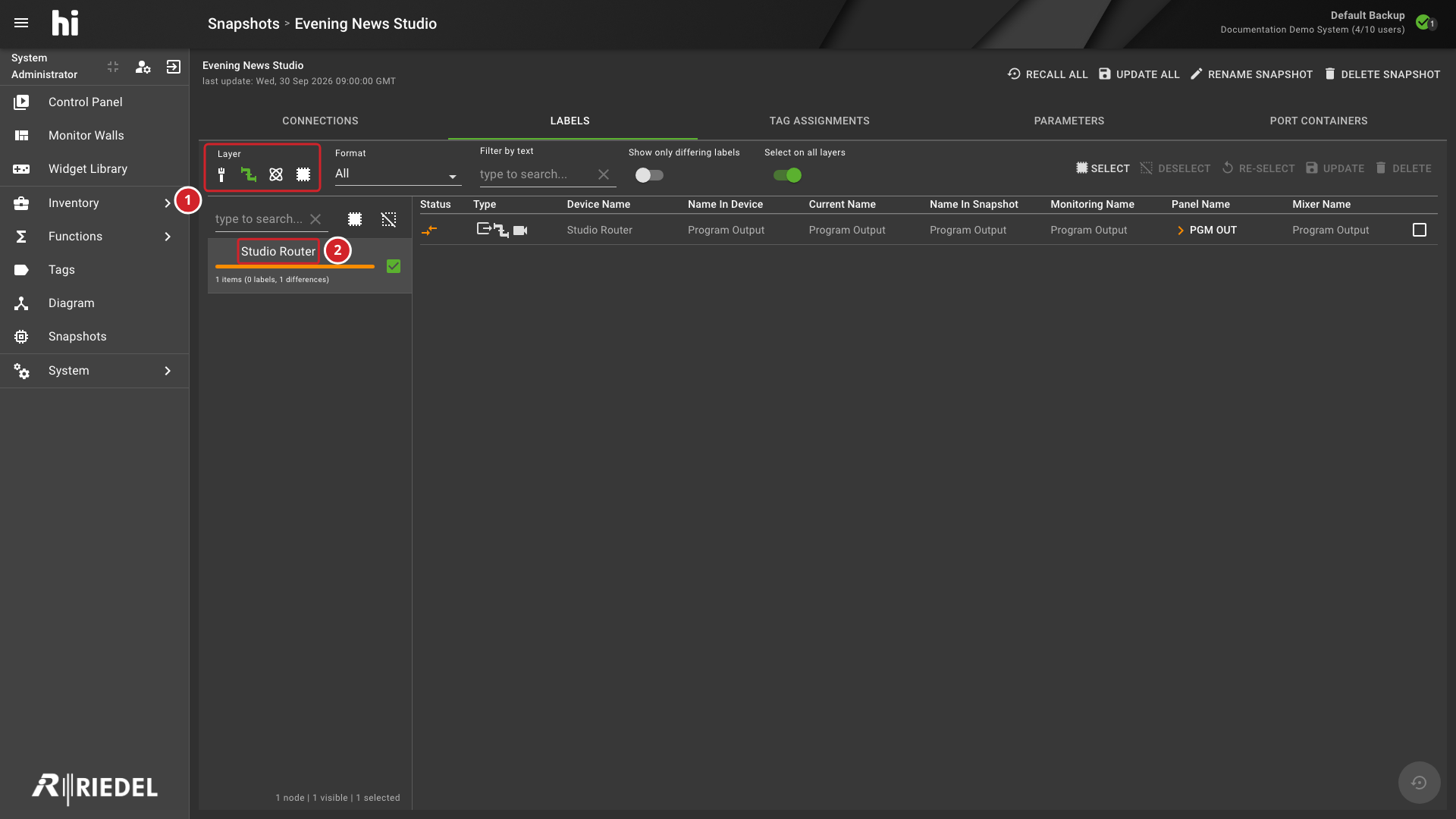
-
Layer identifies the signal-layer filter. Select a Layer from the field below.
-
Studio Router is the Node whose saved labels are shown.
Layer and Format Filtering
-
Layer selector - switch between Physical, Flow, Essence, or Any Layer
-
Format type filter - filter by format type within the selected Layer
-
Filter by text - search the names stored in the Snapshot, the signal Layer, and the Node name.
-
Show only differing labels - toggle to hide labels that match the current live state
-
Select on all layers - when enabled, selecting a label on one Layer automatically selects the corresponding labels on other Layers (for example, selecting a Flow Port label also selects its physical and essence counterparts)
Toolbar Actions
-
Select / Deselect / Re-select - bulk selection
-
Update - update the Snapshot with current label values for selected Ports
-
Delete - remove selected labels from the Snapshot
Label Comparison
Labels match the desired state when their saved names match the live Port names. Changes to Primary Name, Panel Name, Monitoring Name, or Mixer Name indicate a difference.
Tag Assignments Tab
The Tag Assignments tab lists stored Tag-to-Port and Tag-to-Port-Container assignments, grouped by Node.
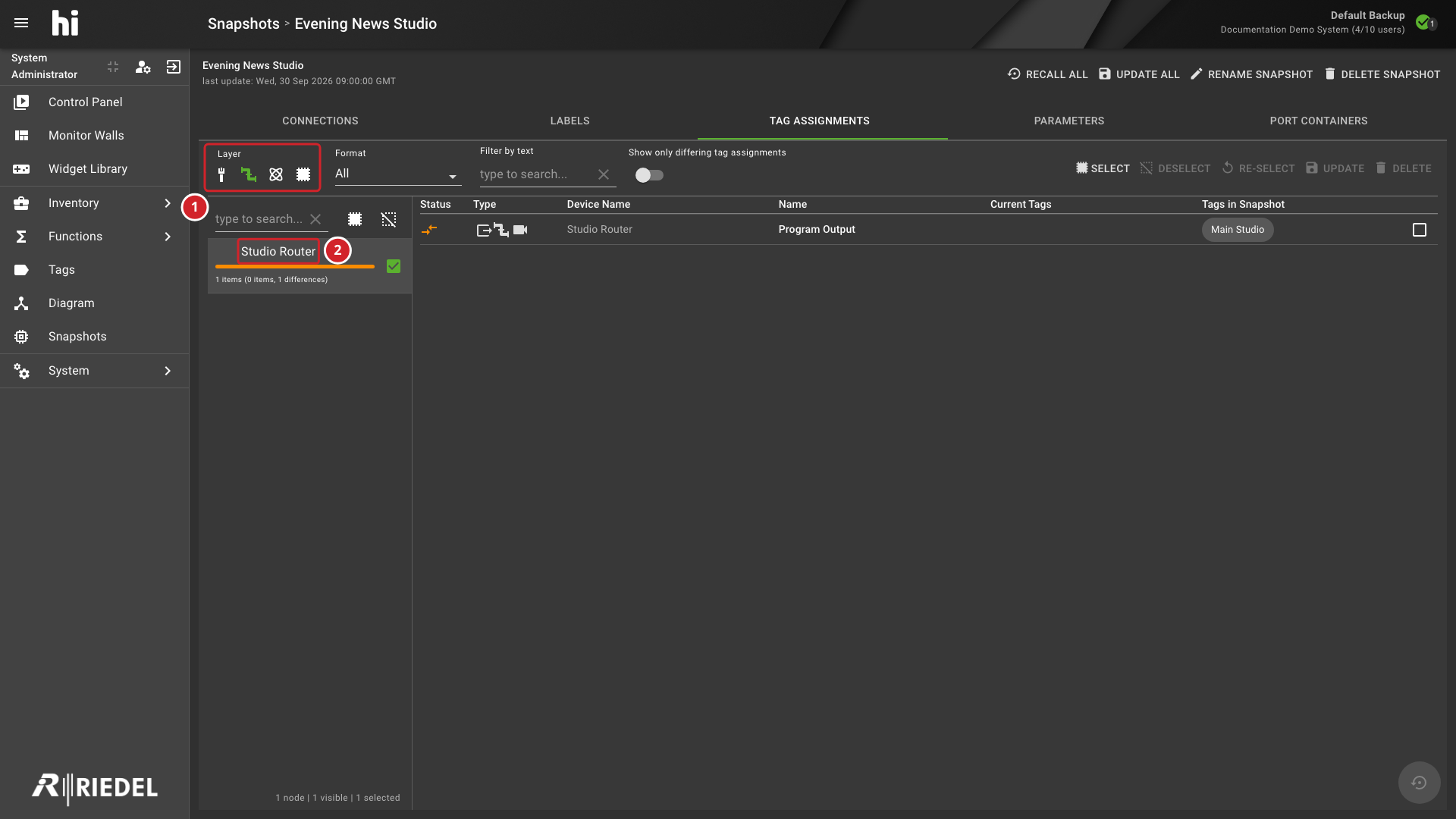
-
Layer identifies the signal-layer filter. Select a Layer from the field below.
-
Studio Router is the Node whose saved Tag assignments are shown.
Filtering
-
Layer selector - Physical, Flow, Essence, or Any Layer
-
Format type filter - filter by format type within the selected Layer
-
Filter by text - free-text search across Port names
-
Show only differing tag assignments - toggle to hide entries where the current Tags match the Snapshot
Toolbar Actions
-
Select / Deselect / Re-select - bulk selection
-
Update - update the Snapshot with current Tag assignments for selected Ports
-
Delete - remove selected Tag assignments from the Snapshot
Desired State
A Tag assignment is in desired state when the Port or Port Container has exactly the same set of Tags that is stored in the Snapshot.
Parameters Tab
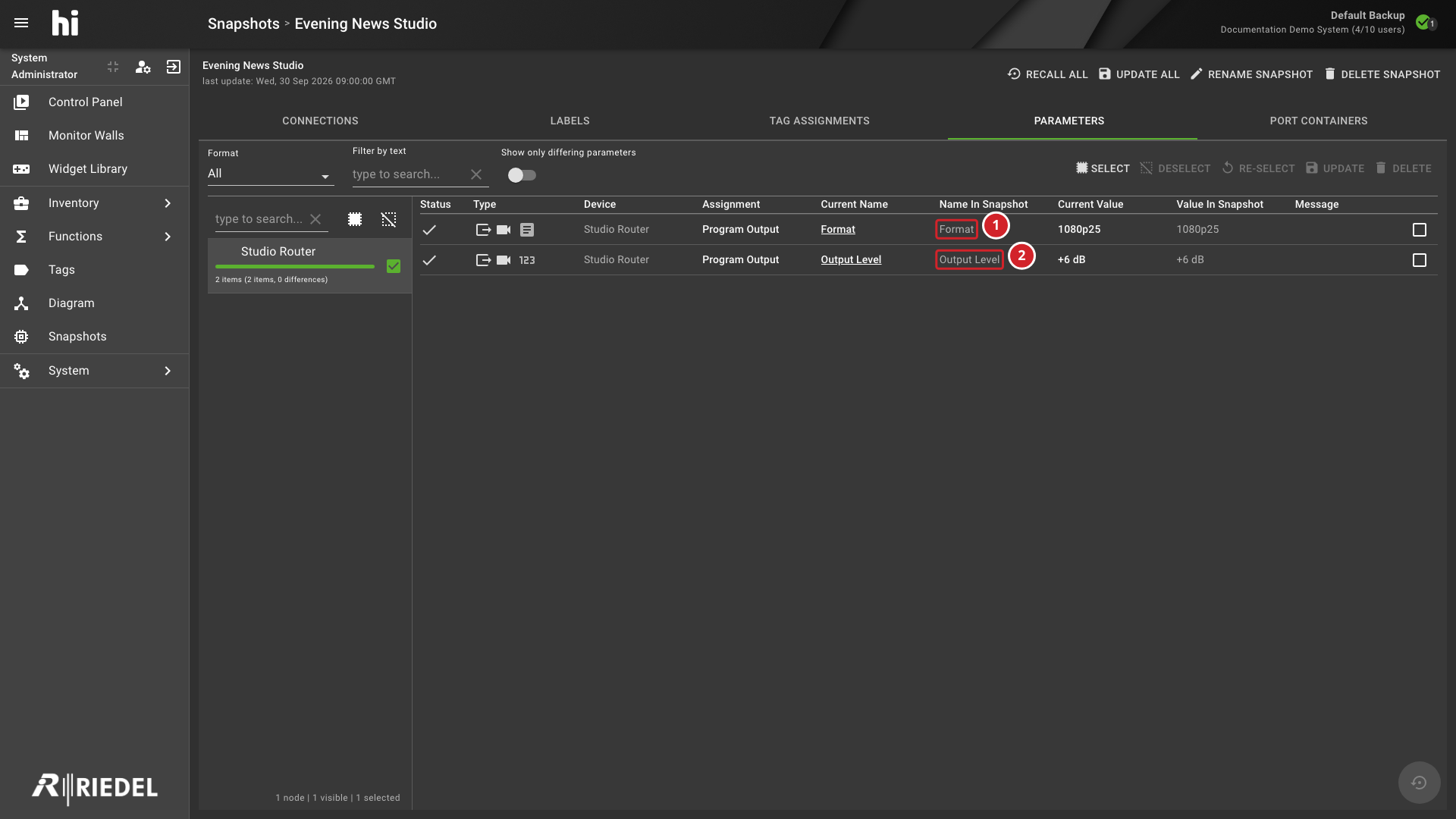
The Parameters tab lists stored parameter values, grouped by Node.
-
Format is a stored parameter name. Its saved value appears in the Value In Snapshot column.
-
Output Level is another stored parameter name. Its saved value appears in the Value In Snapshot column.
Filtering
-
Format type filter - filter by flow format type
-
Filter by text - search across parameter names and values
-
Show only differing parameters - toggle to hide parameters whose current value matches the Snapshot
Toolbar Actions
-
Select / Deselect / Re-select - bulk selection
-
Update - update the Snapshot with current parameter values for selected items.
-
Delete - remove selected parameters from the Snapshot
Desired State
A Parameter is in desired state when its name and required assignment match the Snapshot and its current value matches the stored value. Read-only Parameters skip the value comparison; their name and required assignment must still match.
Port Containers Tab
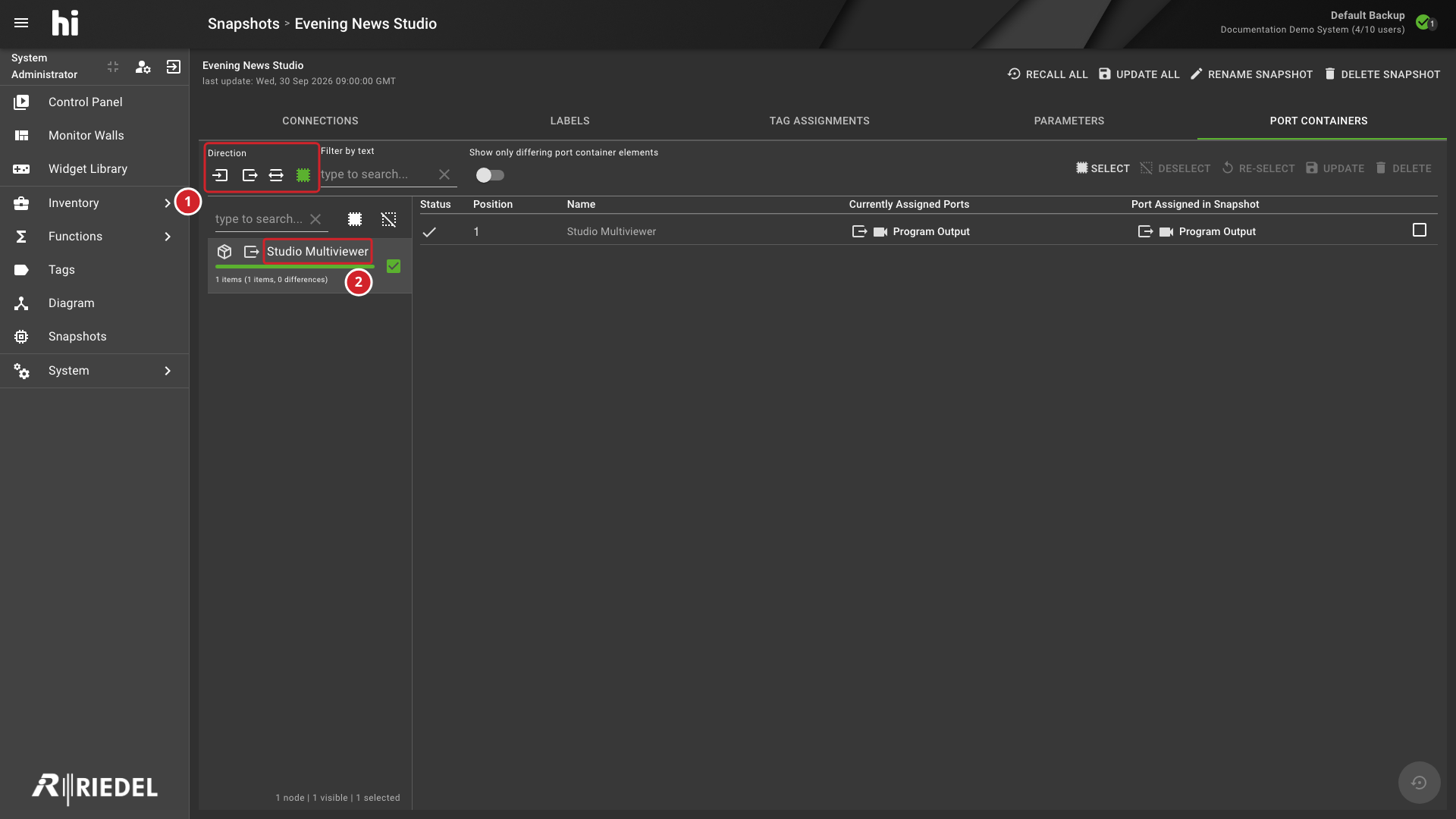
The Port Containers tab lists stored Port Container configurations, grouped by Port Container.
-
Direction identifies the Source-or-Destination filter. Select a direction from the field below.
-
Studio Multiviewer is the Port Container whose saved configuration is shown.
Filtering
-
Direction filter - filter by input, output, bi-directional, or any direction
-
Filter by text - search across Port names within Port Containers
-
Show only differing port container elements - toggle to hide entries where the current Port assignment matches the Snapshot
Toolbar Actions
-
Select / Deselect / Re-select - bulk selection
-
Update - update the Snapshot with the current Port Container configuration for selected items
-
Delete - remove selected Port Container entries from the Snapshot
Newly Added Ports
If a Port Container has gained new Ports since the Snapshot was taken, those entries appear in the list marked as not in the Snapshot. This provides visibility into configuration drift.
Desired State
A Port Container entry is in desired state when the Port at the same position and format type matches between the Snapshot and the current Port Container configuration.
Related Procedures
Return to Manage Snapshots to select a task.