
Collect and Download Logs
Overview
Collect diagnostic logs and download them for a support request. Select a log source and, for Seq, a time range that includes the event you are reporting.
Caution
The default Seq range covers the last hour. Review From and To before collecting logs for an earlier incident; the default range may omit it.
Prerequisites
-
Use an account with Logging access.
-
Record the event time and time zone when collecting logs for a failure.
-
Open System > Logging.
Collect Logs
-
Select + to open Collect Logs.
-
Enter a Collection Name. It is required, and Collect Logs stays unavailable until you enter one.
-
Select Seq or System in Log Collection Source. Follow any source-selection guidance supplied by Riedel Customer Success.
-
For Seq, set From and To to include the relevant event. Leave the optional Filter empty unless you have a specific filter to apply.
-
Review the name, source and available fields, then select Collect Logs. Select Cancel to close the dialog without starting collection.
Seq Collection
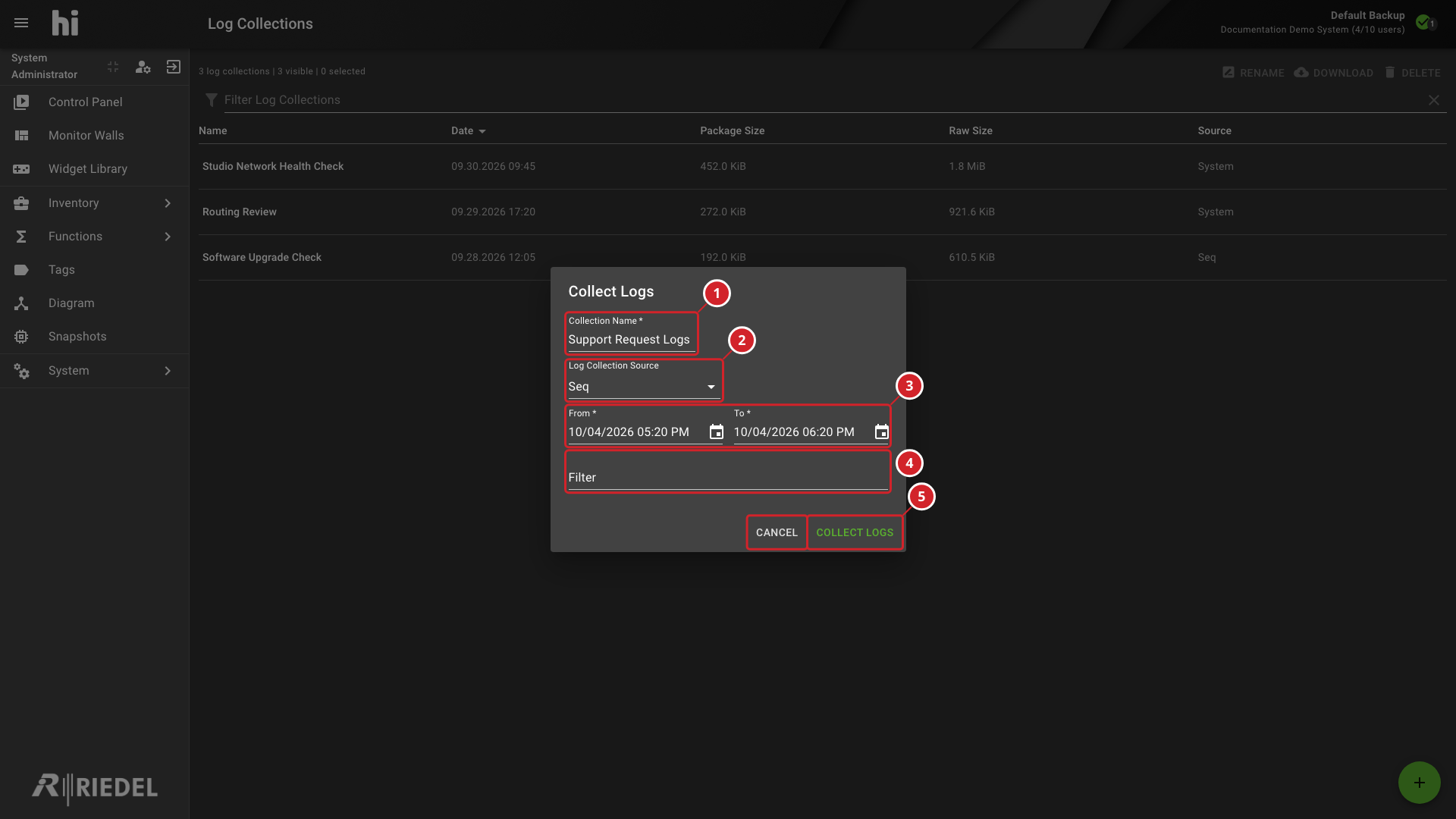
Seq shows From, To, and Filter. From defaults to one hour before the dialog opens, and To defaults to the current time.
-
Enter a Collection Name to identify the export.
-
Log Collection Source is set to Seq.
-
Set From and To to include the event you are reporting.
-
Filter is optional; leave it empty unless you intend to limit the collection.
-
Select Collect Logs to start collection, or Cancel to close the dialog.
System Collection
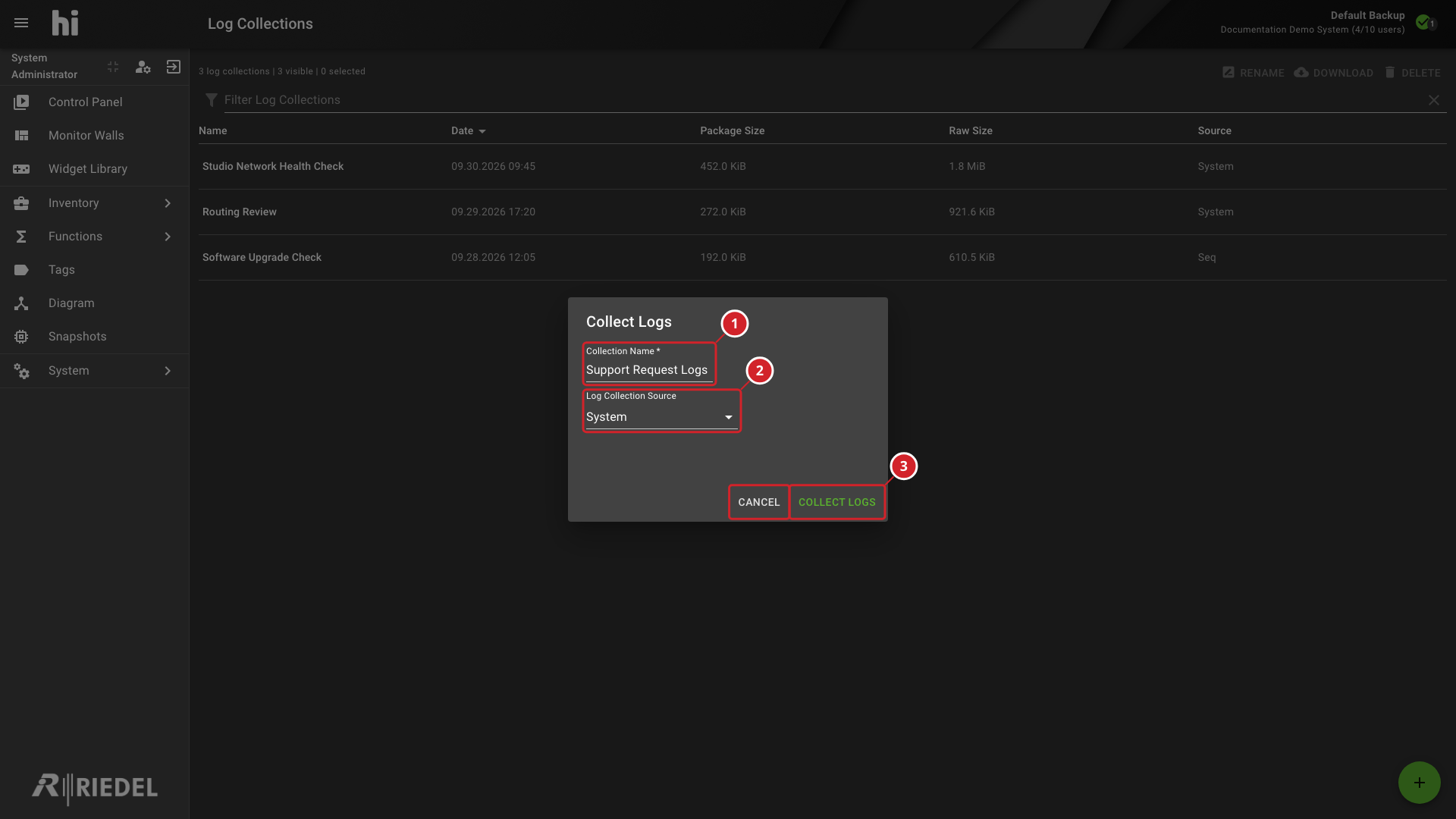
System does not show the Seq time-range or filter fields. Do not assume that a Seq filter or time range applies to a System collection.
-
Enter a Collection Name to identify the export.
-
Log Collection Source is set to System, which does not show the Seq time-range or filter fields.
-
Select Collect Logs to start collection, or Cancel to close the dialog.
Download the Collection
-
Find the collection by name. Use Filter Log Collections if needed.
-
Wait until collection is complete. Rows showing In progress... cannot be selected.
-
Select the completed collection. Download requires one selected collection.
-
Select Download and retain the downloaded
.hi-logs-collectionfile unchanged.
-
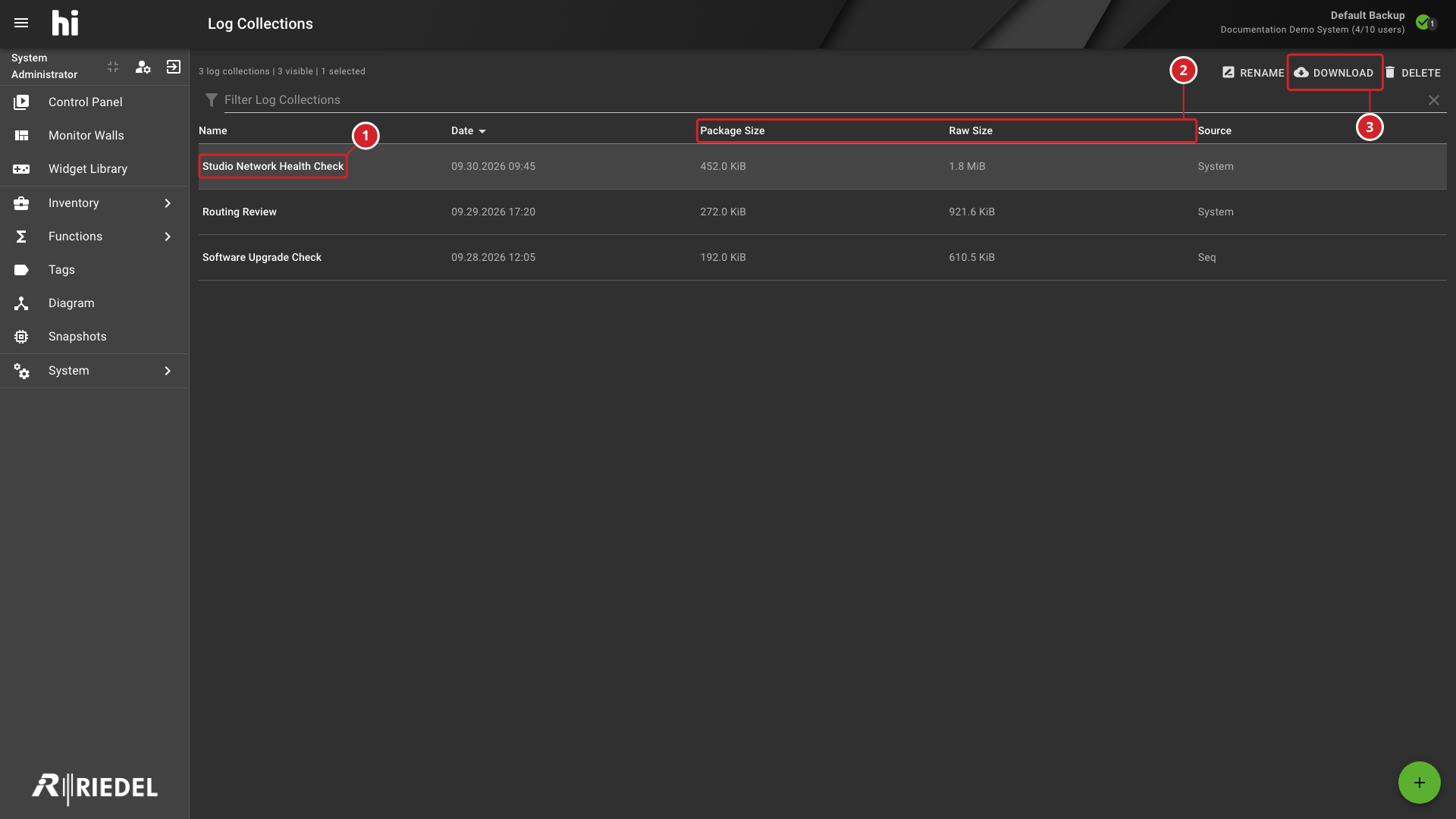
Studio Network Health Check is the completed collection selected in this example.
-
Package Size and Raw Size report the collection sizes.
-
Select Download to save the selected collection.
Verify the Result
Confirm that the expected collection appears in the list and that the downloaded file is present. Record the collection name, source, collection time and, for Seq, the selected event range with your support request.
Information
If collection or download fails, retain the complete displayed message and contact Riedel Customer Success. Submit a critical issue promptly if logs are unavailable; do not intervene in the infrastructure to obtain them.
Next Steps
Follow Customer Support to provide the log export, a Backup, and the Serial Number or Installation ID with your request.