
Manage System Settings
Overview
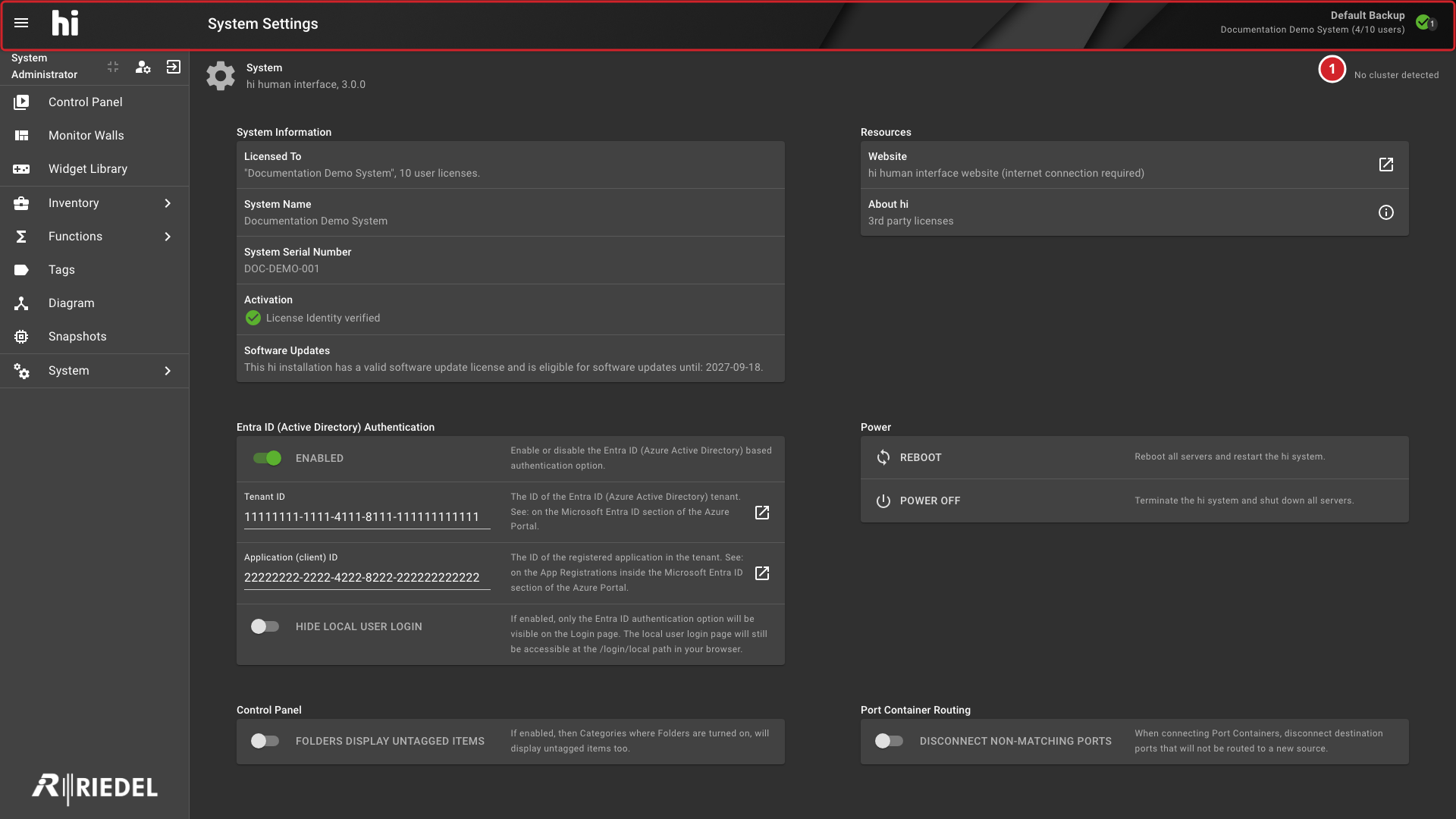
The System Settings page provides access to global settings, diagnostic logging, and power actions. Open it from System > System Settings. Its header shows the real-time System Status indicator and installed hi system version.
Prerequisites
System panels are shown according to the user's assigned Roles. Power actions require Shutdown admin. Entra ID Authentication requires User admin, Port Container Routing requires Port Container admin, System > Licensing requires Licensing admin, and System > Logging requires Logging access.
-
The application header identifies the current page and shows the licensed installation and available connection indicators.
System Status
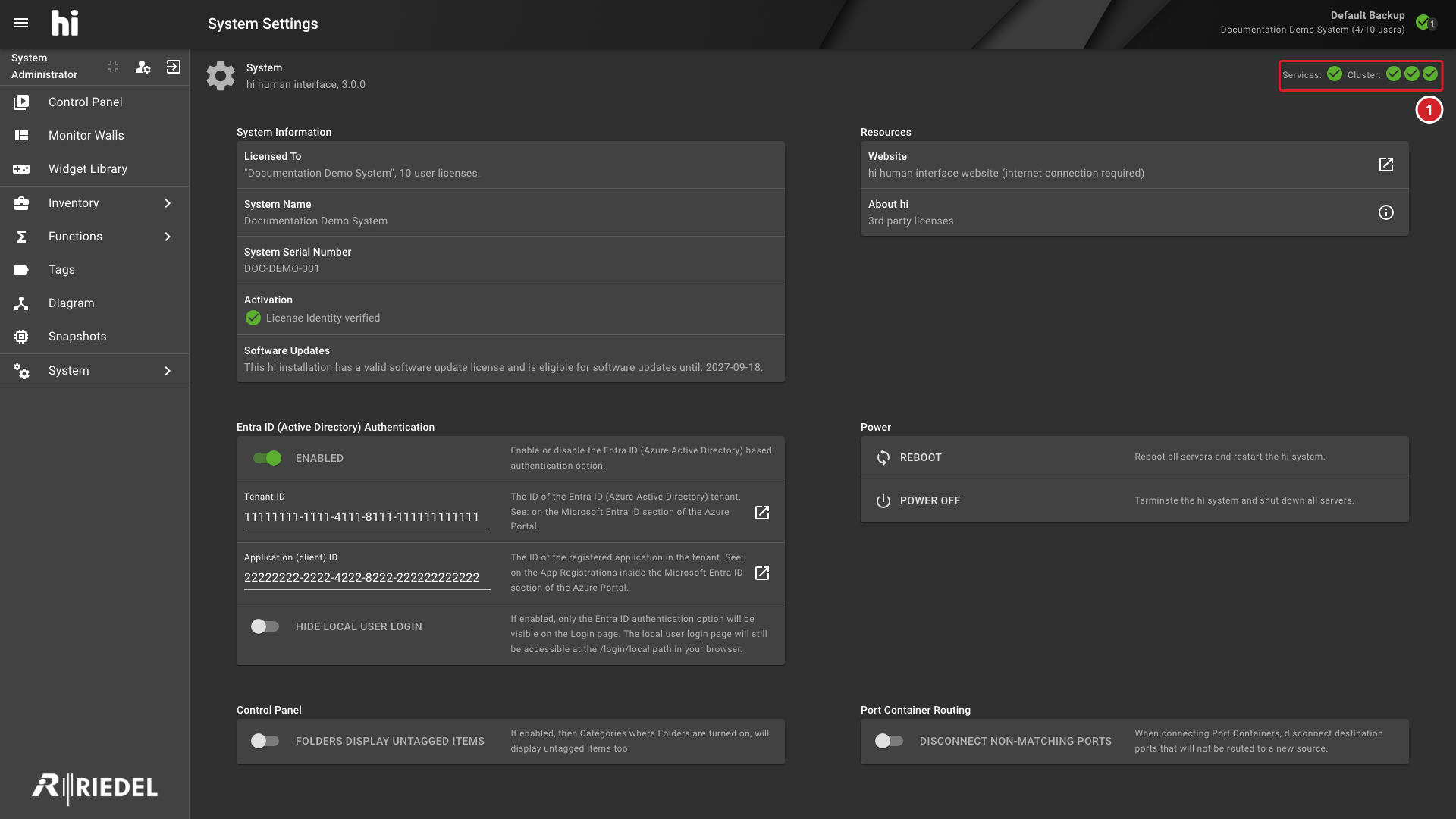
The System Status view appears in the top-right corner of the System Settings page and reports the health of hi services and cluster nodes in real time.
Status Categories
|
Category |
Description |
|---|---|
|
Services |
Aggregate state of the hi services (database, messaging, scheduling). |
|
Node / Cluster |
State of each individual server. When a single server is detected the label reads "Node"; with multiple servers it reads "Cluster". |
If neither services nor cluster nodes are detected, the indicator displays "No cluster detected".
Connection State Icons
Each service or server is represented by a colored icon. Hover over an icon to see the name, description, and any diagnostic message. The Connection States and their general meanings are documented in Interface: Connection State Indicators.
The System Status view additionally classifies each state as healthy or not:
|
State |
Healthy |
System Status specifics |
|---|---|---|
|
Online (Connected) |
Yes |
Service or server reports a connected state. Verify the required operation separately. |
|
Initializing |
Yes |
|
|
Processing |
Yes |
|
|
Conflicted |
Yes |
Online, but with configuration conflicts (for example, duplicate multicast addresses). |
|
Disconnected |
No |
For services, the status reads "Services are offline". |
|
Partially Connected |
No |
|
|
Timeout |
No |
|
|
Unknown |
No |
The server reported a state that the hi web interface cannot recognize. |
Information
Green Online icons report a connected state. Investigate non-healthy icons and verify the required operation separately. Status indicators alone do not establish that services or data have recovered.
-
The status row shows Services health and a separate icon for each cluster node. Hover over an icon to inspect its name and status details.
Settings
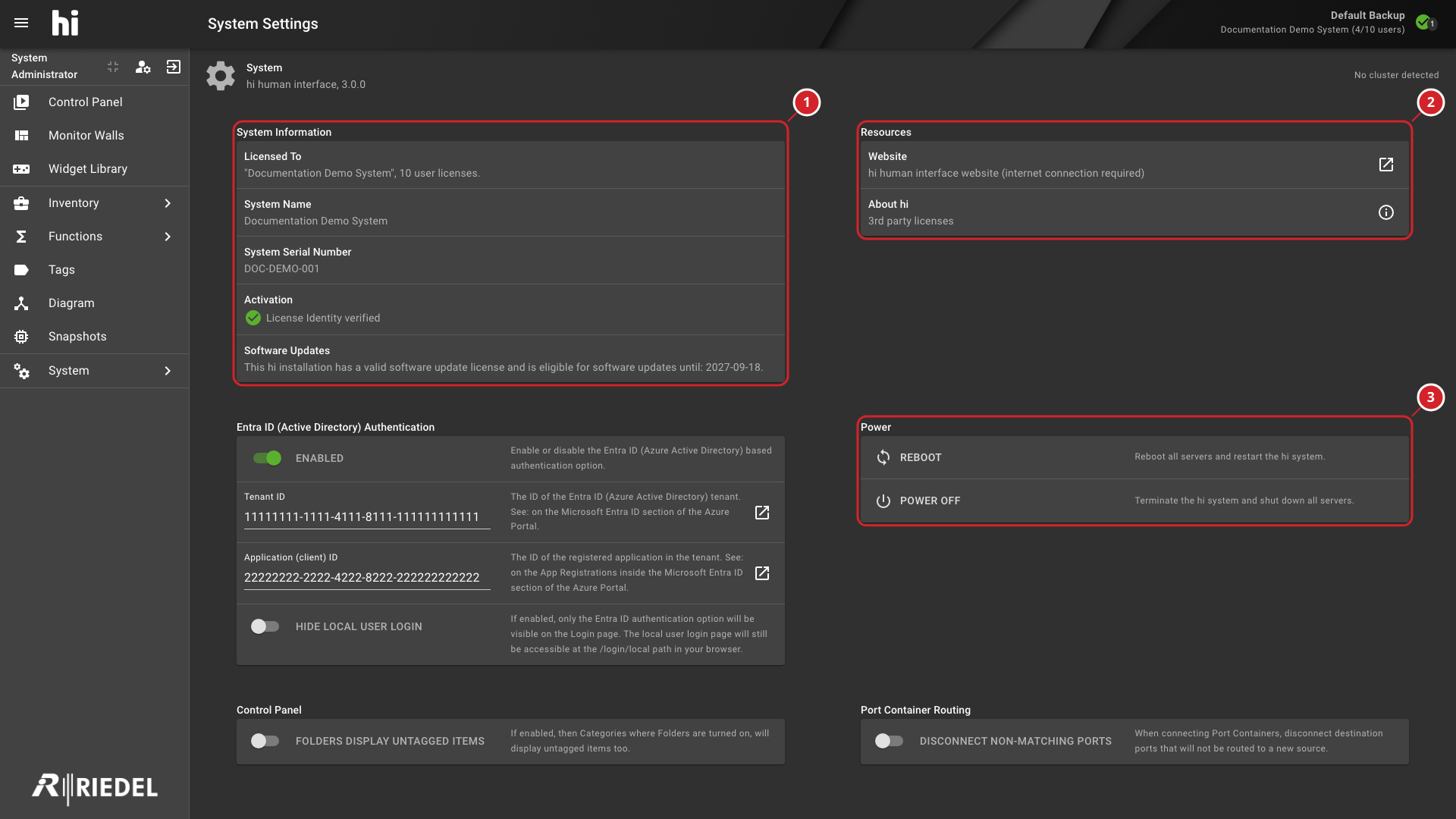
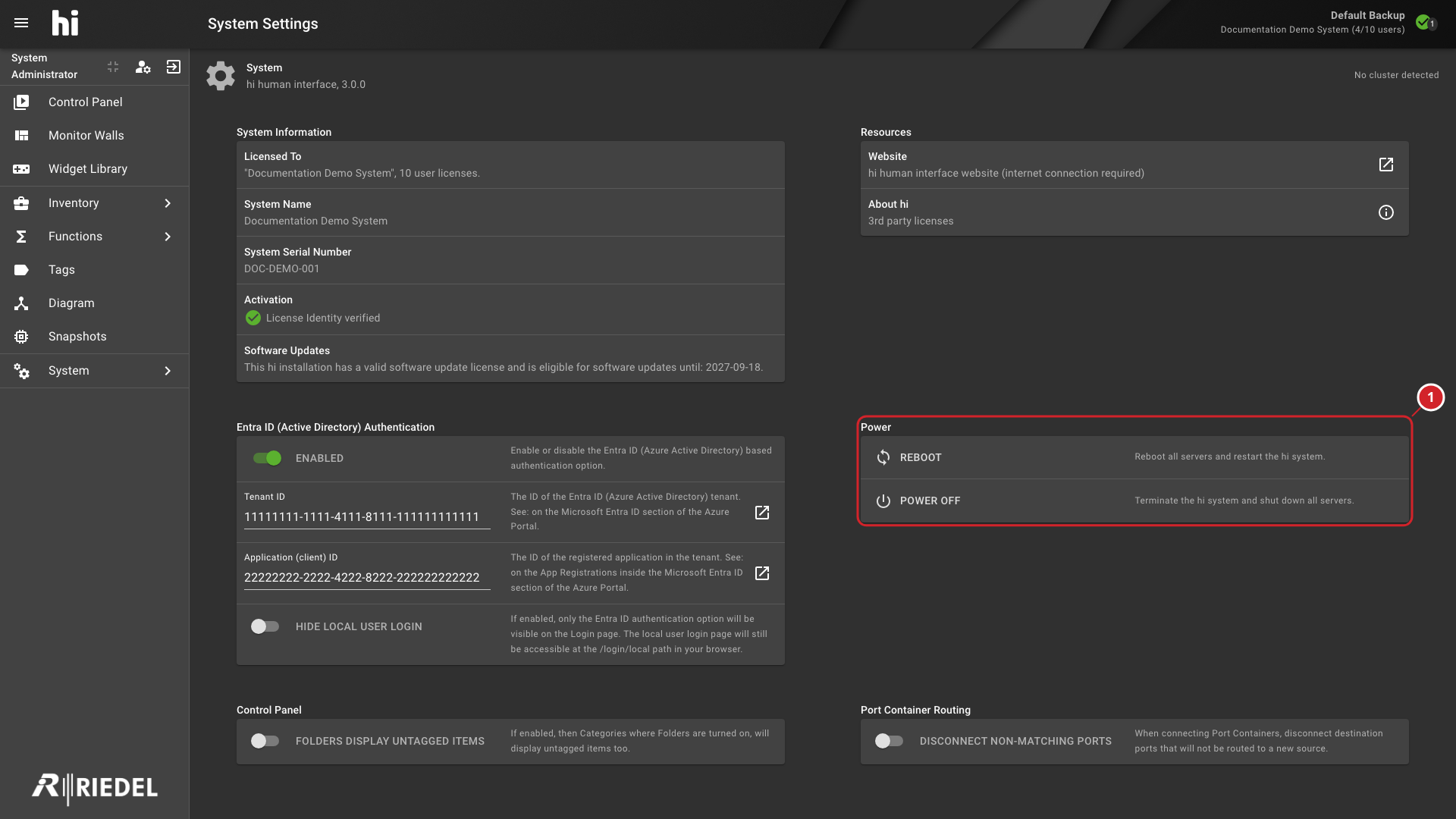
The System Settings page contains system-wide configuration panels. Panels are visible based on the current user's role.
-
System Information shows the installation identity, activation state, and software-update eligibility.
-
Resources links to the hi website and third-party license information.
-
Power provides the available restart and shutdown actions.
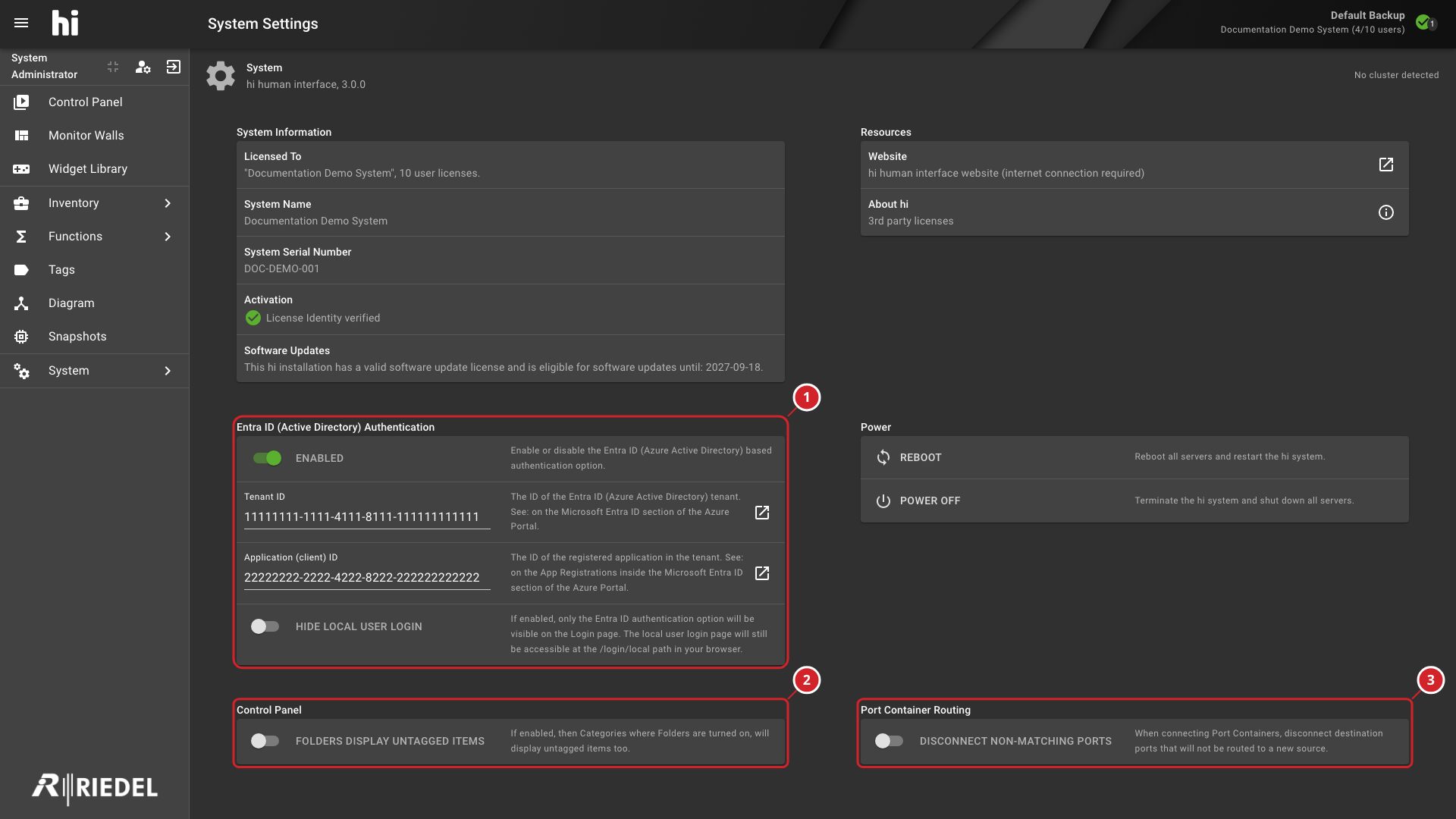
The Entra ID Authentication and Control Panel settings appear lower on the same tab and are documented in the following sections.
System Information
Displays key licensing and activation details.
|
Field |
Description |
|---|---|
|
Licensed To |
The licensed customer account, followed by the total number of user licenses. |
|
System Name |
The name assigned to the installation. |
|
System Serial Number |
The installation's serial number. |
|
Software Updates |
Whether a valid software-update license is installed and its expiration date. Without this license the system is ineligible for software updates. |
|
Activation |
Whether the installed license identity is verified. If no license is installed, the field shows No License Installed. |
Resources
|
Item |
Description |
|---|---|
|
Website |
Link to the hi human interface website (requires internet connection). |
|
About hi |
Opens the About dialog showing third-party license attributions. |
Entra ID Authentication
Configure Microsoft Entra ID (formerly Azure Active Directory) single sign-on. The hiCore license bundle includes this capability. Existing hiBase installations require the hiBase and hiAccess license bundles.
|
Setting |
Description |
|---|---|
|
Enabled |
Toggle Entra ID authentication on or off. The toggle is disabled when the installed license bundles do not enable the Entra ID authentication Option. |
|
Tenant ID |
The Microsoft Entra ID tenant identifier. Found in the Microsoft Entra ID section of the Azure Portal. |
|
Application (client) ID |
The registered application identifier within the tenant. Found under App Registrations in the Azure Portal. |
|
Hide local user login |
When enabled, the login screen shows only the Entra ID option. The local login screen remains accessible at |
To register the application in Microsoft Entra ID and obtain the Tenant ID and client ID, see Configure Microsoft Entra ID Sign-In.
Select Save to apply changes or Cancel to discard them. An asterisk (*) appears next to any field that has been modified but not yet saved.
-
Entra ID (Active Directory) Authentication contains the sign-in configuration for the installation.
-
Control Panel contains the Tag-filtering setting for untagged items.
-
Port Container Routing controls how out-of-scope Destination Ports are handled.
Control Panel
Controls Tag-filtering behavior on the Control Panel page.
|
Setting |
Description |
|---|---|
|
Folders display untagged items |
When enabled, categories with folders turned on also display untagged items. When disabled, only items matching the selected Tags are shown. |
Caution
A confirmation dialog appears before the change takes effect. Review how the change affects the visibility of untagged items in Control Panel folders before confirming it.
Port Container Routing
Controls what happens to Destination Ports that are outside the scope of a Port Container connection.
|
Setting |
Description |
|---|---|
|
Disconnect Non-Matching Ports |
When enabled, a Port Container connection disconnects Destination Ports that do not receive a new Source. When disabled, only the Ports in scope of the request are modified. |
Caution
A confirmation dialog appears before the change takes effect. Review Snapshots that include affected Port Container connections before recalling them. Preserve any saved state you still need, for example by cloning the Snapshot without recapturing live values. If current live values are the intended replacement, update only the affected items; use Update All only when the complete saved scope should be replaced.
Power
Follow the installation's commissioned maintenance procedure and confirm recovery readiness before a cluster-wide power action. For a cluster fault or uncertain recovery state, contact Riedel Customer Success before intervention.
Manage the physical servers running the hi system. A 5-second countdown timer prevents accidental confirmation.
|
Action |
Description |
|---|---|
|
Reboot |
Restart all servers and the hi system. A confirmation dialog lists all servers that will be rebooted. |
|
Power Off |
Shut down all servers. A confirmation dialog lists all servers that will be powered off. |
Caution
Rebooting or powering off the servers stops the entire hi system: all routing control, Parameter Control, Tally, and panel connections are interrupted until the servers are running again. Do not perform these actions during a live production. The confirmation button is disabled for 5 seconds after the dialog opens to prevent accidental confirmation.
-
The Power panel provides the Reboot and Power Off actions for the hi servers.
Licensing
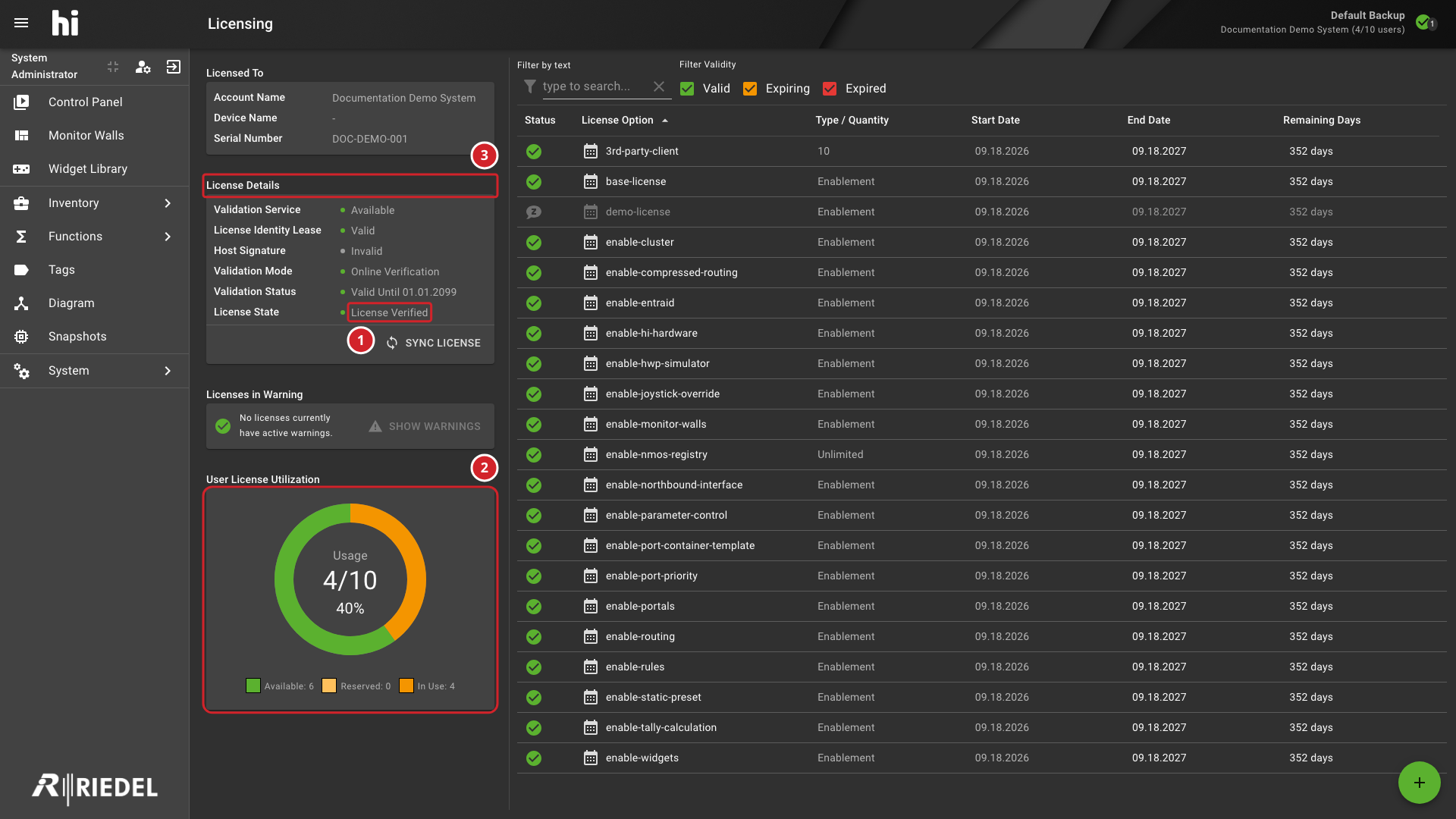
Licensing is a separate workspace under System > Licensing and requires Licensing admin. Use Manage Licensing to inspect status, upload a prepared file, synchronize online entitlements, or renew an offline identity lease.
Use License Status and Warnings Reference for displayed fields and warnings. Commercial entitlement and capacity rules remain in License Details.
-
License Verified reports the installed license identity's validation state.
-
Usage shows the number of user licenses consumed and the total available.
-
License Details shows license validation and state information.
Logging
Logging is a separate workspace under System > Logging. Users need the Logging access role to open it.
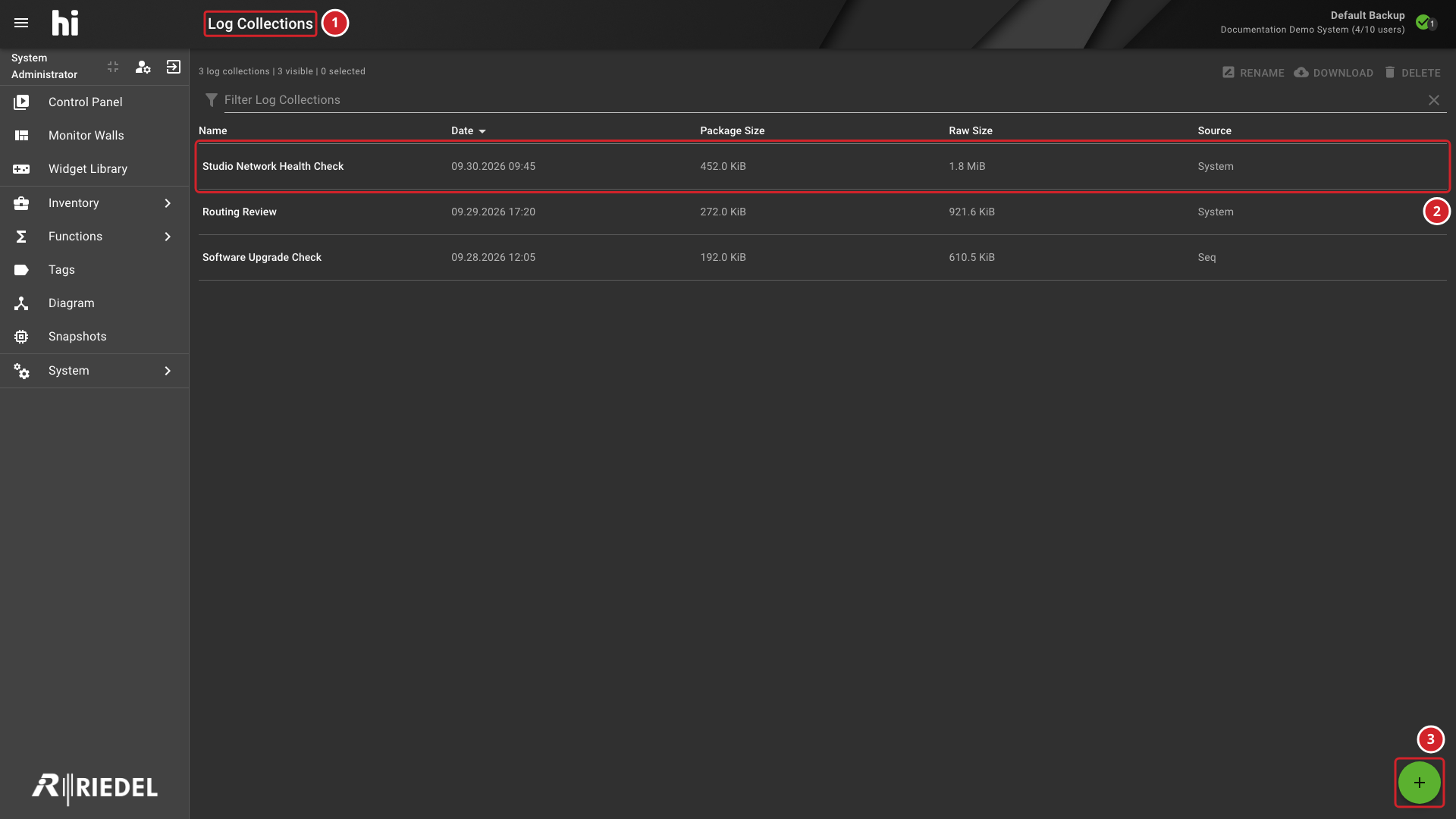
Use Filter Log Collections to find a saved collection by name. Each row shows its creation date, package size, raw size, and source. Select a completed collection to rename, download, or delete it. Select + to create a collection.
Follow Collect and Download Logs for the source-dependent dialog fields, incident time range, completion state and download procedure.
-
Log Collections identifies the diagnostic collection workspace.
-
Each named collection has creation, size, and source details in its row.
-
+ opens the form for creating a log collection.
Verify the Result
After changing a system setting, confirm that the relevant panel shows the new value and that no reload-required alert remains unresolved.
Next Steps
-
Use Sign In to hi to verify authentication behavior.
-
Use License Status and Warnings Reference to interpret licensing warnings.
-
Use Manage Users to assign the roles required for System panels.