
Sign In to hi
Overview
The login screen is the entry point to the hi web interface. It supports two authentication methods: local username/password credentials and Microsoft Entra ID (formerly Azure Active Directory) single sign-on. The available methods depend on system configuration.
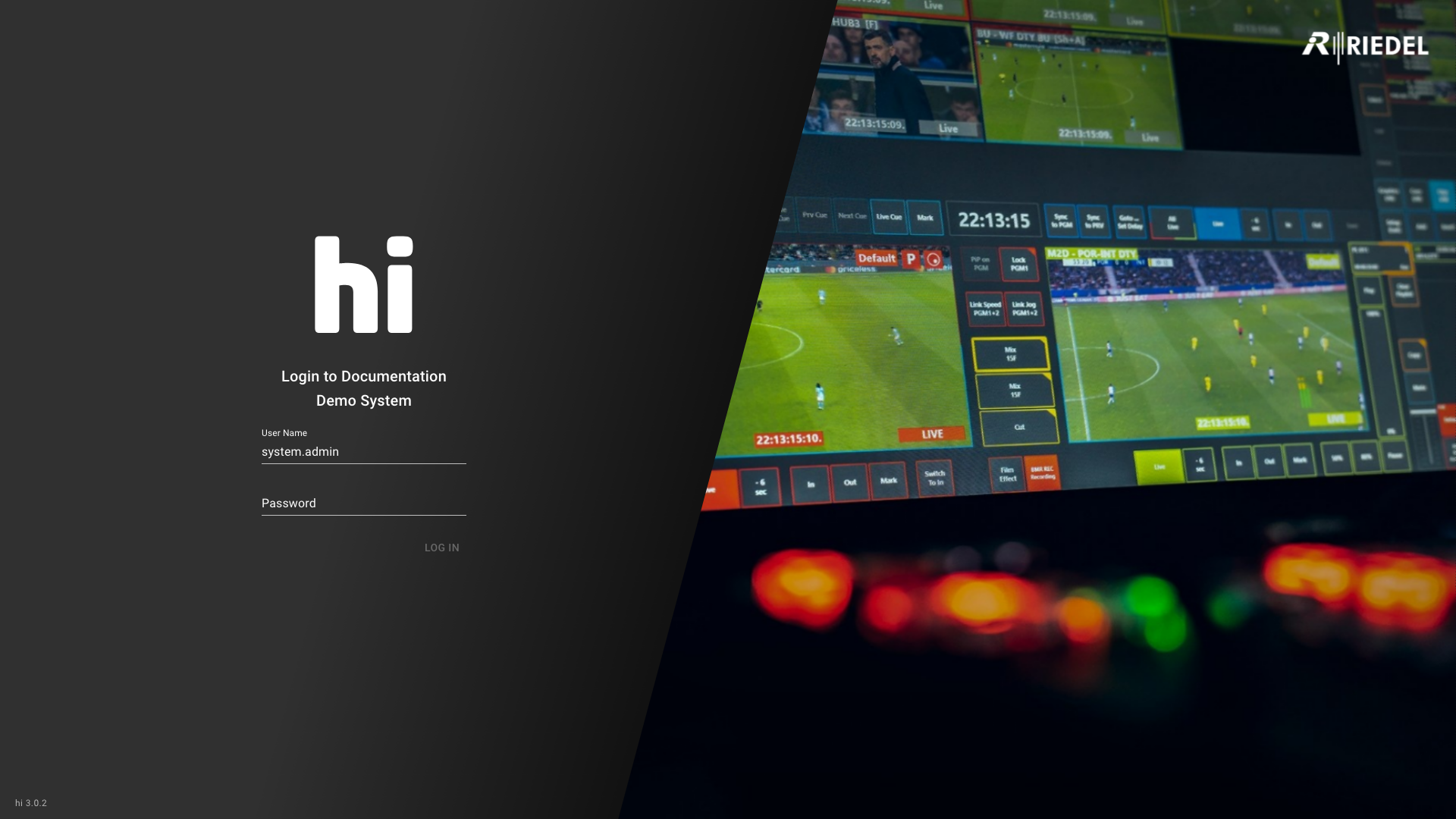
This example is from a local-authentication-only installation. When Entra ID is configured, hi shows an authentication-method selector before the local form.
Login Screen Overview
On loading the login screen, hi displays:
-
The application logo in the sign-in panel
-
The application version number at the bottom-left corner
-
The system name as configured in the license (Login to [licensed name])
-
One or two login method buttons, depending on authentication configuration
Login branding and background
The background image follows the design selected for the installation. The default hi design randomly selects one of its bundled hi background images when the login screen is rendered. The Panasonic and Imagine designs use their corresponding branded login background sets. The image is loaded behind the sign-in panel and does not change the authentication steps described below.
Authentication Methods
Local Authentication (Username and Password)
Local authentication uses credentials stored within hi.
-
If Entra ID is enabled, select Local User on the login screen to open the credential form. If Entra ID is not enabled, the credential form is shown directly.
-
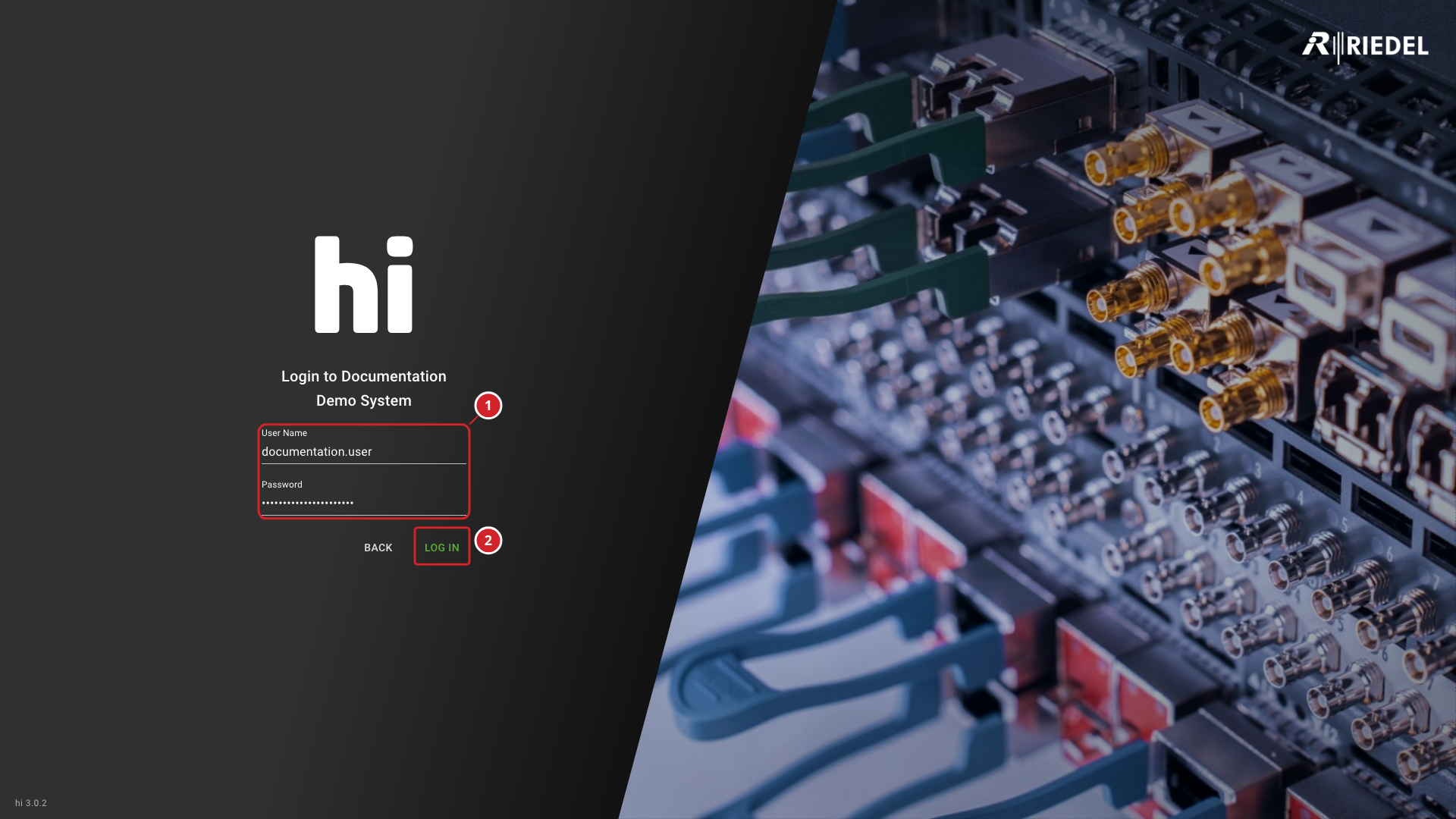
Enter the User Name and Password.
-
Select Log In.
-
Enter the account's User Name and Password.
-
Select Log In to submit the credentials.
If Entra ID is enabled and the credential form is open, a Back button returns to the method selection screen.
|
Field |
Description |
|---|---|
|
User Name |
The login name assigned to the user account. |
|
Password |
The password for the user account. |
Information
Open /login/local to reach the local credential form, even when the local login button is hidden in system settings.
Entra ID Authentication
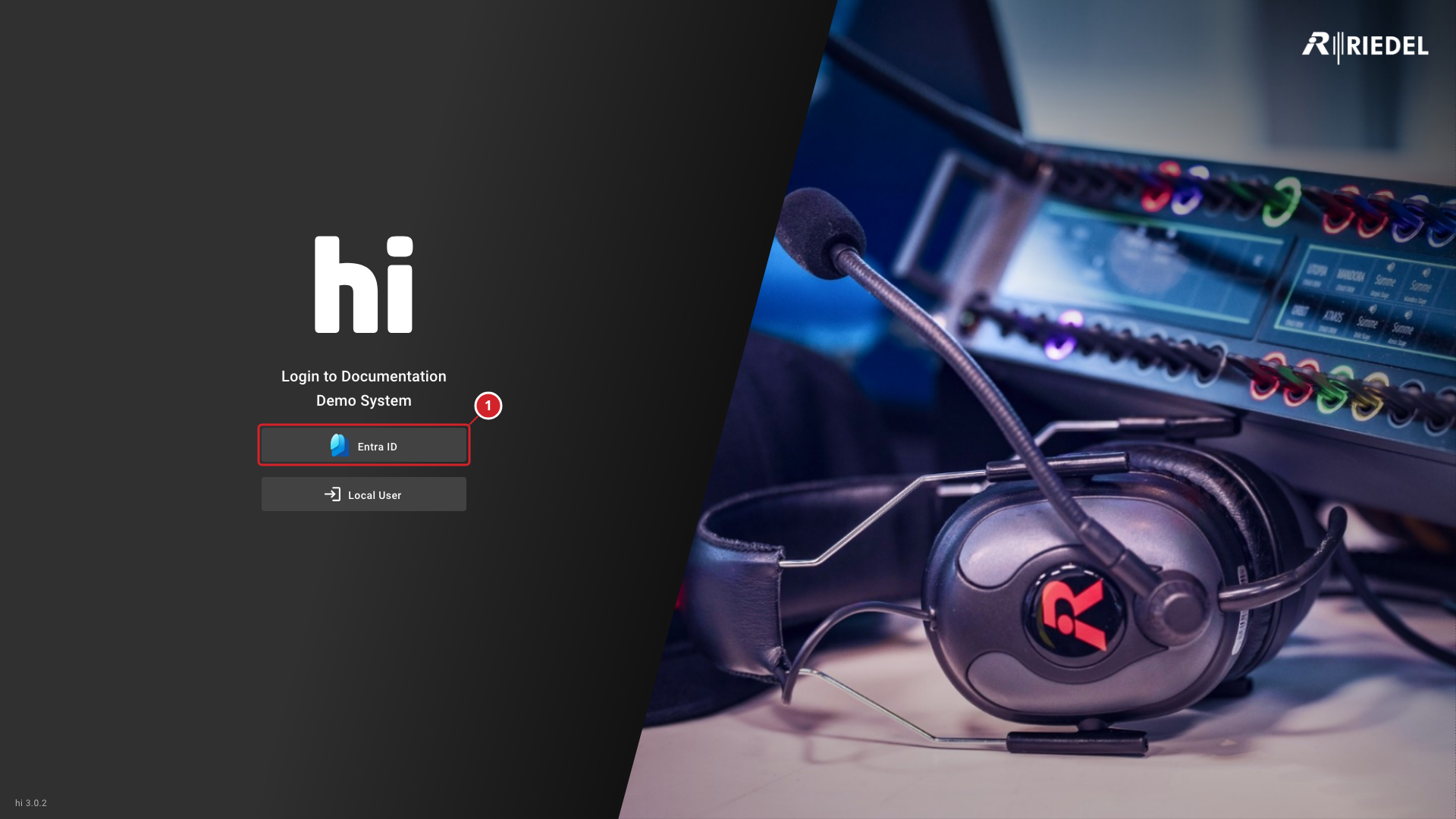
Entra ID single sign-on requires an entitlement for Entra ID authentication. See License Details for applicable license bundles. When Entra ID is enabled in system settings, the login screen displays an Entra ID button with the Entra logo. Selecting this button redirects to the Microsoft identity provider login page for the configured tenant.
-
Select Entra ID on the login screen.
-
Complete authentication on the Microsoft login page.
-
The browser redirects back to hi, and the session is established automatically.
-
Select Entra ID to continue with the configured Microsoft sign-in flow.
The system administrator can optionally hide the local login button when Entra ID is enabled. For Entra ID configuration, see Manage System Settings.
Login Errors
If authentication fails, an information box appears below the credential form with the error title and description.
Sign-In Errors
|
Error title |
Message body |
When it appears |
|---|---|---|
|
Failed to login |
"The credentials you provided were incorrect. Please try again or reach out to an administrator for assistance." |
The sign-in request is rejected for a reason other than the license or clock conditions below. |
|
Failed to login |
"All available user licenses are currently in use. Please reach out to an administrator for assistance." |
No user license is available for the session. |
|
Failed to login |
"Your device’s system time differs from the hi server by more than 5 minutes. Please correct your system time or contact your system administrator." |
The client and server clocks differ by more than five minutes. |
|
Cannot connect |
"Sorry, error contacting server." |
The request to sign in cannot reach or obtain a response from the server. |
|
Error |
"Problem occurred while trying to login with Entra ID. Contact with your administrator." |
The Entra ID sign-in redirect cannot start. |
|
Failed to login |
"An unexpected error occurred during logging in. Please reach out to an administrator for assistance." |
An unexpected error occurs while handling the sign-in response. |
Use the error title and message body together to identify the condition.
During Entra ID sign-in, the selected login control shows a progress indicator.
License expiration, session expiration, and cluster license warnings appear as persistent banners. See License Warnings and Session Behavior below.
Session Behavior
After a successful login, hi starts an authenticated session. Key behaviors:
-
The session ends when the token expires, the user logs out, an administrator closes the session, or the user account is deleted.
-
Multiple sessions may be active simultaneously from different browsers or devices.
-
The last logged-in username is remembered in the browser for convenience (local authentication only).
-
Logging in as a different user automatically redirects to the base page.
Session Expiration Warning
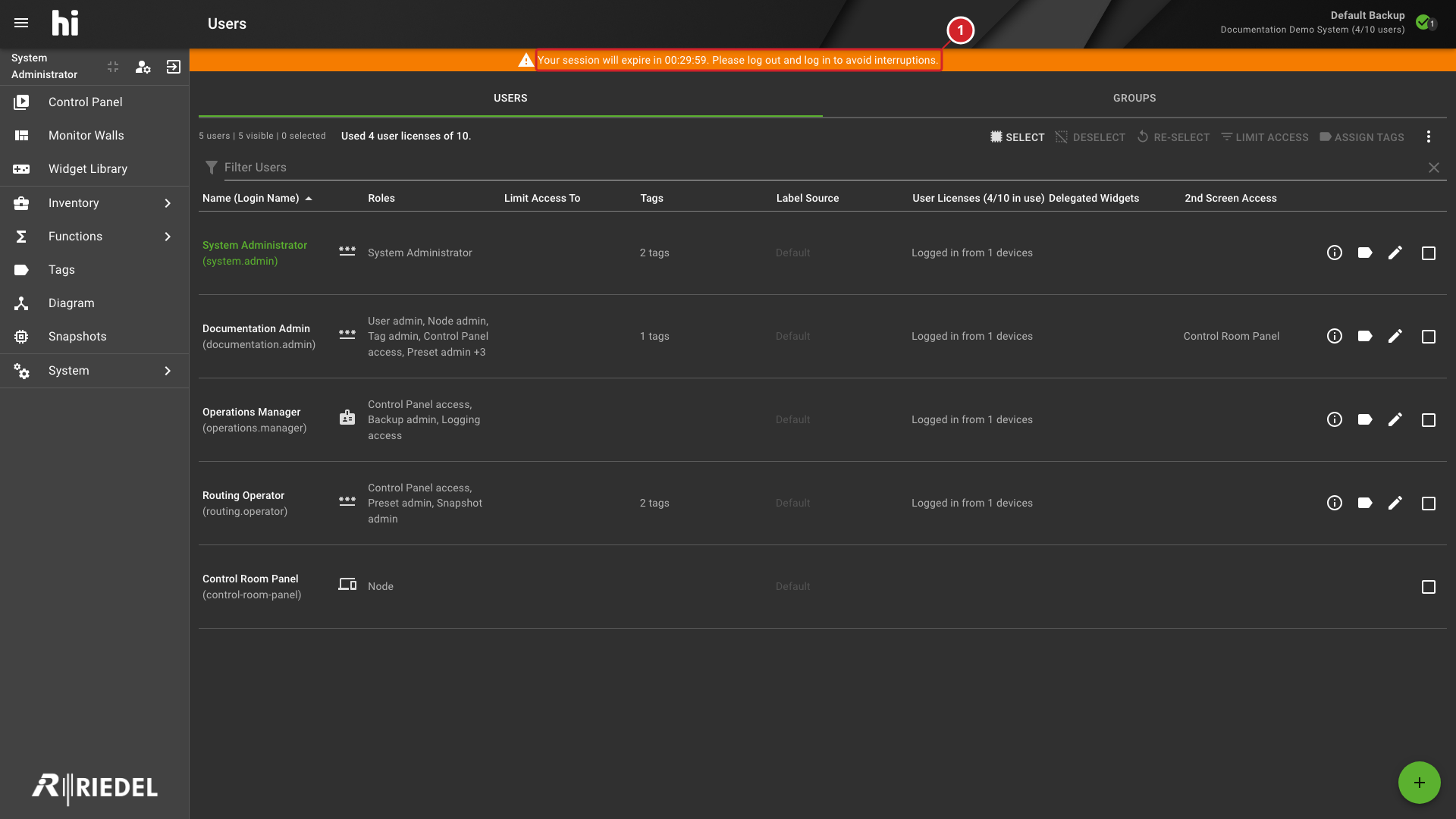
When the session token has less than 1 hour remaining before expiration, a warning banner appears at the top of the application:
"Your session will expire in HH:MM:SS. Please log out and log in to avoid interruptions."
The countdown updates every 5 seconds. When the token expires, the user is logged out automatically and returned to the login screen with the message: "Your session has expired. Please login again."
-
The countdown shows the remaining session time and refreshes every five seconds.
Forced Logout
An administrator can forcibly close a user session. In this case the user sees: "An administrator closed your session. You may try to log in again."
If the user account is deleted while the user is logged in, the session terminates with: "Your user was deleted. Please reach out to an administrator for assistance."
License Warnings
License Expiration Warning
A persistent license-expiration banner concerns the installed identity lease. Ask a Licensing admin to inspect the workspace. See Identity-Lease Expiration Warning for the exact messages and time thresholds.
License Activation Warning
An activation banner is separate from a license identity-lease warning and a session-expiration warning. See Activation Warning and Manage Licensing for the appropriate administrator task.
Out of User Licenses
When sign-in is rejected because all user licenses are in use, ask the responsible administrator to review active sessions and capacity. Do not close another operator's session without checking operational use. See User Capacity and Restricted Mode.
Restricted Mode
A System administrator may enter Restricted mode when the connection is restricted. Read the dialog's complete message and use User Capacity and Restricted Mode for the possible conditions and safe checks. This is different from an ordinary user's rejected sign-in.
User Licenses and Sessions
User-session capacity and the rules for browsers, private sessions, and Hardware Panels are defined in the hiUser datasheet.
For user account and role administration, see Manage Users.
Connection State Indicators
After login, the application header displays Connection State indicators for configured devices. These indicators reflect the real-time communication status between hi and configured devices. For the Connection States and their meanings, see Interface: Connection State Indicators.
Unsupported Browser
If the browser is not supported, hi displays a full-screen message instead of the login screen:
"Sorry! Your browser is not supported. Please use Google Chrome (Win, Linux), Microsoft Edge browsers (Win), Safari (OSX)."
No Connection Page
If the browser loses network connectivity to the hi server, a full-screen message appears:
"It seems you're offline... Trying to reconnect to the server. Please make sure you have a valid network connection!"
The application automatically attempts to reconnect. Once connectivity is restored, the session resumes if the token has not expired.
Verify the Result
After authentication, confirm that the intended landing page opens and that the application header shows the expected installation identity.
Next Steps
-
Use Interface to identify the menu, notifications, and connection indicators.
-
Ask a User admin to review Manage Users if the available menu does not match the assigned role.