
Learn the Interface
Overview
After sign-in, the hi web interface displays an application bar, navigation panel, and current workspace.
The application bar shows the hi logo and a breadcrumb for the current location.
The navigation panel expands on desktop, collapses to a rail, or opens as a drawer on smaller screens.
Select the navigation button beside the logo to open or expand it.
Select the installation name in the application bar to see operations in progress. A progress bar appears during visible active operations.
The expanded navigation panel shows the signed-in user's display name and login name.
Use the account controls to select Edit User Profile, Enter Fullscreen, or Logout.
In simplified views, profile and logout controls appear in the application bar.
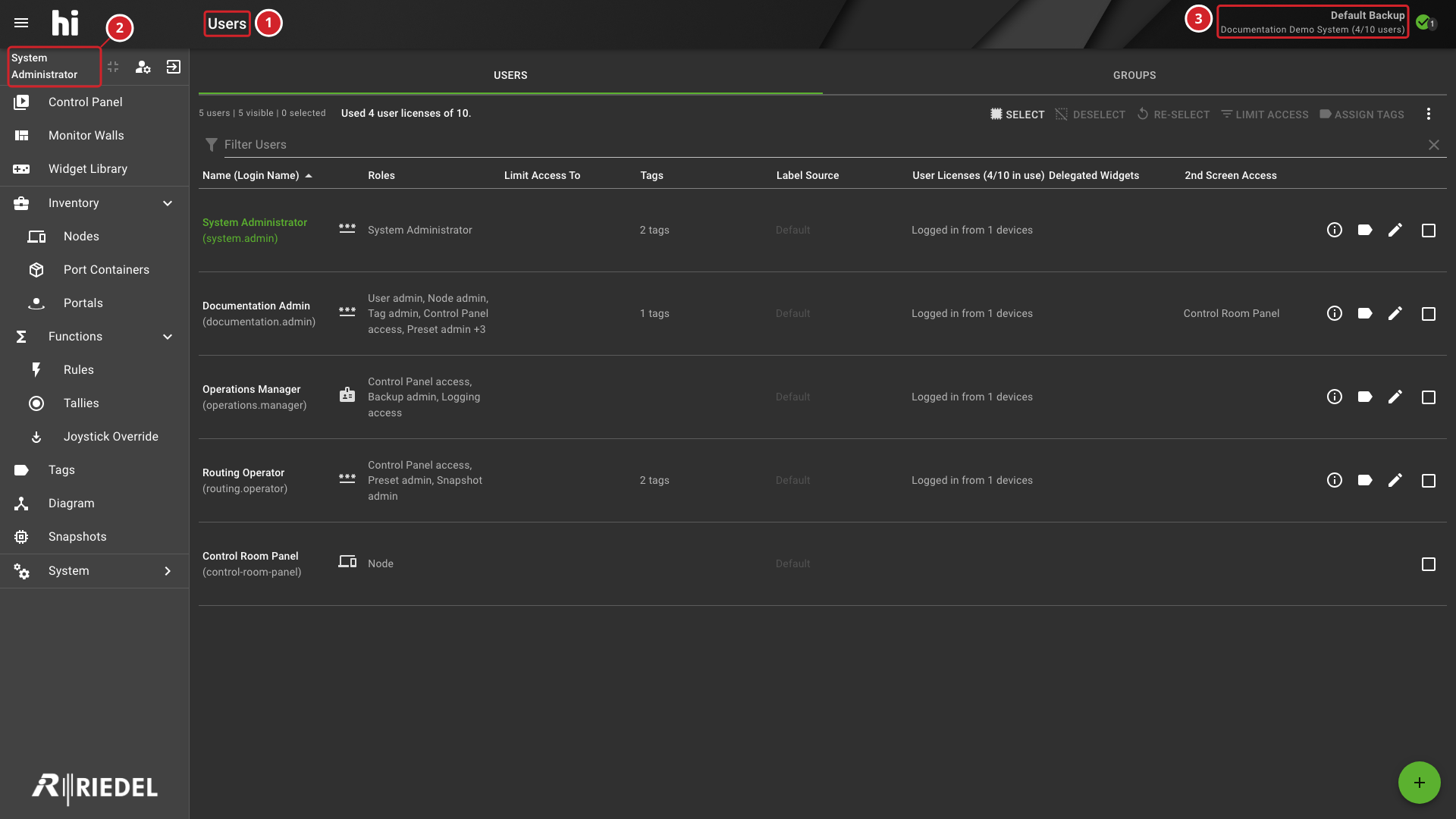
The numbered callouts identify:
-
The page heading in the application bar identifies the open workspace.
-
The signed-in account name appears above the navigation destinations.
-
The application bar shows the installation name, licensed user count, and active Backup.
Active Backup, Installation Name, and User License Use
The application bar shows the active Backup name to users with the Backup admin role.
It shows the licensed installation name to signed-in users.
Users with User admin or Licensing admin also see current user-license use.
See Manage Backups for Backup behavior and Licensing for session-counting rules.
Connection State Indicators
At wide desktop sizes, users with the Node admin role see connection-state icons in the application bar.
Each icon shows a count for Nodes in that state.
Select an icon to view affected Nodes grouped by device category.
Select a listed Node to open it in the Node List.
When the Web API is disconnected, the application bar displays No connection to server.
|
State |
Indicator Example |
Description |
|---|---|---|
|
Online |

|
The device is connected and fully operational. |
|
Disconnected |

|
There is no valid connection to the device. |
|
Initializing |

|
hi is establishing a connection to the device. |
|
Processing |

|
hi is performing a long-running task related to the device. |
|
Partially Connected |

|
The device has multiple modules and only some of them are connected. |
|
Discovered |

|
hi discovered devices in the network that can be added as Nodes. |
|
Disabled |

|
The Node is temporarily disabled. |
|
Conflicted |

|
The device is connected but has conflicting settings. |
|
Unknown |

|
The status of the Node is unknown. |
Menu Items
The main menu contains direct destinations and expandable groups.
Available entries depend on assigned roles, installed licenses, and the current view.
Select an expandable group to show or hide its destinations.
|
Entry |
Description |
|---|---|
|
Control Panel |
Route signals and control assigned parameters. |
|
Monitor Walls |
Design and manage Monitor Wall layouts. |
|
Widget Library |
Create and manage Widgets. |
|
Inventory (expandable) |
Nodes
Port Containers
Portals |
|
Functions (expandable) |
Rules
Tallies
Joystick Override |
|
Other destinations |
Tags
Diagram
Snapshots |
|
System (expandable) |
System Settings
Users
Licensing
Logging
Backups |
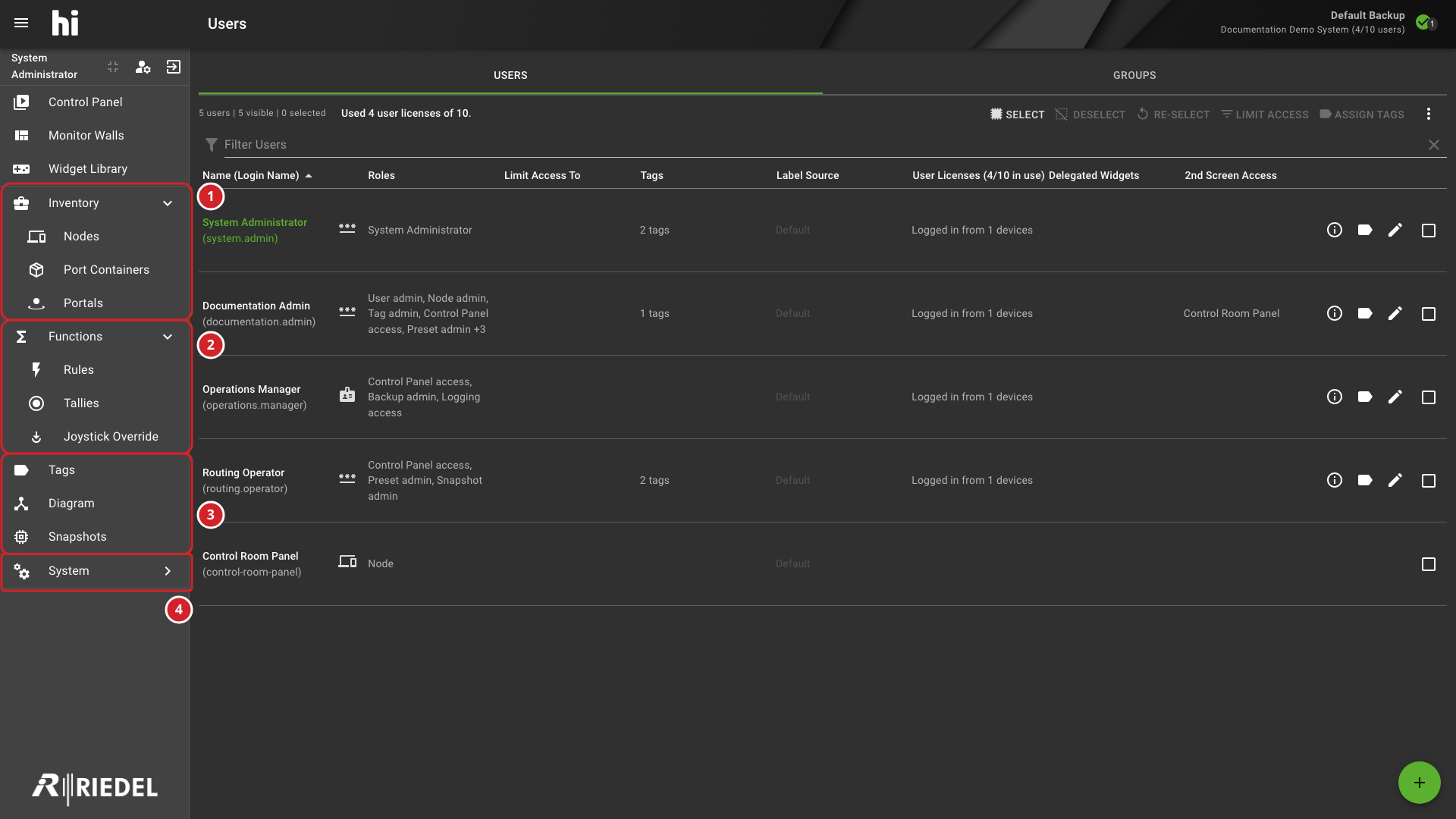
The numbered callouts identify:
-
The expanded Inventory group lists Nodes, Port Containers, and Portals.
-
The expanded Functions group lists Rules, Tallies, and Joystick Override.
-
Tags, Diagram, and Snapshots are direct navigation destinations.
-
The System group is collapsed; expand it to show system administration pages.
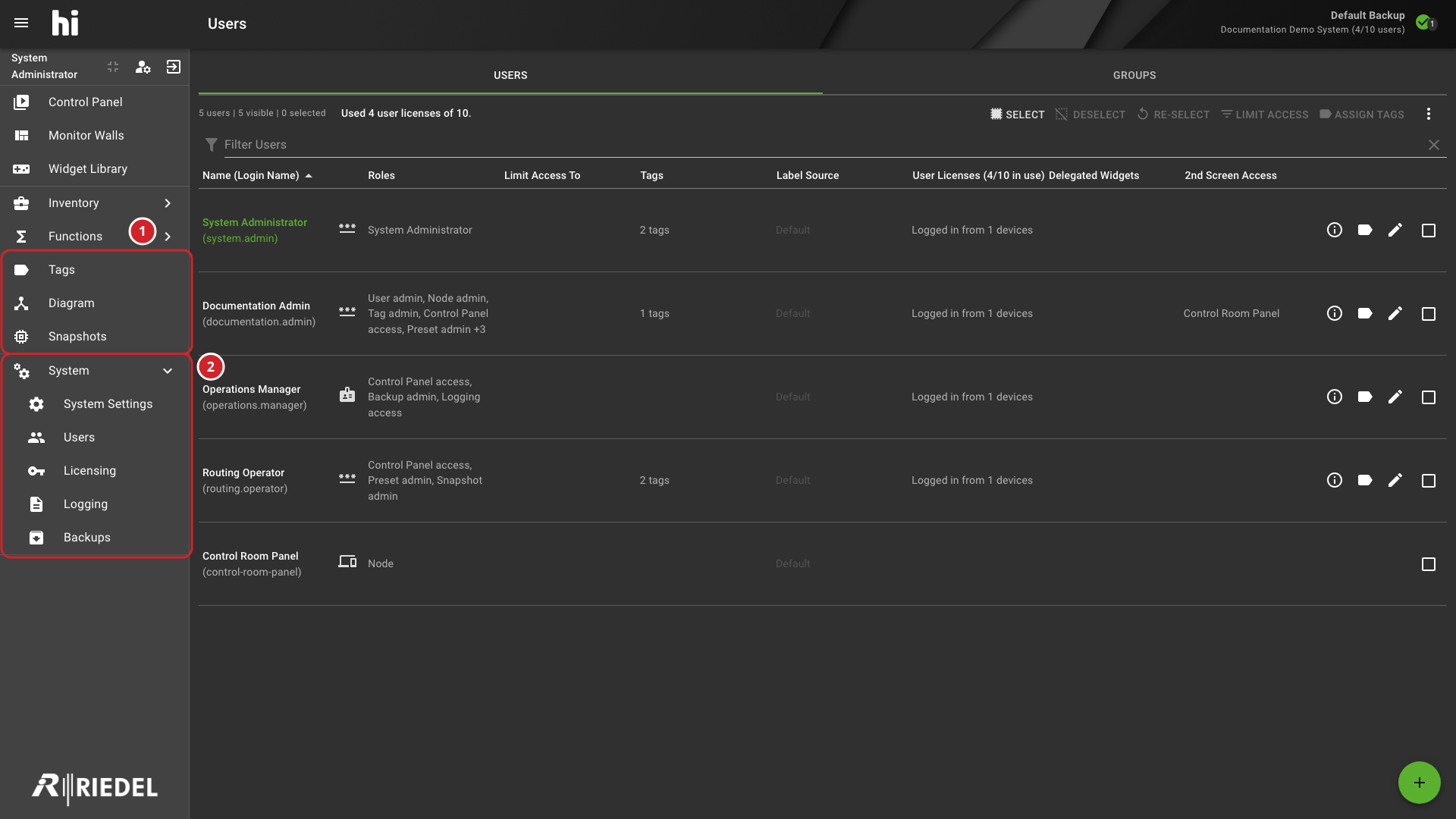
The numbered callouts identify:
-
Tags, Diagram, and Snapshots are direct navigation destinations.
-
The expanded System group lists System Settings, Users, Licensing, Logging, and Backups.
Notification Snackbar
The hi system displays notifications in a Snackbar at the bottom center of the screen. Most messages close after a short interval; individual notifications can specify a longer display duration. Severity levels communicate the nature of the message:
|
Severity |
Indicator Example |
Usage |
|---|---|---|
|
Info |

|
General informational messages, for example, Backup completed or Snapshot recalled. |
|
Success |

|
Confirmation that an operation completed successfully. |
|
Warning |

|
Non-critical issues that may require attention. |
|
Error |

|
An operation failed or requires attention. |
Notifications appear one at a time in queue order. While a notification is open, the message shows how many additional notifications are queued. When it closes, the next queued message appears.
Notification Examples
These examples show the appearance of each severity. Message wording depends on the operation.
Info: General information about the system or an operation.

Success: Confirmation that an operation completed successfully.

Warning: An issue that may require attention.

Error: An operation failed or requires attention.

Reload Required Alert
When the browser runs a different hi version than the server, hi shows a Version mismatch dialog. Ok closes it without reloading. Follow The Version Mismatch Dialog Appears to reload safely.
Related Tasks and Reference
-
Use Sign In to hi for authentication, session, and Restricted Mode behavior.
-
Use Manage System Settings for System Status, configuration, power actions, and logs.
-
Use Applying a License File for license installation, synchronization, and offline renewal.