
Manage Tags
Overview
Information
See also: Concepts: Tagging for the conceptual foundation of the tagging system.
The Tags page is where engineers define the Tags available in an installation and organize them by category. Tags drive filtering and visibility throughout hi - operator panels, the Control Panel, the Topology View, and Access Control are all built on top of the Tag set defined here.
Prerequisites
Managing Tags requires the Tag admin role.
On this page you can:
-
view the Tags currently defined in the system, grouped by category;
-
add, rename, and remove Tags;
-
create new Tag categories;
-
reorder Tags and categories (the order is reflected on Hardware Panels);
-
show or hide unused Tags for housekeeping.
To open Tags, select Tags from the main menu.
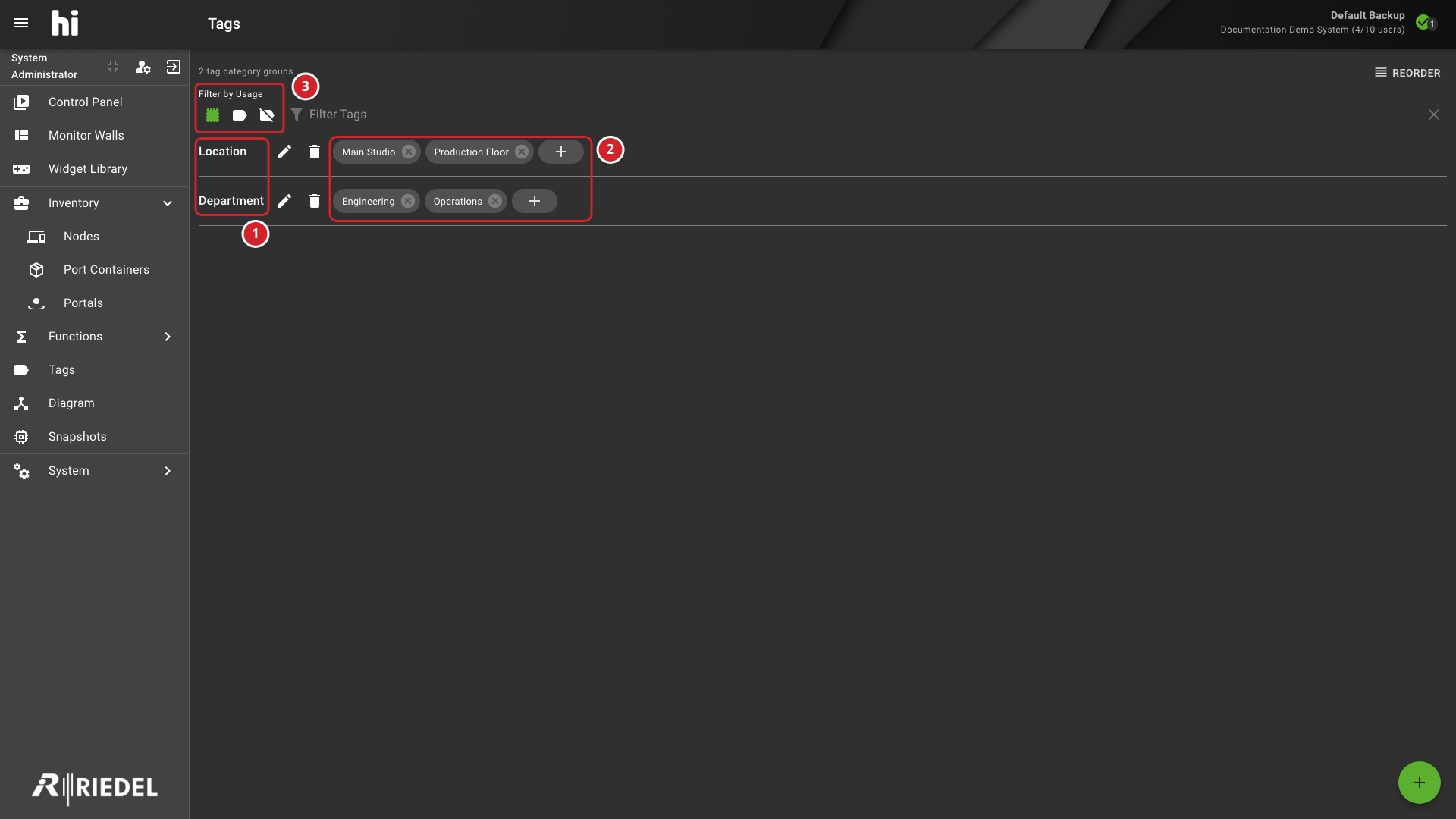
-
The table lists Tag categories used to organize the available Tags.
-
These rows show example Tag values, including locations and departments.
-
Filter by usage to show all Tags, only used Tags, or only unused Tags.
Viewing Currently Available Tags
The Tags workspace shows Tag categories, Tags, and a usage summary. The usage summary reports the number of used Tags and the number currently visible. Use Filter Tags to search by name.
Each category row shows the category name, its category controls, and its Tags as chips. Categories that the system generates show a disabled icon with the tooltip System-Generated Tags instead of rename and delete controls. Their Tags have no edit or delete controls.
Filter by Usage
The Filter by Usage selector has three icon buttons. The active button is highlighted. Hover over a button to see its tooltip.
|
Tooltip |
Result |
|---|---|
|
All Tags |
Shows every Tag and the add control in editable categories. |
|
Used Tags only |
Shows only Tags that are in use. Hides the add control. |
|
Unused Tags only |
Shows only Tags that are not in use. |
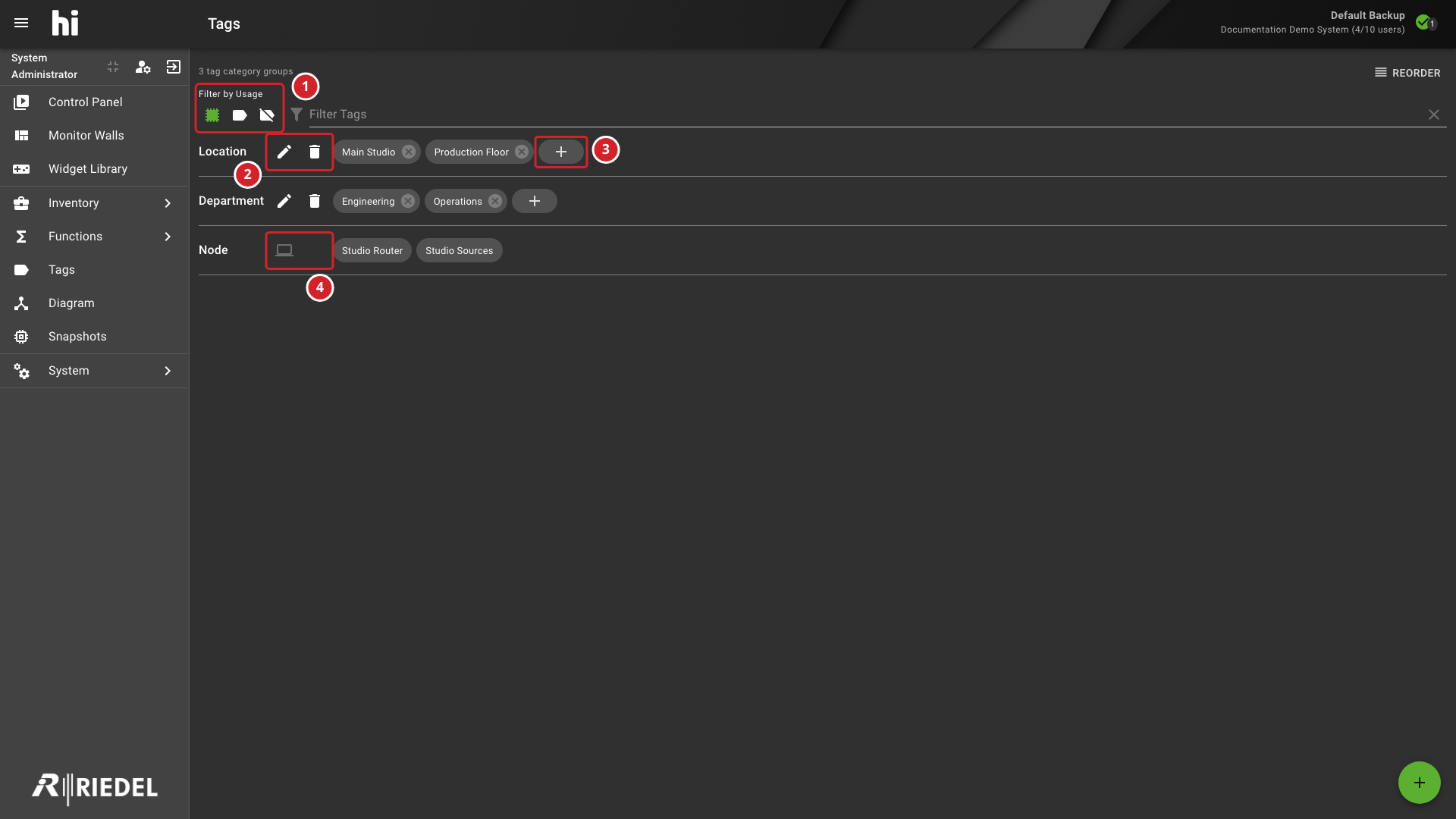
-
Filter by Usage with All Tags active, followed by Used Tags only and Unused Tags only.
-
The rename and delete controls of an editable category.
-
The plus chip adds a Tag to the category.
-
The disabled icon of a system-generated category. Its Tags have no edit controls.
Adding Tags
In a category that can be edited, select the plus chip at the end of its Tag chips to open Add new Tag. The dialog asks how you would like to call the Tag. Enter a Name and select Add.
If the plus icon is absent, set Filter by Usage to All Tags. Used Tags only hides the add control. System-generated categories remain read-only.
Removing Tags
Caution
Deleting a Tag can affect filtering and navigation on Hardware Panels and in the hi web interface. Review the affected use before confirming deletion.
Select the delete control on the Tag chip to open the Delete Tag confirmation, which names the Tag. The confirmation states that deleting the Tag might affect filtering and navigation on hardware and software panels. Select Delete to remove the Tag or Cancel to keep it.
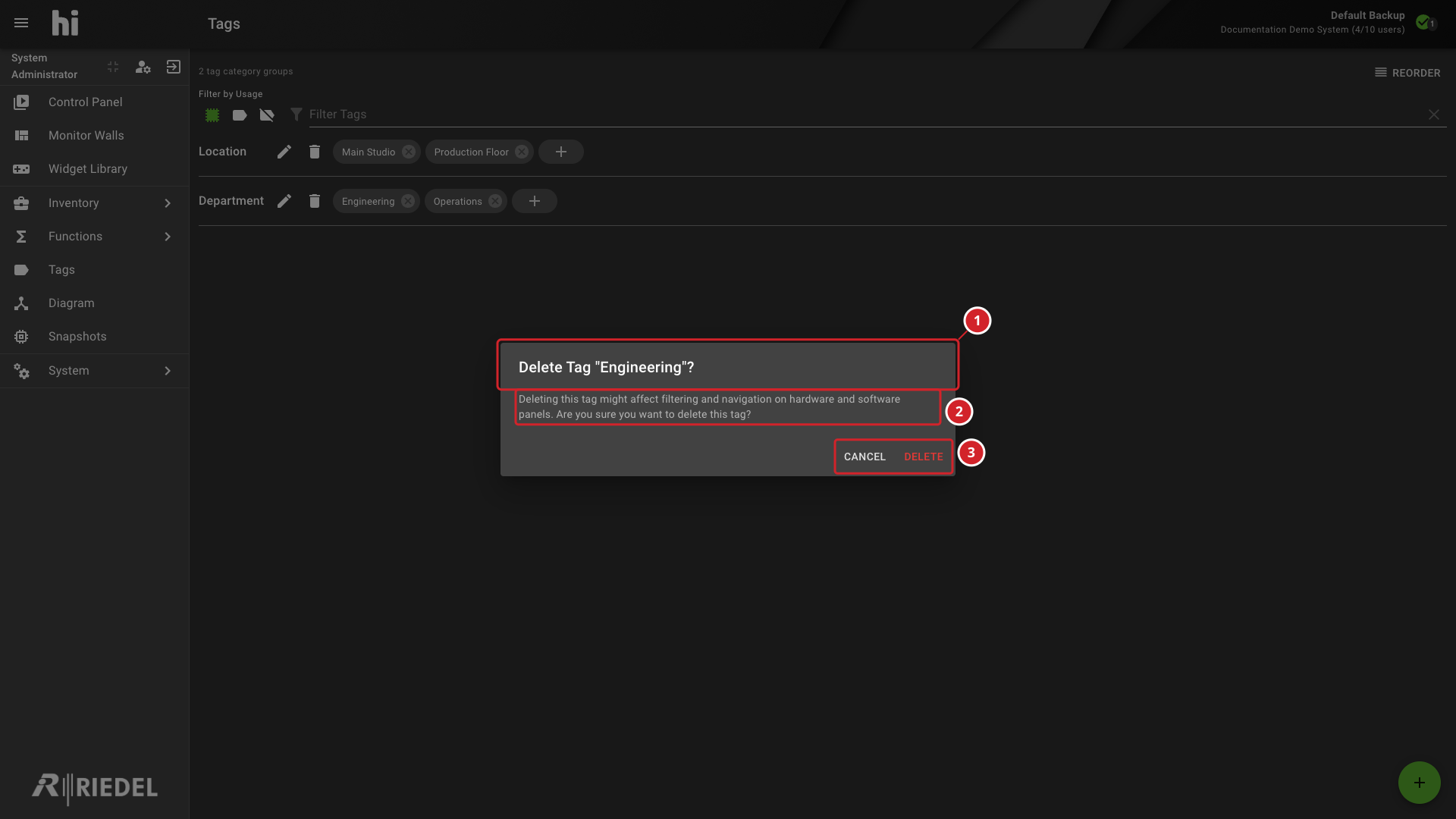
-
Confirm the selected Engineering Tag in the delete confirmation.
-
Review the warning about possible filtering and navigation impact.
-
Cancel or confirm deletion.
Renaming Tags
Select an editable Tag chip to open the rename dialog, which names the current Tag. Enter the new name in Name and select Rename. Select Cancel to close the dialog without changes.
Renaming a Tag Category
Select Rename Category beside an editable category name to open the rename dialog, which names the current category. Enter the new name in Name and select Rename. System-generated categories do not offer this control.
Adding a New Tag Category
Select + to open Add Tag Category, enter a Name, and select Add.
Deleting a Tag Category
Caution
Deleting a category also deletes every Tag it contains. This can change filtering on Hardware Panels and in the hi web interface. Review the affected categories, Tags and operator workflows before confirming deletion.
For an editable category, select Delete Category and all Tags inside. The confirmation names the category and states that deleting it also deletes all of its Tags and affects filtering on hardware and software panels. Select Delete to remove it or Cancel to leave it unchanged. System-generated categories cannot be deleted here.
Reordering Tags
Select Reorder to open the reorder view. Drag categories or Tags to change their order, then select Save. Select Cancel to discard the pending order. The reorder view prevents moving Tags into or out of system-generated categories; moving a Tag used by a Preset displays a warning that the Preset may change.
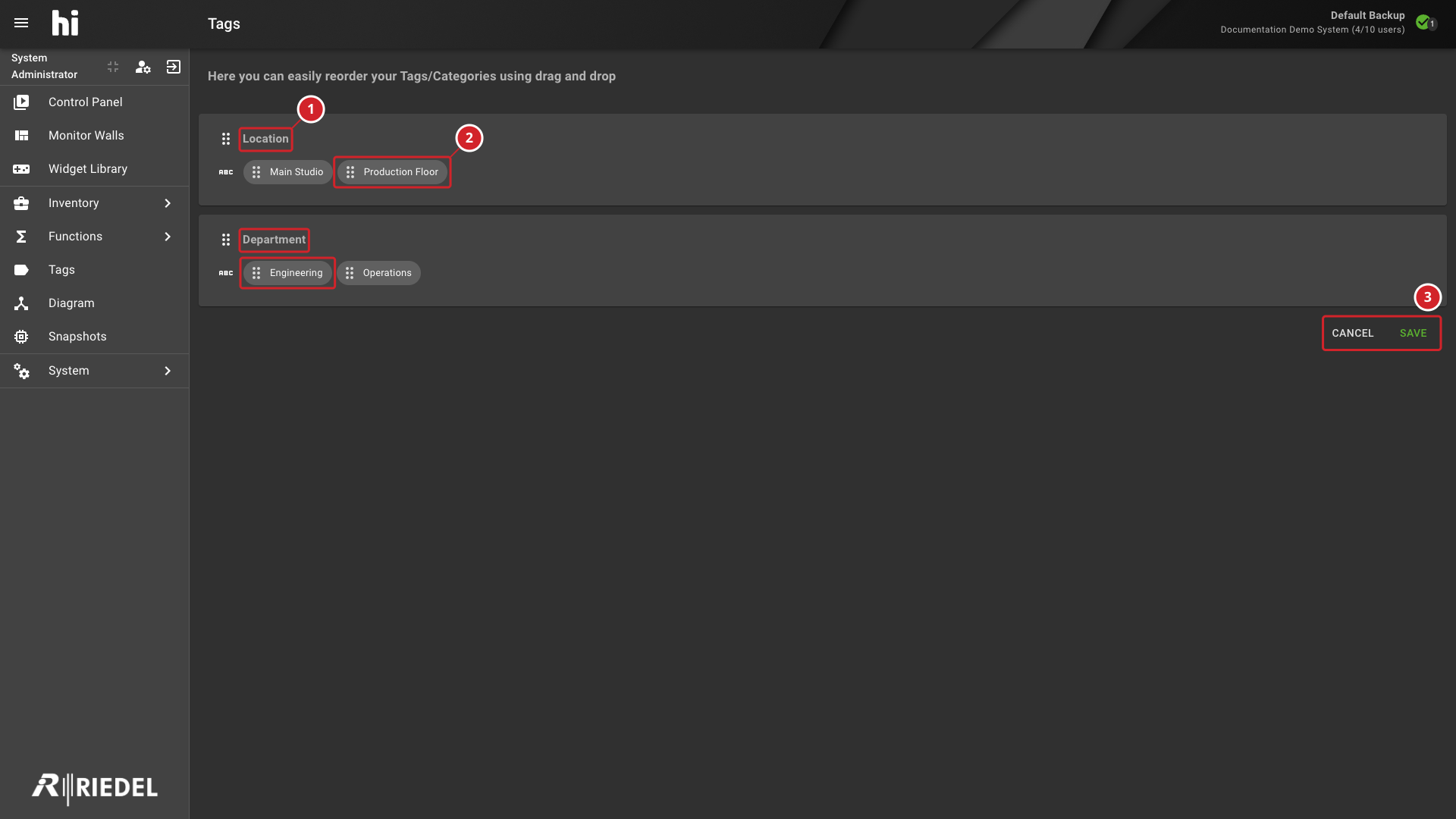
-
The Location and Department categories.
-
The Production Floor and Engineering Tags in the reorder view.
-
Save or cancel the pending order.
Verify the Result
Confirm that the Tag appears in the intended category and order. Verify its effect in the Control Panel or User Management before relying on it for access.
Next Steps
-
Use Manage Users to assign Tags and Limit Access.
-
Open Use the Control Panel to verify filtering.