
Manage Backups
Overview
The Backups page stores supported hi configuration data in portable .hi-backup files. This reference describes the list, available actions, file behavior, and automatic scheduling.
The Backup admin role is required to create, upload, update, restore, download, rename, or delete Backups. The System administrator role is required to use Clear System Configuration and Auto Backup Settings. See Access Control for role details.
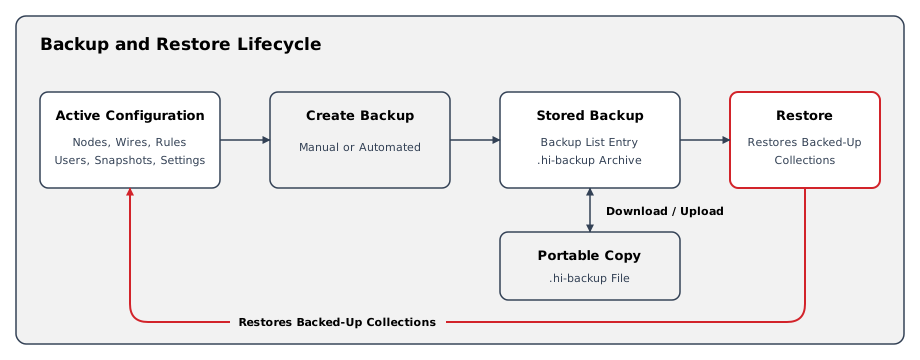
Backup List
The list separates Backups into two tabs:
|
Tab |
Description |
|---|---|
|
Manual |
Backups created on demand by a user or uploaded from a file. |
|
Automated |
Backups created by the automatic Backup scheduler. |
Each Backup row displays:
|
Column |
Description |
|---|---|
|
Name |
User-defined or automatically generated Backup name. |
|
Date |
Timestamp of creation. |
|
Uncompressed Size |
Size of the Backup data before compression. |
|
Software Version |
The hi version that created the Backup. |
|
System Information |
System name in newer Backups or a legacy installation identifier in older Backups. This is not the v3 licensing serial number. |
Available Actions
The command toolbar provides these actions for the selected Backup rows:
Caution
Clearing the configuration cannot be undone. Create a Backup before using Clear System Configuration.
On the Manual tab, select + to open Create New Backup. Enter a Backup Name and select Create.
|
Action |
Selection |
Result |
|---|---|---|
|
Restore |
One Backup |
Replaces the active configuration with the selected restore point. The system reloads affected services, which interrupts routing and control. |
|
Download |
One or more Backups |
Saves each selected Backup to the local computer as a |
|
Upload |
None |
Available on the Manual tab. Opens a file picker that accepts one or more |
|
Update |
One Backup |
Overwrites the selected Backup with the current system configuration without creating another list entry. |
|
Rename |
One Backup |
Renames the selected Backup. |
|
Delete |
One or more Backups |
Removes the selected Backup files from the list. This action cannot be undone. |
|
Clear System Configuration |
None |
Clears the active system configuration. Confirm with Clean. Backup files remain available. |
Caution
Restoring a Backup replaces the entire active configuration and interrupts routing and control while affected services reload. Do not restore during live production. Back up the current configuration first and prepare operators for the interruption.
When an Update targets a Backup that is not active, the confirmation dialog warns that it will be overwritten. Give Backups meaningful names, such as Pre-Show-2026-03-28, so operators can identify them.
Automatic Backups
Open the Automated tab and select Auto Backup Settings to review the scheduler. The dialog is titled Auto Backup Configuration.
|
Setting |
Description |
|---|---|
|
Enable automatic backup |
Enables or disables the scheduler. No automated Backups are created while it is disabled. |
|
Number of backups to keep |
Sets the retention count from 1 to 100. When the count is exceeded, the oldest automated Backup is removed. |
|
Recurrence Details |
Select Week or Month. |
|
Recur Every |
For monthly schedules, sets an interval of 1, 2, 3, 4, or 6 months. Weekly schedules use an interval of 1. |
|
Day selection |
Selects one or more weekdays for a weekly schedule or days of the month for a monthly schedule. |
|
at |
Sets the schedule time in the browser's time zone, using 24-hour time. |
Select Save to apply the configuration. Automated Backups use the same file format as Manual Backups and can be downloaded, restored, or deleted.
Constraints
-
Backup files use the
.hi-backupextension and contain supported configuration data in a compressed archive. -
License records, volatile runtime variables, and activation identity are not transferred. The target installation retains its own activation state.
-
Discovered but unconfigured devices are rediscovered rather than restored.
-
Check version compatibility and licensing before transferring a Backup to another hi installation.
-
Manually disabled Options are preserved when the configuration is restored or cleared.
Related Procedures
-
Follow Back Up and Restore a System for a complete recovery exercise.
-
Use Manage Snapshots when only selected operational state must be stored or recalled.