
Control Panel Port List and Filtering Reference
Overview
Look up Tag filtering, Port types, search, sorting, and folder navigation.
Filtering Sources and Destinations using Tags
Below the Preset bar is the filter area showing all Tags the user is allowed to see. Select Tags on the Source or Destination side to filter the Port list.
Changing the Filter Relation
|
Mode |
Behavior |
|---|---|
|
AND |
Only Ports carrying ALL selected Tags are shown |
|
OR |
Ports carrying AT LEAST ONE selected Tag are shown |
|
Include/Exclude |
Individual Tags can be set to Include (show matching Ports) or Exclude (hide matching Ports), providing granular control beyond AND/OR combinations |
Information
hi tracks the result and disables all Tags that would yield an empty result.
With an OR relation, the Port list shows additional sub-navigation buttons.
Hide Irrelevant Tags
Hide Irrelevant Tags controls presentation of the Tags available to you on the Control Panel. When enabled, unselected Tags that are disabled because they would produce no results for the current selection are hidden. Selected Tags remain visible. When disabled, irrelevant Tags remain visible but disabled.
Change this preference in your User Profile. It does not grant or remove access; roles and access filters determine which objects and Tags are available to you.
The Port List
The Port list shows the result of the Tag filtering. Port types include:
-
Source Port - icon indicating signal type and Port name
-
Port Container Source - special button representing a Port Container
-
Destination Port - shows Port name and currently connected Source
-
Push Trigger Button - triggers a Rule without on/off state
-
Toggle Trigger Button - triggers a Rule with on/off state
Display Options
|
Tool |
Description |
|---|---|
|
Change sorting of ports |
Toggle between port number and alphabetical sorting. Alphabetical sorting applies Port priority first. |
|
Reset Filters |
Remove text filtering
|
|
Show/hide folder buttons for OR-linked tags |
Display or hide folder buttons generated by OR-linked Tags. |
|
Inspect Selected Port/Port Container |
Open Signal Path view or Port Container content |
|
Filter Ports by text |
Search Ports by text. The search supports two modes: global search (across all Ports in the system) and local search (within the currently filtered/visible Ports only). The search also considers the active Label Override setting. |
-
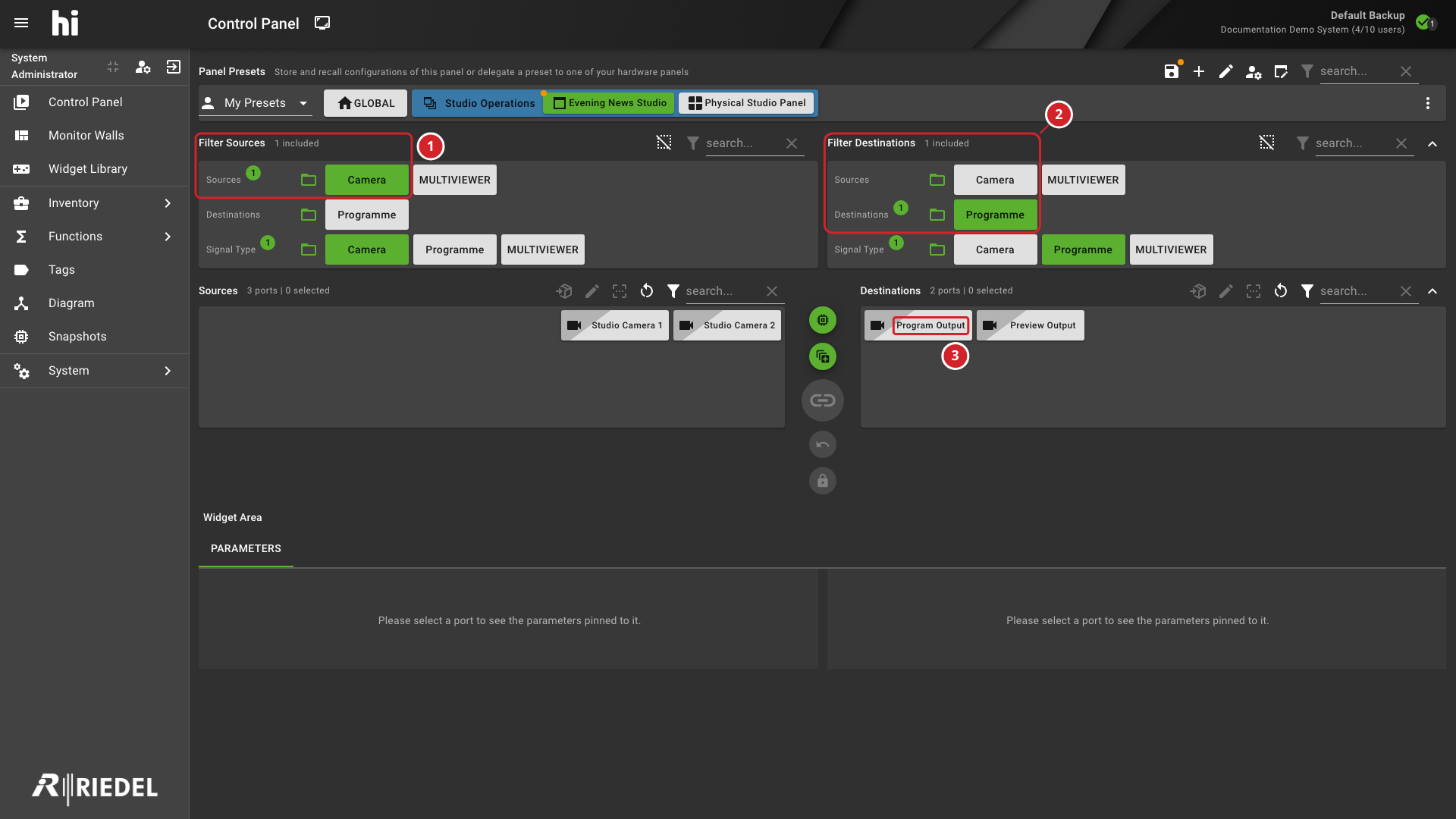
The Source filter has the Camera Tag selected.
-
The Destination filter has the Programme Tag selected.
-
Program Output remains visible in the filtered Destination list.
Port and Port Container Priorities
See Set Port Priority.
Port and Port Container References
See Find Port References.
NMOS Routing and Port Information
NMOS routing controls and available Port information depend on the commissioned integration. See AMWA NMOS Core Integration for required configuration, supported connection management, and known limitations.
Folder Navigation
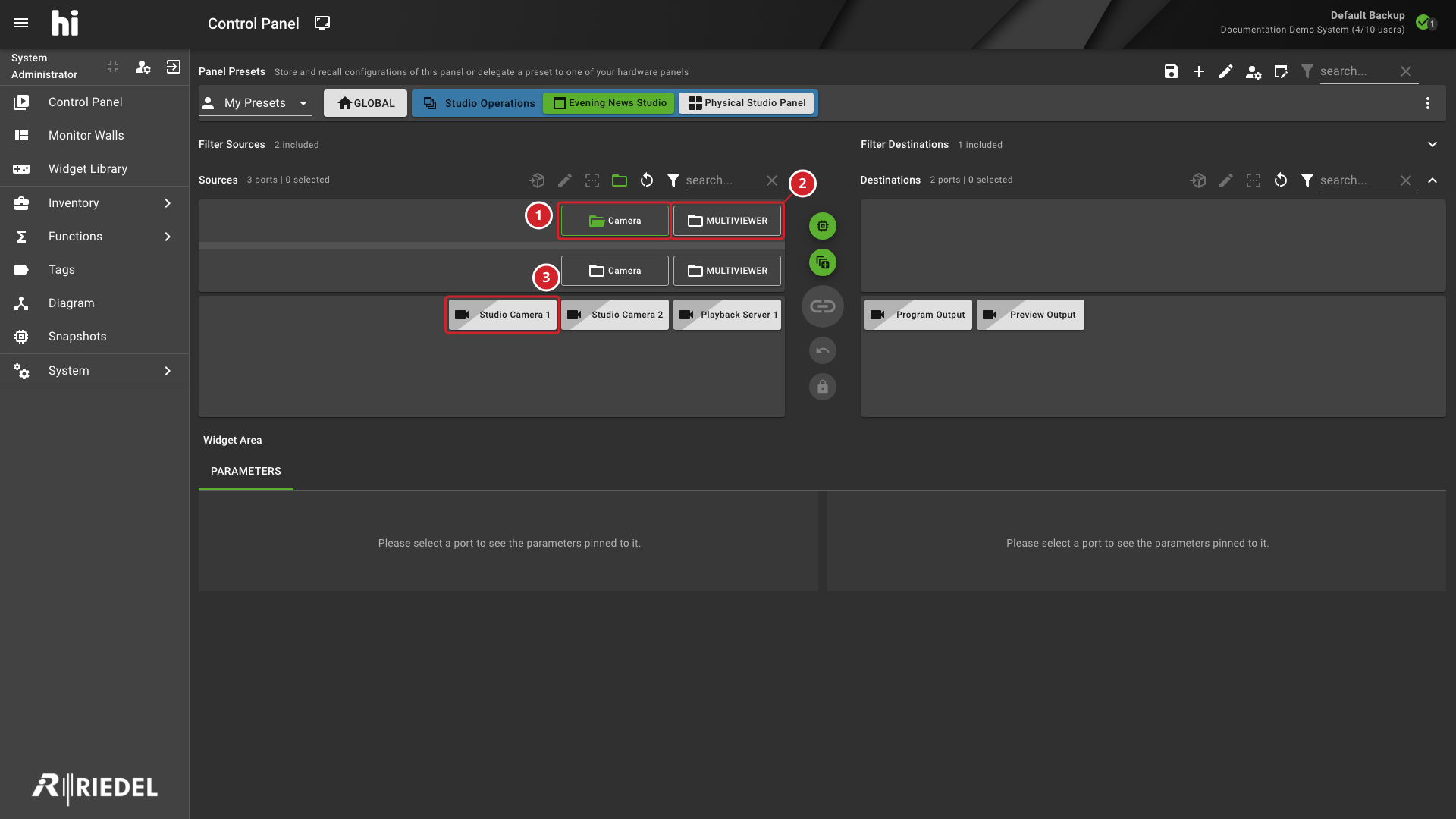
Folders organize Ports and Port Containers into a hierarchy. Expand a folder group to navigate its contents instead of reviewing a flat Port list.
-
The Camera folder is open.
-
The MULTIVIEWER folder is available for navigation.
-
Studio Camera 1 is visible in the open Camera folder.
PARAMETERS Pane
The PARAMETERS pane shows parameters assigned to the selected Source or Destination Port. Select a Widget to change a parameter value.
Use Assign Parameter Control to set up Widgets for a Port.
Related Procedures
Use Route a Source to a Destination to apply a connection.