
Back Up and Restore a System
Overview
This tutorial creates, schedules, restores, and verifies a hi system Backup. For the canonical Backup contents, format, and controls, see Manage Backups.
Before You Begin
-
Sign in with the Backup admin role. Scheduling recurring Backups also requires the System administrator role.
-
Schedule a maintenance window before a restore because services reload and connectivity is interrupted.
-
Keep an off-system copy of the current configuration before restoring an older Backup.
Take an On-Demand Backup
-
Select System > Backups from the navigation panel.
-
In the Manual tab, select +.
-
In the Create New Backup dialog, enter a descriptive name in Backup Name and select Create (including the date and change is recommended).
-
Wait for the Backup to complete. The new Backup appears in the Manual tab.
-
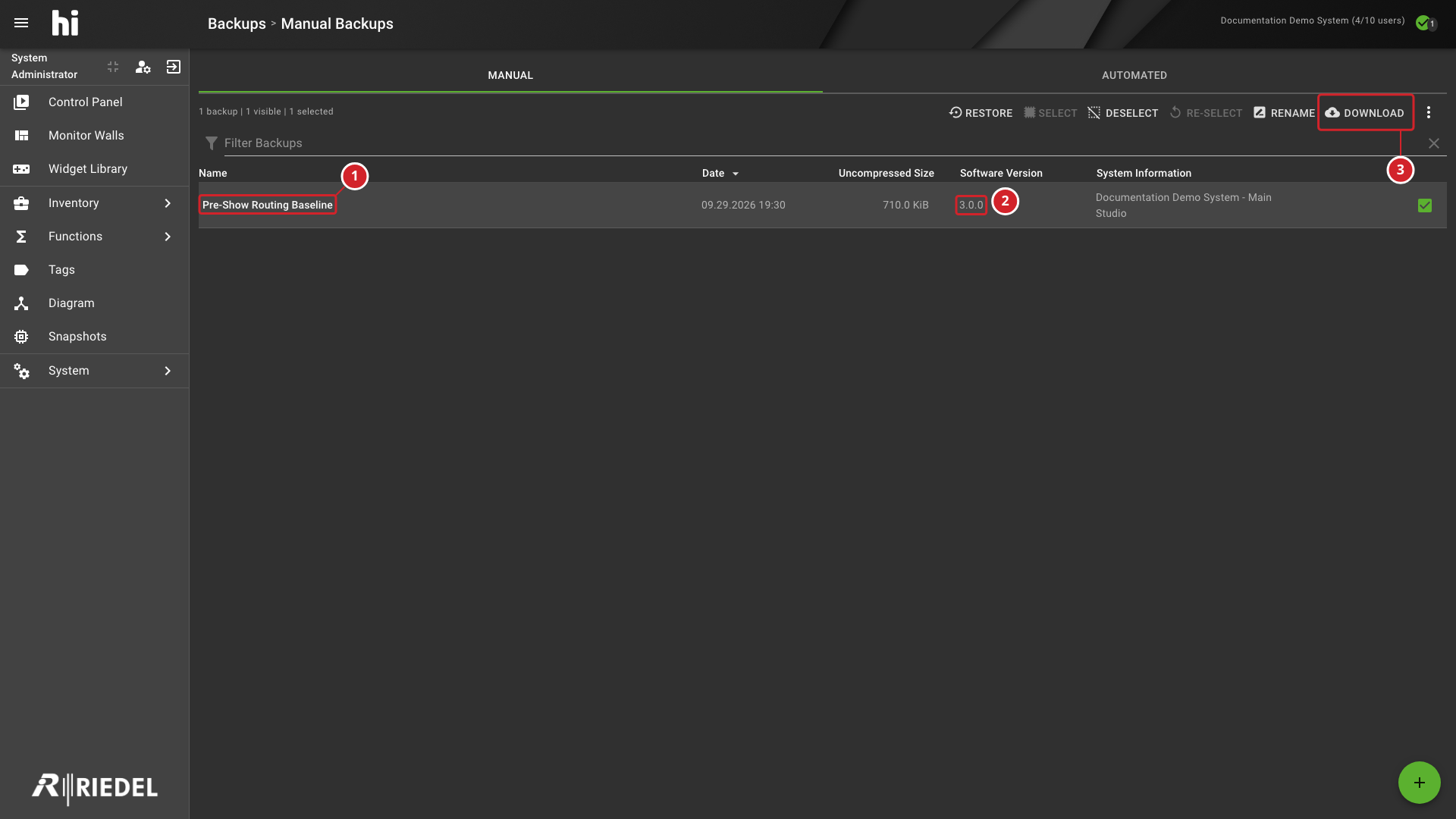
Select the Backup and select Download from the command bar to save the archive to long-term storage.
-
Pre-Show Routing Baseline Backup.
-
Backup software version 3.0.0.
-
Download action for the selected Backup.
Verify the Result
Confirm that the Backup appears in the Manual tab and that the downloaded file ends in .hi-backup.
Schedule Recurring Backups
-
Select System > Backups from the navigation panel.
-
Open the Automated tab and select Auto Backup Settings from the command bar.
-
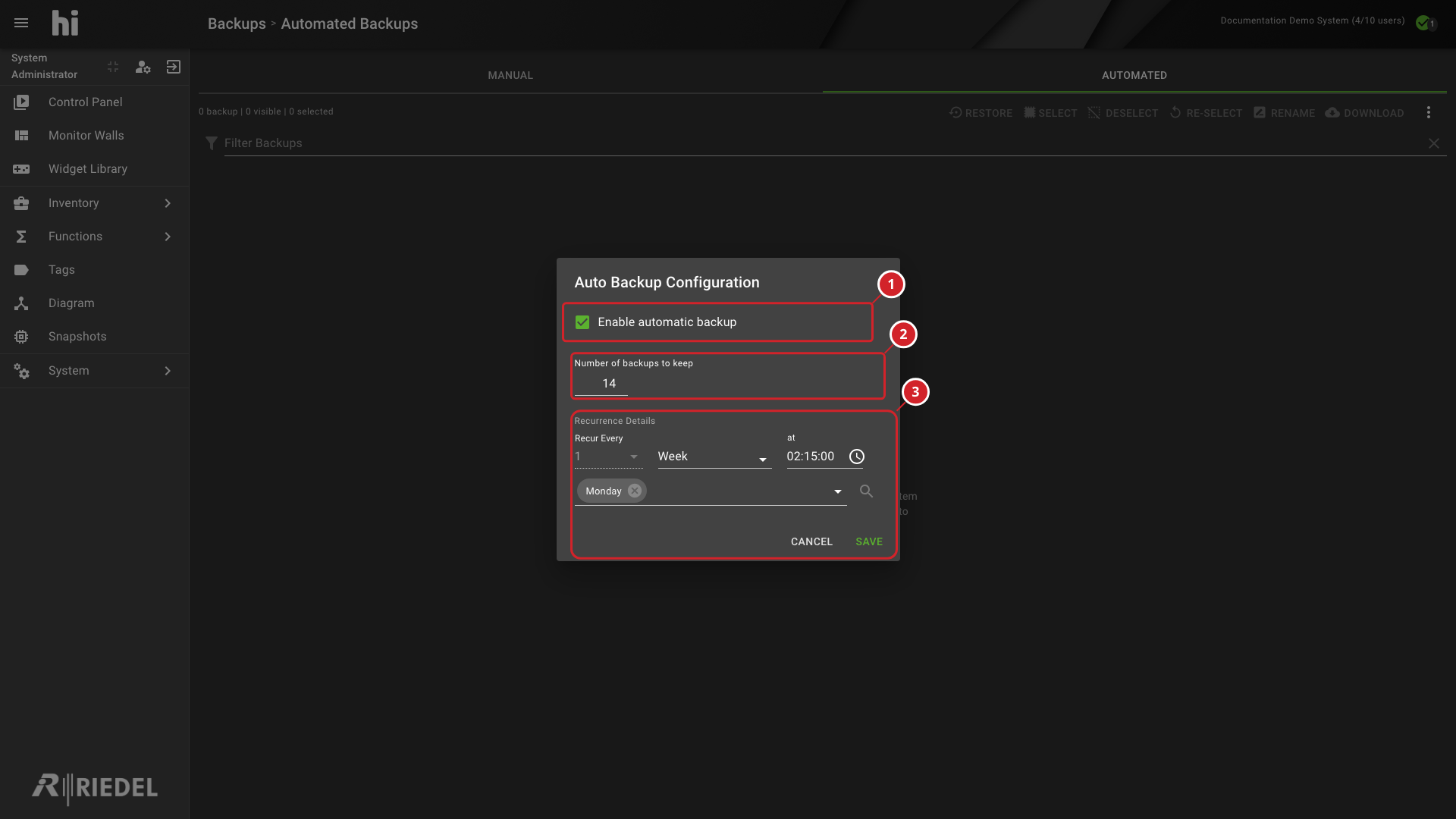
Enable automatic Backup creation and configure the recurrence, days, time, and retention count. See Backups: Automatic Backups for each setting.
-
Select Save.
If Save is disabled while automatic Backup creation is enabled, check that at least one day is selected for the chosen weekly or monthly recurrence.
-
Enable automatic backup setting.
-
Number of backups to keep retention setting.
-
Recurrence Details, including Monday and the Save action.
Verify the Result
Reopen Auto Backup Settings and confirm that the scheduler is enabled with the intended recurrence and retention values.
Restore a Backup
-
Confirm a maintenance window. Restoring a Backup replaces the active configuration and interrupts connectivity while services reload.
-
Select System > Backups from the navigation panel.
-
Select the Backup to restore in the list.
-
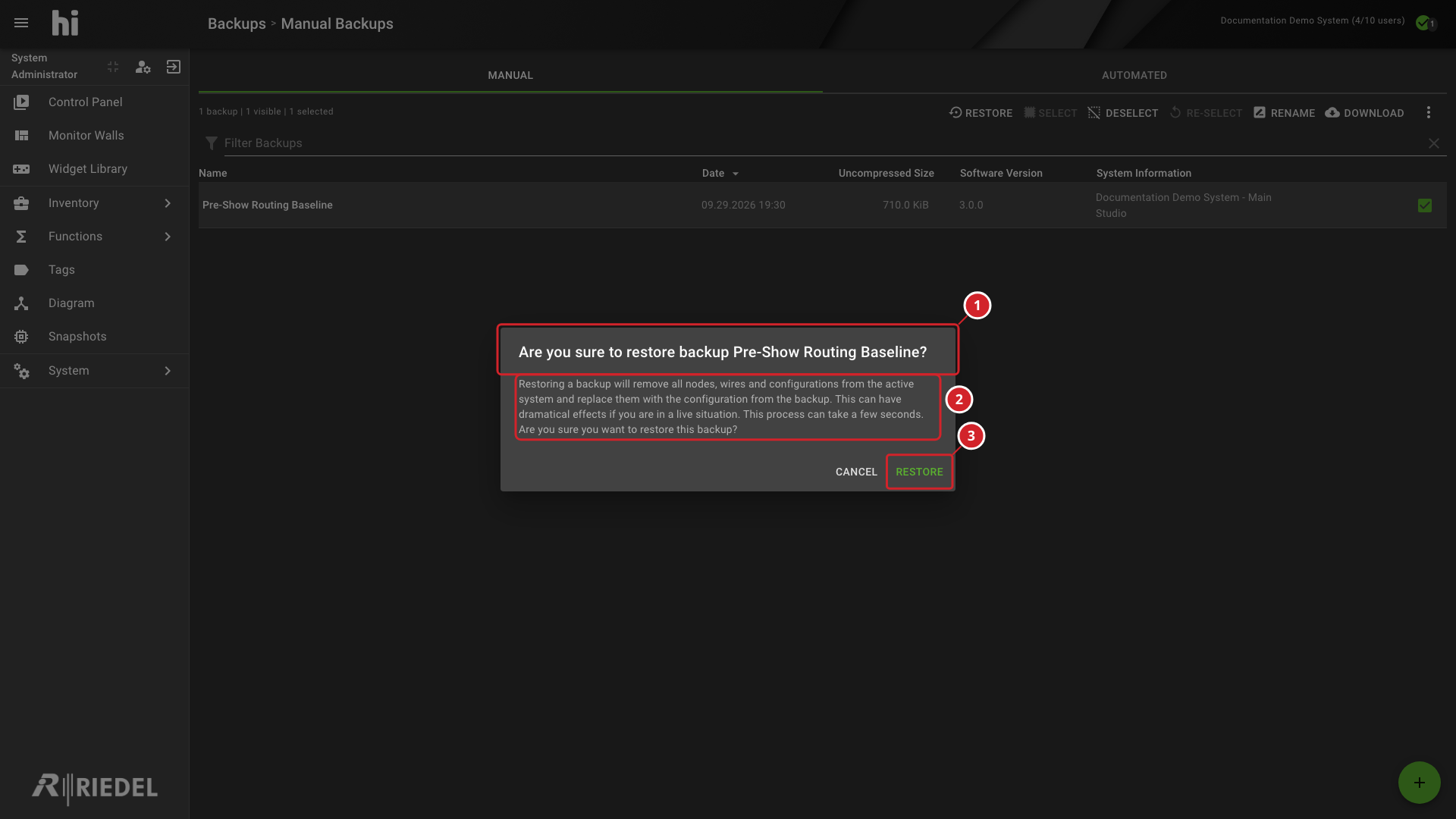
Select Restore from the command bar and confirm. hi replaces the configuration database content and requests reinitialization of affected services.
-
Wait for the restore status to report completion. If reinitialization reports an error, retain the complete message and contact Riedel Customer Success through Customer Support. Follow their guidance before infrastructure intervention or returning the installation to service.
-
Check restored routing in View and Edit Topology and Use the Control Panel. Verify Manage Rules, Manage Users, and Manage Snapshots.
-
Verify device integrations using the Integrations catalog. Verify connected Hardware Panels and critical operator workflows before returning the system to service.
-
Restore confirmation for Pre-Show Routing Baseline.
-
Warning that restoring removes current nodes and configuration.
-
Restore confirmation action.
-
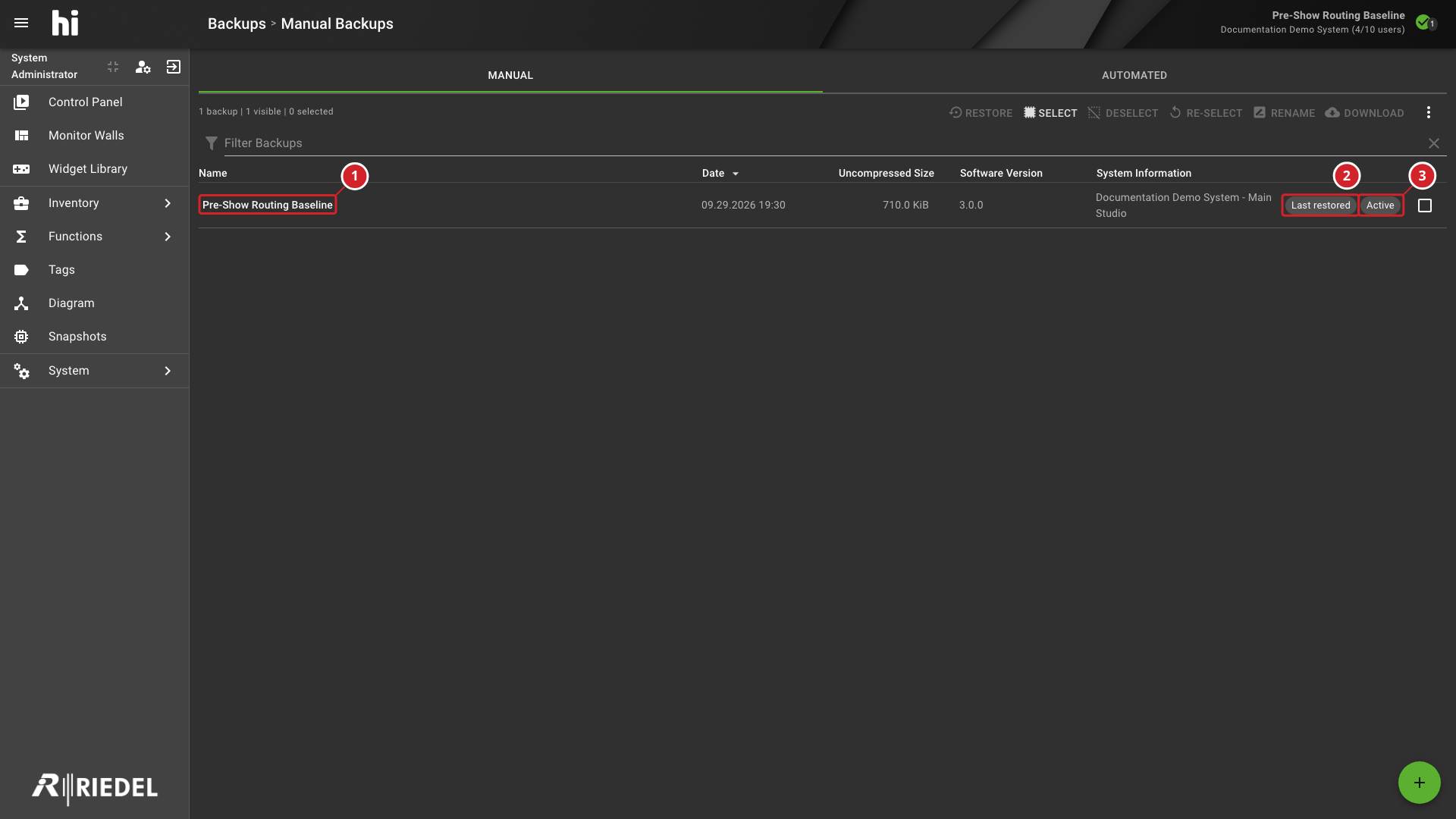
Pre-Show Routing Baseline Backup.
-
Last restored status.
-
Active status.
Verify the Restore
Confirm that the restored Backup shows Active and Last restored status where applicable. Walk one critical routing workflow before returning the installation to service.
Verify the Result
Recommended verification steps after taking a Backup:
-
Confirm that the file can be downloaded and that its file name ends in
.hi-backup. -
During a planned recovery test, upload the file to a compatible non-production hi installation and complete the restore verification above.
Next Steps
-
Review Manage Backups before updating, renaming, deleting, or clearing configuration.
-
Review Configurations to decide whether to use a Backup or a Snapshot.