
Applying a License File
Overview
Riedel Customer Success supports production license updates, including the transition from pre-v3 licensing to the Riedel licensing system.
Caution
Version scope: The upload, synchronization, and identity-lease procedures on this page apply to hi version 3.0.0 and later. Installations earlier than version 3.0.0 use the previous licensing workflow based on the Installation ID. Do not apply the v3 serial-number or license-file procedures to a pre-v3 installation.
When to Apply a License File
A license file is used for initial activation or when the Riedel licensing workflow provides a replacement file for the installation.
-
Initial commissioning of a new hi installation.
-
Replacing a license file when required by an installation change or migration.
-
Updating an installation from a pre-v3 version to version 3.0.0 or later, as part of the coordinated licensing transition.
-
Any renewal or replacement workflow that explicitly provides a new license file.
For changed entitlements on an online installation, follow Synchronize an Online License instead of uploading a file.
For production systems, plan license changes and system updates with Riedel Customer Success so the required license file and service window are ready.
Prerequisites
Before applying a license file, verify the following:
-
Riedel Customer Success coordination - recommended for software updates, license transitions, and production license changes.
-
Online verification and synchronization - require access to the licensing service endpoints. For an offline installation, use Renew an Offline License Identity Lease.
-
License file - for v3 and later, provided through the Riedel licensing process as a
.licfile associated with the installation serial number. -
Administrative access - an account with Licensing admin is required to upload license files.
-
Backup taken - perform a full system backup before changing licensing in production.
-
Production planning - coordinate the licensing change and any associated software or service work with Riedel Customer Success.
Upload a Prepared License in v3 and Later
-
Plan the change with Riedel Customer Success when updating a production system or changing production licenses.
-
Sign in with an account that has the Licensing admin role.
-
Open System > Licensing.
-
Select the + button and select the prepared
.licfile. -
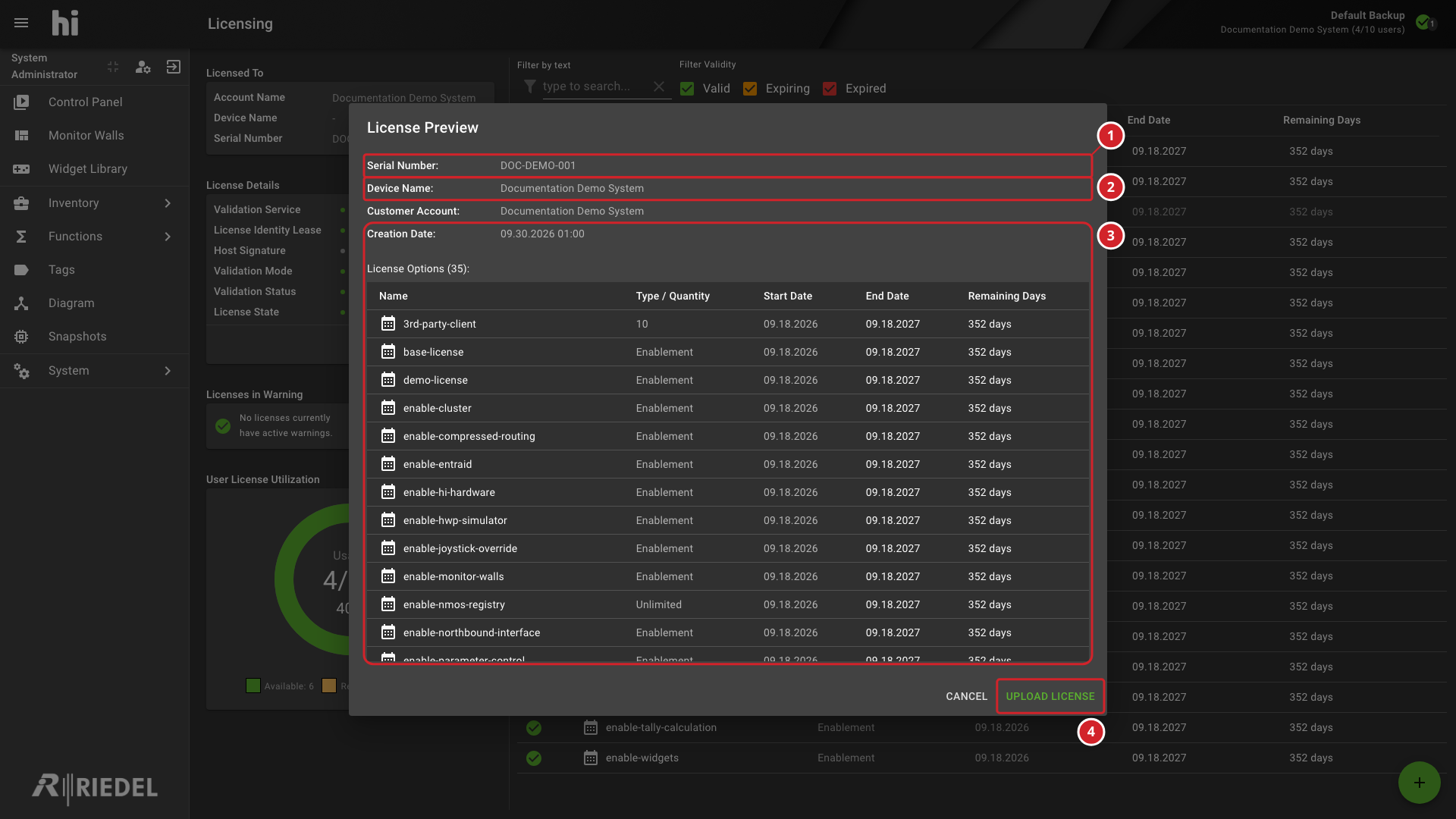
Review the Serial Number, Device Name, Customer Account, Creation Date, and the resolved Options in the License Preview dialog. Options are feature flags supplied by the license bundles.
-
Select Upload License to activate the file.
-
Verify that the expected resolved Options and entitlement quantities appear on the Licensing page.
-
Confirm the newly licensed functions and integrations are available in the hi web interface.
-
Serial Number is DOC-DEMO-001.
-
Device Name is Documentation Demo System.
-
License creation date and options summary.
-
Upload License action in the License Preview dialog.
Synchronize an Online Installation
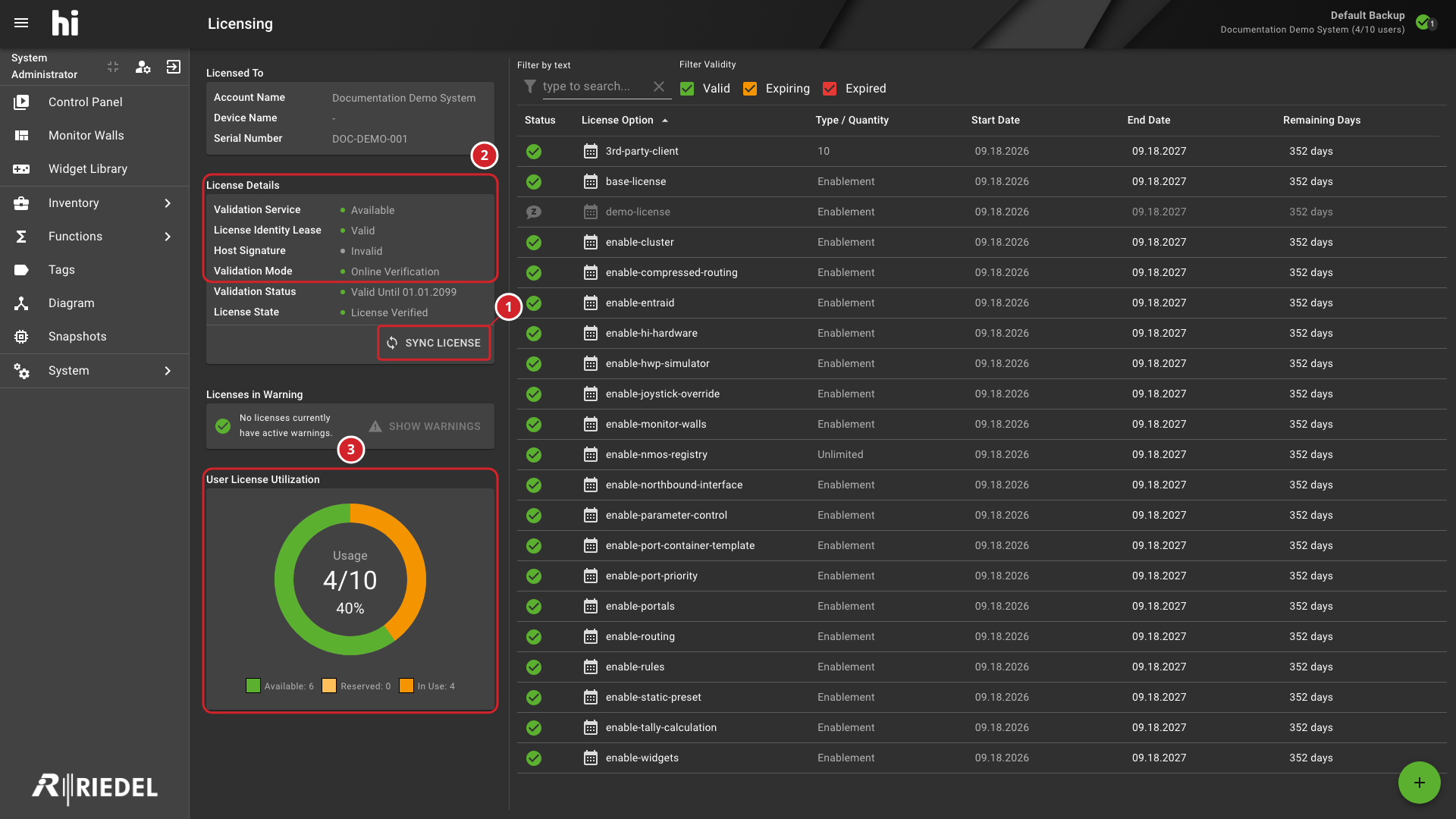
For changed entitlements on an online installation, follow Synchronize an Online License. Use Sync License and verify the resulting quantities and Option states. The example below shows the synchronization action and related fields.
-
Sync License action for the online installation.
-
License Details and Online Verification sections.
-
User license utilization: 4/10.
Renew an Offline Virtual Installation
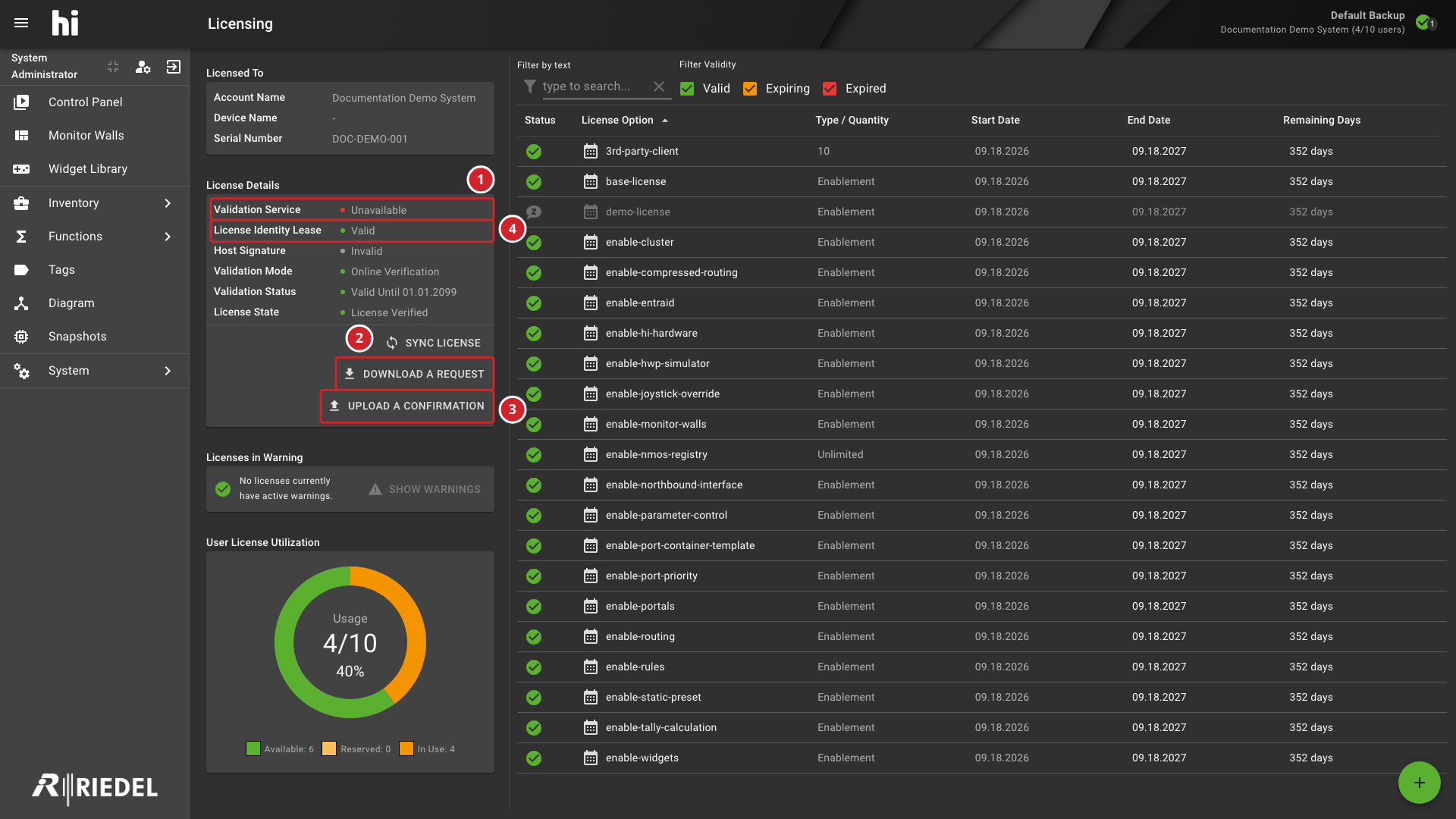
For a virtual installation that cannot contact the validation service, follow Renew an Offline License Identity Lease. Use the current request and its resulting confirmation. The example below identifies the two offline actions and the displayed lease state.
-
Validation Service: Unavailable status for the offline installation.
-
Download a request action.
-
Upload a confirmation action.
-
Displayed License Identity Lease: Valid status.
Installations Earlier Than v3
Pre-v3 installations use the previous hi licensing interface and Installation ID workflow. Continue to use the licensing procedure supplied for the installed release. When planning an upgrade to v3 or later, coordinate the software update and entitlement transition with Riedel Customer Success.
Customer Licensing Portal
From v3.0.0 onwards, license entitlements are represented in the Riedel licensing system. The Customer Licensing Portal at licensing.riedel.net may show:
-
All license entitlements associated with each installation serial number.
-
License durations and expiry dates (where applicable).
-
The Device Name assigned to each installation.
For the detailed Portal workflow, see these Riedel Licensing pages:
-
Riedel Licensing Manual
-
Devices and Licensing
-
Reference
-
Portal Home and Account Context
-
Portal Fields and Controls
-
Device Details and License Status
-
Online Activation and Renewal
-
Offline Activation and Renewal
-
Download License Files
Verify the Result
Confirm that the expected resolved Options, entitlement quantities, validity, and installation identity appear on the Licensing page. Use Licensing to compare these with the purchased bundle scope.
Troubleshooting
Use A License Warning Remains Unresolved for a rejected file, invalid state, or confirmation problem. Use A Licensed Feature Remains Unavailable when licensing is valid but the expected feature is absent.
Next Steps
Use Manage Licensing for operational tasks and License Status and Warnings Reference to interpret the displayed result.
Trademarks
Note
All product names, logos, and brands are property of their respective owners. Copyright in third-party software and materials remains with the respective owners. Use of these names does not imply endorsement.
License information is subject to change without notice.