
Configure a Line Transmit Widget
Overview
Create a Line Transmit Widget, then configure its Source and Destination Port Containers or Portals. Set its Mute and Test Sources for individual audio controls.
Prerequisites
-
Your account has Control Panel access, and the intended Preset is editable.
-
The Preset enables Enable Widget Area, and the intended Widget Group is included in the Preset.
-
Your account has Preset admin, or you created the intended Widget Group.
-
The installation license enables Widgets.
-
The required Source and Destination Port Containers or Portals already exist.
-
For Mute and Test, the intended Source contains audio Ports in the required positions.
See Manage Port Containers for the required routing objects. Use Make Widgets Available in a Control Panel Preset to include a Widget Group.
Create the Widget
If the Widget already exists, continue with Configure the Widget.
-
Open Control Panel and select the intended Preset and Widget Group.
-
On the Preset toolbar, select Customize current preset.
-
Select one empty position in the Widget Group, then select the Widget Area's plus button.
-
In Select Widget Type, select Line Transmit, then select Select.
-
In Add Line Transmit Widget, enter Name, then select Add.
-
Confirm that the named Widget appears in the selected position, then leave customization mode.
The new Widget still needs Source and Destination lists before it can support the intended routing workflow.
Alternatively, a Widget admin can create the named Widget from Widget Library > Widgets using the same type and name dialogs. Follow Make Widgets Available in a Control Panel Preset to add that existing Widget to a group.
Configure the Widget
-
Open the Control Panel and select the Widget's Widget Group.
-
Select the Line Transmit Widget to open its dialog.
-
Select Edit. In Edit Mode, selecting list items changes the configuration selection instead of routing.
-
In Sources or Destinations, select Add Port Containers or Portals to add entries.
-
To remove entries from the Widget, select them and select Delete Port Containers or Portals.
-
To configure the Mute Source, select Mute. In Select a single Source Port Container or portal, select the Source and Save.
-
To configure the Test Source, select Test. Select the Source and Save in the same picker.
-
Select Save in the Widget dialog to retain the configuration. Select Cancel to abandon the edit instead.
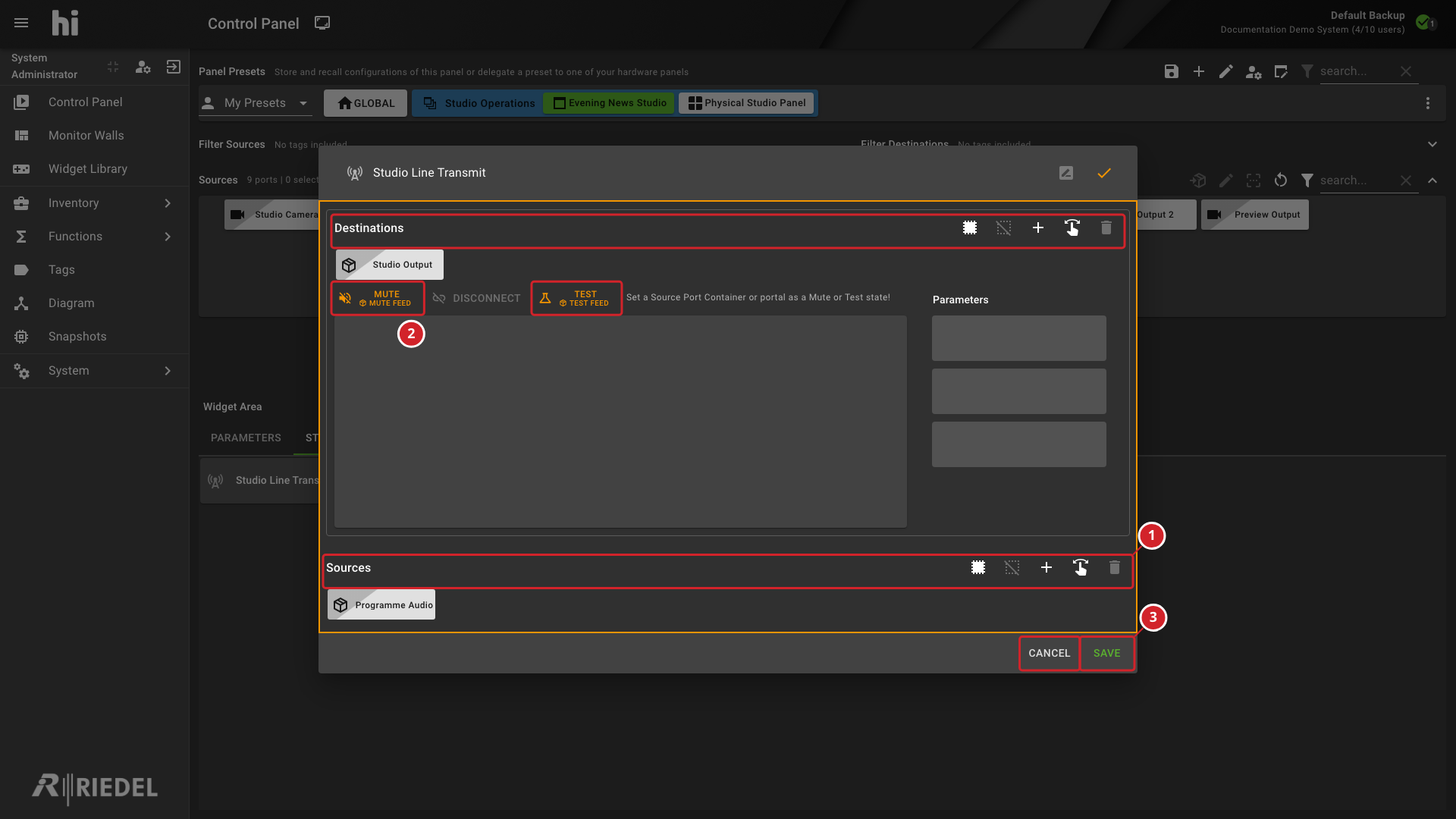
-
The Sources and Destinations lists provide controls for adding or removing entries from the Widget.
-
Mute and Test identify their configured Source Port Containers or Portals.
-
Save retains the Widget configuration; Cancel abandons the edit.
Verify the Result
After saving, confirm that the Widget returns to its operating view. Reopen Edit and confirm the lists and configured Mute and Test Sources.
Mute and Test map audio Ports by position in their configured Sources. Their labels do not define the signal carried by those Sources.
Do not test routing changes solely to verify that settings were saved. Follow Use a Line Transmit Widget when ready to operate it.
Next Steps
-
See Use a Line Transmit Widget for immediate Source routing and individual audio controls.