
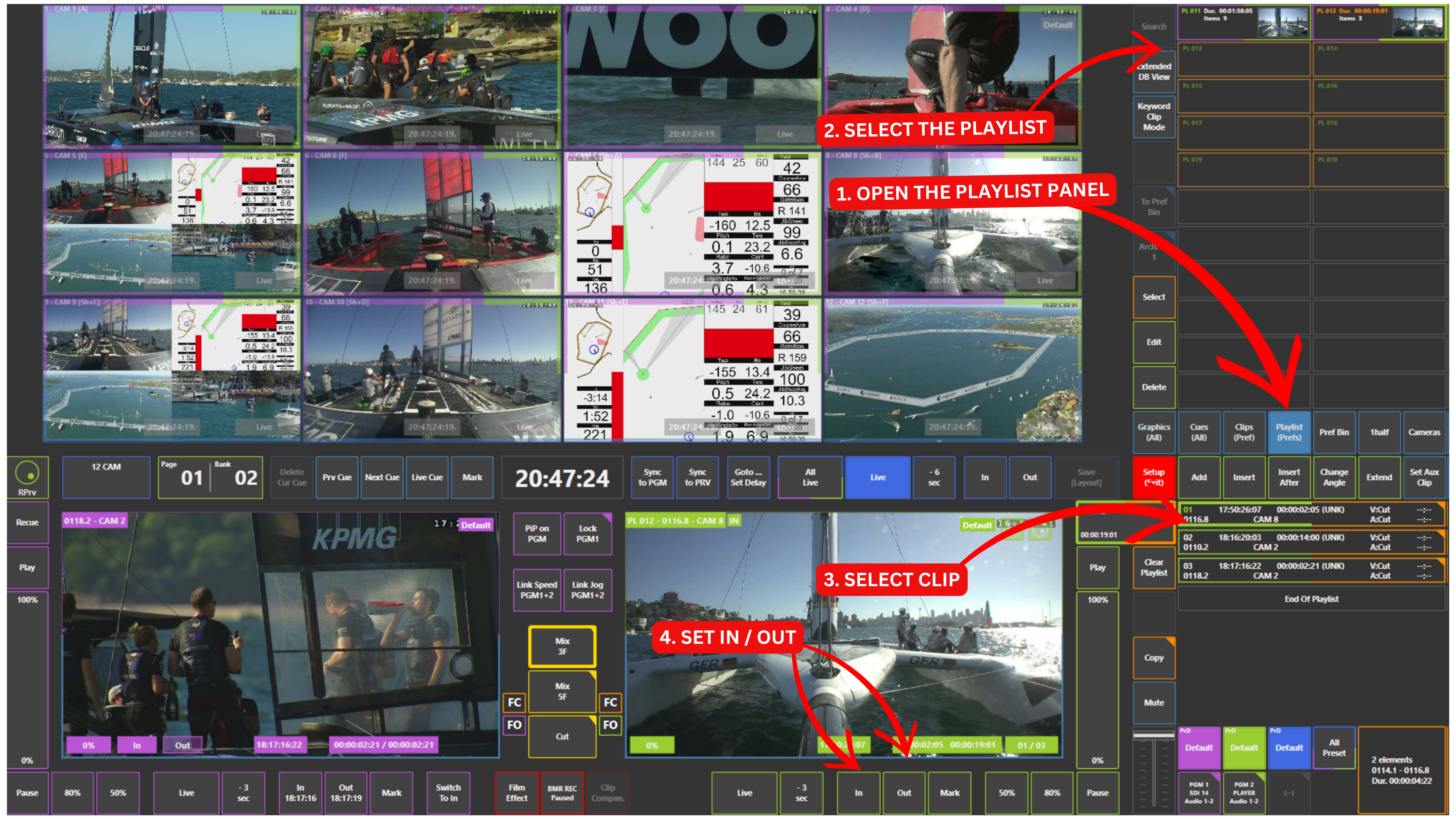
Adjusting the clip duration directly inside a playlist is fast and intuitive using the touchscreen.
How to Shorten a Clip
-
Load your playlist on Preview or Program
-
Select the clip you want to adjust
-
Use your finger on the touchscreen to scroll left or right in the preview
-
Find the new IN point and press IN
-
Find the new OUT point and press OUT
You can modify only the IN, only the OUT, or both.
How to Extend a Clip
-
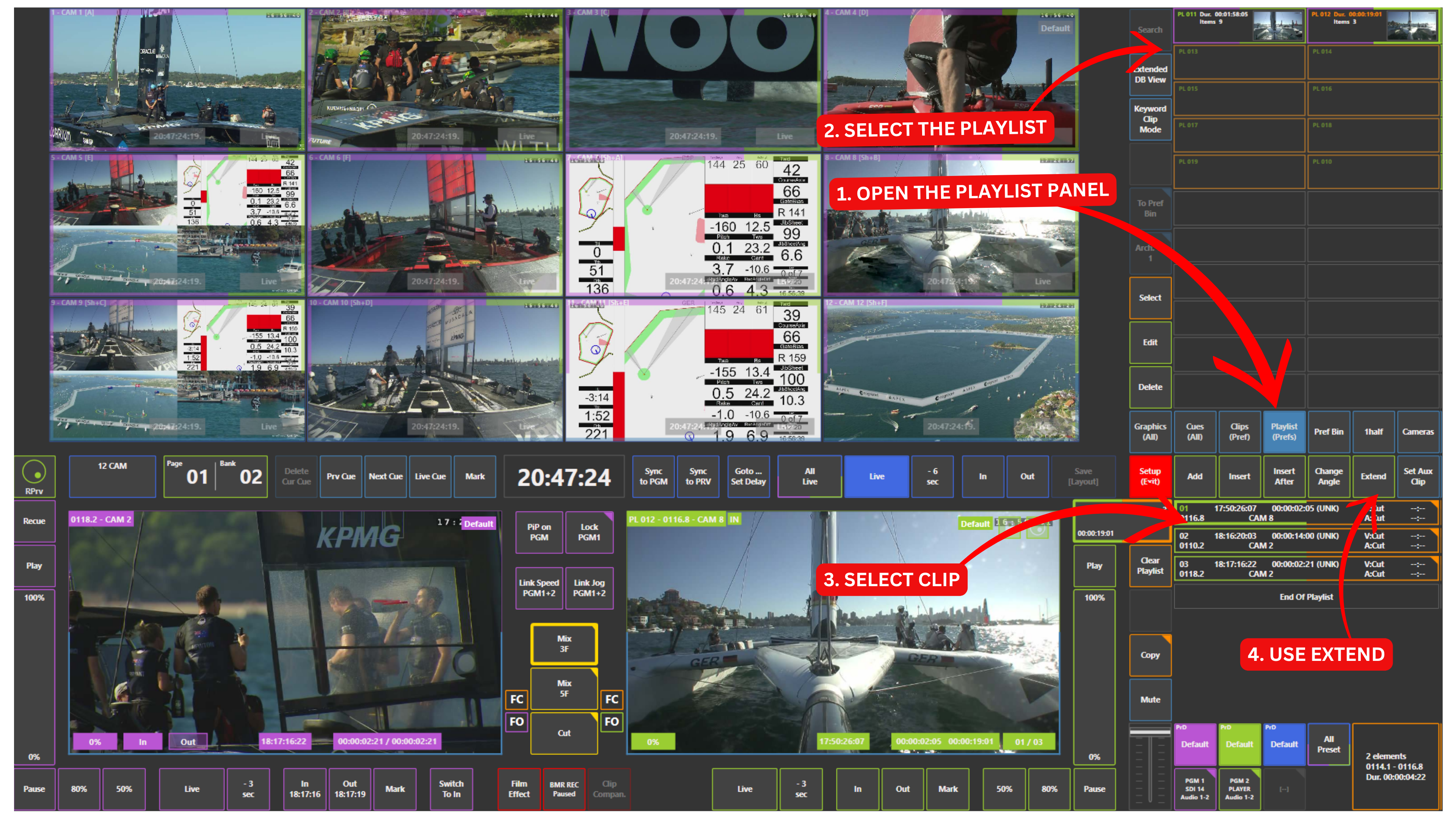
Load your playlist on Preview or Program 2 (PGM2)
-
Select the clip you want to extend
-
Open the Extend panel (located next to Change Angle panel, near the Clips and Playlists panels)
-
Press Extend
This releases the clip from its current IN and OUT limits.
-
Navigate to the new position using the touchscreen (swipe your finger left or right to spool back and forth)
-
Set a new IN, OUT, or both
You can now freely extend the clip beyond its original duration.
Info
The only limitation of the Extend function is the record train duration.
For example, if your server has been recording for 7 hours, you can extend the clip within that available timeline.
In most situations, the real boundary for extending a clip is the moment your SimplyLive server started recording.
In practice, the limit is defined by:
-
When the server was started
-
Available recording capacity on the disks
Pro Tip
With the Extend function, you can instantly extend a clip from a few seconds to several minutes or even over an hour — without removing it from the playlist.
Pro Tip
In many traditional workflows, extending a clip requires:
-
Clearing IN/OUT
-
Matching back to the source
-
Deleting the clip
-
Recreating it
-
Re-inserting it into the playlist
Here, you simply activate Extend and adjust the clip directly in the playlist.