
How to Adjust the Clip
-
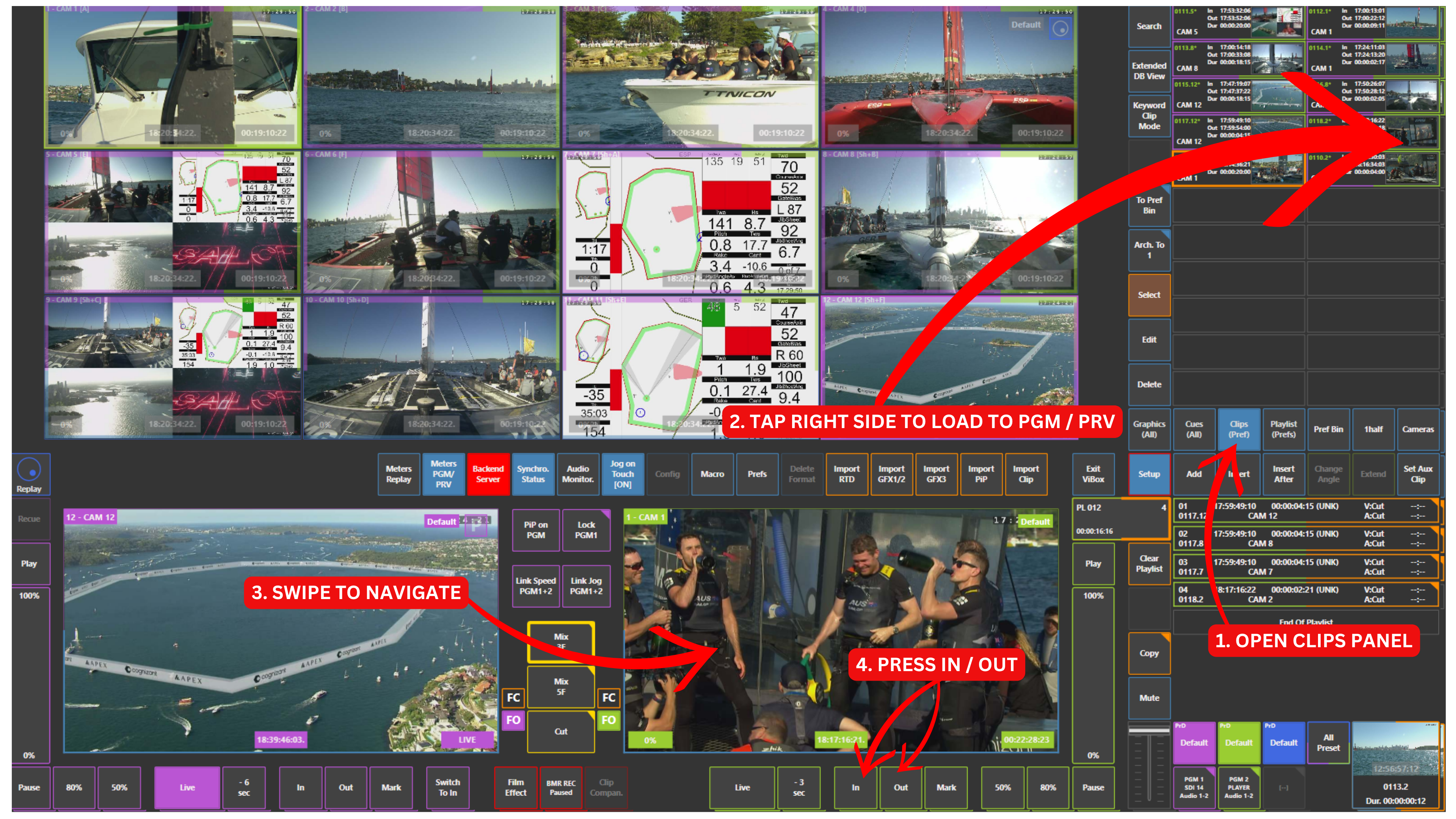
Open the Clips panel
-
Tap on the right side of the clip to load it into Program, Preview, or Program 2 (PGM2)
-
Swipe left or right on the Preview to navigate through the clip
-
Find the new starting point and press IN
-
Move forward or backward to the desired end point and press OUT
This process allows you to shorten the clip by redefining its IN and OUT points.
If you want to prolong the clip duration, you can clear IN or OUT, or one of these, and then place a new IN or a new OUT.
You are limited only by your guardbands.
Info
After adjusting a clip, it is still possible to reverse the action.
You can clear the IN and/or OUT markers and set them again to restore or refine the clip duration.
Info
When clearing IN and OUT points, you are limited by the guardbands.
Guardbands define how much extra media is available before and after the clip and can be configured in the clip settings.